How to Use Chinese Apps and Websites Without Reading Chinese
 Equalang
In brief
A practical guide to navigating Chinese apps and websites without knowing Chinese, using in-place screenshot translation and bilingual web reading.
Keywords: Chinese apps; Chinese websites; photo translation; screenshot translator; bilingual web translation
How do you use Chinese apps and websites if you can't read Chinese?
For anyone living in China, traveling through the country, or ordering items directly from platforms like Taobao and 1688, this problem appears almost immediately. Digital daily life in China is largely self-contained and heavily app-centric. Most services—from hailing a ride and ordering food to confirming courier deliveries—run exclusively in Chinese. Even more frustrating, the text inside these mobile apps is rarely selectable: confirmation dialogs, payment prompts, address forms, and status notifications are embedded inside UI components or promotional banners where copying and pasting simply does not work. On desktop computers, e-commerce storefronts and public portals rarely offer an English version.
You do not need to master thousands of characters just to get through daily tasks or order a product. Overcoming this language barrier comes down to two practical workflows: using in-place image translation for whatever appears on your phone screen, and using paragraph-by-paragraph bilingual translation when browsing websites on a desktop computer.
Route 1: Handling Uncopyable App Screens with In-Place Photo Translation
When an app presents an address form, a warning notice, or a checkout button in Chinese, typing characters manually into a translation app is slow and impractical.
A common fallback is your phone's built-in screen recognition or screenshot translation feature. Mobile operating systems often include tools to detect text on the screen, which can be helpful for quickly reading a single line. However, floating text overlays frequently drift away from buttons or columns, making it difficult to tell which button confirms an action and which one cancels it.
Below is how this works in Equalang, which replaces text directly inside the image layout.
The process takes three quick steps:
- Take a screenshot of the app interface on your phone.
- Open Equalang's photo translation tool. On a computer, you can paste the screenshot directly from your clipboard, drag and drop the image file, or upload it; on a mobile browser, you can upload the image directly from your photo library.
- Select your target language. The tool detects the Chinese text and renders the translation in place over the original visual layout.
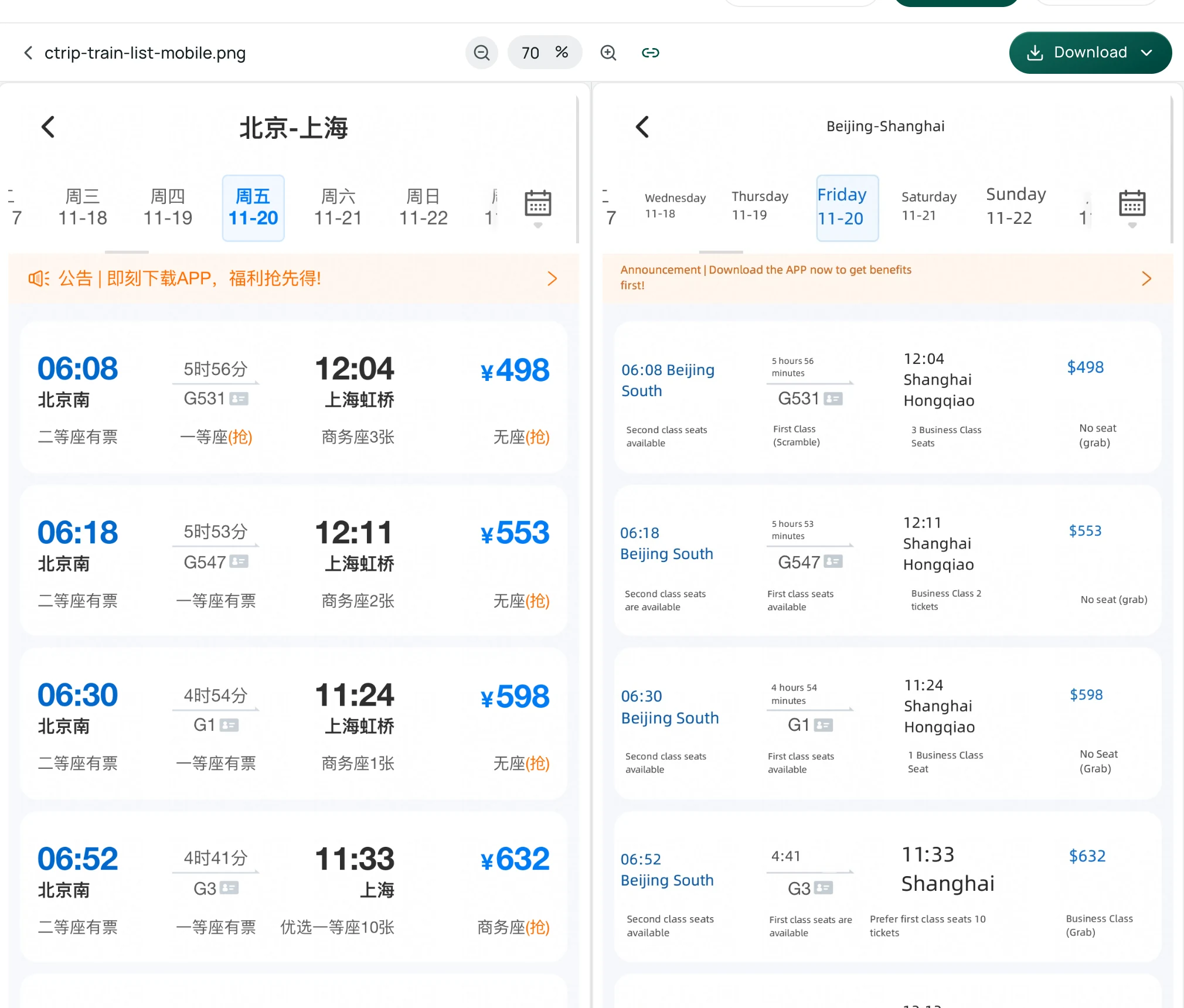
As shown in the translated screenshot on the right, the English text appears directly where the original words were: station names (Beijing South, Shanghai Hongqiao), schedule times, and seat categories (such as Second class seats available) stay in place. While the price numbers are preserved alongside each train, the currency symbols are mistranslated as dollar signs. Because the English phrasing must fit into compact interface containers, the translated font size is noticeably smaller and tighter than the original Chinese, but this in-place layout still allows you to confirm train schedules and remaining seats directly; when checking specific fares, you should verify them against the original screenshot.
There are realistic boundaries to keep in mind. In-place photo translation is designed for functional understanding, not for pixel-perfect graphic reproduction. Font weights and line wrapping will inevitably differ from the original design. Furthermore, extremely dense layouts, tiny legal disclaimers, or heavily stylized decorative fonts can be difficult for optical recognition to process cleanly. For real-world navigation and travel situations, you can also consult our guide on photo translation for travel, or read our tips on sourcing on 1688 and Taobao when evaluating product listings.
Route 2: Browsing Chinese Websites with Bilingual Paragraph Translation
When you switch to a desktop browser to browse Chinese platforms, you face a different problem. Built-in browser translation often overwrites the entire page, replacing all Chinese text with English. While this sounds convenient, full-page replacement can disrupt website layouts, hide original product codes, and make it impossible to copy original Chinese terms when communicating with vendors or customer service representatives.
A more reliable way to read foreign pages is paragraph-by-paragraph bilingual translation. With the Equalang extension installed in your desktop browser (available for Chrome, Edge, and Firefox), you can read with both languages side by side.
When you activate the extension on a webpage:
- The translated text is inserted directly beneath each original paragraph or text section.
- You can read the translation while keeping the original Chinese text visible directly above it.
- Hyperlinks inside paragraphs remain intact and functional.
- Clicking the extension again immediately returns the page to its original state.
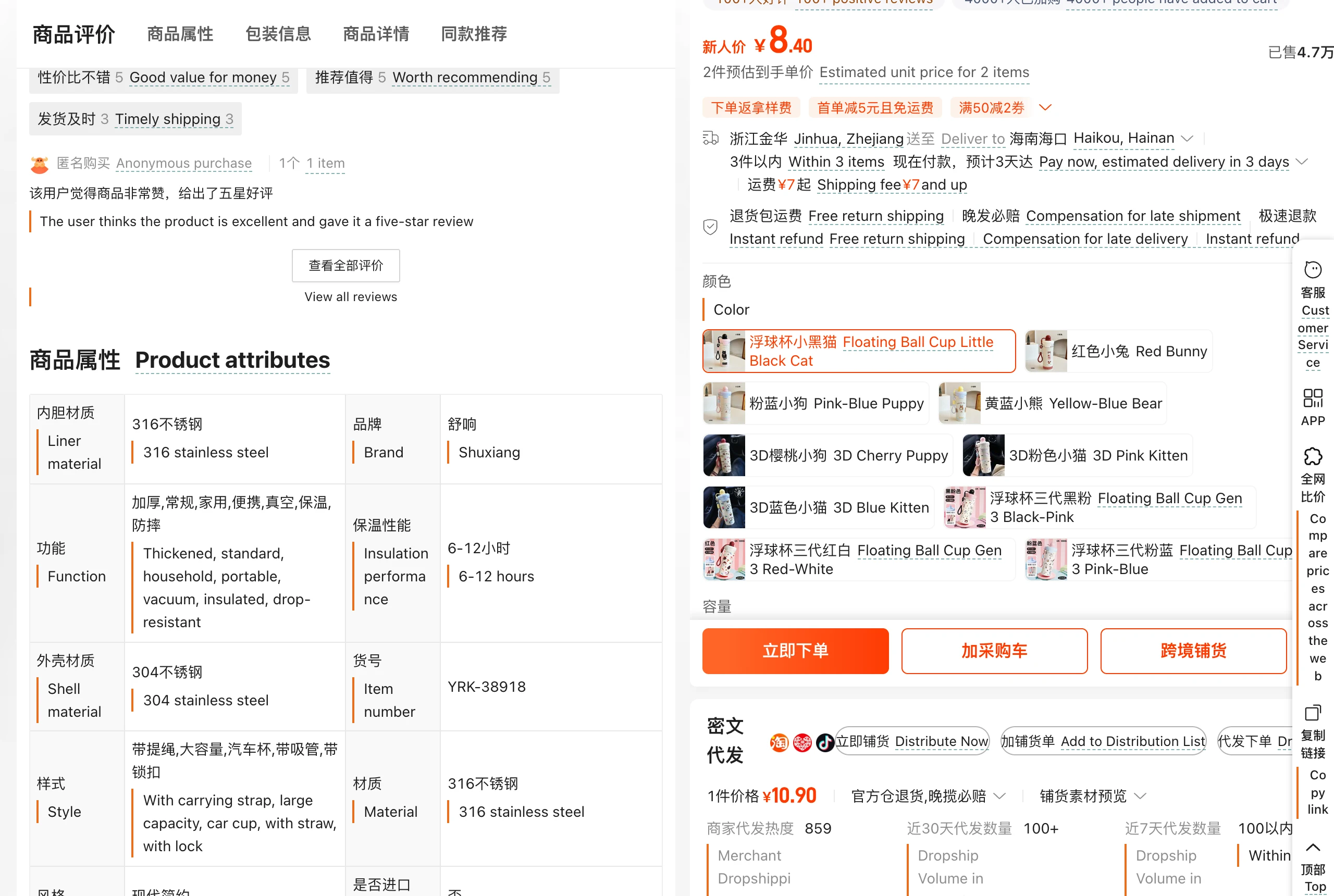
Keeping the original Chinese text visible alongside the translation helps you confirm specific product names, part numbers, or merchant terms without toggling back and forth. For a deeper look at this workflow, see our guide on how to read foreign websites bilingually.
As with image translation, keep practical limits in mind. Dense web layouts featuring floating sidebars, sticky navigation banners, or nested interactive tables may occasionally experience minor visual shifts as translated paragraphs expand the vertical height of sections. The objective is to make complex content legible and verifiable, rather than preserving strict desktop geometry.
Practical Habits for Daily Navigation
When navigating unfamiliar Chinese digital services, a few straightforward habits will save you time:
- Screenshot before tapping: If a popup dialog or verification screen appears unexpectedly, take a screenshot before dismissing it. That way, you have an image ready to translate if you need to know what was agreed to.
- Save key terms as original text: When confirming a shipping address or tracking an order, keep the original Chinese recipient names and city labels saved. Delivery drivers and local lockers operate strictly on Chinese character strings.
- Use translations to understand, not to redesign: Machine-translated screens and pages are practical navigation aids. As long as you can identify the right field, understand the fees, and track the status, the tool has done its job.