
Photo translation
Take a photo, read translations in place
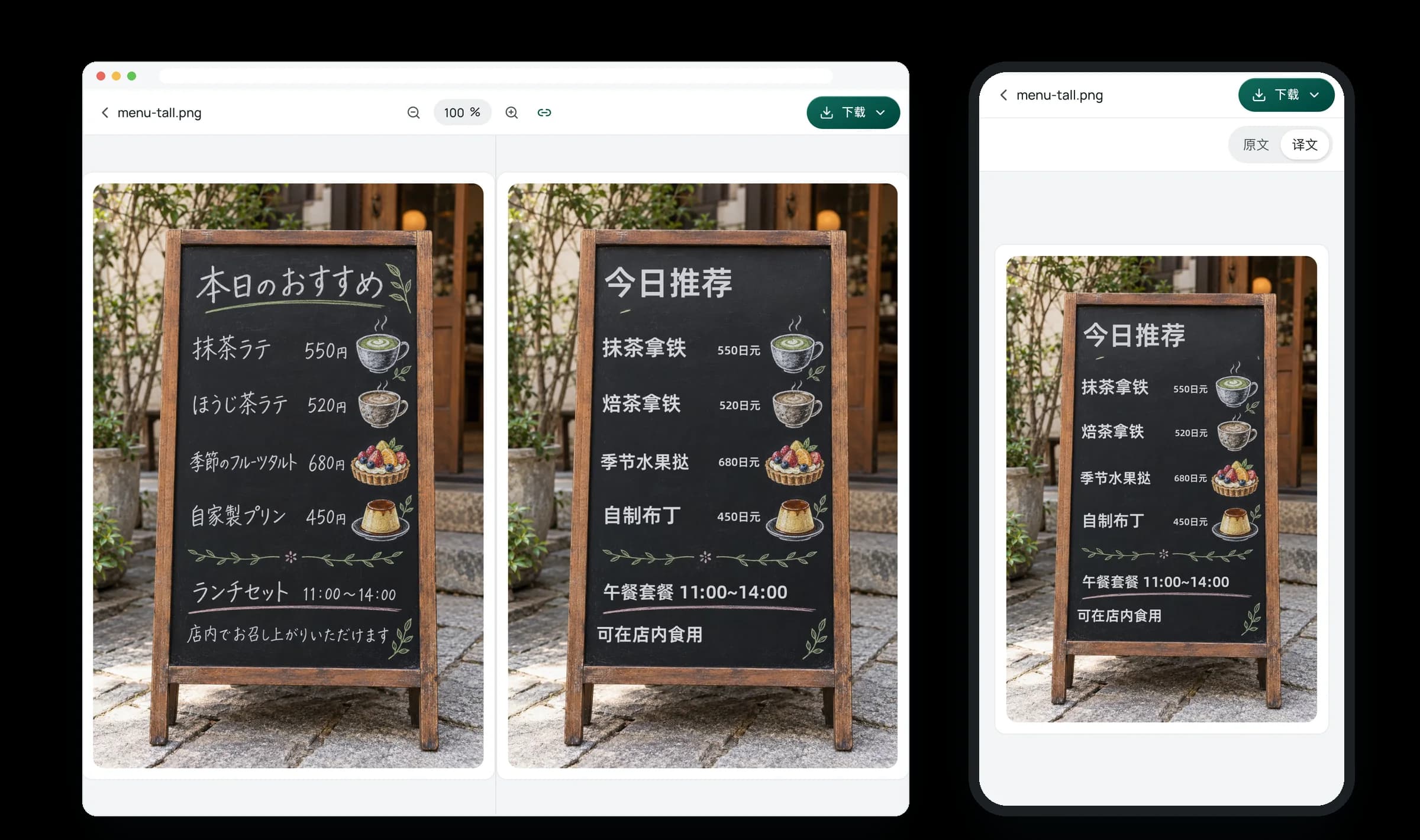
In-place photo and screenshot translation
Take a photo or upload an image in your browser—the source language is detected automatically and the translation appears right in place on the picture.

Menus and food labels
Snap a photo of café menus, dish boards, or food labels abroad to read items and prices right on the picture.

Signs and notices abroad
Photograph street signs, museum plaques, station notices, or hotel instructions with your phone and read them in place.

Screenshots and product images
Paste a screenshot or drag a product image into your browser on a computer to read foreign text without retyping.
Translate a photo in three steps
Pick language and add image
After signing in, select the target language under "Translate into", then on a phone tap "Start" (allowing camera access the first time) to take a photo, or on a computer choose, drag in, paste an image, or use the webcam.
Auto-detect and translate in place
The source language is detected automatically and the translated text is placed directly over the corresponding areas of the image.
Toggle original, save or share
Switch between the translated image and the original photo to verify details, or save and share the translated image.
What image formats and languages are supported?
Supports JPG, PNG, WEBP, and BMP images. You can automatically detect the source language in the image, and choose from the target languages listed in the "Translate into" selector at the top of the page.
How long are my photos stored and how is privacy handled?
Uploaded photos and translated images are kept for 14 days and then removed from access, and you can ask to delete your submitted content and account data at any time. Equalang does not sell personal data or use your photos or translations to train AI models.
How accurate is photo translation, and what should I watch out for?
Printed signs, notices, and standard menu items with clear lighting are translated directly in place on the image so you can match prices and items to the original, and you can toggle back to the original photo at any time. Fonts and line breaks on the translated image will differ from the original, and blurry shots, handwriting, dense multi-language layouts, or vertical text may have recognition errors or untranslated remnants—please toggle to the original to verify key details like prices, dosages, or allergens.
How do I use it on a phone versus a computer, and do I need to install an app?
You can use Photo Translation directly in the browser on a phone, tablet, or computer after signing in, with no app to install. On a computer you can choose an image, drag in a file, paste a screenshot, or take a photo with your webcam; on a phone, open Photo Translation, tap "Start", allow camera access the first time, and take the photo to start translating.
How is photo translation billed, and is there a charge if a job fails?
New accounts get 200 credits to try it out, and purchased credits never expire and work across the website and browser extension (the smallest pack is $10 for 10,000 credits). Photo translation costs 5 credits per image (about $0.005 per image at the base pack rate), and failed or cancelled jobs are not charged.
Take or upload a photo to read foreign text right on the image
Sign up to get 200 credits to try it out.