Read Foreign Websites: Put Translations Under the Original
 Equalang
In brief
The Equalang extension lets you view translations directly beneath the original text. Read foreign websites smoothly without breaking your flow.
When researching topics or following news, you often land on foreign webpages. While the title might make sense, reading paragraphs of unfamiliar text usually requires some translation help. You want to understand the content, but you also want to see the original words used for specific terms.
Reading is much smoother when the translation sits directly below the source sentence. You can grasp the meaning first, then glance up to check the original words.
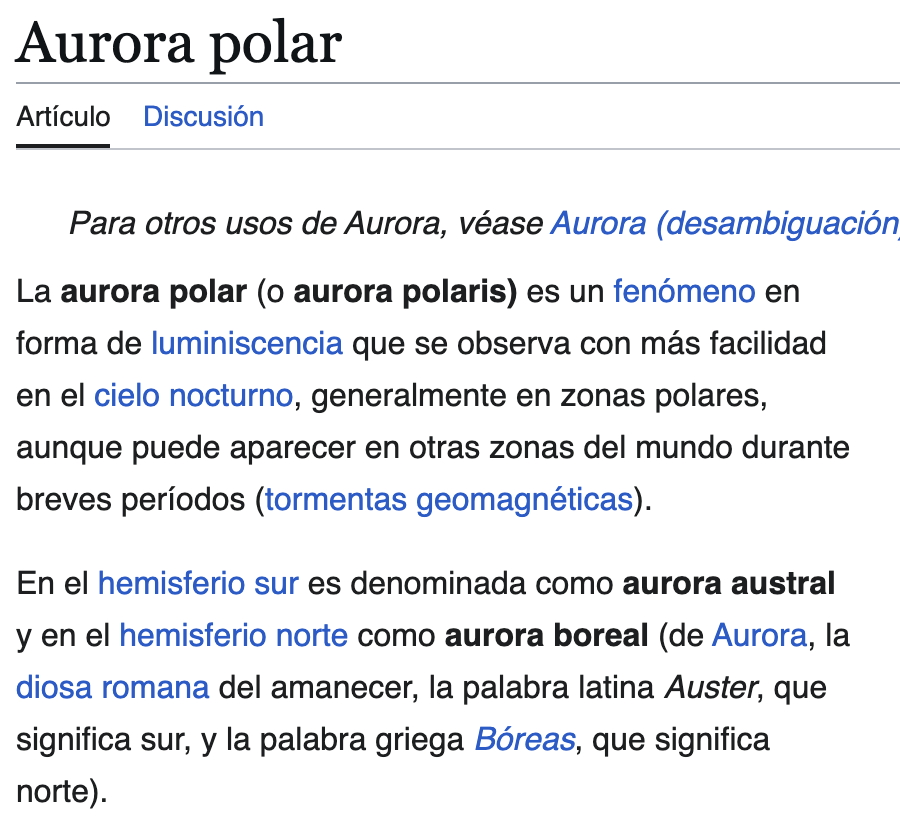
The Equalang browser extension does exactly this. Let’s try it with a Spanish Wikipedia article.

1. Set up side-by-side reading
To read bilingually on the original page, we need to install the Equalang extension.
Choose the installation guide for your browser: Chrome, Edge, or Firefox. Safari currently offers temporary installation on Mac; see its guide for the limitations. The App Store version is not yet available.
We’ll use Chrome for this example. After installing and logging into your Equalang account, click the extension icon in the toolbar. Set your target language to English, and change the display mode to "Side by side".
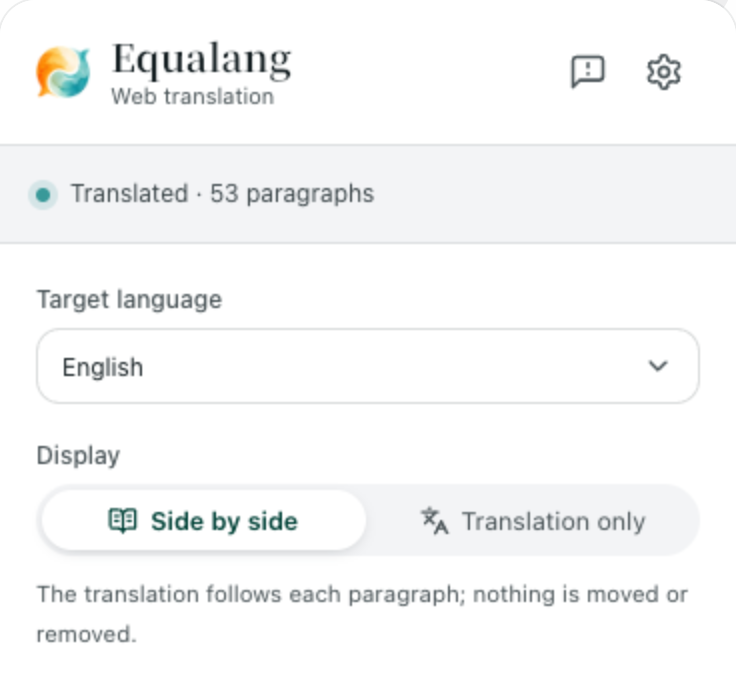
With these settings, just click the floating ball on the webpage, and Equalang will translate the page.
2. Understand the meaning, check the original words
Once active, the translation appears right below its corresponding original sentence. You can scroll down the page and read paragraph by paragraph without breaking your flow.
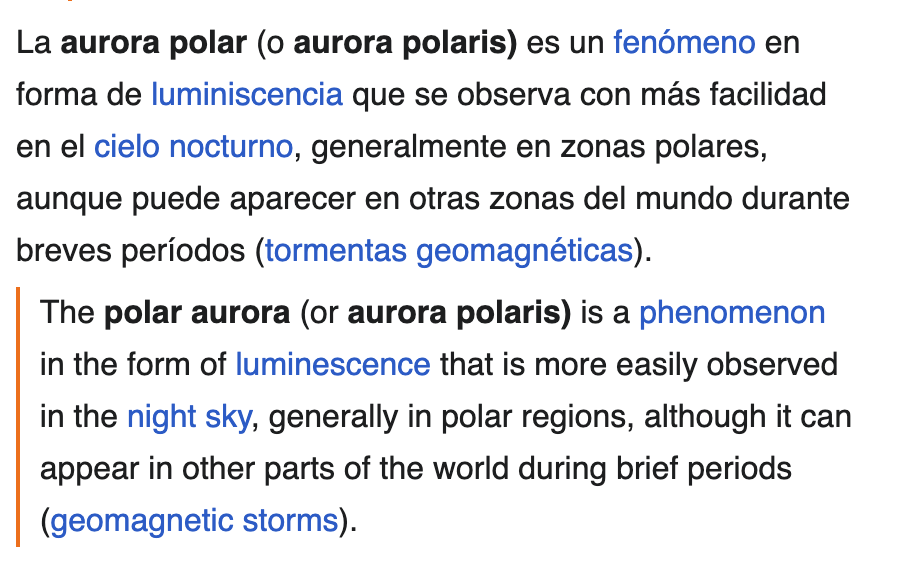
In the opening paragraph, cielo nocturno becomes “night sky” and luminiscencia becomes “luminescence”. You can follow the description in English, then look up to see the Spanish words behind it.
Perhaps “night sky” is a phrase you want to remember. There it is: cielo nocturno, still in its sentence. You don’t need to switch the whole page back to Spanish and hunt for the same spot. When you are unsure about an expression, you can easily compare it against the original.
The blue links in this example keep their original destinations, too. The translated “night sky” link still leads to the Spanish Cielo nocturno page, so you can follow the source when your curiosity takes you further.
3. Return to the original text
If you have finished reading the translated parts, simply click the floating ball on the page again. The English translations will disappear, and the webpage will return to its original Spanish text so you can focus on the reading itself.
4. Just a few new words? Select to translate
If you can read most of the article and only stumble over a few unfamiliar words, you don't need to translate the whole page.
Turn on "Selection translation" in the extension panel. Then, select the tricky word on the webpage and click the Equalang icon that appears next to it. A pop-up window will show you the translation.
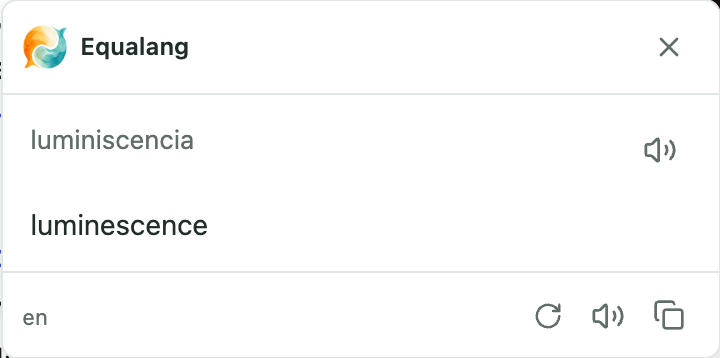
For example, selecting luminiscencia and clicking the icon gives you "luminescence" right there in the pop-up.
Read for the meaning first with side-by-side paragraphs, or just look up a specific term on the fly. The Equalang extension saves you from jumping between tabs to translate foreign webpages, keeping your attention on the content itself.
Sources
- Spanish Wikipedia contributors. Aurora polar (accessed 2026-10-09; excerpts and translations: CC BY-SA 4.0).