Infuse Dual Subtitles on Apple TV, Mac, iPad & iPhone
 Equalang
In brief
Watch NAS, Plex, or Jellyfin videos in Infuse with dual subtitles by placing a merged bilingual SRT file next to your media across all Apple devices.
Keywords: infuse dual subtitles; infuse multiple subtitles; infuse subtitle size; bilingual srt for infuse; infuse external subtitles
To get reliable Infuse dual subtitles across Apple TV, Mac, iPad, and iPhone—especially when you only have a single-language subtitle file or want zero sync drift across your NAS, Plex, and Jellyfin libraries—place a merged bilingual .srt file right next to your video file. Because Infuse by Firecore natively loads external .srt and .vtt subtitles from local folders, SMB/WebDAV/NAS shares, and media servers, a single cue-matched bilingual .srt displays the original dialogue on the top line and the translation directly underneath on every Apple screen.
Why a Merged Bilingual SRT Works Across Every Apple Device
People searching for infuse dual subtitles or infuse multiple subtitles usually run into one of two roadblocks:
- Only one subtitle track exists: Your video came with an English, Japanese, or Spanish
.srt(or an unsubtitled.mkv/.mp4), and no subtitle file exists in your target language. - Two separate subtitle files drift apart: Even if you download two separate single-language
.srtfiles from public subtitle sites, they are often timed to different video releases or frame rates. One track was cut for a 23.976 fps web rip while the other matches a 24 fps Blu-ray release. Within ten minutes, the top and bottom lines no longer belong to the same spoken sentence.
When both languages live inside the same timestamp block of a single .srt file, both lines are locked to the exact same start and end timecode:
14
00:01:12,400 --> 00:01:15,150
Tenemos que revisar el servidor antes de medianoche.
We need to check the server before midnight.
Because Infuse treats that cue as a standard two-line subtitle entry, it renders identically whether you start a movie on your Apple TV in the living room, continue on an iPad on the couch, or open the same SMB share on your Mac. Even better, if you connect Infuse to a Plex, Emby, or Jellyfin backend, that same .srt file also works for anyone watching directly through Plex dual subtitles or Jellyfin dual subtitles setups without maintaining separate tools for each player.
How to Create a Bilingual SRT for Infuse
Depending on what files you already have in your media folder, you can prepare a dual-language subtitle file in a few minutes.
1. From an Existing Single-Language .srt or .vtt
If you already have an accurate original-language .srt or .vtt file (or extracted one from an .mkv container using a free tool like MKVToolNix or FFmpeg), you can generate a bilingual version that keeps every timecode intact:
- Open the Equalang document translator in your browser.
- Upload your
.srtor.vttfile and choose your target language. Document translation currently covers Chinese, English, Japanese, Korean, Spanish, French and other languages, with automatic source-language detection. - When the job finishes, download the bilingual
.srtoutput (or download the translated-only file if you prefer a separate track).
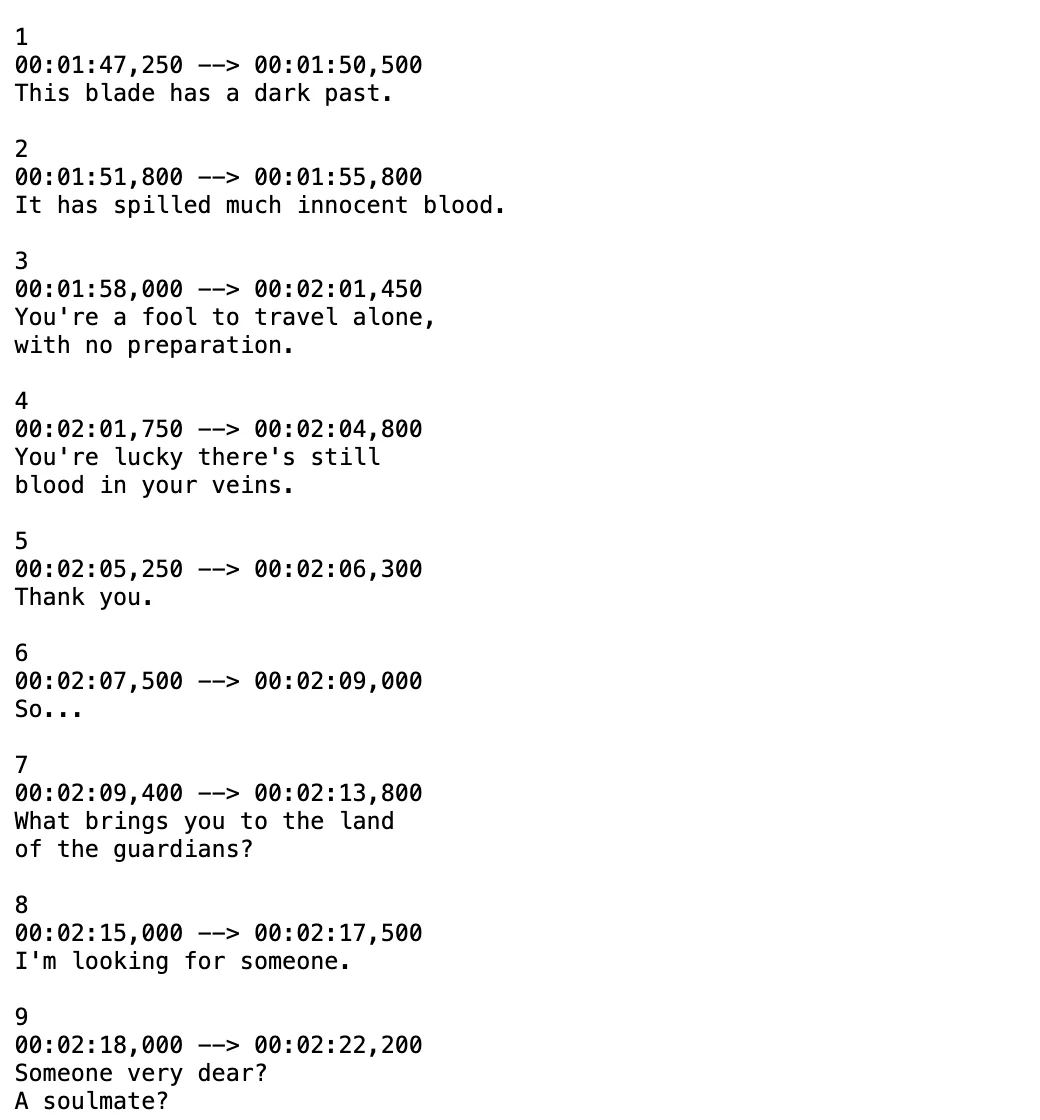
In the bilingual .srt download, every subtitle block keeps its original start and end timestamps, places the source line on top, and puts the translated line directly below. For a closer look at how cue boundaries and multi-line dialogue behave during translation, see our guide on how to translate an SRT subtitle file.
2. From an Unsubtitled Video or Audio Recording
If you have a raw recording, lecture, or foreign film with no subtitle file at all, you do not have to transcribe it by hand first:
- Use Equalang's audio and video transcription workflow: Through Equalang's audio/video transcription and translation service (rather than the
/documentsweb document uploader, which is built for text and subtitle documents like.srtand.vtt), recordings up to 180 minutes long can be transcribed into time-coded cues and exported as an original-language transcript or translated subtitles in.srt,.vtt,.txt, or.json—including a bilingual.srtoption that stacks the recognized original line above the translation. Silent stretches and background music without speech are not billed. - Or generate an
.srtlocally and translate it on/documents: If you prefer to run local speech-to-text (such as Whisper or Subtitle Edit's audio-to-subtitle tool) on your video first, export the single-language.srtor.vttfile and upload that subtitle file to /documents to produce the merged bilingual.srt.
3. Free Alternatives if You Already Have Two Matching SRT Files
If you already own two separate .srt files that were timed to the exact same video cut (for example, two official language tracks extracted from the same .mkv file), you do not need to re-translate them. You can merge two identically timed .srt files locally using free open-source subtitle editors like Subtitle Edit or a quick Python script that pairs cues with overlapping timestamps. Just check a few scenes near the beginning, middle, and end of the video first—if the two files come from different release groups, merging them blindly will stack mismatched sentences inside the same cue.
Practical Limits to Keep in Mind
Before you queue a whole season of episodes, keep a few practical boundaries in mind:
- One upload at a time, up to 3 running concurrently: The web upload page on /documents accepts one subtitle or document file per upload action, though you can submit files one after another without a total count limit. An account runs up to 3 document jobs at the same time and queues the rest automatically.
- Speech recognition on spoken audio: When generating subtitles from speech via audio/video transcription, unclear pronunciation, overlapping voices, or loud sound effects can cause occasional transcription slips (for example, in one of our Spanish test recordings, the spoken word segunda was transcribed as
1/2). Spot-check key names or numbers against the audio. - 6-month file retention: Uploaded files and downloadable results remain in your workspace for 6 months before automatic removal (and can be deleted anytime), so save your finished
.srtfiles to your NAS or local media folder for permanent archiving. New accounts include 200 free credits on sign-up so you can test a subtitle file or short clip before buying credits.
Placing and Naming Your Bilingual SRT for Infuse
Once you have your merged bilingual .srt file, store it in the exact same directory as the video file on your Mac, iPhone/iPad local storage, SMB/WebDAV/NAS share, or Plex/Emby/Jellyfin server folder.
Use a clean filename that matches the video filename, followed by a language tag before the .srt extension:
/Media/Movies/Anatomy_of_a_Fall (2023)/
├── Anatomy_of_a_Fall (2023).mkv
└── Anatomy_of_a_Fall (2023).fr-en.srt
For TV series, match each episode filename:
/Media/TV/Dark/Season 01/
├── Dark.S01E01.mkv
├── Dark.S01E01.de-en.srt
├── Dark.S01E02.mkv
└── Dark.S01E02.de-en.srt
When you open the video in Infuse on Apple TV, iOS, or macOS, open the Subtitles menu during playback and select the external bilingual track. Because it is stored right next to the media file over SMB, WebDAV, or your media server, every device connected to that share sees the track immediately.
Tuning Infuse Subtitle Size and Readability for Dual Lines
Many users who search for infuse dual subtitles also look up infuse subtitle size. That is because a merged bilingual .srt puts two lines of text on screen for every cue—and if either language wraps onto a second line, four lines of large text can easily cover the bottom third of your TV or iPhone screen.
To keep bilingual subtitles comfortable to read across devices:
- Step down the subtitle size slightly: In Infuse's subtitle appearance settings, lowering the Size one notch below your usual single-language setting prevents long translations from wrapping into a third or fourth line on Apple TV and iPad.
- Keep
.srttext plain: Avoid embedding heavy custom HTML styling tags (such as<font>,<b>, or<track>metadata blocks) inside cues unless you have tested how your target device renders them. Plain two-line.srtentries let Infuse apply your chosen font weight, color, and background consistently. - Watch line length on mobile: If you watch mostly on an iPhone in landscape mode, standard
.srtcues with one original line and one translated line fit cleanly without colliding with playback controls.
Frequently Asked Questions
Does a bilingual SRT work when Infuse streams from Plex, Emby, or Jellyfin?
Yes. When you place the merged .srt file alongside the video file in your media server's library folder and refresh the item's metadata, the server indexes the external .srt track. Both Infuse and the native web or TV apps for Plex and Jellyfin can load that same bilingual subtitle track.
Can I translate .vtt subtitles or only .srt files?
Both .srt and .vtt subtitle files are supported on /documents. If your source video only has an .ass or .ssa file, convert it to .srt first (for example, with Subtitle Edit or FFmpeg) before uploading so timecodes and line breaks stay clean.
Which languages can I combine in a bilingual subtitle file?
Equalang's document and subtitle translation currently covers Chinese, English, Japanese, Korean, Spanish, French and other languages, and detects the source language automatically. You can pair any supported source and target language into a single top-and-bottom bilingual .srt.
Sources
- Infuse — Video Player for Mac, iPhone, iPad, and Apple TV (Firecore)
- Equalang Document & Subtitle Translation (
https://equalang.com/documents) - How to Translate an SRT Subtitle File (
https://equalang.com/blog/translate-srt-subtitle-file) - Plex Dual Subtitles Guide (
https://equalang.com/blog/plex-dual-subtitles) - Jellyfin Dual Subtitles Guide (
https://equalang.com/blog/jellyfin-dual-subtitles)