How to Enable Dual Subtitles in Jellyfin (Web, Desktop & TV)
 Equalang
In brief
Turn on Jellyfin's built-in Secondary Subtitles in the CC menu, understand why PGS tracks fail, and use a bilingual SRT file for unsupported TV apps.
Keywords: jellyfin dual subtitles; jellyfin multiple subtitles; jellyfin two subtitles; jellyfin subtitles multiple languages; jellyfin secondary subtitles
You can display two subtitle tracks at once in Jellyfin without third-party plugins by opening the video player's CC menu and selecting Secondary Subtitles. That built-in toggle works in the Jellyfin Web player and Desktop client whenever both tracks are text-based formats (.srt, .vtt, or .ass). If your second language is locked inside an image-based Blu-ray track (PGS or VOBSUB), or if you are watching on a smart TV app that lacks the secondary overlay, the cleanest fix is placing a merged bilingual .srt file next to your media so every device plays both languages as a single standard track.
How to Turn On Jellyfin's Built-In Secondary Subtitles
Jellyfin includes a native dual-subtitle renderer inside its HTML5 video player. When your library item already has two text subtitle tracks available, enabling the second line takes about ten seconds:
- Start playing your movie or episode in Jellyfin Web (in your browser) or Jellyfin Media Player on desktop.
- Click the CC (Subtitles) icon in the bottom-right player controls and pick your primary subtitle language.
- Click the CC icon a second time. Once a primary text track is active, a Secondary Subtitles option appears at the bottom of the subtitle list.
- Select your second language from the Secondary Subtitles submenu.
Jellyfin renders the primary track at the bottom of the frame and stacks the secondary track above it, so dialogue lines from both languages stay visible simultaneously without overlapping.
Why Some Subtitle Tracks Never Appear in the Secondary Menu
If the Secondary Subtitles menu is missing or a language you know is embedded in the .mkv container refuses to show up as a second choice, check the subtitle format in Jellyfin's media info panel. According to the official Jellyfin subtitle documentation, the secondary overlay only supports text-based formats:
- Supported for dual display:
.srt(SubRip),.vtt(WebVTT), and.ass/.ssa(when rendered as text in the HTML5 player). - Not supported as secondary tracks:
PGS(Blu-ray Presentation Graphic Stream) andVOBSUB(DVD bitmap subtitles).
Because PGS and VOBSUB files are transparent images rather than text strings, the HTML5 text overlay cannot stack them with another subtitle track. Selecting an image-based subtitle on clients that do not natively decode bitmaps also forces your Jellyfin server to transcode the video and burn those pixels directly into the picture stream—which disables any second overlay and spikes CPU or GPU usage.
Naming External Subtitle Files So Jellyfin Detects Multiple Languages
Whether you download community subtitles or generate your own, Jellyfin automatically picks up external .srt and .vtt files placed in the same folder as your video file. Match the video filename and append the two-letter ISO language code right before the extension:
/Media/Movies/Anatomy of a Fall (2023)/
├── Anatomy of a Fall (2023).mkv
├── Anatomy of a Fall (2023).fr.srt
├── Anatomy of a Fall (2023).en.srt
└── Anatomy of a Fall (2023).en.fr.srt
After dropping new .srt files into the folder, open the item's three-dot menu in Jellyfin and click Refresh Metadata (or run a quick library scan) so both language tracks appear immediately in the CC menu. If you also test files locally before moving them to your server, see our guide on how to display dual subtitles in VLC.
Fixing the Two Gaps Every Jellyfin Household Hits
Even after you know where the Secondary Subtitles toggle lives, two practical problems come up right away in real libraries:
- Living-room TV clients lack the Secondary Subtitles menu: Native players on Roku, Apple TV, Android TV, and many smart TV apps only allow one active subtitle track at a time.
- Your video only has one subtitle language—or none at all: Foreign films, anime releases, and festival recordings frequently ship with a single
.srttrack or a raw.mkv/.mp4stream.
You can solve both problems in one pass by creating either a translated second .srt file (for Web and Desktop viewers) or a single pre-merged bilingual .srt file (which every TV app reads as one normal text track without burning subtitles into the video).
Generate a Second Language Track or a Merged Bilingual SRT
If you have a single-language .srt or .vtt file—or even a raw .mkv, .mp4, .mov, or .webm video up to 180 minutes long with no subtitles at all—you can upload it to Equalang's document and subtitle translation workspace.
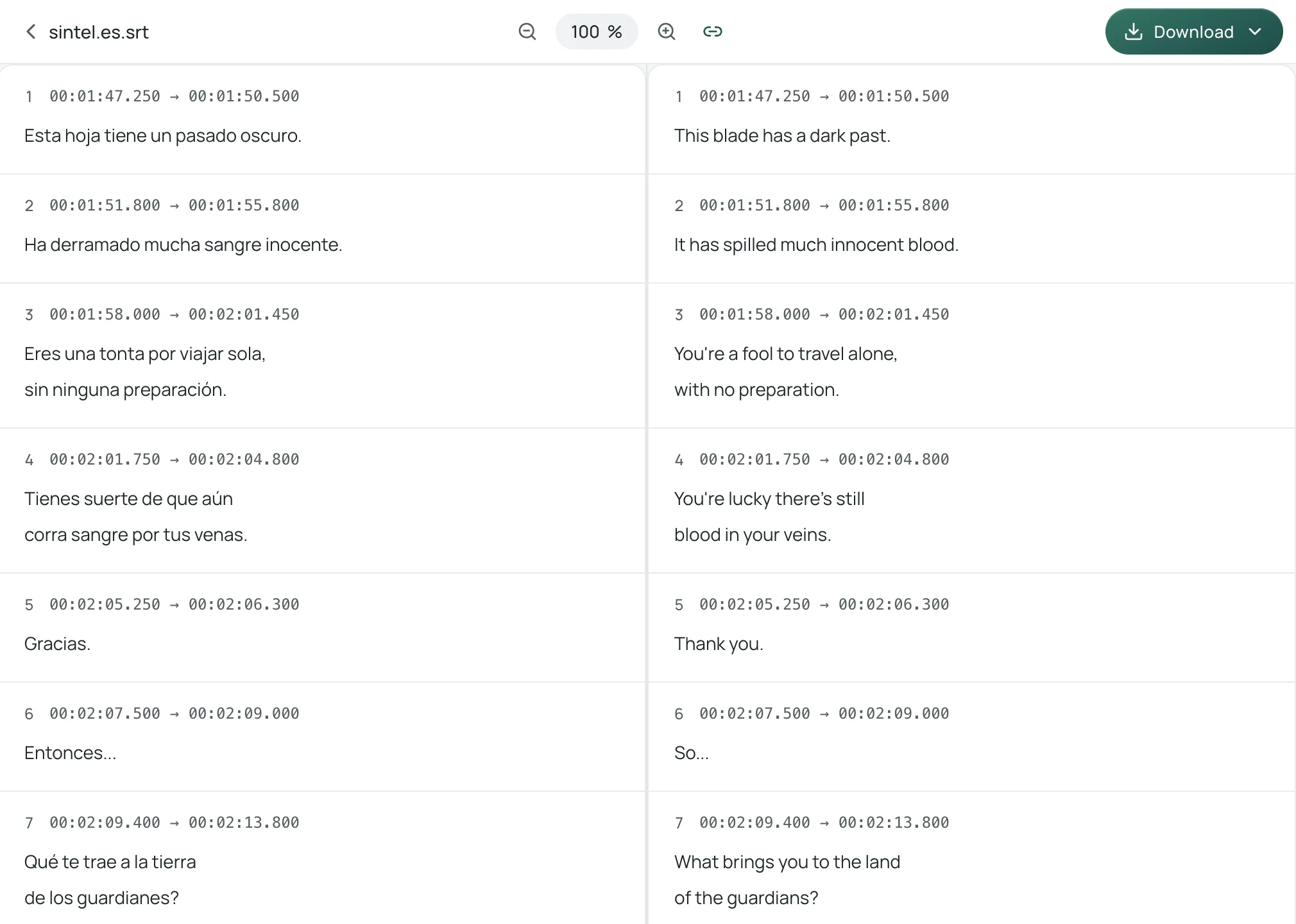
Here is how the workflow fits into a Jellyfin library:
- Extract or pick your source file: If your
.mkvalready has one embedded text subtitle track, extract it withffmpeg -i Movie.mkv -map 0:s:0 Movie.orig.srt, or simply grab your existing external.srtor.vttfile. If the video has no subtitles at all, you can upload the.mkvor.mp4file directly (up to 180 minutes per file). - Upload to Equalang: Open the file translation page, choose your target language (Equalang currently covers Chinese, English, Japanese, Korean, Spanish, French and other languages), and upload your file. The web uploader takes one file at a time and runs up to 3 jobs concurrently while queuing the rest.
- Preview side by side and export: When the job finishes, the translation workspace shows the original cues on the left and the translated cues on the right with synced scrolling. From the download menu, you can export:
- A standalone translated
.srtor.vtt: Save it asMovie.en.srtalongsideMovie.ja.srtso viewers on Jellyfin Web or Desktop can toggle it on and off via Secondary Subtitles. - A bilingual
.srt(when generated from an audio or video file): Each timestamp cue contains the original line on top and the translated line underneath. Name itMovie.bilingual.srt(or use a custom tag likeMovie.zh-en.srt) and place it in your movie folder.
- A standalone translated
For a deeper walkthrough on cleaning up cue formatting and keeping timestamps intact when translating subtitle files, read our dedicated guide on how to translate an SRT subtitle file.
Honest Boundaries and What to Watch Out For
- Audio transcription vs. text subtitle translation: Translating an existing
.srtor.vttfile only processes the text tokens, which finishes quickly and uses minimal credits. Uploading a raw.mkvor.mp4without subtitles transcribes the audio first (silent and music-only passages are not billed), so background music, overlapping dialogue, or heavy sound effects can occasionally introduce recognition errors in the source lines. - Line wrapping on TV screens: When you use a merged two-line bilingual
.srton a TV app, long sentences in both languages can wrap into three or four stacked lines. Keeping a clean sans-serif font and medium subtitle size in your Jellyfin client settings prevents the dialogue box from creeping too high into the frame. - Trying it out: Signing up gives you 200 credits to test on your own subtitle files before deciding whether to buy a credit pack (see pricing and credit rates). Uploaded files and translation results stay accessible in your workspace for 6 months (and can be deleted anytime) and are never used to train AI models.
Frequently Asked Questions
Why is the Secondary Subtitles option missing in my Jellyfin player?
The Secondary Subtitles button only appears in the CC menu after you have already selected a primary text-based subtitle (.srt, .vtt, or .ass) and your media item has at least one additional text-based subtitle track available. It will not appear on native smart TV players that do not use Jellyfin's HTML5 web video player, nor will it list image-based PGS or VOBSUB tracks.
How can I watch dual subtitles on Jellyfin for Apple TV, Roku, or Android TV?
Because most living-room TV apps only render a single active subtitle track at a time, put a merged bilingual .srt file (where each timestamp block contains both the original line and the translation on two lines) in the same folder as your movie. Every TV client loads it as one standard .srt track and Direct Plays the video without server transcoding.
Do dual .srt subtitles force Jellyfin to transcode the video?
No. Plain text .srt and .vtt files—whether loaded as two tracks via Jellyfin's Secondary Subtitles menu or combined into a single bilingual .srt file—are rendered directly by the client overlay during Direct Play. Video transcoding and subtitle burn-in typically happen when a client cannot render complex .ass animations or image-based PGS / VOBSUB tracks natively.