How to Translate an SRT File Without Breaking Timestamps
 Equalang
In brief
Translate SRT subtitle files directly while keeping timecodes and line limits intact. Compare tools, format rules, and YouTube Studio upload steps.
Keywords: translate srt file; srt subtitle translation; translate vtt file; srt to bilingual subtitles; youtube subtitle upload
To translate an .srt subtitle file without breaking its timecodes or sequence numbers, you cannot copy and paste raw subtitle text into standard web translators. General translation text boxes treat timestamp arrows (-->), sequential numbers, and line breaks as plain text—translating numbers, dropping timestamps, or merging lines into paragraphs so video players can no longer parse the file. Instead, you need a subtitle-aware translation workflow that parses the cue structure, translates only the dialogue text, preserves the comma-separated millisecond timestamps (00:01:02,500 --> 00:01:04,000), and exports the result in clean UTF-8 encoding.
Why Popular Translation Tools Reject or Corrupt SRT Files
Most video creators first attempt to upload their .srt files to the translation tools they already use daily, only to encounter unexpected roadblocks:
- Google Translate document translation does not support subtitles: The web document translation feature on Google Translate accepts only
.docx,.pdf,.pptx, and.xlsxfiles up to 10 MB (and up to 300 pages for PDFs). It does not support.srtor.vtt. Furthermore, Google Translate no longer supports uploading plain.txtfiles on its web interface. Copying raw subtitle text into the input box frequently strips cue breaks or misinterprets timecodes. - DeepL reserves SRT translation for paid tiers: DeepL's web translator supports SRT translation, but only on paid DeepL Pro plans (Advanced, Ultimate, Team, Business) or via the DeepL API. Free accounts, Pro Starter, and Pro Individual cannot upload SRT files on the web. Additionally, DeepL's web feature page explicitly states that WebVTT (
.vtt) is not supported on the web translator, though its API documentation lists both SRT and VTT with a 150 KB limit. - General LLM chat prompts drift over long files: Pasting raw SRT blocks into a conversational AI window works for a dozen lines, but across several hundred cues, general chat models frequently alter
-->into single arrows (->), drop leading zeros, or collapse two-line dialogue into one.
Three Practical Ways to Translate an SRT File
Below we demonstrate with Equalang, alongside two established alternatives, to show how each handles subtitle structures.
Method 1: Direct Subtitle Translation with Equalang
If you want an automated web workflow that takes a subtitle file and returns a translated subtitle file without manual reformatting:
- Go to Equalang Document Translation and upload your
.srtor.vttfile. - Select your source and target languages (such as English to Simplified Chinese, Spanish, or Japanese).
- Start the translation job. The translation engine extracts only the dialogue lines for translation, leaving cue identifiers, sequential numbers, and millisecond timecodes untouched.
- When processing completes, open the translation workspace. The left column displays the original subtitle cues and the right column displays the translated cues, with synced scrolling for cue-by-cue review.
- Download the translated
.srtfile directly to your computer.
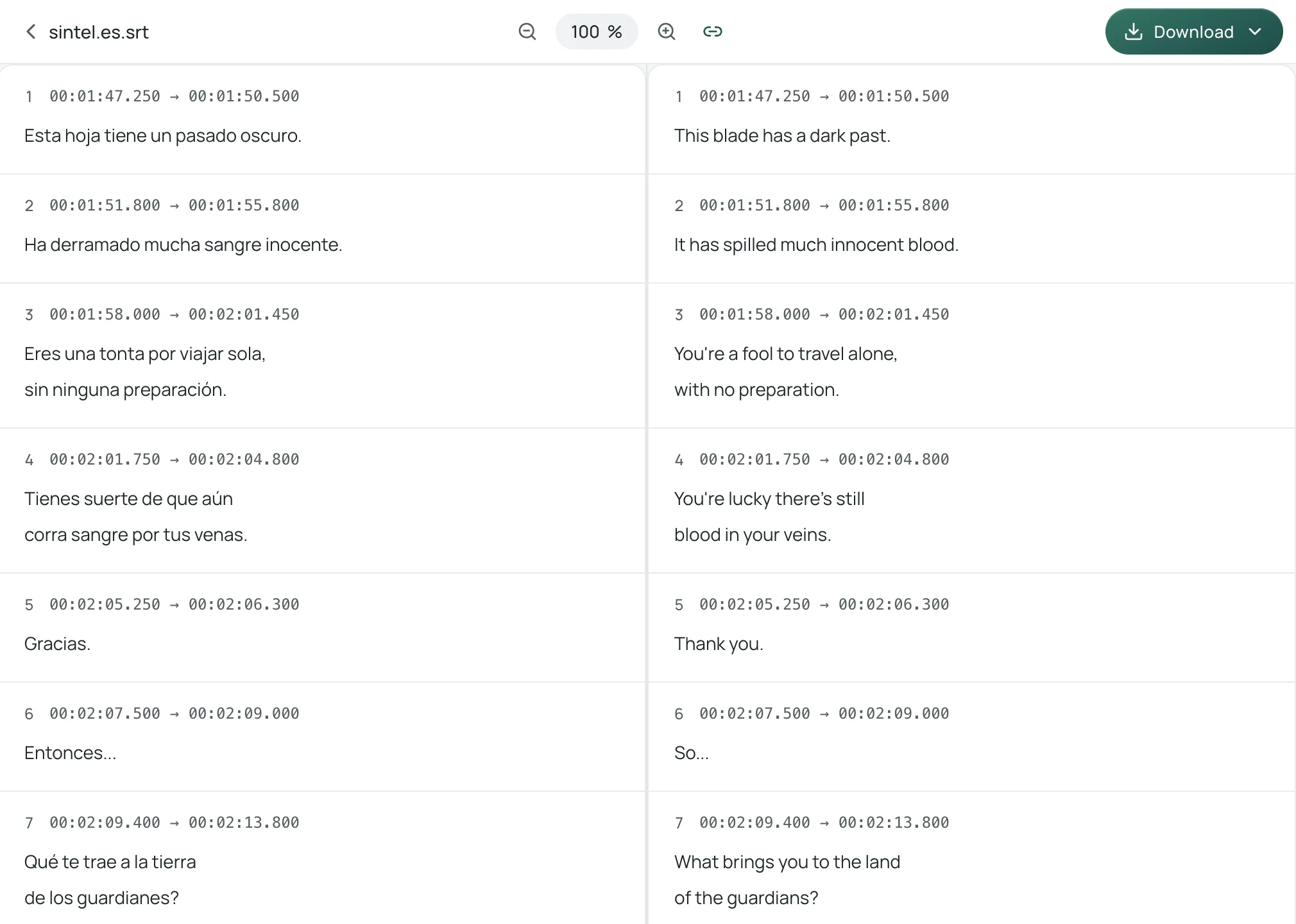
Equalang processes one document at a time per upload, allows up to 3 documents to run concurrently per account, retains uploaded files and results for 14 days, and does not use customer content to train AI models.
Method 2: DeepL Pro or DeepL API (For Paid Subscribers)
If your team already pays for a DeepL Pro Advanced, Ultimate, or API subscription:
- Log into DeepL, select document translation, and upload your
.srtfile. - DeepL translates subtitle text all at once while leaving timecodes and basic formatting intact.
- Per-file limits on DeepL web plans are 150 KB (1,000,000 characters) for Pro Advanced and 200 KB (1,000,000 characters) for Pro Ultimate.
- Trade-off: Requires an active paid subscription; free accounts cannot use it, and the web interface does not accept
.vttfiles.
Method 3: Desktop Subtitle Editors (Subtitle Edit, Aegisub)
If you prefer working offline with open-source desktop software:
- Download and open Subtitle Edit (Windows/Linux) or Aegisub (macOS/Windows).
- Load your original
.srtfile. - Use the built-in auto-translate menu (Tools > Auto-translate) by connecting your own third-party API key, or edit the target text manually cue by cue.
- Trade-off: Requires local installation, personal API key provisioning, and manual inspection of timing breaks.
Subtitle Formatting Rules: Encoding, Line Limits, and Reading Speed
Translating the text is only half the battle. A translated subtitle file must also display correctly on screen without wrapping awkwardly or flashing past faster than viewers can read.
1. SRT vs. WebVTT: Two Formats with Different Syntax
While both formats look similar at a glance, mixing their syntax will cause players to reject the file:
- SubRip (SRT): Originating from DVD subtitle extraction (documented in Library of Congress format description FDD000569), SRT is text-based and has no formal standardization or standard character encoding (SubRip historically defaulted to Windows-1252, with UTF-8/UTF-16 options). Its timecodes strictly use a comma before milliseconds (
00:01:02,500 --> 00:01:04,000), numbered cues are standard, and the Library of Congress registers its media type astext/plain. - WebVTT (.vtt): Defined in the W3C Candidate Recommendation Draft (draft dated 20 May 2026), WebVTT files must begin with an optional byte order mark (BOM) followed by the
WEBVTTheader line. It must be UTF-8 encoded and served astext/vtt. Timestamps use a full stop before milliseconds (00:01:02.500 --> 00:01:04.000), hours are optional when zero, and cue identifiers are optional.
2. Character Encoding: Always Export as UTF-8
Many legacy .srt files use regional code pages. When translating into non-Latin scripts (such as Chinese, Japanese, Korean, Arabic, or Cyrillic), saving the file in a legacy encoding causes text to render as unreadable mojibake. YouTube and modern HTML5 media players require subtitle files to be plain UTF-8.
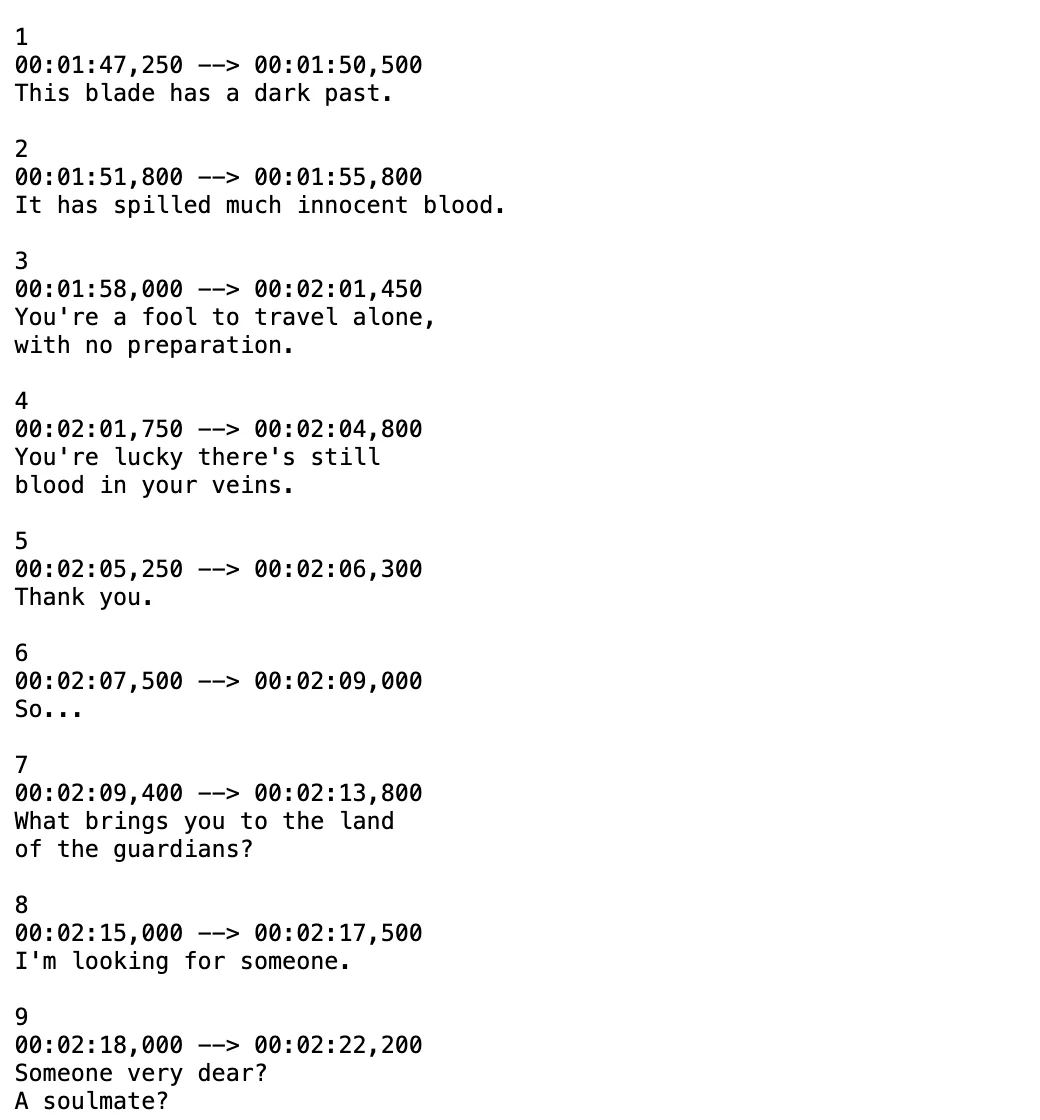
3. Professional Pacing Rules (Netflix Timed Text Style Guide)
When text translates into another language, character count and reading speed shift. Following established streaming standards—such as the Netflix Timed Text Style Guide (TTSG)—prevents subtitle overflow:
- Character limitation: Keep English subtitles to a maximum of 42 characters per line. For Chinese, standard industry practice is 16 to 18 full-width characters per line.
- Maximum lines: Maximum of 2 lines per subtitle event. Text should usually be kept to one line unless it exceeds the character limit.
- Reading speed: Adult programming allows up to 20 characters per second (cps); children's programming allows up to 17 cps. If a literal translation creates too many words for a brief audio window, condense the translation rather than crowding the screen.
- Duration boundaries: Minimum duration is 5/6 of a second per subtitle event (20 frames at 24fps); maximum duration is 7 seconds per event.
- Line breaks: When splitting a cue into two lines, prefer a bottom-heavy pyramid shape (the second line slightly longer). Break after punctuation marks or before conjunctions and prepositions, never splitting compound nouns, verb phrases, or proper names across lines.
Uploading Translated Subtitles to YouTube Studio
Once you have a clean, UTF-8 encoded .srt file, adding it to your YouTube video takes less than two minutes:
- Sign in to YouTube Studio and click Subtitles in the left navigation menu.
- Select the video you want to edit.
- Click ADD LANGUAGE and pick your target translation language.
- Under the Subtitles column for that language, click ADD.
- Select Upload file, choose With timing, and click Continue.
- Select your translated
.srt(or.vtt) file and click Publish.
YouTube's automatic captions are only generated for a video's original language. Uploading translated subtitle tracks gives international viewers native subtitle options in their player's CC menu. For viewers who want to watch foreign YouTube or Netflix videos with dual subtitles on their own screen without uploading tracks, desktop extensions like the Equalang Extension can display bilingual subtitles over recorded videos.
Sources
- W3C WebVTT: The Web Video Text Tracks Format (Candidate Recommendation Draft, 20 May 2026): https://www.w3.org/TR/webvtt1/
- Library of Congress, Sustainability of Digital Formats, SubRip (SRT) Format Description (FDD000569): https://www.loc.gov/preservation/digital/formats/fdd/fdd000569.shtml
- Google Translate Help: Translate documents: https://support.google.com/translate/answer/2534559?hl=en&co=GENIE.Platform%3DDesktop
- DeepL Feature Guide: Translate SRT files: https://www.deepl.com/en/features/document-translation/srt
- DeepL API Usage Limits: https://developers.deepl.com/docs/resources/usage-limits
- Netflix Timed Text Style Guide (English USA): https://partnerhelp.netflixstudios.com/hc/en-us/articles/217350977-English-USA-Timed-Text-Style-Guide
- Netflix Timed Text Style Guide: General Requirements: https://partnerhelp.netflixstudios.com/hc/en-us/articles/215758617-Timed-Text-Style-Guide-General-Requirements
- YouTube Help: Supported subtitle and closed caption files: https://support.google.com/youtube/answer/2734698?hl=en
- YouTube Help: Add subtitles and closed captions: https://support.google.com/youtube/answer/2734796?hl=en
- Equalang Document Translation: https://equalang.com/documents
- Equalang Browser Extension: https://equalang.com/extension