Plex Dual Subtitles: Watch Two Languages on Any Device
 Equalang
In brief
Plex only activates one subtitle track at a time. Load a single merged bilingual SRT file into your media folder to get dual subtitles on TV, phone, or web.
Keywords: plex dual subtitles; plex multiple subtitles; plex two subtitles; plex multiple subtitles same language; bilingual srt plex
Plex's native video player only lets you select one active subtitle stream at a time—there is no built-in toggle to turn on a second subtitle track on Smart TVs, Apple TV, Roku, mobile apps, or Plex Web. To display two subtitle languages on screen at the same time across every device connected to your server, you load a single merged bilingual .srt file that stacks both languages inside each timestamp cue, place it alongside your media file using Plex's local naming rule (Movie_Name (Year).lang.srt), and select that single track in the player.
Because standard SubRip (.srt) files support multi-line text inside a single cue block, Plex renders line one (the source dialogue) directly above line two (the translation) without realizing it is displaying two languages. And because the file lives in your server folder alongside the video, it works identically on a living-room television, an iPad, or a browser tab.
Why Plex Cannot Select Two Separate Subtitle Tracks at Once
If you have two external files sitting in your folder—say Movie (2026).en.srt and Movie (2026).es.srt—or an .mkv container packed with ten embedded subtitle streams, Plex lists every track in the playback menu as a radio button. Picking Spanish immediately deselects English.
Some viewers look for browser extensions to overlay a second subtitle track while watching through Plex Web on a desktop computer. That approach hits a wall as soon as you move to the couch:
- No extensions on TVs or streaming boxes: Smart TV operating systems, Apple TV, Roku, PlayStation, and the iOS/Android Plex apps cannot run browser extensions.
- Same-language dual tracks run into the same single-stream limit: Even people searching for
plex multiple subtitles same language(for example, pairing full dialogue captions with a separate track for translated signs and songs) hit the exact same one-track restriction unless both streams are combined into one file. - No server-side dual-track burner: Plex Media Server can burn a single subtitle stream into the video when transcoding, but its pipeline does not composite two separate subtitle streams simultaneously.
Merging both languages into one .srt file solves the restriction at the file level. Any Plex client that can display plain-text .srt subtitles will display both lines together.
What a Plex-Ready Bilingual SRT File Looks Like
A standard .srt file is a plain text document made of numbered blocks. Each block has an index number, a start and end timestamp, and one or more lines of text followed by a blank line.
When two languages are combined into a single bilingual .srt, each timestamp block contains two lines:
14
00:01:12,400 --> 00:01:15,150
We need to reach the station before nightfall.
我们得在天黑前赶到车站。

15
00:01:15,600 --> 00:01:18,020
Check the map again.
再看一眼地图。
When Plex reads block 14, it draws both lines at the bottom of the screen for that exact 2.75-second window and clears them together when the timestamp ends.
Step 1: Create a Single Bilingual SRT File
Depending on what files you already have in your media folder, there are three ways to prepare a merged bilingual .srt file.
Option A: Turn a Single-Language .srt or .vtt into a Bilingual .srt
Very often, your .mkv or .mp4 movie comes with an original-language .srt or .vtt subtitle file, or you only managed to download reliable subtitles in the original audio language. If you try to combine two separate .srt files downloaded from different websites, their timestamps frequently drift apart because they were synced to different frame rates or cuts.
Translating your existing synced .srt or .vtt into a bilingual output keeps every timestamp locked to your video cut:
- Open the document translation workspace on Equalang and upload your existing
.srtor.vttfile. The web uploader takes one file at a time, and you can upload episodes one after another without a total file limit (up to 3 jobs run simultaneously per account while the rest queue automatically). - Choose your target language (currently covering Chinese, English, Japanese, Korean, Spanish, French and other languages; the source language is detected automatically).
- Start the translation and download the bilingual
.srtresult once the job completes. Each cue preserves the original start and end timestamps, placing the original line on top and the translated line directly underneath.
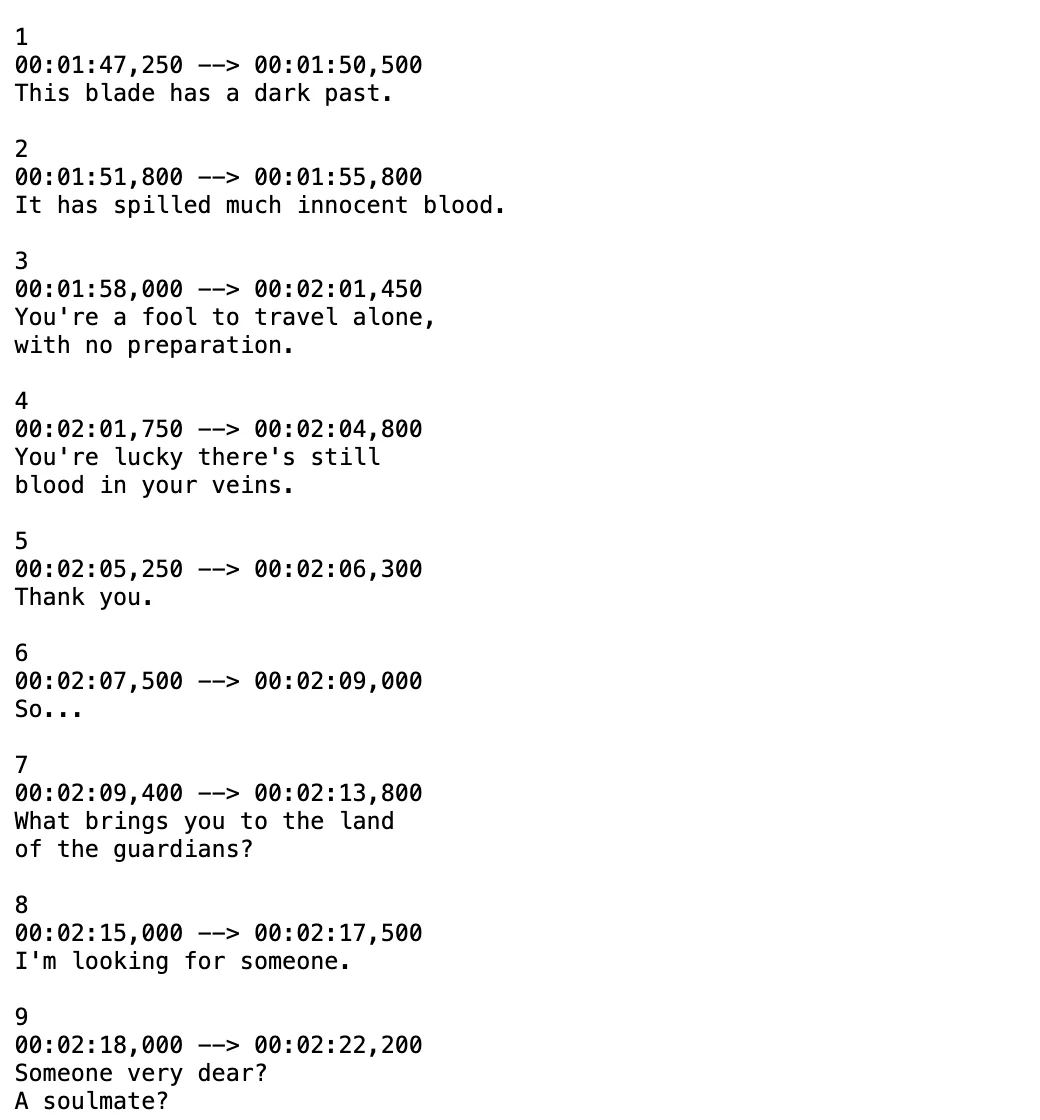
For a closer look at formatting details and character encoding when working with subtitle text files, see our guide on how to translate an SRT subtitle file.
Option B: Generate a Bilingual .srt Directly from an Unsubtitled .mkv or .mp4
If you have a raw foreign film, documentary, or bonus interview in .mkv, .mp4, .mov, or .webm format with no subtitles at all—or if you extracted its .mp3, .m4a, .wav, or .flac audio track—you can generate a synced bilingual .srt straight from the media file:
- Go to Equalang and upload the video or audio file (individual recordings up to 180 minutes are supported).
- Select your target subtitle language and choose the bilingual
.srtoutput option. - Download the resulting
.srtfile, which contains time-coded original transcripts stacked above the translated lines.
Keep two practical boundaries in mind when generating subtitles from raw audio:
- Audio clarity affects transcription: Because the source line is produced via speech recognition, heavy background music, loud sound effects, or overlapping voices in an action scene can occasionally cause recognition errors that you may want to spot-check in a text editor.
- How credits are calculated: New accounts receive 200 credits upon sign-up so you can test a clip or episode before buying anything. Speech-to-text is billed at 5 credits per minute of audio sent for recognition (silence and music segments are not billed), and the text translation is billed at 10 credits per 1,000 tokens (where 1,000 tokens is roughly 750 English words or 1,000 CJK characters). See the pricing page for full rate details. Uploaded files and results are kept for 6 months so you can re-download them, and can be deleted earlier at any time.
Option C: Combine Two Existing .srt Files You Already Have
If you only watch a file locally on your desktop computer and do not need to stream it through Plex to a TV or phone, a desktop media player lets you load two separate subtitle files on the fly without merging them—see how to set up VLC dual subtitles if you prefer not to touch your library files.
If you are staying in Plex and already have two separate .srt files synced to the exact same video release (or two tracks extracted from the same .mkv, such as a dialogue track and a signs-and-songs track in the same language), check that their first and last dialogue timestamps match. So long as both files use UTF-8 encoding and align to the same cut, combining their text cues into two-line blocks produces the same standard .srt structure shown above.
Step 2: Name and Place the Bilingual SRT in Your Plex Folder
Plex follows strict naming conventions for local external subtitles, documented in the official Adding Local Subtitles to Your Media guide. For Plex to recognize your bilingual .srt file automatically, place it in the exact same folder as the video file and match the video's base filename followed by a language code:
/Movies
  /Anatomy of a Fall (2023)
    Anatomy of a Fall (2023).mkv
    Anatomy of a Fall (2023).en.srt
For TV episodes, use the exact episode filename prefix:
/TV Shows
  /Dark
    /Season 01
      Dark - S01E01.mkv
      Dark - S01E01.en.srt
A few details that prevent common headaches on Plex:
- Use a standard ISO language code before
.srt: Plex expects a two-letter (en,zh,es,ja) or three-letter (eng,chi,spa,jpn) code so it can label the track in the playback menu instead of listing it asUnknown. Since standard ISO codes represent one language rather than a pair, pick whichever code helps you recognize the bilingual track in your menu (for instance,.zh.srtor.en.srt). - Save the file in UTF-8 encoding: When mixing Latin characters with Chinese, Japanese, Korean, Arabic, or accented European letters in the same cue, UTF-8 encoding prevents garbled characters (
???or mojibake) on Smart TVs. Bilingual.srtfiles downloaded from Equalang are encoded in UTF-8 out of the box. - Watch out for 3-line wrapping on small screens: A bilingual cue already uses two lines vertically. If a rapid dialogue segment contains a very long sentence, smaller phone screens or large TV subtitle font sizes may wrap one of the languages onto a third or fourth line. Setting your Plex client's subtitle size to
NormalorSmallkeeps each language on a single clean row.
Step 3: Refresh Metadata and Select the Track in Plex
If your movie or episode was already indexed by Plex before you dropped the .srt file into the folder, Plex might not display the new subtitle track right away.
- Open your Plex library in a browser or desktop app, click the
...(More) menu on the movie or TV show poster, and select Refresh Metadata (or run Scan Library Files on the folder). - Open the video details page or start playback on your Smart TV, Apple TV, Roku, or phone.
- Open the Subtitles (
CC) selector and choose your newly added external.srttrack (external tracks often appear near the top or alongside the language code you assigned).
Both languages will now appear stacked at the bottom of the video across every device streaming from your Plex server.
Frequently Asked Questions
Can Plex display two separate .srt files at the same time without merging them?
No. Plex's player interface on Smart TVs, streaming sticks, mobile devices, and Plex Web treats subtitle selection as a single active choice. To see two languages simultaneously, both lines must live inside the same .srt file.
Can I show two subtitle tracks in the same language on Plex?
Yes, using the same single-file method. People often search for plex multiple subtitles same language when an anime or foreign film separates spoken dialogue from on-screen sign translations into two different subtitle tracks. Once both sets of cues are combined into a single .srt file, Plex displays both on screen without dropping either track.
Will a bilingual .srt file force Plex to transcode my video?
Standard .srt files are plain text. Most modern Plex clients (Apple TV, Android TV, iOS, Android, Roku, and desktop apps) support direct rendering of text-based .srt subtitles without forcing a full video transcode, unless you manually enable "Burn Subtitles: Always" in your client settings.