Emby Dual Subtitles: Watch with Two Languages at Once
 Equalang
In brief
Emby TV and mobile apps only load one subtitle track at a time. Put a single merged bilingual SRT next to your media for dual subtitles without transcoding.
Keywords: emby dual subtitles; emby multiple subtitles; emby two subtitles at once; bilingual srt emby; emby external subtitles
Because Emby's native player on Smart TVs, Apple TV, Android TV, Roku, mobile apps, and the web only renders one active subtitle track at a time, you cannot simply check two separate .srt tracks in the playback menu. The cleanest way to get dual subtitles on every screen in your house—with zero video transcoding or CPU-heavy burn-in—is to place a single merged bilingual .srt file (where each timestamp contains both the original line and the translated line) directly next to your movie or episode file.
Below is how Emby handles external subtitle files, how to generate a merged bilingual .srt from either an existing single-language subtitle or an extracted audio track, and how to name it so every Emby client picks it up automatically.
Why Emby Cannot Select Two Subtitle Tracks Natively
When you open the subtitle selector on an Emby client (https://emby.media/), the list displays every embedded track inside your .mkv or .mp4 container alongside any external .srt or .vtt files stored in the same folder. However, the selector works as a single-choice radio menu: picking your target language immediately turns off the original language track.
If you only watch on a desktop PC, you can configure a client or external player handoff to launch mpv, which natively stacks two separate subtitle tracks via --secondary-sid (see our guide on dual subtitles in mpv). But external player handoffs do not help in the living room on an Apple TV, Android TV box, Roku, or Smart TV app.
Some users work around this by burning two subtitle tracks permanently into the video pixels with HandBrake or FFmpeg. That approach comes with major drawbacks for a media server:
- Re-encoding time and quality loss: Re-encoding a full film or a 24-episode anime season takes hours and permanently alters the video stream.
- No toggle or styling control: Once burned in, you cannot hide the subtitles, adjust the font size from your couch, or switch languages for other family members.
By contrast, standard .srt text files support multi-line entries within a single timestamp block. When you combine the source line and the translated line into one .srt file, Emby treats it as a single text track and streams it via Direct Play with zero server transcoding overhead.
Step 1: Create a Single Bilingual SRT File
Depending on what files you already have in your Emby media folder, there are two ways to prepare a merged bilingual .srt.
Option A: Translate an Existing Single-Language .srt or .vtt
If your movie or episode already has an original-language subtitle file (or if you extracted the embedded subtitle track from your .mkv container into an external .srt), you can generate a bilingual file directly on Equalang:
- Open Equalang Document Translation in your browser.
- Upload your original
.srtor.vttfile and choose your target language (document translation currently covers Chinese, English, Japanese, Korean, Spanish, French and other languages, with automatic source language detection). - Download the bilingual
.srtoutput once the job finishes.
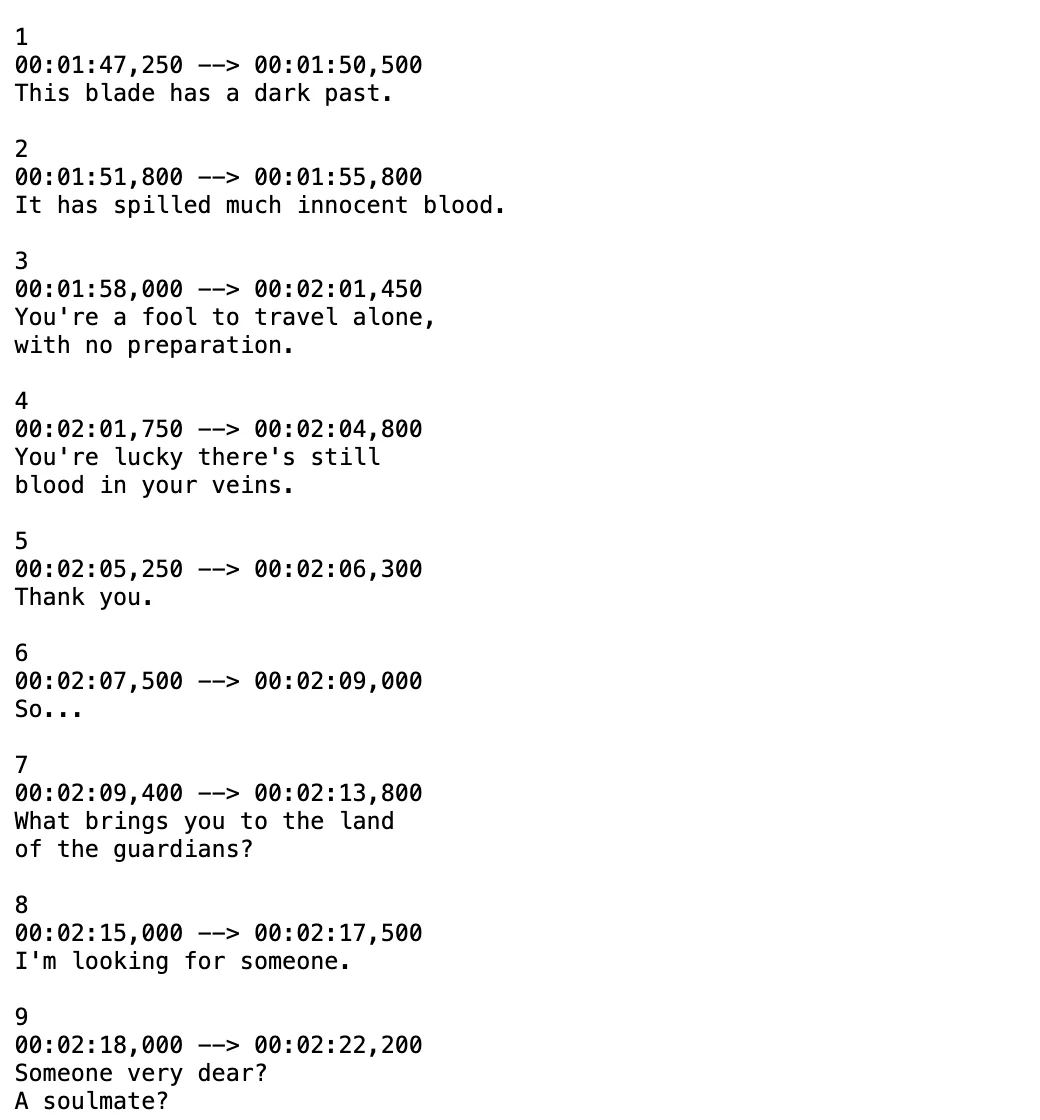
In the downloaded file, every cue keeps its original start and end timestamps, placing the source sentence on the top line and the translated sentence directly below it:
14
00:01:22,400 --> 00:01:25,850
Aquí no queda nadie después de las seis.
Nobody stays here after six o'clock.
The document page uploads one file at a time, and you can queue additional files one after another without a total count limit. An account runs up to 3 document jobs concurrently and queues the rest automatically.
Option B: Generate a Bilingual .srt from an Extracted Audio Track
If you have a raw foreign movie, lecture, or anime episode with no subtitle file at all, you can extract its audio track into a standard audio file and generate a timed bilingual .srt from the speech:
-
Extract the audio stream from your video into a supported audio format (
.mp3,.m4a,.wav,.flac,.ogg,.aac, or.opus), for example with FFmpeg:ffmpeg -i "Movie (2026).mkv" -vn -acodec libmp3lame -q:a 2 "Movie (2026).mp3"
-
Go to Equalang Document Translation and upload the extracted audio file (
.mp3,.m4a,.wav,.flac,.ogg,.aac,.opusup to 180 minutes per file). -
Select your target language and choose the bilingual
.srtsubtitle output option. -
Download the timed bilingual
.srtfile when processing completes. Silence and background music segments in the audio are not billed.
Because speech recognition works from the audio track, overlapping dialogue or loud sound effects can occasionally affect individual words—if a line looks off during playback, it is worth double-checking against the original audio.
(Prefer free open-source desktop scripts when you already possess two separate, identically timed .srt files in both languages? You can also merge two existing .srt files locally using Subtitle Edit's "Merge two subtitles" tool on Windows. Just note that if the two files come from different release groups with different frame rates or commercial breaks, their timestamps will drift apart unless you manually resync them first.)
Step 2: Name the Bilingual SRT Using Emby's Naming Convention
According to Emby's official subtitle naming documentation, Emby automatically indexes external .srt and .vtt files placed in the exact same folder as the video file, provided the filename starts with the exact video filename followed by language and flag tokens.
Here is the cleanest pattern to use:
/Movies
   /Anatomy of a Fall (2023)
      Anatomy of a Fall (2023).mkv
      Anatomy of a Fall (2023).en.default.srt
Or for a TV series folder:
/TV
   /Ghosts
      /Season 1
         Ghosts.S01E01.mkv
         Ghosts.S01E01.en.default.srt
         Ghosts.S01E01.fr.srt
A few practical tips for Emby's filename parser:
- Match the base filename character for character: Everything before the language code (
Anatomy of a Fall (2023)) must match the video file name. - Use a standard language tag: Adding
.en.srtor.zh.srtlabels the track clearly inside Emby's on-screen subtitle menu so you can tell your bilingual track apart from embedded single-language tracks. - Add
.defaultif you want it selected automatically: Naming the fileMovie (2026).en.default.srtmarks that external track with the default flag so Emby clients can pick it up right away according to your user subtitle preferences.
Step 3: Scan Your Library and Select the Track on Your TV
Once the bilingual .srt file is saved in your media directory:
- Open your Emby Server dashboard (or right-click the library / folder on Emby Web) and click Scan Library Files. Usually, Emby's real-time folder monitor detects new
.srtfiles within seconds, but a quick scan forces immediate indexing. - Open the movie or episode on your Smart TV, Apple TV, Android TV, Roku, phone, or browser.
- Open the CC / Subtitles menu during playback and select your newly added external track.
Both languages will now appear stacked at the bottom of the screen simultaneously. Because the subtitle is plain text rather than burned-in video, you can still use Emby's built-in Subtitle Appearance settings to tweak text size, drop shadow, or background opacity for comfortable reading across the room.
Running another home media server alongside Emby? The same single-file bilingual .srt workflow also works seamlessly across Plex dual subtitles and Jellyfin dual subtitles.
Frequently Asked Questions
Can Emby display two separate .srt files at the same time on Smart TVs?
No. Emby's native video player across Smart TVs, Roku, Apple TV, Android TV, mobile devices, and Emby Web only activates one subtitle stream at a time. Combining both languages into a single bilingual .srt file lets Emby display two languages at once within that single active track.
Does using a bilingual .srt file cause Emby to transcode the video?
No. Unlike graphical subtitle formats (such as PGS or VOBSUB) or permanently burned-in subtitles, an external .srt file is plain UTF-8 text. Almost all Emby clients render .srt text natively on the device, keeping your video stream in Direct Play mode.
What should I do if external subtitles display garbled characters or question marks in Emby?
Ensure the .srt file is saved with UTF-8 encoding. If a subtitle file was saved using ANSI, GBK, or UTF-16, accented letters or non-Latin scripts can render as question marks or corrupted symbols on Smart TVs. Opening the .srt file in any text editor and re-saving it with UTF-8 encoding will fix the display.