mpv Dual Subtitles: Watch with Two Subtitles at Once
 Equalang
In brief
Display two subtitles simultaneously in mpv using --secondary-sid, mpv.conf, or a single time-locked bilingual SRT when tracks drift apart.
Keywords: mpv dual subtitles; mpv multiple subtitles; mpv two subtitles at once; mpv two subtitles; mpv secondary-sid
To display two subtitles at once in mpv, pass --sid=<id> for your primary bottom track and --secondary-sid=<id> for your second track from the terminal, or press Ctrl+v while a video is playing to cycle through secondary subtitle tracks on the fly. Unlike players that require third-party extensions, mpv has built-in dual-subtitle rendering documented in the official mpv manual. Below are the exact terminal flags, mpv.conf lines to make dual subtitles permanent, and how to generate a single bilingual .srt when you only have one subtitle track or your two files drift out of sync.
Enable Dual Subtitles in mpv via Command Line or Shortcut
If your .mkv container already packs multiple embedded subtitle streams—or you have external .srt files sitting in the same folder—you can activate both immediately.
First, open your video or check the terminal output to see the track IDs (--sid=1, --sid=2, etc.). Then run:
mpv --sid=1 --secondary-sid=2 video.mkv
If your second language sits in a separate external .srt or .vtt file, load it with --sub-file and assign the secondary ID to the newly added track:
mpv --sid=1 --sub-file=english.srt --secondary-sid=2 video.mkv
Prefer switching tracks while the video is already open? You can manage both tracks from the keyboard or the On-Screen Display (OSD):
v: Toggle primary subtitle visibility.j/J: Cycle forward or backward through primary subtitle tracks.Ctrl+v: Cycle through available tracks for the secondary subtitle stream.- OSD menu: Click the subtitle track selector in the bottom bar while holding the modifier key or select the secondary track directly if your OSD layout exposes both streams.
Save Your Dual-Subtitle Setup in mpv.conf
Typing --secondary-sid every time gets tedious if you watch foreign films or lectures daily. Add these lines to your mpv.conf file (~/.config/mpv/mpv.conf on Linux and macOS, or %APPDATA%\mpv\mpv.conf on Windows) so mpv picks your two preferred languages automatically:
sub-auto=fuzzy
alang=ja,jpn,en,eng
slang=en,eng
secondary-sid=2
secondary-sub-pos=10
Here is what each line controls:
sub-auto=fuzzy: Automatically loads external subtitle files with matching video filenames.alang/slang: Sets your preferred audio language and primary (bottom) subtitle language.secondary-sid=2: Enables the secondary subtitle track by default (set a specific track ID or cycle viaCtrl+v).secondary-sub-pos=10: Sets the vertical position of the secondary subtitle (0= top of frame,100= bottom).
Because secondary-sid expects a track number (or auto / no), multi-track MKV releases that change stream order between episodes may still require a quick press of Ctrl+v to land on the right language.
Fix Top-of-Screen Placement and ASS Styling Quirks
Once you turn on --secondary-sid, you will notice two deliberate design choices in mpv:
-
The secondary subtitle sits at the top of the video frame by default.
mpvplaces the secondary track at the top so its bounding box does not collide with the primary subtitle at the bottom. Having one language at the bottom and another at the very top forces your eyes to jump across the entire frame on every line of dialogue. You can pull the secondary track down near the bottom using--secondary-sub-pos:mpv --sid=1 --secondary-sid=2 --secondary-sub-pos=85 video.mkv
Keep in mind that if a primary cue wraps to two or three lines, a fixed
--secondary-sub-pos=85can overlap the bottom text. -
Complex ASS tags are stripped on the secondary track. By default,
mpvstrips advanced SubStation Alpha (.ass/.ssa) positioning, karaoke effects, and custom fonts on the secondary stream (--secondary-sub-ass-override=strip) so floating signs do not break top placement. If you are watching anime or a release where both tracks rely on ASS styling, you can change--secondary-sub-ass-override=yesornoin your command ormpv.conf, though simultaneous dual-ASS rendering can still cause overlapping on-screen signs.
When --secondary-sid Isn't Enough: Missing Tracks or Out-of-Sync Timestamps
Native dual subtitles in mpv assume one thing: you already own two separate subtitle files that were timed to the exact same video cut.
In practice, two roadblocks come up all the time:
- Timing drift between two downloads: You grab a Spanish
.srtsynced to a Blu-ray rip and an English.srtsynced to a web broadcast. Two minutes into the movie, the top and bottom lines are three seconds apart. - Only one track exists (or none at all): Indie films, raw
.mkv/.mp4recordings, and niche lectures often ship with a single original-language.srt—or zero subtitles.
Instead of wrestling with two mismatched files, you can combine both languages into a single bilingual .srt file where every timestamp block holds the original line on top and the translation directly underneath. When you load a single bilingual .srt into mpv as --sid=1, both languages stack cleanly at the bottom of the screen, share one bounding box so they never collide, and cannot drift apart.
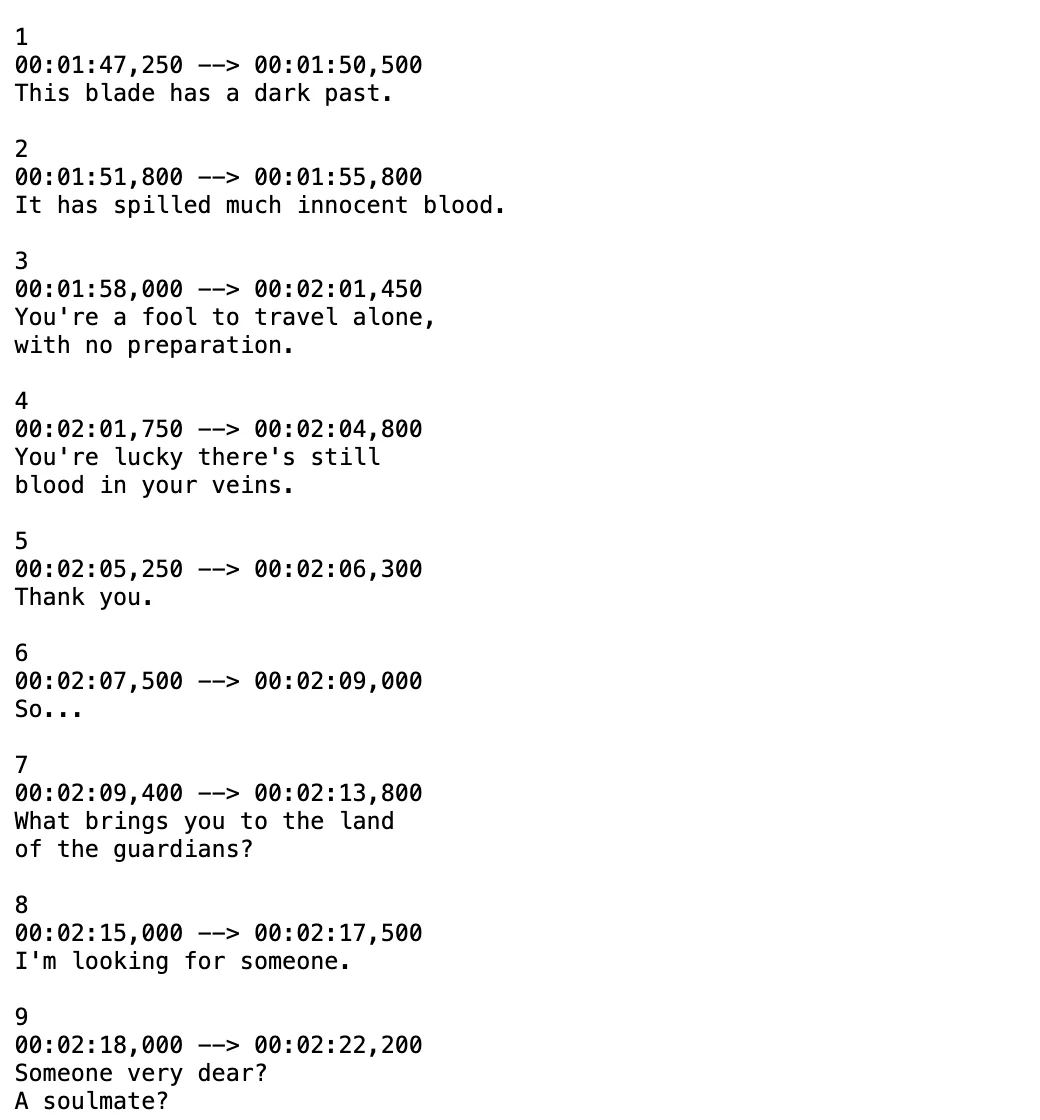
Here is how we handle both cases with Equalang's document and subtitle translator:
- If you have one
.srtor.vttfile: Upload it to /documents, pick your target language (currently covering Chinese, English, Japanese, Korean, Spanish, French and other languages), and download the bilingual.srt. Every cue keeps its exact original timestamp while adding the translated line right below the source line. For a step-by-step walkthrough of subtitle file options, see our guide on how to translate an SRT subtitle file. - If you only have a raw
.mkvor.mp4video with no subtitles: Upload the video or audio file directly to /documents (supporting MP4, MKV, MOV, WEBM, MP3, WAV, FLAC, M4A, OGG, AAC, and OPUS up to 180 minutes per file; silence and background music are not billed). Equalang transcribes the spoken audio and outputs a time-coded bilingual.srtor.vttready to drop intompv.
Once downloaded, load the bilingual file in mpv like any standard subtitle:
mpv --sub-file=movie.bilingual.srt video.mkv
You get both languages stacked at the bottom of the frame without touching --secondary-sid or adjusting --secondary-sub-pos. New accounts receive 200 free credits on sign-up so you can test a subtitle file or short video before buying a credit pack (see pricing for token and audio-minute rates).
What to keep in mind: When generating subtitles from raw video or audio without an existing script, the source lines come from speech recognition—heavy background music, overlapping dialogue, or thick accents can still cause occasional recognition errors that need a quick text-editor tweak. And if your existing .srt relies on intricate .ass typeset animations for on-screen signs, keep the original .ass loaded in mpv for visual typesetting and use a clean dialogue .srt for translation.
If you also watch videos on desktop GUI players across other machines, compare this setup with our walkthrough on how to display dual subtitles in VLC.
Frequently Asked Questions
How do I put both subtitles at the bottom of the screen in mpv?
If you use two separate subtitle files with --sid=1 --secondary-sid=2, pass --secondary-sub-pos=85 (or another value between 80 and 95) to move the secondary track from the top of the frame down above the primary subtitle. To prevent two-line cues from colliding, load a single bilingual .srt file via --sid=1 instead so mpv renders both lines inside one bottom subtitle box.
Why is my secondary subtitle losing its font and positioning in mpv?
By default, mpv sets --secondary-sub-ass-override=strip to strip ASS styling tags from the secondary subtitle track so positioned signs do not conflict with the primary track. You can pass --secondary-sub-ass-override=no in the terminal or mpv.conf to preserve ASS tags on the secondary track.
Can mpv display more than two subtitle tracks at the same time?
mpv natively renders at most two subtitle streams simultaneously (--sid and --secondary-sid). If you need three languages visible at once, merge two of the languages into a single bilingual .srt file and load the third language as --secondary-sid.