Can ChatGPT or Claude Translate an Entire PDF and Keep the Layout?
 Equalang
In brief
Why chat tools return plain text instead of formatted files, how document translation keeps layouts intact, and how to get translated PDFs from an AI.
Keywords: PDF translation; document layout; AI assistant; file translation; Equalang
You upload a PDF into an AI chat window, ask for a complete translation, and wait. Instead of receiving a clean, matching document, the chat window fills with a wall of plain text. If the document has many pages, the response might stop midway or summarize later sections. Tables turn into messy text columns, figures and footnotes vanish, and mathematical formulas often become broken strings. Rebuilding that output back into a presentable document takes hours of manual formatting.
This frustrating experience comes down to a fundamental distinction: the difference between a conversational chat reply and a dedicated document translation workflow.
Why Chat Responses Output Plain Text, Not Formatted Documents
Chat interfaces are built for conversational exchange. When you attach a PDF to an AI chat, the system extracts the raw text from the file so the model can read it, and then streams the translated text into the chat feed.
A PDF, however, is not a simple stream of text. It is a visual container defined by coordinates, vector graphics, multi-column bounding boxes, embedded fonts, and precise page breaks. A chat reply usually comes back as text, and even when an assistant writes a file, rebuilding the original layout, tables and figures is unreliable.
What Real Document Translation Does Differently
True file translation operates on the complete file rather than just extracting text strings. Instead of printing text into a chat feed, document translation delivers a translated file of the same type with the layout kept.
Below is how this works in Equalang. When translating a PDF, the engine works to maintain two-column layouts, table structures, formulas, and cross-reference links.
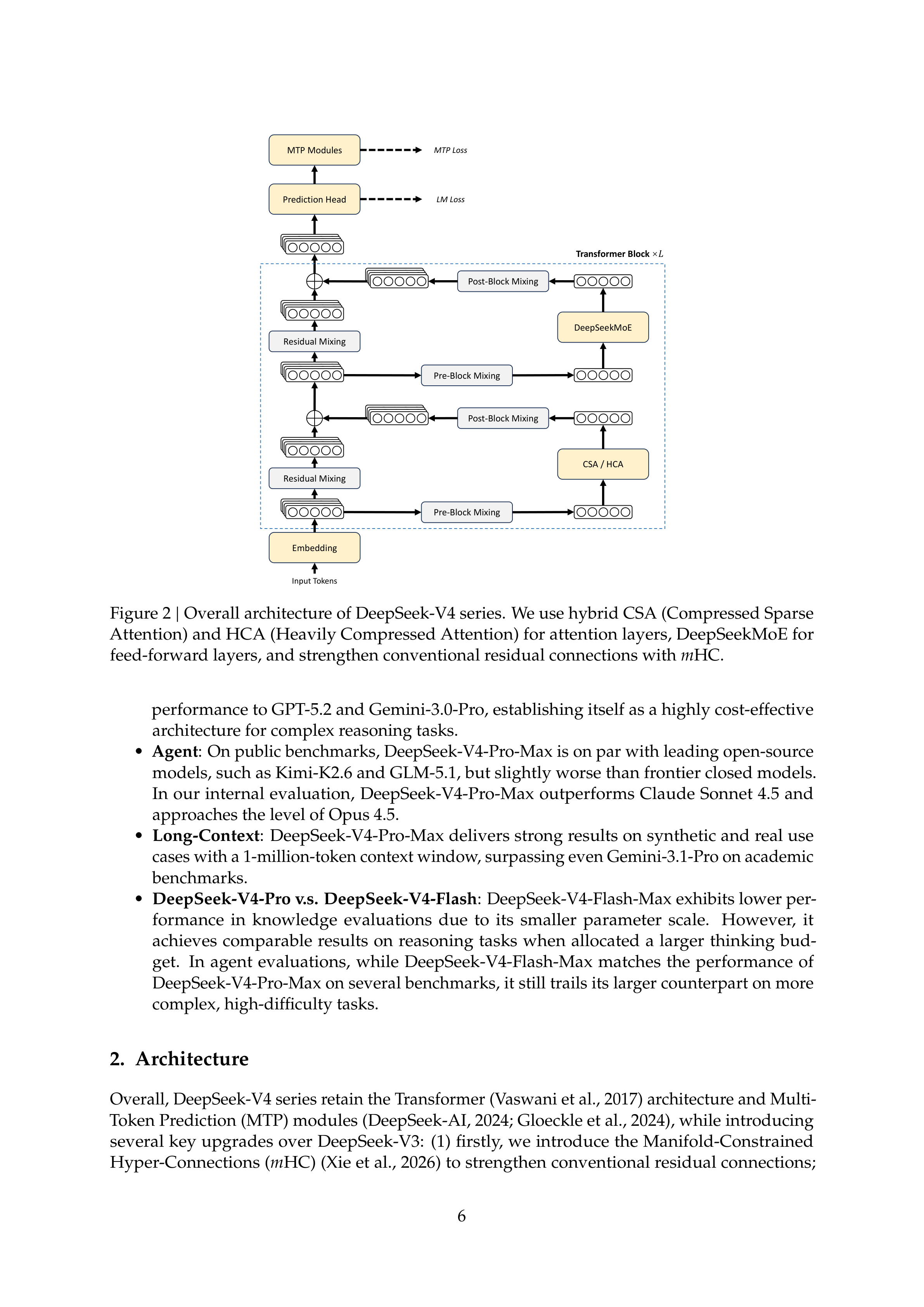
Here is a direct example showing page 6 of the DeepSeek-V4 technical report in its original English layout:
When processed through Equalang's document translation, the returned PDF retains the architecture diagram with its labels translated into Chinese, along with the caption and single-column text in their corresponding positions:
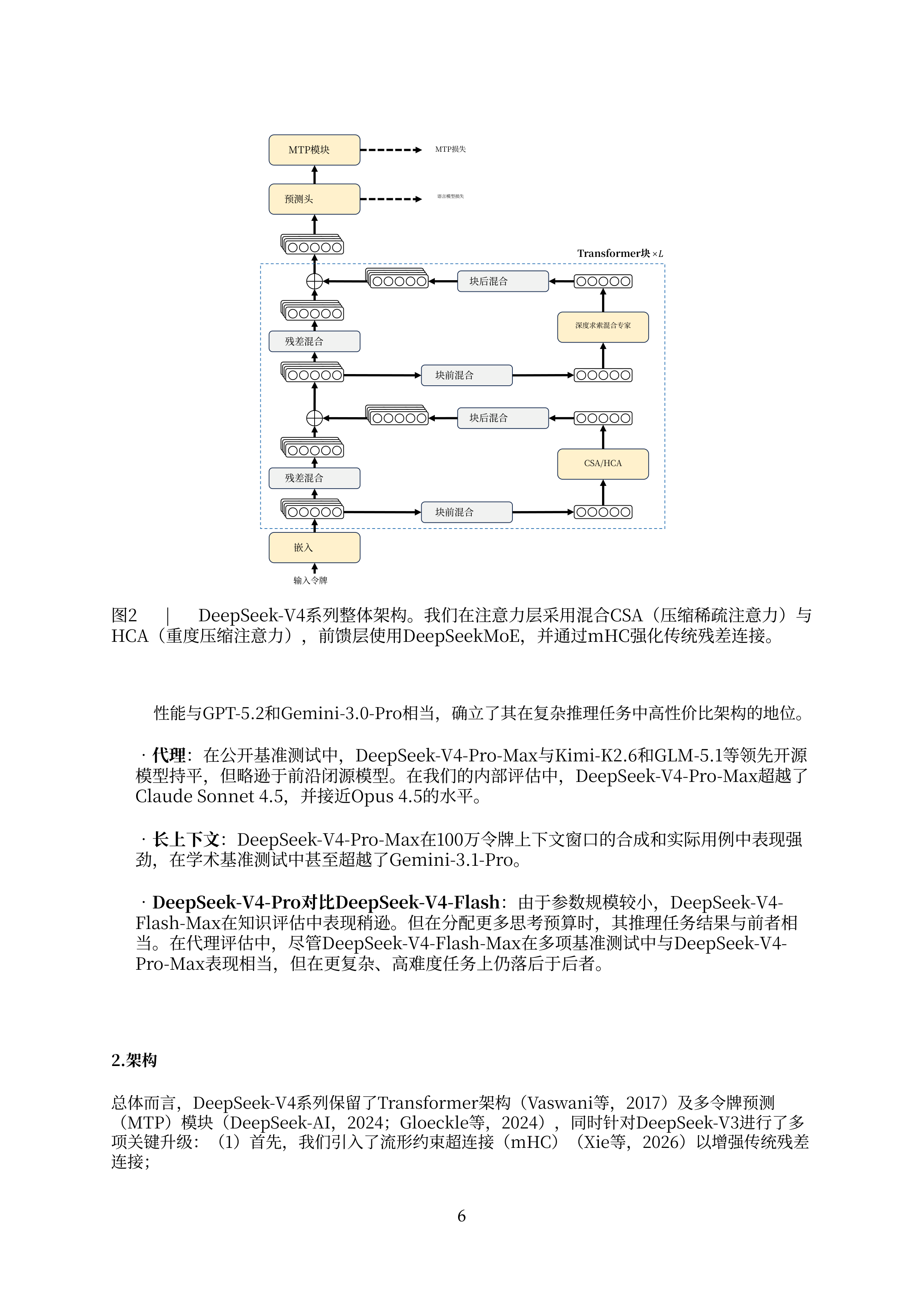
(Note on this sample: this test was conducted translating from English into Chinese; no test was made from another language into English for this specific document.)
While layout preservation keeps structural elements, headers, and figures aligned, it is not a rigid pixel-for-pixel duplicate. When sentence lengths shift significantly between languages, typography and line wrapping naturally adapt to fit the page. You can read more details in our guide on translating PDFs while keeping formatting or our walkthrough on translating academic paper PDFs.
Getting a Translated File Directly Inside an AI Assistant
Many people prefer staying inside their AI coding assistant or desktop agent rather than switching back and forth to a web browser. While a chat reply usually comes back as text, modern agentic environments can use external tools.
To bridge this gap, we created the Equalang skill. In agents capable of loading skills (such as Claude Code, Codex, or WorkBuddy), you can paste a brief installation instruction:
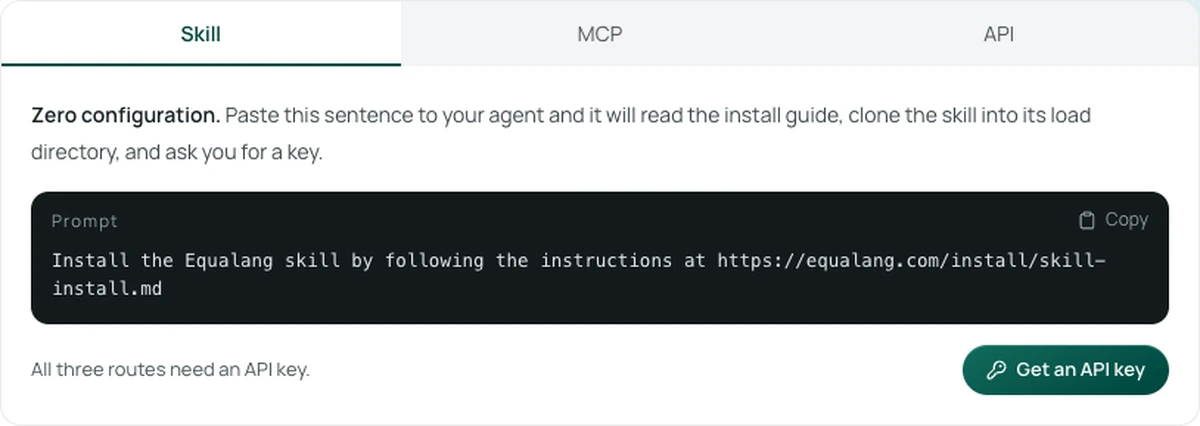
Once configured with an API key, the assistant does not attempt to dump translated paragraphs into the chat history. Instead, when you hand it a document, the assistant forwards the file to Equalang's document translation engine:
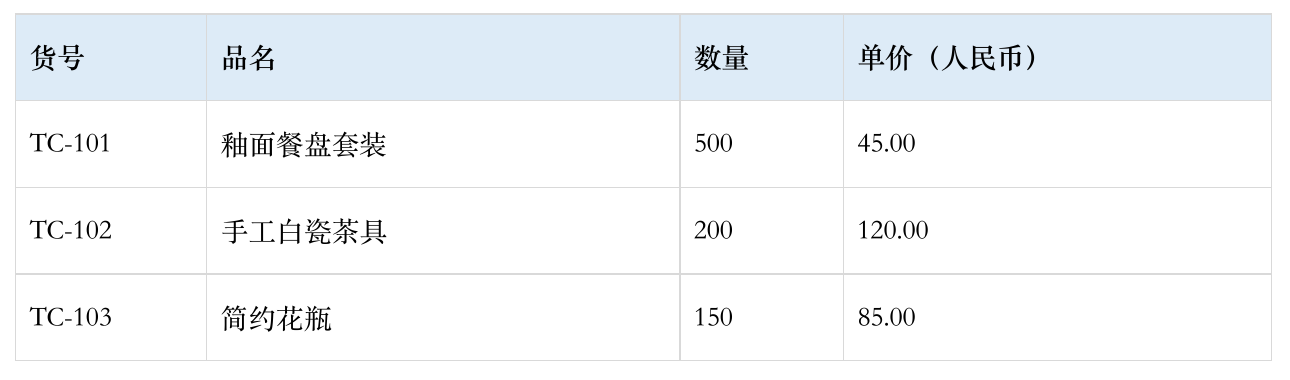
The engine processes the file asynchronously, and the assistant downloads and returns the finished, translated document directly to your local workspace:
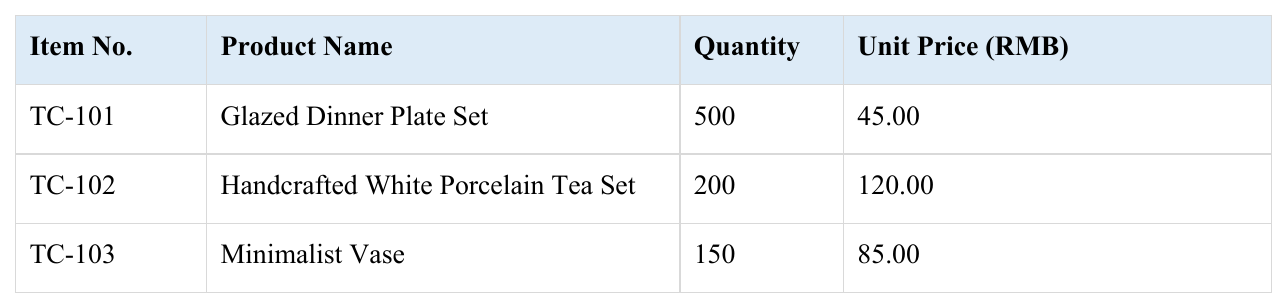
For detailed setup steps and workflow options, see our guide on translating files with AI assistants.
Choosing the Right Approach for Your Task
Whether you use a chat window or a file translation tool depends on what you need to accomplish:
- Use chat responses when you only need a quick summary, an explanation of a single paragraph, or answers to questions about a document's content.
- Use document translation when you need a complete, readable file—such as a research paper, business report, or slide deck—with tables, figures, and formatting intact for sharing or archiving.
When you need a finished file back, handing the document to a layout-aware translation pipeline saves hours of manual reconstruction.