Translate Whole Files with Your AI Assistant Using Equalang
 Equalang
In brief
Paste the Equalang install command into your AI assistant, and you can translate whole documents, PDFs, and media files without leaving the chat.
Keywords: AI assistant; file translation; Claude Code; translate PDF; Equalang skill
If you regularly use AI tools like Claude Code, Codex, Cursor, or WorkBuddy, you might have run into a common barrier: translating a foreign language file. When you try to translate a 20-page research PDF or a detailed supplier contract by copying and pasting, it is often tedious and the original formatting gets disrupted.
By giving your assistant the Equalang skill, you can simply ask it to translate the file directly. The assistant will handle the document and return a fully translated file, trying to preserve the layout where supported.
Getting Started: The Easiest Way to Install
You don't need to run complex scripts or install dependencies yourself. Just copy and paste this exact sentence into your AI assistant's chat:
Install the Equalang skill by following the instructions at https://equalang.com/install/skill-install.md
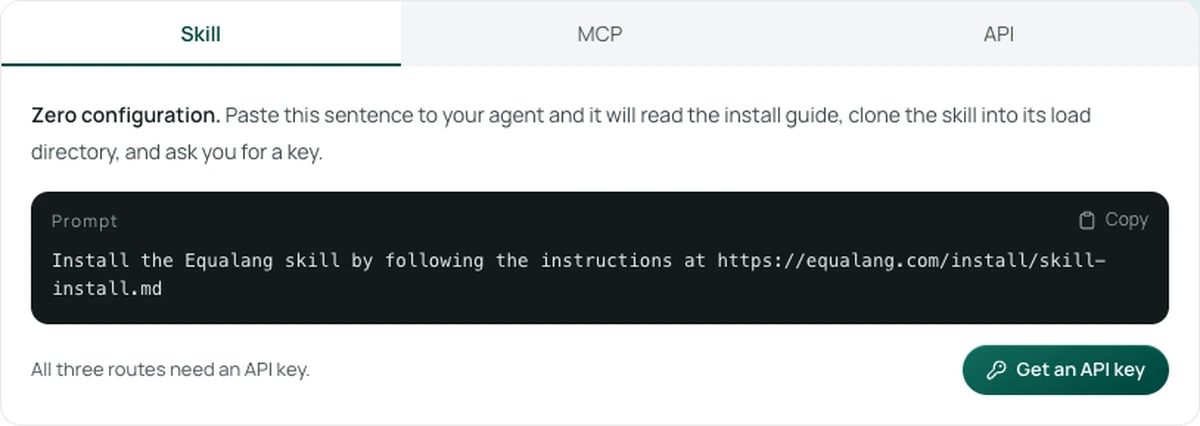
The assistant will read the instructions, download what it needs, and guide you through the setup. It will ask you for an Equalang API key to process files. You can create one at https://equalang.com/api-keys and securely prepare the key according to the assistant's prompts, or save it locally as the official documentation describes.
(Note: This works in CLI and desktop agent environments like Claude Code, Codex, or Cursor, rather than standard web-based chat interfaces. Additionally, if your workflow prefers the Model Context Protocol, Equalang offers an MCP server at @equalang/mcp.)
Ask for Files Like You Ask for Text
Once installed, your assistant can process PDFs, Word documents, Excel spreadsheets, PowerPoint presentations, EPUB books, images, and audio/video files. Here is how you can use it for different tasks:
Reading Research Papers
When you find a foreign language research paper, you can ask your assistant to translate it so you can read it naturally without jumping between a translation tab and the document.
- "Translate ~/Downloads/paper.pdf into English"
The assistant will return a translated PDF, trying to keep the charts and text in their original places so you can continue your research smoothly.
Working with International Documents
If a client or supplier sends you a contract or a slide deck in another language, translating it manually slide-by-slide can be a tedious process.
- "Translate ~/Documents/supply-confirmation.zh-CN.docx into English"
- "Translate pitch-deck.pptx into Spanish"
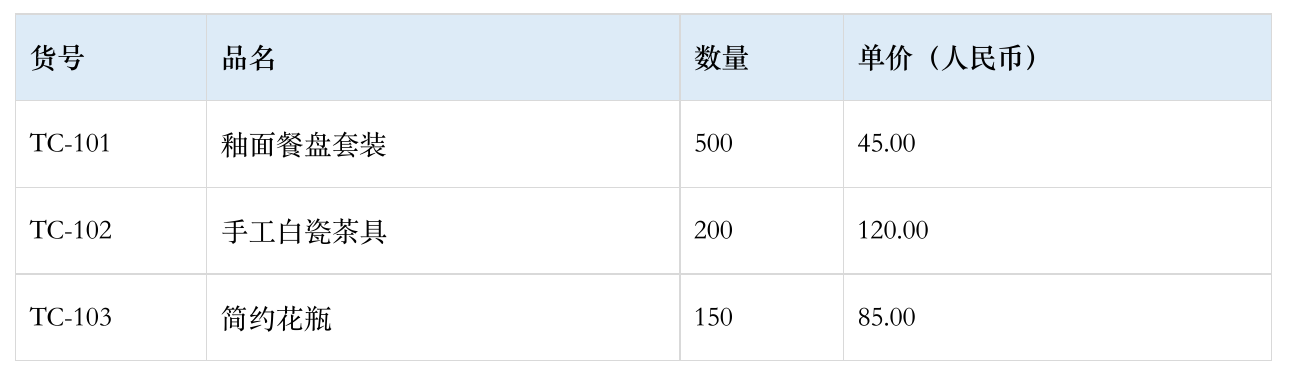
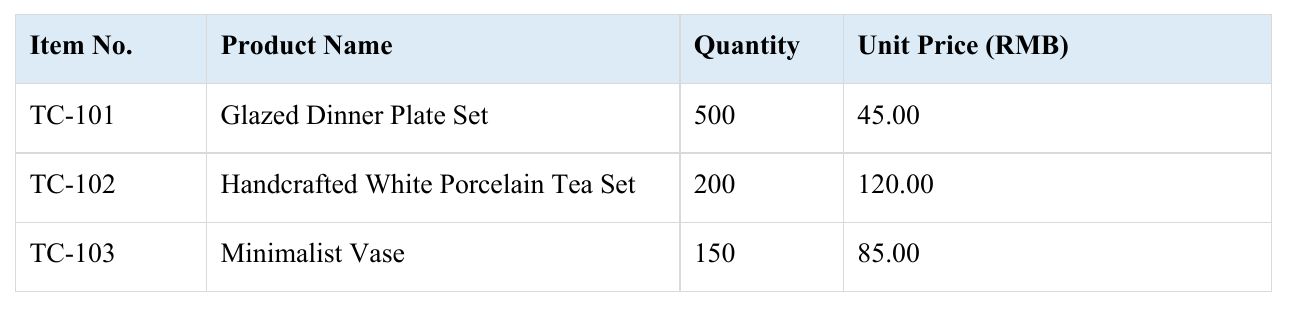
You will get an editable Word or PowerPoint file back. The translated version can be shared directly with your team for review.
Transcribing and Translating Media
For interviews, lectures, or foreign language videos, you can extract the spoken content directly into text or subtitles.
- "Transcribe interview.mp3 as subtitles"
- "Transcribe lecture.m4a into a text transcript"
Depending on what you ask for, the assistant will generate standard .srt or .vtt subtitles for your video player, or a plain text file of the transcription to help you study the content.
When you request a file translation, the assistant will spend Equalang credits. If you're unsure about a large file, you can always ask the assistant to estimate the cost first: "How much would it cost to translate thesis.docx into English?" It will check the maximum cost and wait for your approval before starting the job.
Giving your AI assistant the ability to output whole translated documents removes the friction of manual copying and reformatting, letting you focus directly on your research and work.
References / Sources
- Equalang Skill Installation Instructions: https://equalang.com/install/skill-install.md
- Equalang Agent Skill on GitHub: https://github.com/equalang/equalang-skill
- Equalang API Keys: https://equalang.com/api-keys