Translate Papers and Read Side by Side in Zotero with Equalang
 Equalang
In brief
Translate full PDF, Word, PPTX, and Excel attachments or look up words and sentences inside Zotero 7–10 on Windows and macOS without switching apps.
Keywords: Zotero translation plugin; translate PDF in Zotero; bilingual PDF Zotero; academic paper translation; Equalang Zotero plugin
Reading a foreign-language paper in Zotero often turns into a three-window juggling act. You copy a dense paragraph out of the Zotero PDF reader, paste it into a browser translator, and manually fix the broken line wraps; when a paper is too long to read sentence by sentence, you export the PDF to a web translator, download the result, and leave translated files scattered across your Downloads folder instead of inside your library; and when you look up an unfamiliar word in a standalone dictionary, you get a list of generic definitions that do not tell you what the term actually means in that sentence.
If you want to keep your reading and file management inside Zotero, there are generally two routes: configuring a community translation add-on with your own API keys and rules, or using an integrated translation plugin that handles both document layout and in-reader lookups out of the box. Below, we walk through how the Equalang Zotero plugin handles whole-attachment translation, side-by-side PDF reading, and context-aware word and sentence lookups directly inside Zotero.
Installing the Plugin and Signing In
Before installing, check your environment: the plugin supports Zotero 7, 8, 9, and 10 on Windows and macOS. It does not support Zotero 6 or earlier, Linux, or Zotero on iPad and mobile devices, and it requires an internet connection (no offline mode).
Setup takes a couple of minutes:
- Download the
.xpiinstallation file from the Equalang Zotero plugin page. - In Zotero, open Tools → Plugins, click the gear icon in the top-right corner, and select Install Plugin From File… to choose the
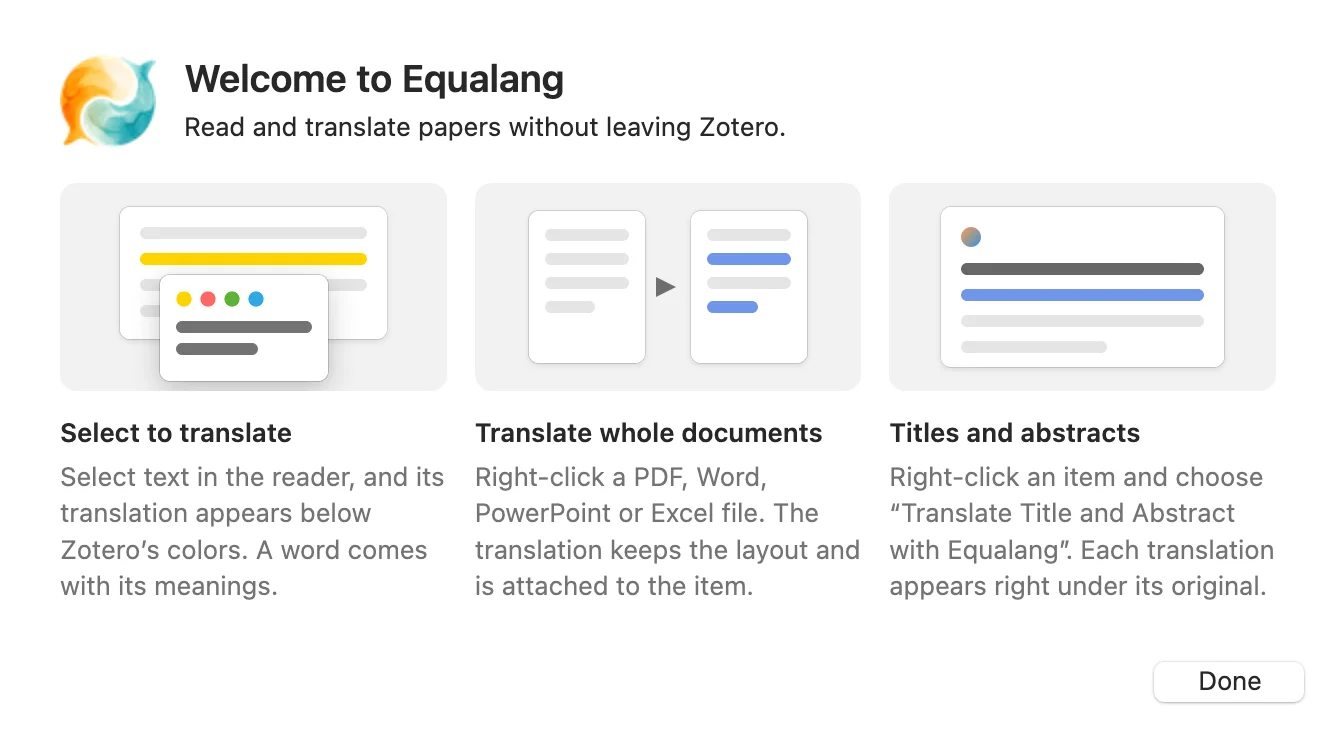
.xpifile you just downloaded. Once installed, future updates happen automatically through Zotero. - In the welcome window that appears after installation, click sign in or sign up to complete authentication in your browser. New accounts receive 200 credits upon registration, and the plugin shares the same account and credit balance as the Equalang website.
Right-Clicking an Attachment to Translate a Whole Paper
When you need to read an entire paper or supplementary file, you do not need to drag the file out to a browser. In your Zotero library list, right-click a PDF, Word (.docx), PowerPoint (.pptx), or Excel (.xlsx) attachment under an item to start a whole-document translation. (If you want a deeper look at how layout, dual-column structure, and cross-page sentences are handled in standalone PDFs, see our guide on translating academic paper PDFs.)
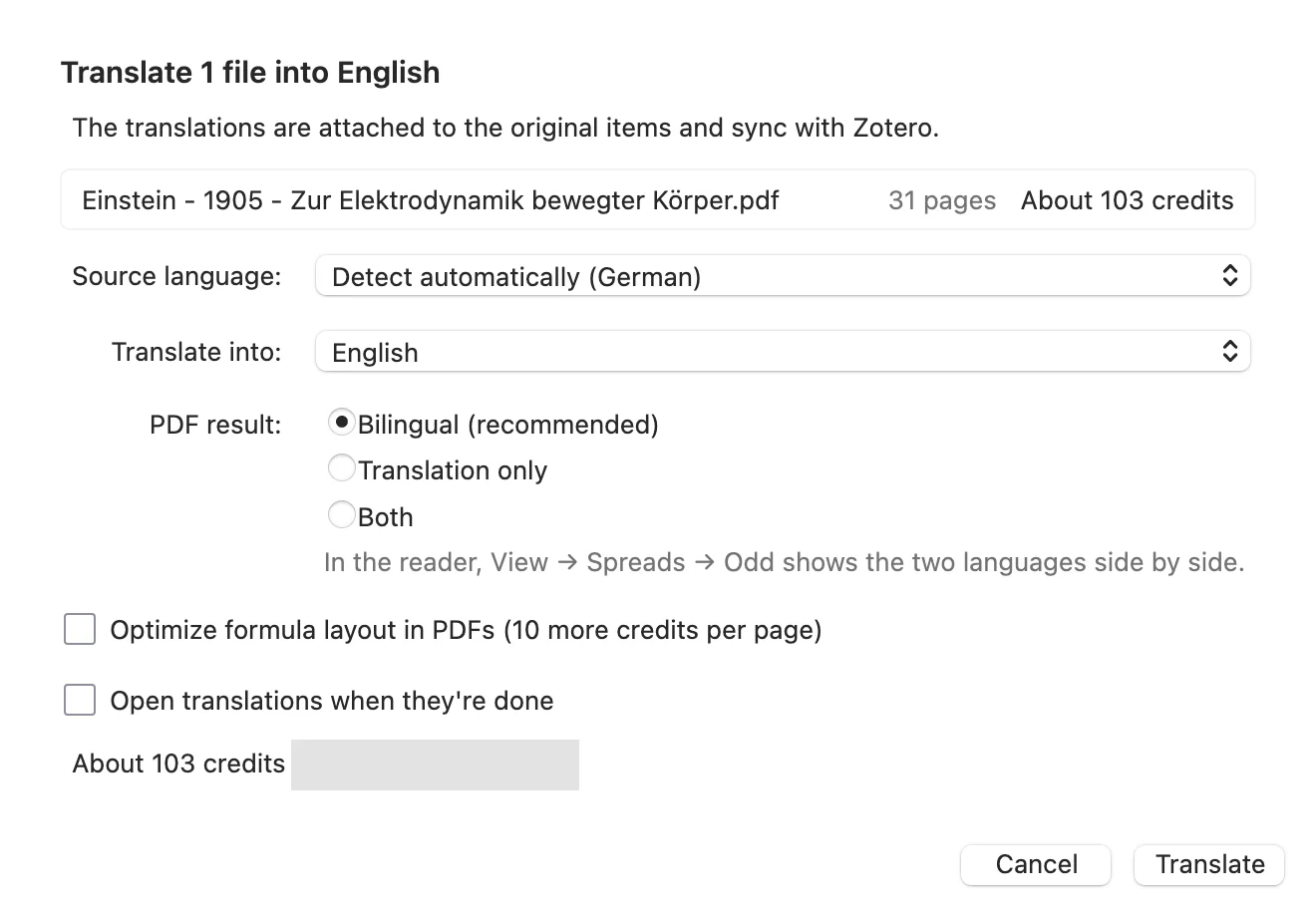
Before any credits are spent, Zotero opens a confirmation dialog so you can review the settings and cost:
- Page count and credits: Shows the document's page count, estimated credit cost, and your current credit balance.
- Languages: Choose the source language (auto-detect is supported) and target language—document translation currently covers Chinese, English, Japanese, Korean, Spanish, French and other languages.
- PDF output format: Choose Bilingual (recommended), Translation only, or Both.
- Formula optimization: For PDFs with tricky inline math, you can check the option to optimize PDF formula layout for an additional 10 credits per page.
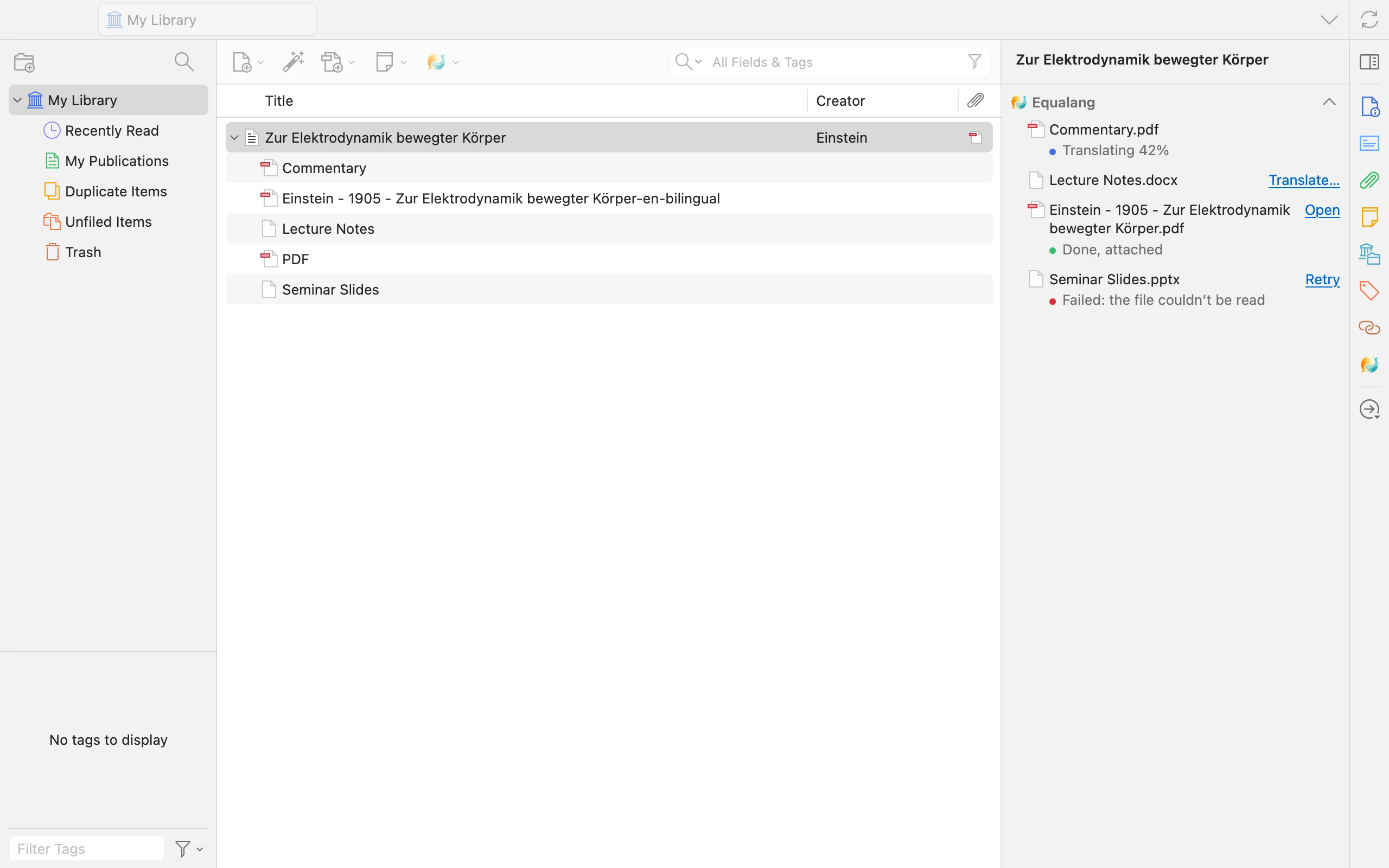
Once confirmed, the translated file is automatically attached under the same Zotero item by default. In the right-hand item pane, the plugin section displays the status of each attachment under that reference—whether a PDF is already finished and ready to open, a .docx appendix is waiting to be translated, a supplementary PDF is currently at 42%, or a .pptx slide deck failed with a one-click retry button.
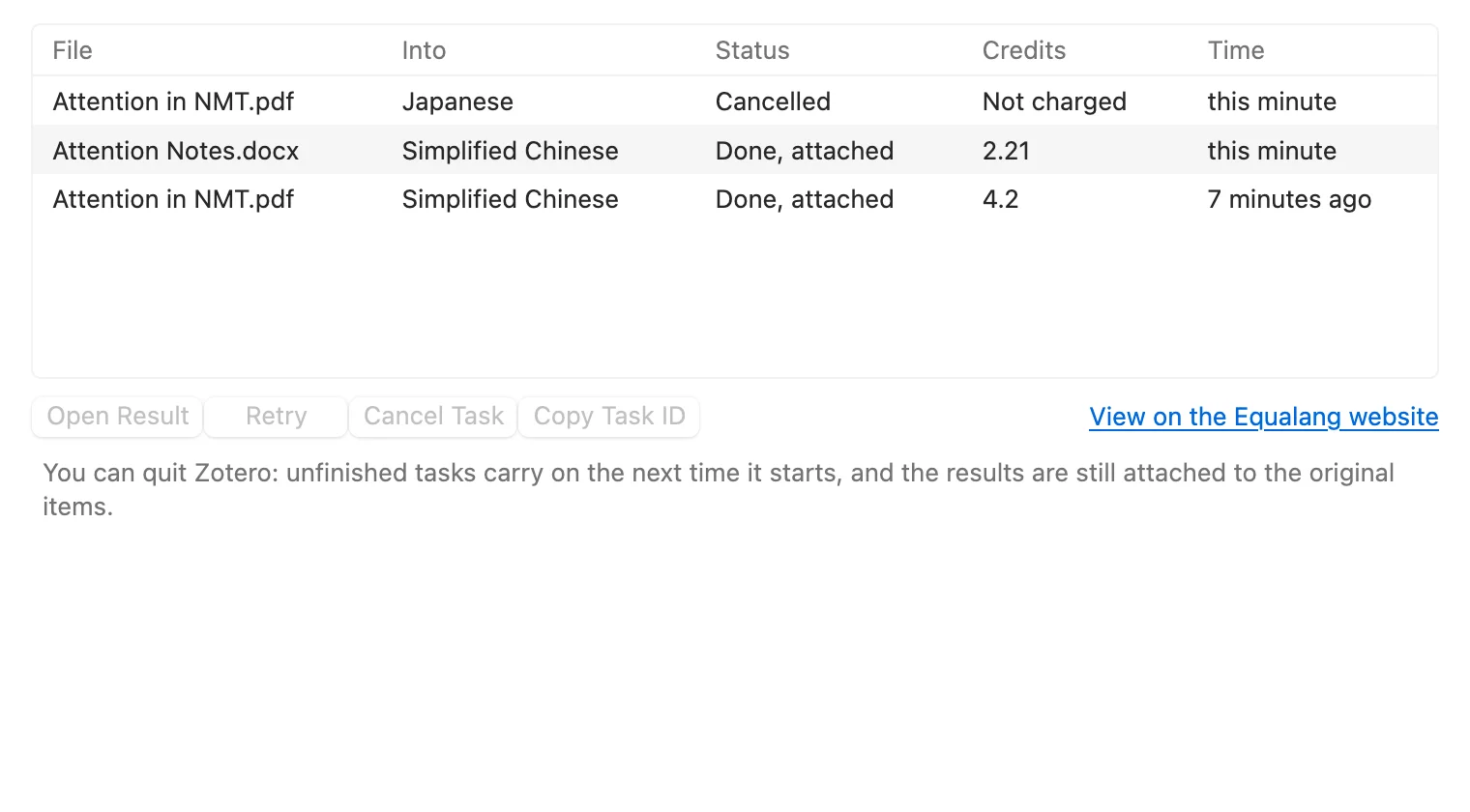
If you are translating several papers at once, open the tasks window to check progress, target languages, and credit usage across jobs. If you need to close your laptop, you can quit Zotero at any time—unfinished tasks will resume the next time you open Zotero. If you cancel a task or a file fails to process, no credits are charged.
Reading Bilingual PDFs Side by Side in Zotero
When you open a translated bilingual PDF inside the Zotero reader, the source pages and translated pages alternate. To read them side by side on a single screen, go to the Zotero reader menu and select View → Spreads → Odd Spreads. That puts the original page on the left and the translated page on the right, keeping figures, tables, equations, and your highlight annotations inside Zotero's native reader.
For a broader comparison of how browser extensions, web workspaces, and PDF tools fit into different literature workflows, see our overview of translation tools for reading academic papers.
Selecting Sentences and Words While Reading
Sometimes you prefer to read the original paper directly and only check a convoluted sentence or an unfamiliar term when you get stuck.
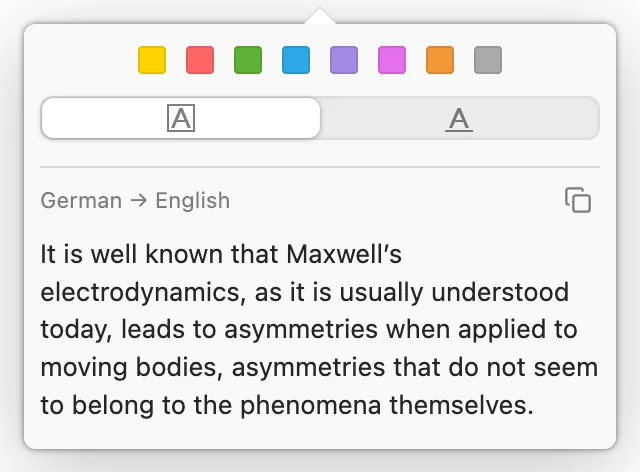
When you select a sentence inside the Zotero reader, the translation popup appears right below Zotero's highlight color buttons, without blocking the surrounding paragraph. If you prefer not to see a popup every time you highlight text, you can switch the setting to show a small Translate button first and only translate when clicked.
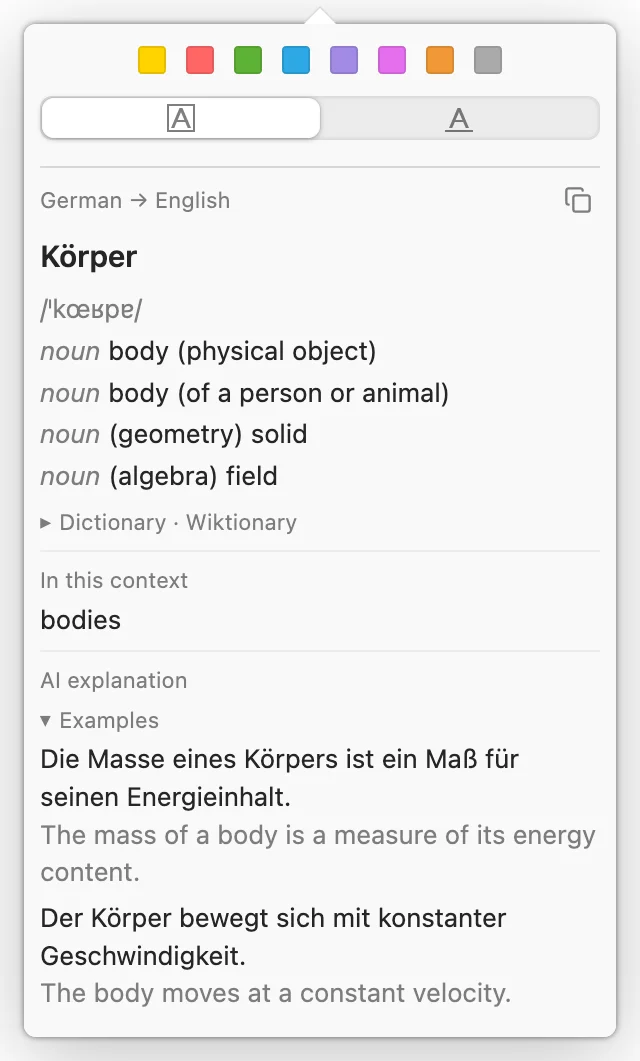
When you select a single word, the popup gives you more than a bare one-word gloss:
- Dictionary entries and context: For words covered by the dictionary (such as Körper), the popup shows pronunciation, dictionary senses from Wiktionary, the specific meaning that fits the current sentence context, and AI-generated example sentences.
- AI explanation and fallback: When a technical term or inflected form isn't covered by the dictionary, the popup provides the translation alongside an AI explanation, pronunciation (marked when AI-generated/unverified), and contextual examples.
In addition to attachments and in-reader text, you can also right-click an item and select Translate Title and Abstract with Equalang (supports multi-select) when screening papers; each translation appears right under its original title and abstract, and is stored only on your local machine.
File Storage, Credits, and Privacy
Before making the plugin part of your daily workflow, it helps to know where your files live, how credits are billed, and how your data is handled:
- Where files are stored: Whole-document translations are attached under the parent Zotero item by default and sync via Zotero storage. If you manage attachments externally, you can change the setting to save translated files into a local folder on your computer and link them instead (this linked-file option applies only to items in My Library). Title and abstract translations are stored only on your local machine.
- Uninstalling: If you ever remove the plugin via Tools → Plugins, the plugin's own local data is cleaned up automatically, while the translated attachments already saved under your Zotero items remain intact.
- Credits and pricing: The plugin uses the same credit balance and rates as the Equalang website—no separate subscription is needed. Text translation is billed by token (1,000 tokens is roughly 1,000 CJK characters or 4,000 English characters / about 750 English words). The smallest credit pack on the pricing page is $10 for 10,000 credits, and purchased credits never expire. Cancelled or failed tasks are not charged.
- Privacy: Selection translation only sends the text you select. Whole-document translation uploads the file to Equalang document translation for processing under the privacy policy: uploaded files and translated results are retained for 14 days and then become inaccessible (you can also request deletion at any time). Equalang does not sell personal data and does not use your submitted or translated content to train AI models.