How to Use Korean Websites When You Can’t Read Korean
 Equalang
In brief
A practical guide to navigating Korean websites like Naver using paragraph-by-paragraph translation, selection lookups, and screenshot photo translation.
Keywords: Korean websites; Naver translation; bilingual web translation; selection translation; photo translation
Planning a trip to South Korea, buying concert tickets, following idol fan cafes, or tracking down local restaurant recommendations often leads directly to Korean platforms like Naver. While these domestic portals offer the most up-to-date local information, many provide little to no English support, or limit their international interfaces to basic landing pages.
Translating these pages can be tricky. Standard automated full-page translation often replaces the entire document text at once, which can break dynamic layouts, displace form fields, or prevent Korean confirmation buttons and interactive dropdowns from functioning properly.
To navigate these sites without disrupting their interfaces, a multi-step workflow helps bridge the gap between reading Korean text and interacting with complex web pages.
Translating Pages Paragraph by Paragraph
When browsing domestic web portals, blogs, or booking guides on a desktop computer, the most reliable approach is to view translations directly beneath the original Korean text rather than replacing it entirely.
Below, we demonstrate this using the Equalang browser extension. When reading a web page, the extension inserts translations alongside most text (though occasional lines may not be translated). Because the original page structure and hypertext links remain in place, you can still click the underlying Korean buttons, submit booking forms, or follow navigation links.
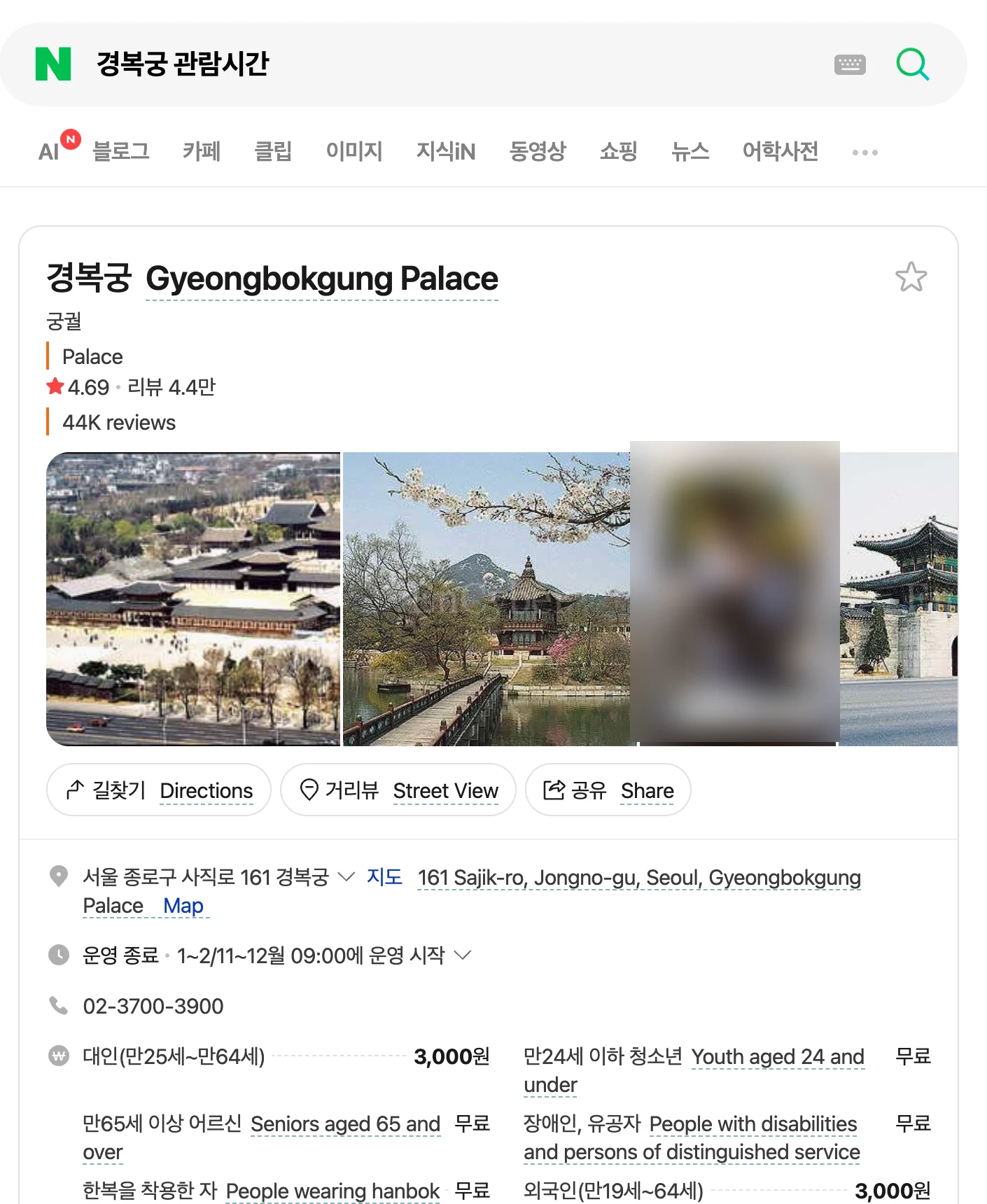
Keeping the original Korean visible alongside your translation also makes it easier to match terms against local signage, addresses, or station names when planning travel. You can read more about this layout preservation in our guide on reading foreign websites bilingually.
Checking Short Phrases and Buttons with Selection Translation
Many interactive Korean pages—such as reservation calendars, filter bars, and option menus—consist of short labels, single words, or form prompts. Translating an entire page for a single button label can introduce unnecessary clutter.
For these smaller elements, you can use selection translation. When you enable selection translation in the extension, highlighting a Korean word or phrase and clicking the translation icon next to the selection brings up a compact floating window showing its translation.
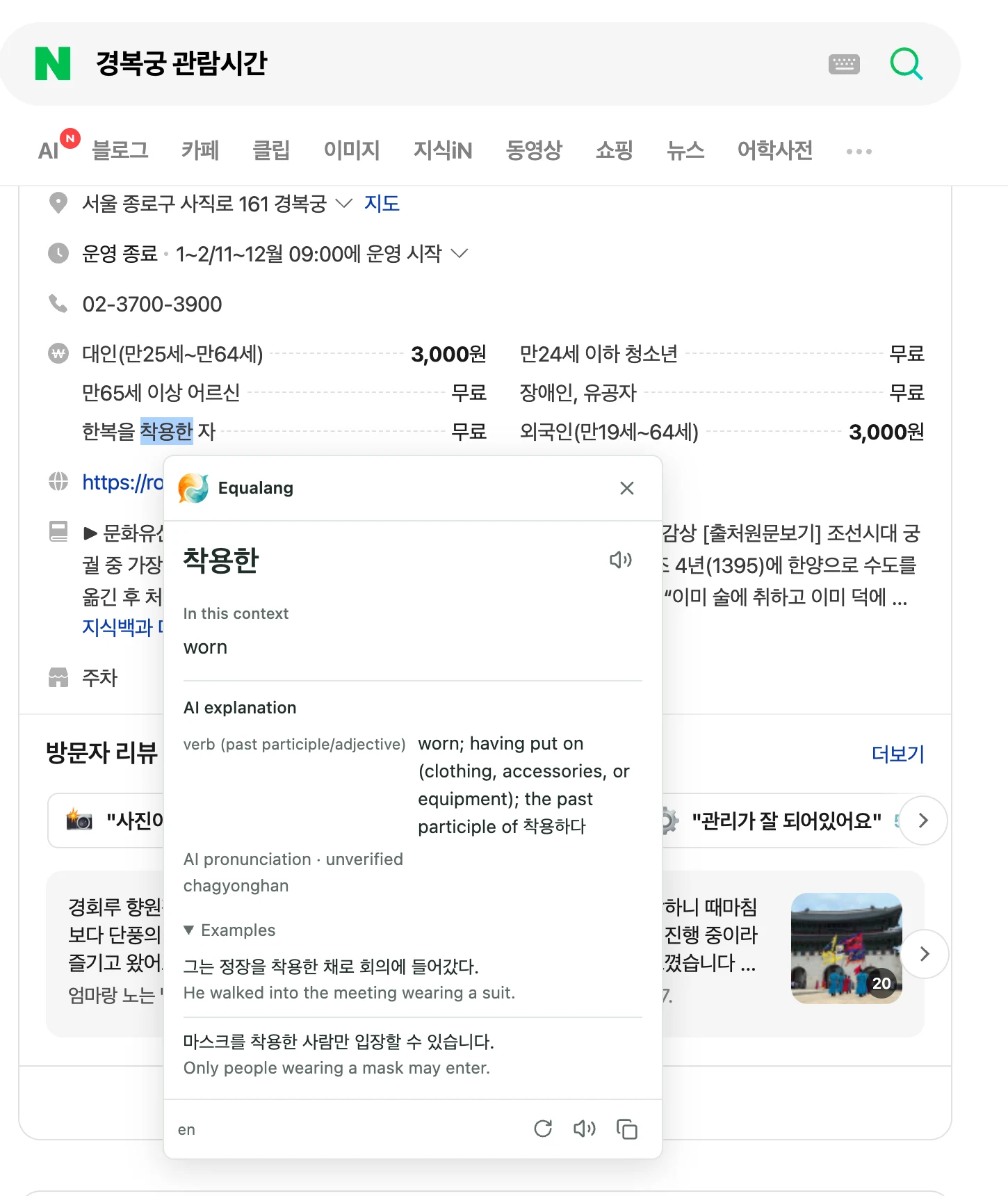
From this pop-up, you can copy the translated text, listen to the pronunciation, or re-run the lookup. This allows you to verify form options, seat categories, or delivery terms one step at a time without disturbing the rest of the page.
Translating App Screens and Embedded Images
Not all Korean content lives in selectable web text. Korean event notices, pop-up announcements, restaurant menus, and mobile-only interfaces frequently place critical details inside graphic banners, image slices, or smartphone apps.
When you encounter text embedded inside an image or an app screen, take a screenshot and pass it to Equalang Photo Translation. On desktop, you can paste the screenshot directly or upload the image file; on mobile, you can upload from your camera roll.
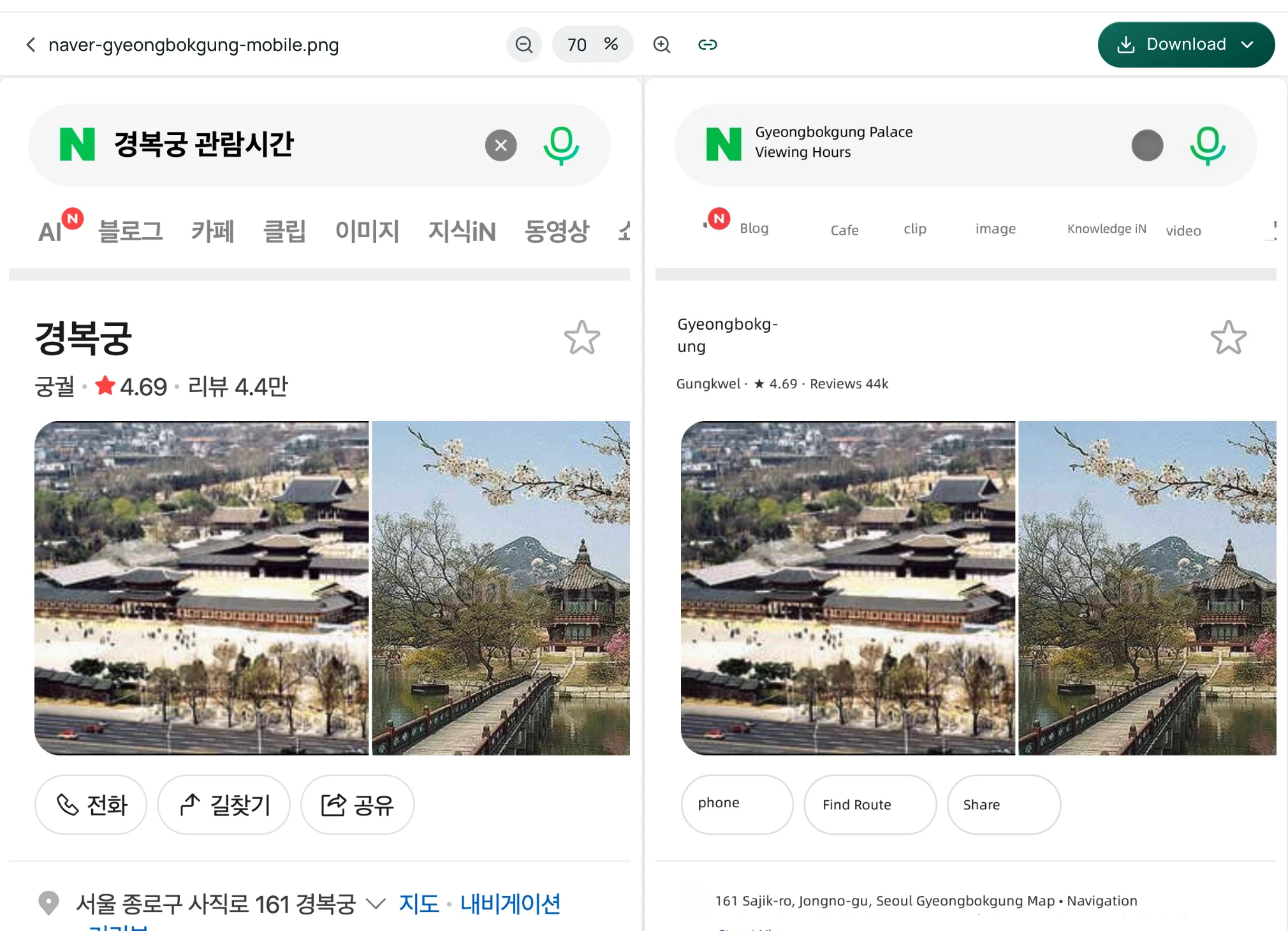
The photo translation engine replaces the text in place within the image, keeping translated labels aligned with their corresponding graphics, dates, and prices. For practical tips on handling signs and menus on the go, see our guide on photo translation for travel.
Limits to Keep in Mind
While combining bilingual web reading, word selection, and photo translation covers most informational and navigation needs, certain barriers remain:
- Strict authentication barriers: Many Korean booking services, ticketing portals, and banking sites require domestic identity verification (such as Korean mobile carrier authentication or an alien registration number). Translation tools can help you read the requirements, but they cannot bypass mandatory domestic login restrictions.
- Image-heavy web layouts: Some older domestic e-commerce platforms embed entire product listings, sizing charts, and return policies inside long vertical images. In-browser paragraph translation only operates on web text; for image slices, you will need to capture and translate them as screenshots.
- App-only platforms: Certain delivery, taxi, and fan community services operate exclusively through dedicated mobile apps with no web equivalent. For these apps, taking screenshots and submitting them to photo translation is the primary workaround.
Navigating Korean platforms without knowing the language comes down to keeping the original interface intact on desktop while using screenshot translation for app barriers and graphic notices.