How to Auto-Translate YouTube Live Chat (Chrome & Firefox)
 Equalang
In brief
YouTube's CC button only translates video captions. Learn how to automatically translate incoming YouTube Live chat messages on Chrome, Edge, and Firefox.
Keywords: translate youtube live chat; auto translate youtube live chat; disable auto translate youtube live chat; youtube live chat translate extension; youtube live chat translate firefox
Turning on the CC button at the bottom of a YouTube player only controls captions inside the video frame—it does nothing for the Live Chat sidebar next to the stream. Because YouTube displays incoming viewer messages in whatever language each person types and offers no native auto-translate toggle for the chat panel, reading foreign-language chat in real time requires either a browser's built-in full-page translator or a dedicated browser extension that translates incoming chat lines in place.
When you tune into an international broadcast, a French rolling news stream, or a global esports tournament, half the fun is watching the live chat react to what just happened on screen. If you cannot read the language scrolling up the sidebar, you miss the jokes, context, and reactions viewers are sharing.
Why YouTube's Caption Settings Ignore the Live Chat Panel
YouTube treats the video player and the Live Chat sidebar as two separate components on the page. When you click the gear icon on a stream and select Subtitles/CC, those settings apply strictly to the <video> element's caption track.
Meanwhile, the Live Chat panel (both during a live broadcast and in Live Chat replay on archived streams) renders a continuous stream of text messages as viewers post from around the world. Because YouTube does not build a bilingual translation toggle into the chat header, any translation has to happen at the browser level.
How to Auto-Translate YouTube Live Chat Side by Side
If you want each incoming message to keep its original text while showing a translation right underneath—without translating the rest of the YouTube interface—we can demonstrate this with the Equalang browser extension, which provides installation guides for desktop Chrome, Edge, and Firefox.
- Open the YouTube live stream (or an archived stream with Live Chat replay visible) in your desktop browser.
- Make sure the Live Chat panel is expanded on the right side of the player.
- Click the Equalang icon in the YouTube player control bar to open the subtitle and stream menu.
- Set your target language and toggle on Translate live chat.
Once enabled, translations appear directly beneath each incoming viewer message as the chat scrolls. You can see both what the viewer originally typed and the translated line in your chosen language.
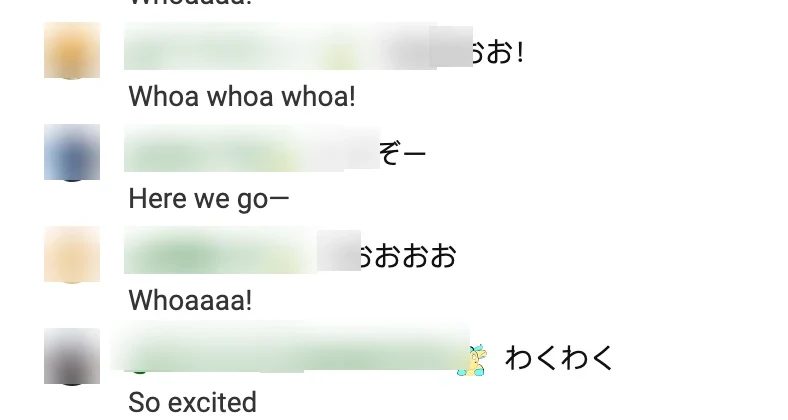
In our Chrome tests across both live broadcasts and archived replays, this workflow handled real-time and recorded chat streams as follows:
- Live news broadcasts: On FRANCE 24's French live stream (
EN DIRECT), consecutive French chat messages in the right-handTop chatpanel translated in place into Simplified Chinese and English directly beneath each original message. - Esports chat replays: On an archived LoL Esports English broadcast with
Live chat replayactive, enabling Translate live chat generated translations under each incoming viewer message in Turkish, Indonesian, Thai, Arabic, and Polish.
Because Translate live chat is an independent switch in the player menu, it runs separately from video subtitle translation. You can translate the live chat alone while leaving video subtitles off, or pair it with bilingual video subtitles or real-time audio translation (available on Equalang plans) when a live stream has no caption track.
Practical Limits to Keep in Mind
Before relying on automated chat translation during a broadcast, keep two real-world boundaries in mind:
- Strictly for reading incoming messages: Turning on Translate live chat only translates messages arriving from other viewers. It does not translate what you type into the chat box, nor does it send messages on your behalf.
- Slang and lowercase proper nouns: Internet shorthand, emotes, and uncapitalized names can trip up context. For example, during a League of Legends stream, a viewer typed lowercase
praying to riot(referring to the game developer Riot Games), which translated literally into Chinese as "向造反者祈祷" (praying to the rebels).
How to Disable Auto-Translate in YouTube Live Chat
People searching disable auto translate youtube live chat are usually running into one of two situations: either a browser extension is translating the chat panel, or the browser's own full-page translator was left on.
- If you enabled it in Equalang: Click the extension icon inside the YouTube player bar and toggle Translate live chat off. New messages will immediately appear only in their original language, and your video subtitle settings will remain untouched.
- If Chrome or Edge is translating the entire page: Look at the right end of your browser's address bar for the Google Translate or Microsoft Translator icon, click it, and select Show original (and uncheck "Always translate"). Full-page translation rewrites usernames, channel titles, and UI buttons alongside the chat, so turning it off restores the native YouTube layout.
Built-In Browser Alternatives (Chrome, Edge, and Firefox)
If you prefer not to use a dedicated video and chat extension, or you only need to check an occasional comment, you can use your browser's built-in tools:
- Native Full-Page Translation (Chrome, Edge, Firefox): Right-click near the page background and choose Translate to [Language] (or use Firefox's built-in page translation icon in the address bar). This is free and requires no extra install. The trade-off is that it replaces the original text instead of showing a side-by-side view and translates usernames and YouTube navigation menus alongside the chat.
- Selection Translation for Occasional Lines: If you understand most of the stream and only want to look up a single pinned comment or moderator announcement, highlight the text in the chat panel and use a pop-up selection translator or right-click search to inspect that specific phrase.
Frequently Asked Questions
Can I translate YouTube live chat on Firefox as well as Chrome and Edge?
Equalang provides desktop installation guides for Chrome, Edge, and Firefox (while the live chat tests in this article were conducted in Chrome). You can also check the FAQ on the Equalang extension page for supported video and livestream sites outside YouTube.
Does translating the live chat also translate the messages I send?
No. The Translate live chat feature is strictly for reading incoming viewer messages. Anything you type into the "Chat..." input box is sent exactly as you wrote it.
Why is YouTube auto-translate working on the video, or not working at all, while chat stays untranslated?
YouTube's native Auto-translate feature inside the CC menu only processes video subtitle tracks—and on live streams, native auto-captions are restricted to English on normal-latency broadcasts. If your video captions themselves are missing or stuck, see our guide on fixing YouTube auto-translate subtitles not working. For the chat sidebar, you must turn on a separate chat translation toggle.