How to Enable YouTube Bilingual Subtitles and Live Translation Without User Scripts
 Equalang
In brief
A comprehensive guide on displaying dual-language subtitles on YouTube and configuring the Equalang extension for real-time speech translation on untranslated videos and live streams.
Keywords: YouTube bilingual subtitles; YouTube live translation; dual subtitles; Equalang extension
When watching tech talks, university lectures, or international news on YouTube, you often run into two frustrating subtitle issues: first, even when a video has official foreign-language subtitles or platform-generated CC, YouTube's native player only allows you to select one language at a time—if you choose a translated subtitle, you can no longer see the original foreign words, making it impossible to check the original phrasing when technical terms are awkwardly translated, or to reference both languages side by side when learning; second, when watching raw, untranslated videos without subtitles, tech reviews in lesser-known languages, or certain live streams that lack suitable target-language subtitles, you are forced to rely solely on your listening ability to get through.
In the past, many viewers tried installing Tampermonkey scripts or single-purpose translation extensions. However, most of these scripts rely on the webpage's DOM structure, frequently leading to layout misalignment or breakage whenever the YouTube player interface is updated. Furthermore, they usually fail to work on videos that lack an existing subtitle track.
To solve these viewing pain points, this article explains how to display original and translated subtitles side by side on YouTube, and how to use the Equalang browser extension to enable real-time speech translation.
1. Videos with Existing Subtitles: Enabling Dual-Language Subtitles
When a video already includes English subtitles or a creator-provided subtitle track, the primary goal is to present both the original subtitles and the target-language translation simultaneously on screen, making it easy to understand the content while verifying the original wording.
Taking the Equalang browser extension as an example, the process is very straightforward:
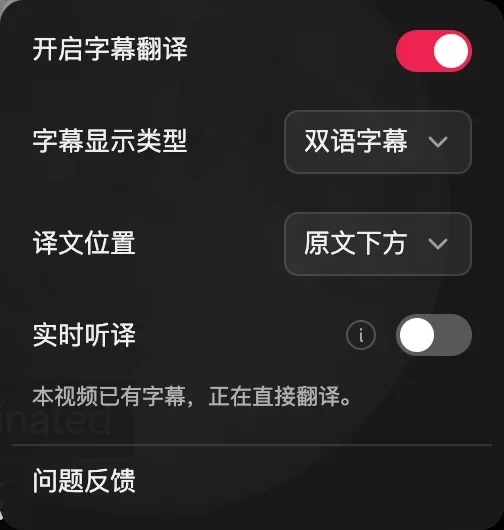
Open a subtitled YouTube video in a desktop browser and make sure the native "CC" button in the bottom-right corner of the player is turned on. Next, click the Equalang icon embedded in the player control bar, enable subtitle translation in the popup menu, and set the subtitle display type to "Bilingual Subtitles".
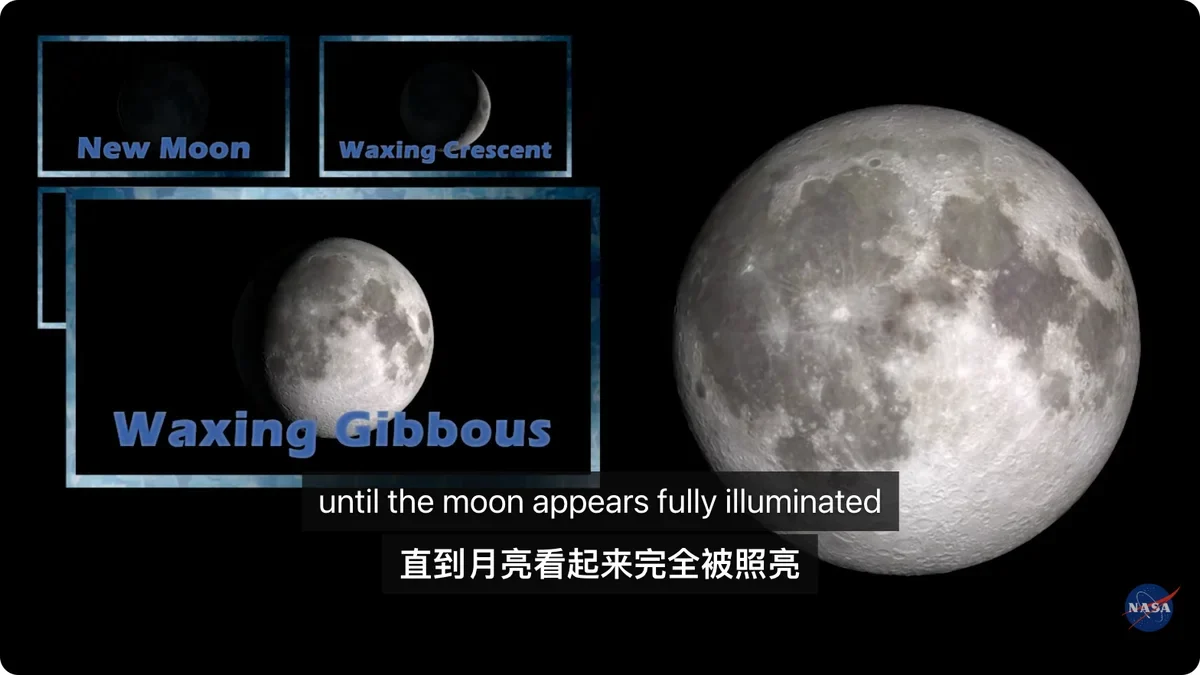
We tested this on the NASA Johnson video STEMonstrations: Moon Phases, which has English subtitles. In subtitle translation mode, the screen successfully displayed English and Chinese bilingual subtitles side by side:
Equalang provides simple and clear customization options for subtitle display and layout:
- Seamlessly toggle between bilingual and translation-only: Switch between "Bilingual Subtitles" and "Translation Only" at any time to suit either detailed study or casual watching.
- Adjust translation placement: Place the translation either "Below original" or "Above original" based on your reading habits to avoid blocking key diagrams or on-screen explanations.
2. Live Translation for Foreign-Language Videos and Live Streams
Beyond videos with existing subtitles, many viewers watch videos or live streams that lack suitable translations.
YouTube's native auto-translate feature relies entirely on existing subtitle tracks. Furthermore, automatic captions for live streams are currently limited to English on standard-latency streams. If a video does not have a target-language subtitle track to begin with, the native player cannot provide translation.
For scenarios requiring speech recognition and translation, click the "Live Translation" toggle in Equalang's player control menu. Once enabled, the extension transcribes and translates the playing audio in real time, presenting the foreign-language sentence alongside the translation on screen.
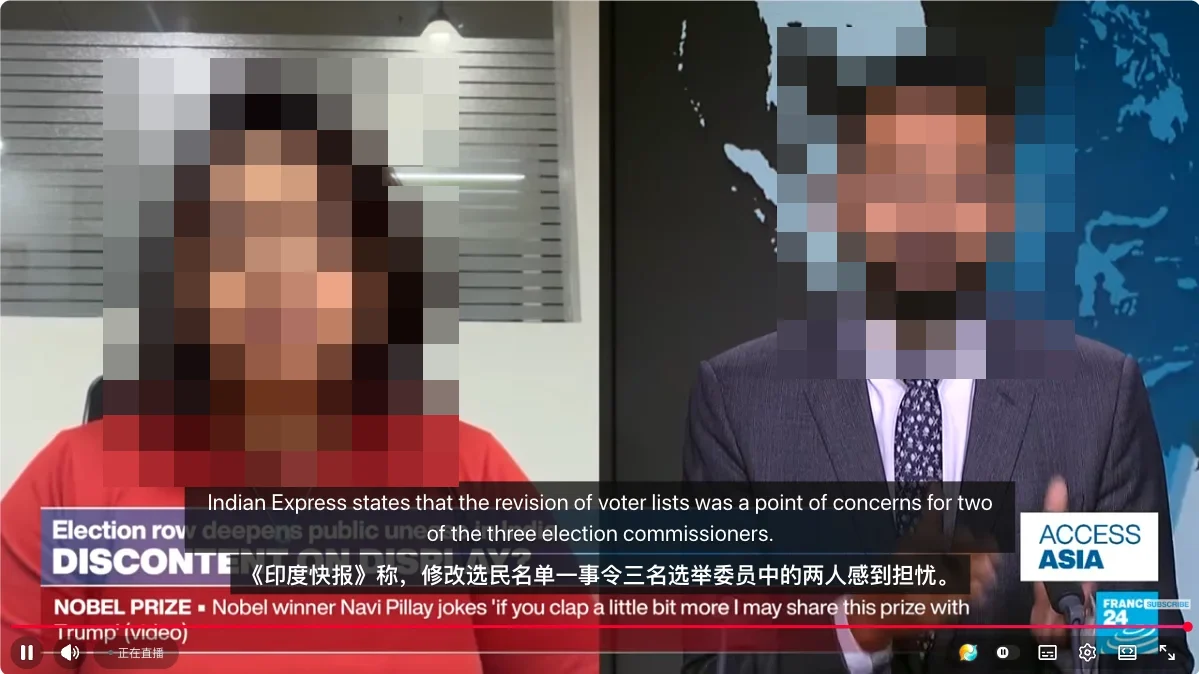
We tested this on a FRANCE 24 English live stream (which itself comes with YouTube subtitles), and the screen successfully displayed two lines comparing the original English with the Chinese translation:
3. Comparison of Methods and Practical Considerations
To help you choose the right viewing tool for your needs, here is a brief comparison of common ways to get subtitles on YouTube:
- Native YouTube Subtitles and Auto-Translate: Stable and requires no extra extensions. However, it only supports single-language display—so you cannot view original and translated subtitles simultaneously—and live auto-captions are currently limited to English on standard-latency streams.
- Tampermonkey Scripts / DOM Injection Tools: Lightweight and free, with some supporting dual-language display. However, most rely on specific webpage DOM structures that frequently break or misalign after player updates, and they cannot transcribe or translate audio without subtitles.
- Equalang Browser Extension: Embedded directly into the player's native toolbar, supports dual-language and translation-only display for existing subtitles, and offers a real-time translation mode. Requires installing the extension in your browser before first use.
When using the real-time speech translation feature, it is also advisable to keep realistic expectations:
- Interference from complex audio environments: Real-time translation relies on speech recognition. Loud background music, intense sound effects, or multiple overlapping speakers may affect recognition and translation accuracy.
- DRM and encryption restrictions: For DRM-protected content, browser security policies may prevent the extension from capturing the audio stream for transcription.
- Sentence segmentation and semantic buffering: Accurate translation requires analyzing sentence context. Consequently, there is a short processing delay between speech output and subtitle generation; it is not instantaneous word-by-word synchronization.
4. Practical Viewing Tips
Here are some practical suggestions for watching different types of YouTube videos:
- Tutorials and lectures: When official or auto-generated CC is available, prioritize turning on CC with bilingual subtitle mode. Keeping the original text alongside the translation makes it easier to understand technical concepts while picking up idiomatic phrasing.
- International news and foreign-language live streams: Enable the live translation feature whenever you need extra comprehension assistance.
Sources
- YouTube Help Center: Manage subtitle settings: https://support.google.com/youtube/answer/2734796
- Equalang Official Homepage: https://equalang.com/extension