YouTube Auto-Translate Not Working: What Can You Use Instead?
 Equalang
In brief
If YouTube auto-translated subtitles disappear, lack your language, or overwrite the original, here is how to troubleshoot and get bilingual captions.
Keywords: youtube auto translate not working; bilingual subtitles youtube; youtube subtitle translation; real-time video interpretation; live stream chat translation
You click into a foreign-language video on YouTube, head to the player settings to turn on subtitles, and run into a brick wall: the "Auto-translate" option has vanished from the menu, your target language is missing from the list, or turning on auto-translate completely replaces the original speech. Losing the original wording makes it difficult to follow technical terms, cross-check unfamiliar phrases, or learn a language while watching.
What to check if YouTube auto-translate is missing
When subtitle translation fails to appear or behave properly, there are several viewer-side checks you can perform directly in the player:
- Check whether the video has a base caption track. YouTube's built-in auto-translate feature does not transcribe audio directly from scratch; it requires an existing subtitle track (such as creator-uploaded subtitles or YouTube auto-generated captions). If the video does not have the "CC" badge or any captions listed in the settings menu, auto-translate cannot generate translations.
- Select an existing caption track first. If the auto-translate option appears grayed out or is missing from the menu, select the video's original language track (for instance, "Spanish (auto-generated)") first. Once a base track is active, reopen the Subtitles/CC menu to see if "Auto-translate" appears at the bottom of the list.
- Reload the player and check available languages. If the menu does not respond or your language is not listed among the available translations, refreshing the page or switching browsers can sometimes restore the standard options.
Even when YouTube's built-in auto-translate works as intended, it replaces the original caption text entirely. If you want to follow the speaker's exact phrasing while referencing a translation, a single-language track leaves you toggling back and forth.
Keeping original captions and translations side by side
To read both languages simultaneously without losing the speaker's original words, third-party caption tools can help. Here is how this works using Equalang, a browser extension for side-by-side translation.
When a YouTube video already has an original caption track, Equalang detects those captions and displays a translation directly underneath each line. Inside the player, a dedicated subtitle menu allows you to turn translation on, toggle between bilingual display and translation-only mode, and adjust where the subtitle lines sit on the screen.
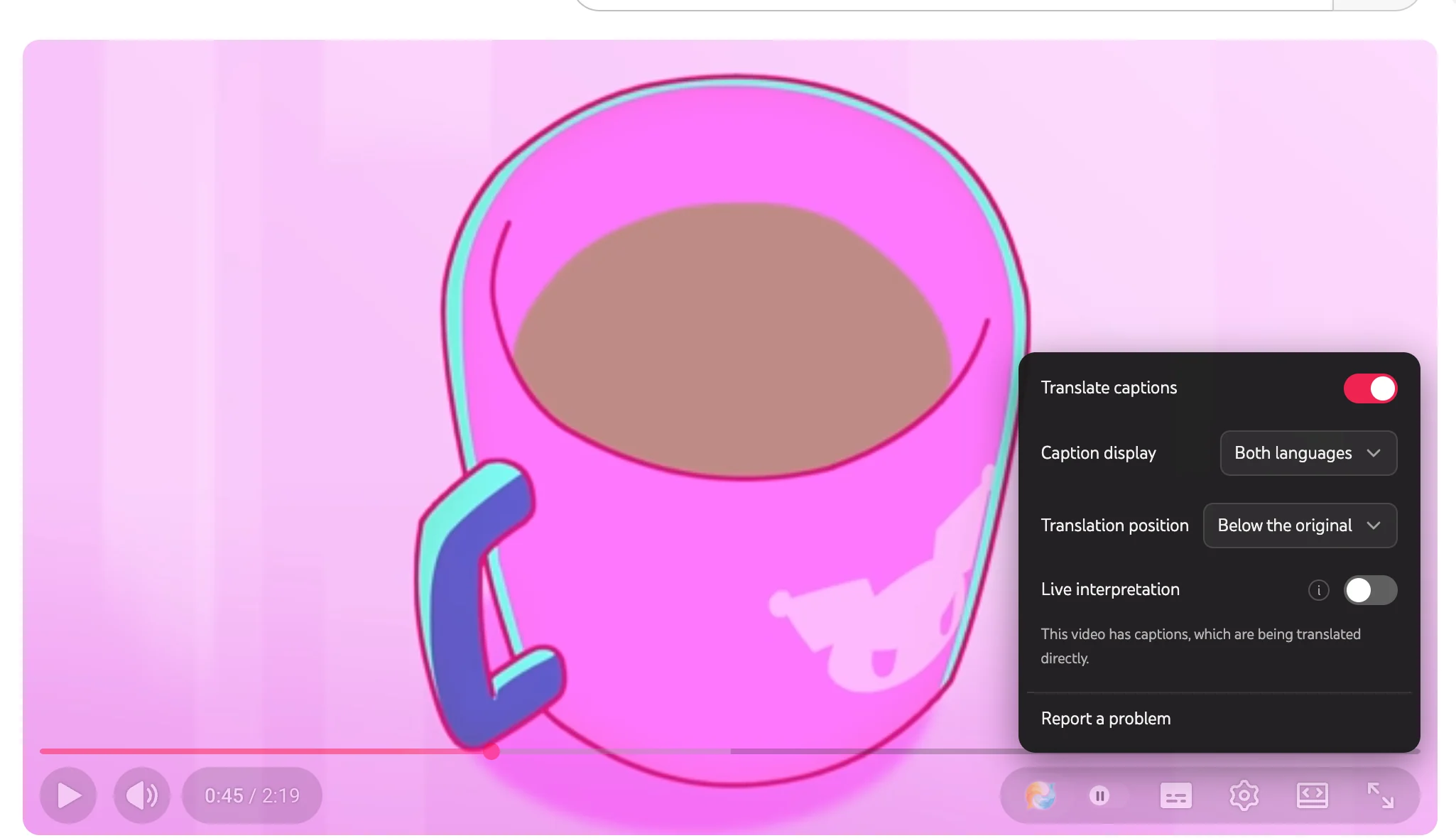
Because the translation appears alongside the source text rather than replacing it, you can keep track of original idioms and terminology while reading in your preferred language. You can also review our guide on watching videos with bilingual subtitles for more everyday viewing tips.
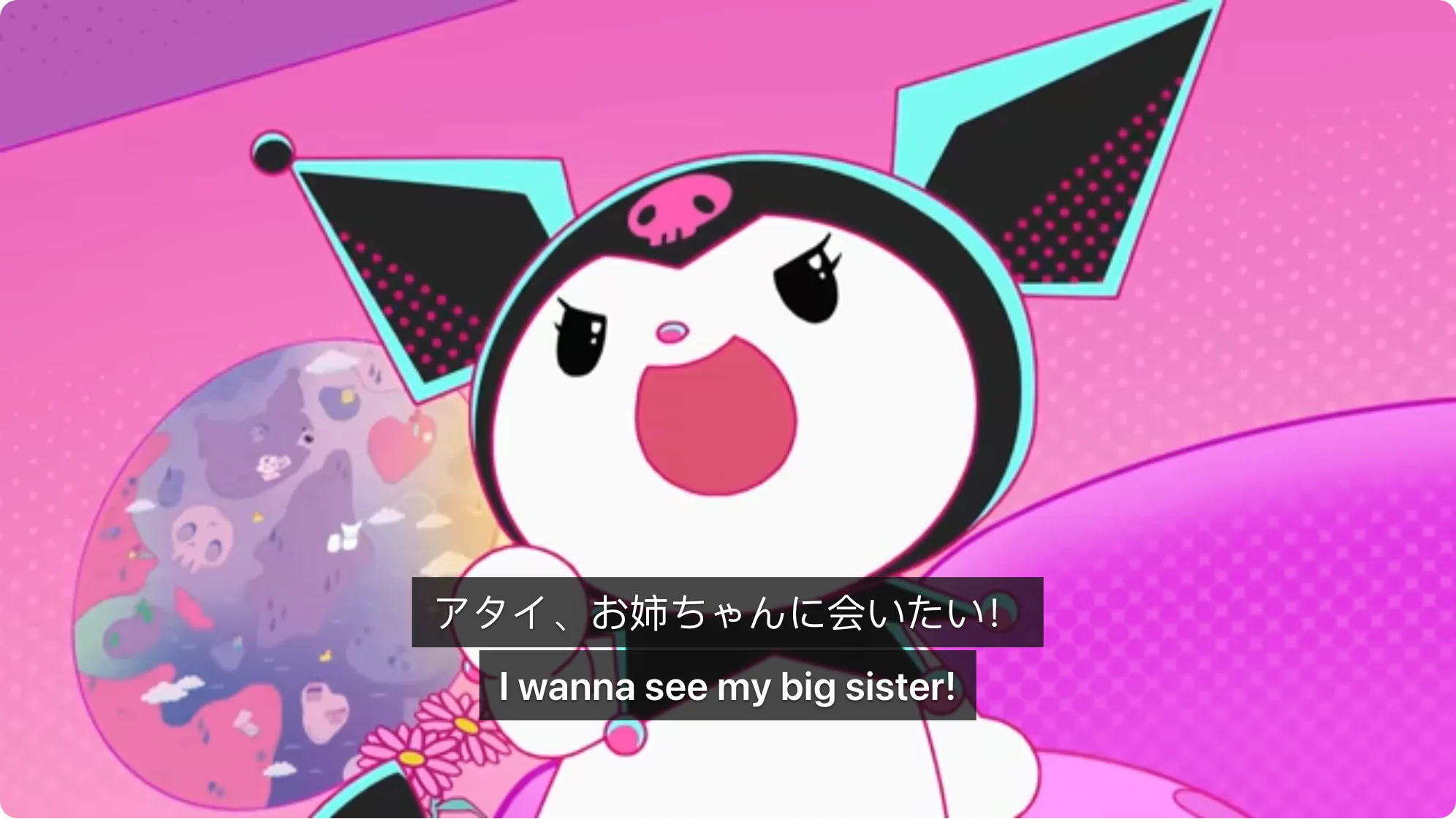
This method relies on an existing subtitle track. It translates the text provided in that track, which means any transcription inaccuracies already present in the original captions will carry through to the translation.
What to use when a video or live stream has no captions
A separate problem occurs when a video or broadcast has no subtitle track whatsoever. This is common on international live streams, breaking news channels, and newly uploaded clips. In these situations, YouTube's settings menu will not offer captions or auto-translate.
For videos without captions, Equalang provides a live interpretation feature. Instead of reading an existing subtitle track, it processes the incoming audio in real time, converting the spoken words into text and generating a translation alongside it.
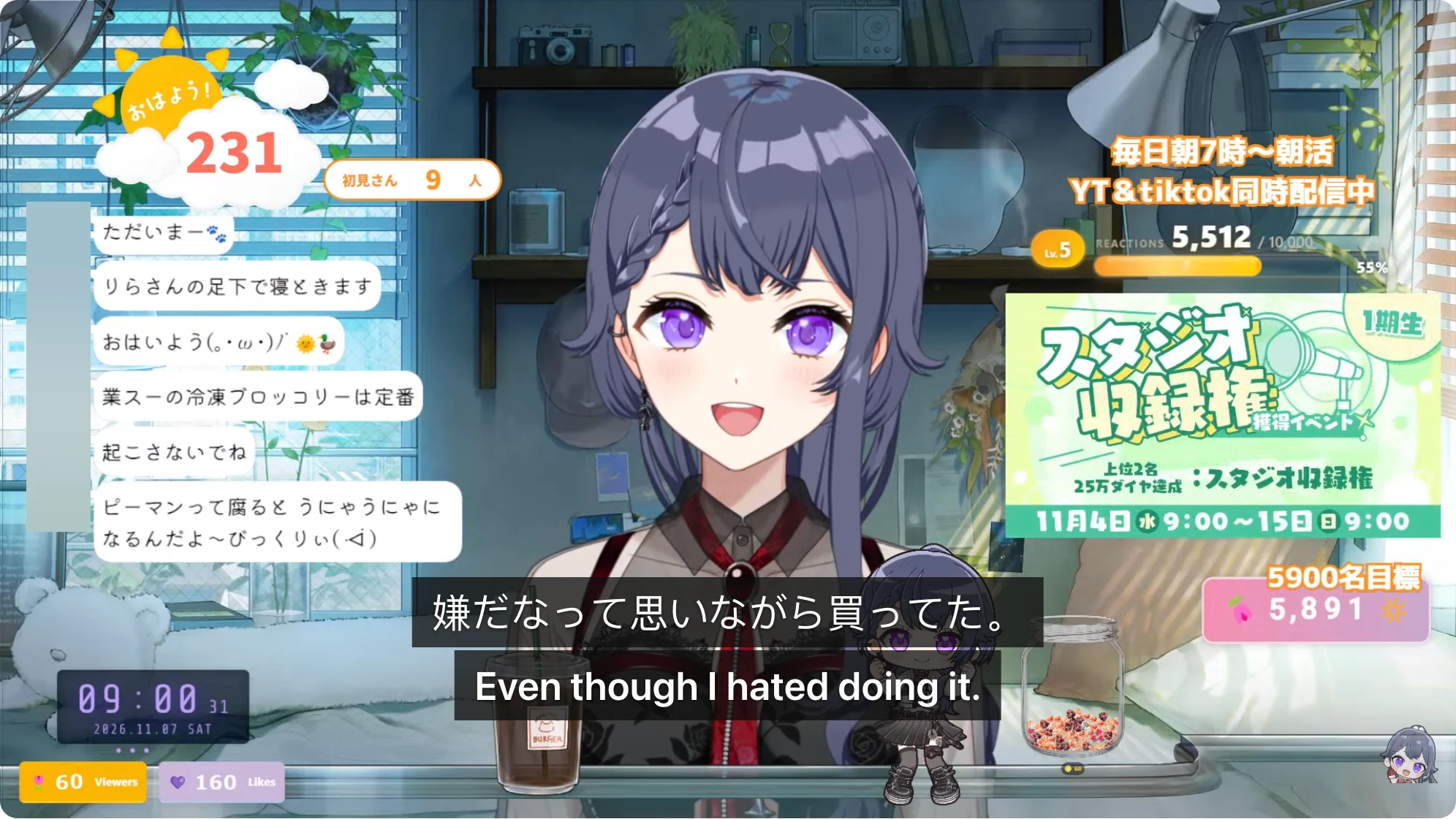
Because live interpretation listens to the audio track directly, real-world sound conditions matter:
- Spoken dialogue in clear speech produces the most consistent transcription.
- Background music, loud sound effects, or multiple people talking at the same time can cause transcription errors or missed lines.
- It translates spoken sound from the audio stream; it does not read or translate text that is permanently burned into the video imagery itself.
Translating live stream chat in real time
On live broadcasts, keeping up with the conversation often means reading the live chat alongside the video. When following international events or foreign creators, viewer comments are posted in languages you may not read fluently.
Equalang includes a live chat translation feature for live streams. When enabled, translations appear directly underneath viewer comments in the chat panel.
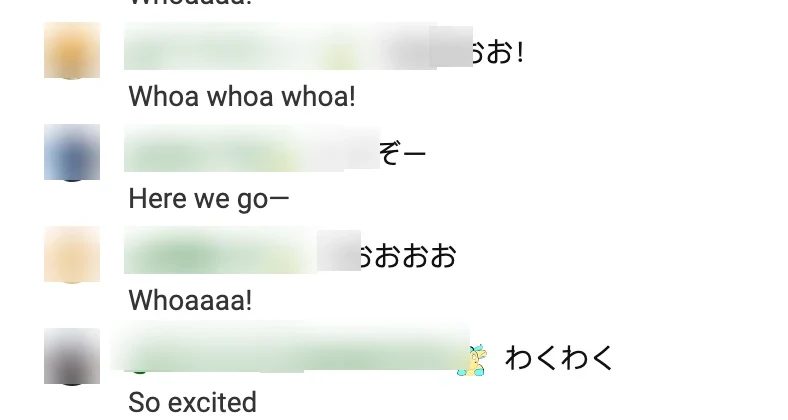
This translation operates on incoming viewer messages so you can follow the discussion as it unfolds. It does not compose or automatically translate messages you send into the chat. In high-volume chats with rapid scrolling, message readability may depend on the speed of the stream's chat feed.
If you frequently watch overseas content or international broadcasts, you can install the Equalang browser extension on Chrome, Edge, or Firefox to handle both pre-recorded videos and captionless streams.