How to Translate YouTube Comments on Desktop and Mobile
 Equalang
In brief
Restore YouTube's missing Translate button or read entire comment threads side by side on desktop browsers without clicking every single comment.
Keywords: translate youtube comments; translate youtube comments to english; translate youtube comments gone; translate youtube comments extension; youtube comment translator
To translate YouTube comments, you have two main paths depending on how many comments you want to read. For a single foreign-language post, YouTube provides an inline Translate to [Language] link right below the comment text—most reliably in the mobile app, and intermittently on desktop web depending on your account language settings. If that link is missing on your computer, or if you want to scroll through hundreds of replies without clicking every post and losing the original wording, you can run a side-by-side webpage translator extension on desktop Chrome, Edge, or Firefox so each translation appears directly underneath the original comment as you scroll.
Why the Native Translate Button Goes Missing on YouTube
Many viewers search for why the YouTube comment translation button suddenly disappeared, especially after switching between a phone and a laptop. YouTube does not show the inline Translate to English (or your local language) button on every comment by default. Whether that link appears depends on three platform rules:
- Where you are watching: The inline translation link appears primarily in the YouTube mobile app and only intermittently on desktop web at YouTube.
- Your interface and account language: YouTube compares the detected language of a comment against the display language set in your YouTube profile. If your YouTube interface is set to Spanish while you read Spanish comments—or if your Google account lists multiple languages you understand—YouTube skips offering a translation link for those languages.
- How the comment is written: Short comments, internet slang, heavy abbreviations, or mixed-language replies (such as a sentence combining Japanese and English words) frequently fail automatic language detection and miss the inline button altogether.
Even when the native button shows up, it has two practical friction points for heavy readers. First, it translates only one comment at a time, meaning you have to click through dozens of individual replies in a long discussion thread. Second, clicking the link replaces the original comment text entirely until you tap See original, making it awkward to check whether a funny phrase, pun, or timestamp note was translated literally.
How to Restore YouTube's Built-In Comment Translation Link
If you only need to check an occasional foreign comment and noticed the inline link is gone, verify your YouTube display language first. YouTube uses this setting to decide which target language to offer under comments.
- Open YouTube in your desktop browser and click your profile picture in the top-right corner.
- Find the Language row in the dropdown menu. If it is set to a language other than the one you want comments translated into, click it and select your preferred target language (for example, English (US) or English (UK)).
- In the mobile app, tap your profile tab at the bottom, open the gear icon for Settings, tap General, and check App language. For full details on changing language preferences across devices, see the official YouTube Help guide on language settings.
- Refresh the video page and scroll down to the comments section. Long, clearly written foreign-language comments should now display the Translate to... action underneath the text.
If the native button still does not appear on desktop, a quick built-in fallback is right-clicking an empty area of the page in Chrome or Edge and choosing the browser's built-in full-page translation. That works in a pinch, though it overwrites every original comment on the page—often mangling channel names, slang, and romanized terms without leaving the source text visible for comparison.
Scroll Through Comment Threads Side by Side on Desktop
When you are reading an international music video thread, an overseas news broadcast, or a technical tutorial where viewers share fixes in the replies, keeping the original text visible beside the translation makes a big difference. You can spot when a commenter is quoting a lyric, using local slang, or tagging a timestamp like 03:42.
With the Equalang browser extension installed on desktop Chrome, Edge, or Firefox, you can read YouTube comment threads in a stacked bilingual layout rather than replacing the page text.
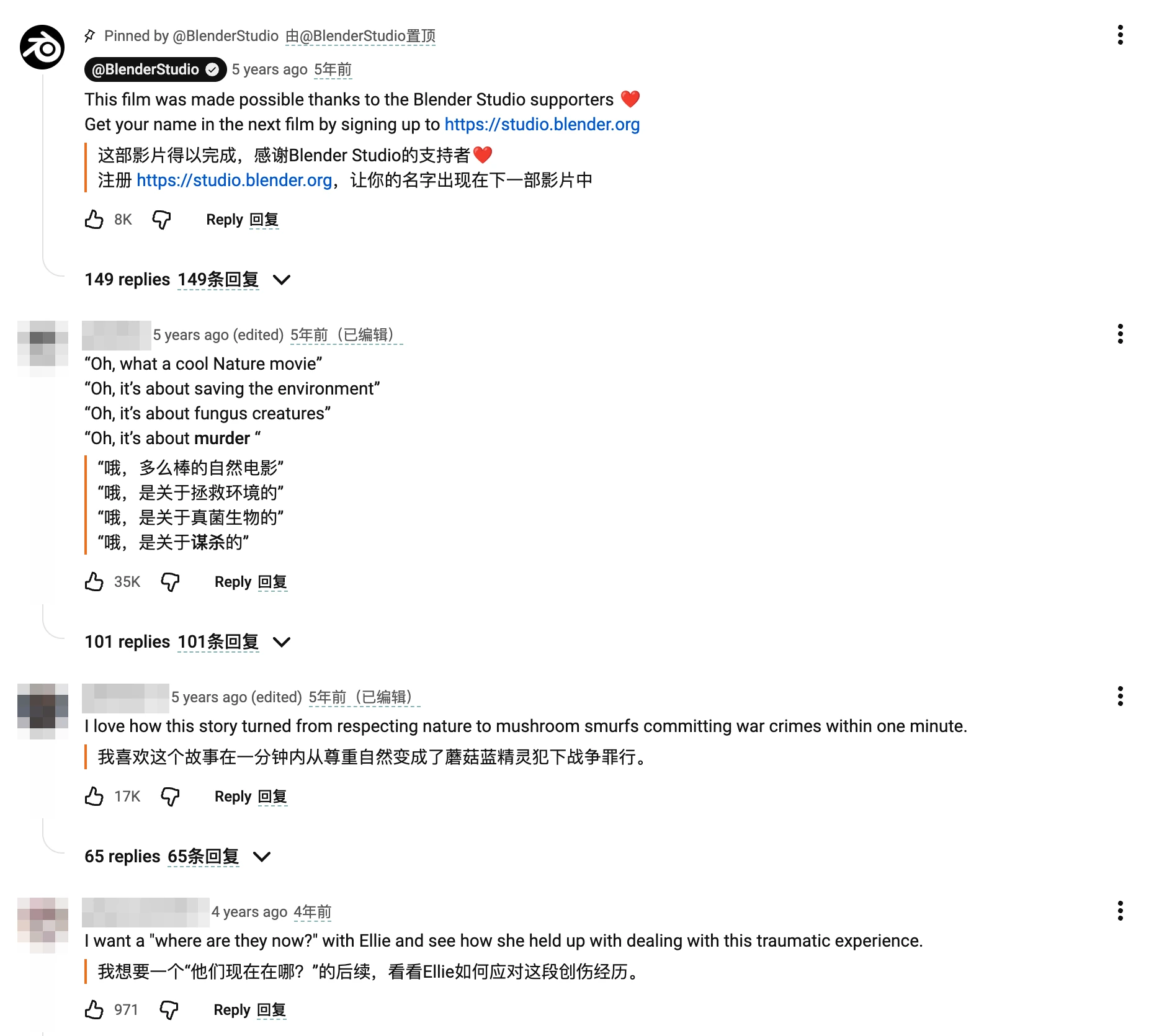
Here is how to set it up on a YouTube video page:
- Install the extension from the Equalang browser extension page for Chrome, Edge, or Firefox (on Mac, a temporary installation package is also available for Safari 18.4 and later, though it must be re-added after quitting Safari or after 24 hours, and it is not available on iPhone or iPad).
- Open the YouTube video you are watching, click the extension icon in your browser toolbar, and set your Target language (such as English). Currently, text translation covers Chinese, English, Japanese, Korean, Spanish, French and other languages, with automatic source language detection.
- Set the Display option to Side by side and trigger page translation.
- Scroll down into the YouTube comments section. As new comments load into view, each translated paragraph appears directly underneath its corresponding original comment, translating screen by screen as you read down the thread. Click the toggle again whenever you want to return the page to the original text only.
Because the translation sits right below each source paragraph instead of overwriting the DOM links, clickable video timestamps, @username reply links, and creator heart badges remain intact in the original line above. Keep in mind that webpage formatting varies across complex layouts: on narrower browser windows, right-side floating media or sidebar recommendations can occasionally crowd longer translated lines.
Look Up Single Words or Slang Without Translating the Whole Page
Sometimes you already understand most of a comment thread—for instance, an English or Spanish discussion—and only get stuck on one regional idiom or technical term. Turning on full-page translation for a single phrase is unnecessary.
Instead, enable Selection translation inside the extension panel while leaving full-page translation off:
- Highlight the unfamiliar word or phrase inside any YouTube comment.
- Click the small translation icon that pops up next to your cursor.
- Read the result in the floating card, which shows the meaning in context and may include a brief AI explanation (part of speech and definition) along with example sentences, plus audio playback and copy buttons at the bottom.
Translating Video Subtitles and Live Stream Chat
Reading the comments beneath a video is separate from translating the video player itself or a fast-moving live chat sidebar. If you also need help understanding what the speaker is saying or what viewers are typing during a live broadcast:
- For pre-recorded video captions: Enable original captions in the YouTube player and use the player's subtitle translation icon to view bilingual or translation-only subtitles. If a video has no caption track at all, real-time audio translation can generate and translate subtitles as the video plays (within browser and unencrypted video limits). Read our step-by-step guide on YouTube bilingual subtitles.
- For live stream chat boxes: Standard comment threads sit below the video, whereas live streams use a scrolling chat panel on the right. That panel has its own independent toggle that places translations beneath incoming viewer messages as you read them. See how to set it up in our guide to translate YouTube live chat.
Usage and Credits
You do not need a separate subscription to use the browser extension—it shares the same account and credit balance as the web app. New accounts receive 200 free credits upon signing up so you can test comment and webpage translation before deciding whether to buy more.
Text translation on web pages and comments is billed by token volume at 10 credits per 1,000 tokens (where 1,000 tokens is roughly 4,000 English characters, or about 750 English words, and around 1,000 Chinese, Japanese, Korean, Thai, or Hindi characters). Because webpage translation works screen by screen as you scroll and Selection translation only sends the words you highlight, you only spend credits on the portions of a thread you actually read. Purchased credits never expire; you can check the full rate breakdown on the pricing page.
Frequently Asked Questions
Why can I translate YouTube comments on my phone app but not on my computer?
YouTube rolls out the inline Translate to... comment button primarily in the mobile app for iOS and Android, while desktop web support is intermittent. If your desktop YouTube language setting matches the comment's language, or if a comment mixes languages and short slang, the native button often will not appear on a computer browser.
How do I translate all YouTube comments at once without clicking each one?
YouTube's native button only works one comment at a time. On a desktop browser, you can either use your browser's right-click full-page translator (which replaces all original text) or turn on Side by side mode in the Equalang extension so translations load automatically beneath each original comment as you scroll down the page.
Can I translate YouTube comments on Safari or mobile browsers?
In the YouTube mobile app, use the built-in Translate to... link under individual comments. For desktop browsers, full extension installation is available for Chrome, Edge, and Firefox. On macOS (Safari 18.4 and above), Safari currently supports a temporary installation from the website that needs to be re-added after quitting the browser or after 24 hours; iPhone and iPad browsers are not supported.