How to Translate a Wattpad Story Without Copying Text
 Equalang
In brief
Wattpad blocks text copying and lacks an in-app translator. Learn how to translate Wattpad stories on desktop or mobile and read chapters side by side.
Keywords: translate wattpad story; translate wattpad story to english; how to translate wattpad stories; wattpad bilingual translation; read foreign wattpad stories
To translate a Wattpad story into English or your native language without hitting copy-paste blocks, open the story on Wattpad in a desktop browser or a mobile web browser instead of the standalone Wattpad app. The Wattpad mobile app does not have a built-in chapter translator, and Wattpad's web pages disable standard right-click copy and cut on story paragraphs to deter scraping. If you just want a quick single-language skim on your phone, open wattpad.com inside mobile Chrome or Edge and turn on the browser's built-in page translator. If you are reading on a computer and want to keep character names, regional slang, and dialogue cues intact, use the Equalang browser extension in Side by side mode so each translated paragraph appears directly underneath the original paragraph as you scroll.
Why Translating Wattpad Chapters Feels So Frustrating
Wattpad hosts millions of serialized web novels written in Spanish, Tagalog, Portuguese, Turkish, Indonesian, French, and dozens of other languages. Often, a story gains traction on social media or in international fandoms long before anyone writes an official English adaptation. When you track down the original link, you immediately run into three practical roadblocks:
- No built-in translator in the Wattpad app: Opening a Spanish or Tagalog story inside the iOS or Android app leaves you with the raw source text and no translate button.
- Copy and cut are disabled on story pages: When you open a chapter on
wattpad.comand try to highlight a paragraph to paste it into an external translation tab, standard right-click copying is blocked on the story body. You cannot manually copy chapter chunks into a separate translator box. - Full-page browser overwrite hides the original voice: Built-in browser translators replace the source text in place. In web fiction—where authors weave Taglish (Tagalog-English code-switching), Spanish affectionate nicknames, Turkish honorifics, or Portuguese slang into fast-paced dialogue—overwriting the original line makes it hard to tell who is speaking when a nickname gets mistranslated as a common noun or a pronoun flips gender.
Choosing the right setup depends on whether you are skimming a chapter on your phone or settling in for a multi-chapter read on your laptop.
How to Read Wattpad Stories Side by Side on a Desktop Browser
When you read serialized fiction on a computer, keeping the original paragraph right above the translation solves both the copy-paste block and the lost-context problem. With Equalang, you do not need to select or copy a single line of text—the extension inserts the translation directly below each original paragraph on the page as you scroll down the chapter.
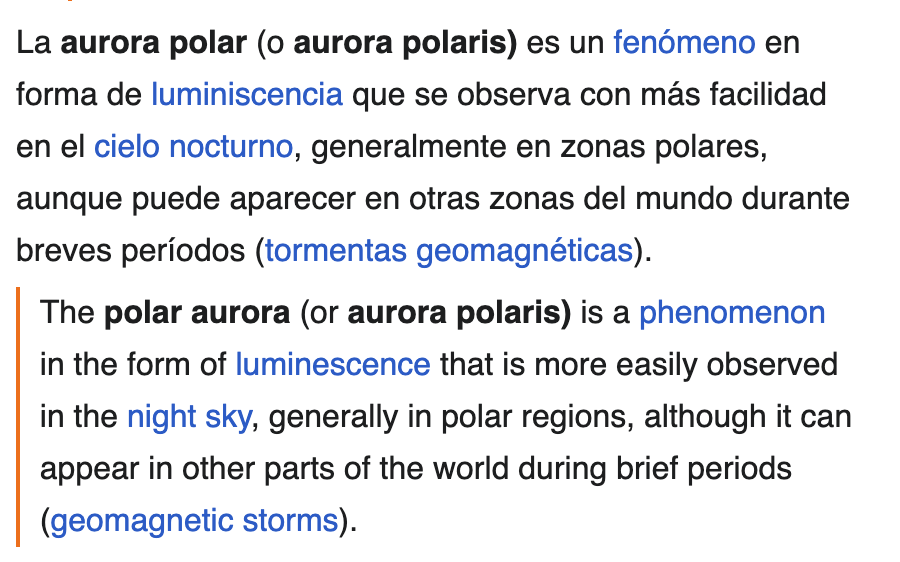
Here is how to set it up for your next chapter:
- Install the extension on your desktop browser: Visit the Equalang browser extension page and add it to Chrome, Edge, or Firefox (on macOS 18.4 or later, a temporary Safari installation is also available; the App Store version is marked coming soon).
- Open the Wattpad chapter in your browser: Go to Wattpad, log in if your reading list is saved to your account, and open the chapter you want to read.
- Select your target language and Side by side mode: Click the extension icon, choose your preferred reading language (currently covers Chinese, English, Japanese, Korean, Spanish, French and other languages, with automatic source language detection), and switch on Side by side mode.
- Scroll through the chapter at your own pace: As you read down the page, each translated paragraph renders right underneath its matching source paragraph. If you ever want to view the clean original page again, click once more to toggle back to the original text.
Why Paragraph-by-Paragraph Comparison Matters for Web Fiction
Serialized stories on Wattpad format dialogue and author commentary very differently from news articles. Having the source line visible right above the translation helps in three ways:
- Character nicknames and untranslated terms stay anchored: If a Spanish romance character calls someone a pet name that a translator turns into a literal English object, your eyes can glance one line up to see the capitalized nickname or italicized term in the original sentence.
- Code-switching stays readable: Tagalog and Indonesian Wattpad stories frequently mix English phrases into native sentences. Seeing both lines together prevents awkward double-translations from confusing the tone of a scene.
- Inline comment bubbles and formatting stay in context: Wattpad lets readers leave reactions tied to individual paragraphs. Because the original paragraphs remain on screen, you can still see exactly which line triggered a burst of reader comments. If you enjoy reading other serialized web fiction formats, the same workflow applies when you translate Pixiv novels or read foreign websites bilingually.
Checking Slang or Idioms with Selection Translation
Sometimes you already understand enough Spanish, French, or Portuguese to read most of a chapter on your own, and only get stuck on a specific regional idiom or author note. Instead of translating the entire chapter, you can enable Selection translation in the extension panel. Even though Wattpad blocks standard clipboard copying, you can highlight a phrase on the page and click the small translation icon that appears next to your cursor. The pop-up card shows the translation tailored to that context, and may include a brief AI explanation of the part of speech along with example sentences.
Honest Boundaries to Keep in Mind on Desktop
- Desktop browsers only: Browser extensions run inside desktop web browsers like Chrome, Edge, and Firefox on
wattpad.com. They cannot run inside the standalone Wattpad mobile app on iOS or Android. - Floating page elements: While paragraphs stack cleanly one below another in standard chapter views, pages with right-side floating media or sidebar ads can occasionally crowd some translated lines.
- Credit usage: The browser extension and web platform share the same account and credit balance—check the pricing details to see how text tokens are calculated (1,000 tokens is roughly 4,000 English characters or about 750 English words).
How to Translate Wattpad Stories on Mobile (Phone or Tablet)
If you do most of your reading on a phone, you cannot install desktop browser extensions inside the Wattpad iOS or Android app. However, you still have a free, built-in workaround if you switch from the app to a mobile web browser:
- Copy the story URL or search for it in a mobile browser: Open Chrome or Edge on your phone and go to
https://www.wattpad.com/. - Prevent the app from hijacking the link: If tapping a Wattpad link automatically boots you into the native app, long-press the link and choose Open in New Tab inside your browser.
- Trigger the browser's built-in page translator: In mobile Chrome or Edge, open the browser menu and tap Translate to convert the visible chapter into English.
This mobile browser method costs nothing and works well when you just want to follow the main plot on the go. Keep in mind that mobile built-in translators overwrite the original text completely, so you will not see the original Spanish, Tagalog, or Turkish dialogue alongside the translation, and you may occasionally need to re-trigger the translation button when loading the next chapter.
Frequently Asked Questions
Why can't I copy and paste text from a Wattpad story into a translator?
Wattpad disables standard right-click copy and cut actions on story paragraphs in web browsers to protect authors' work from automated scraping and unauthorized reposting. Because of this restriction, you cannot highlight chapters to paste into an external translation box, and instead need an in-page browser tool that translates paragraphs directly on the webpage.
Can I translate stories inside the official Wattpad mobile app?
No. The standalone Wattpad app on iOS and Android does not include a built-in story translation feature, and mobile apps do not support third-party browser extensions. To read translated chapters on a phone, open the story at wattpad.com inside a mobile browser like Chrome or Edge.
How can I read a foreign Wattpad story without losing character names and original dialogue?
Open the chapter on wattpad.com in a desktop browser (Chrome, Edge, or Firefox) and use the Equalang browser extension in Side by side mode. Instead of overwriting the author's original sentences, it places each translated paragraph directly underneath the source paragraph as you scroll, allowing you to check original character nicknames, honorifics, and dialogue cues at a glance.