How to Translate Pixiv Novels to English (Bilingual Guide)
 Equalang
In brief
Pixiv only auto-translates titles and captions, not novel text. Learn how to translate Pixiv novels into English while keeping Japanese names and dialogue.
Keywords: translate pixiv novels; how to translate pixiv novels to english; how to translate pixiv to english; pixiv novel translator; read pixiv novels in english
Pixiv's built-in automatic translation only translates novel titles, author captions, and comments—it never translates the story body itself, and it skips R-18 works entirely. Because Pixiv novels at pixiv.net/novel are rendered as standard HTML text rather than image files, you can translate the full story inside a desktop browser. However, using a standard full-page replacement translator overwrites the original Japanese text, turning character names into literal nouns, scrambling <ruby> furigana readings into the middle of sentences, and erasing the honorifics that tell you which character is speaking inside 「…」 dialogue brackets. Reading with a paragraph-by-paragraph bilingual overlay solves this by placing each English paragraph directly beneath the Japanese original.
Why Pixiv Stops at the Caption (and Why Overwrite Translators Break Names)
When you open a story URL like pixiv.net/novel/show.php?id=..., the top of the page often looks already translated. According to Pixiv's official Help Center guide on automatic translation, the platform's native feature translates only titles, descriptions (captions), and reader comments. Once you scroll past the tag list into the actual chapter, the text remains untouched Japanese.
First, make sure you are looking at a text novel rather than a comic posted under the illustrations tab:
- Pixiv Novels (
pixiv.net/novel): Rendered as selectable HTML paragraphs with multi-page chapter markers,<ruby>furigana tags above kanji, and Japanese quotation brackets (「…」). - Pixiv Manga and Illustrations: Uploaded as flat JPG or PNG images where text is drawn inside speech bubbles. A webpage text translator cannot read image pixels—if you are trying to read image comics, follow our guide on how to translate Pixiv manga instead.
When readers run a built-in browser translator (such as Chrome's native Google Translate) on a Pixiv novel, three specific problems happen because the original Japanese text is wiped off the page:
- Character names mutate mid-chapter: A character named Ren (蓮) or Hikari (光) may be transliterated as a name in one paragraph and translated literally as "Lotus" or "Light" three lines later. Without the kanji visible above the sentence, you cannot tell if a new character entered the scene or if the translator misfired.
- Dropped pronouns obscure the speaker: Japanese fiction rarely repeats "he said" or "she replied." Instead, readers identify the speaker by speech register, sentence-ending particles (
わ,ぞ,かしら), and how characters address each other (先輩,-san, or bare first names). When a machine translation flattens everything into generic English pronouns—and often swaps "he" and "she"—having the original「…」line right above lets you verify who is talking at a glance. - Ruby furigana tags split words apart: Pixiv authors frequently attach custom furigana readings to kanji (for example, writing a faction's kanji name but forcing a Katakana reading above it). Full-page DOM replacement tools often read the base kanji and the
<ruby>tag as two consecutive words, producing garbled double phrases.
Step-by-Step: Reading Pixiv Novels Side by Side on Desktop
To keep the Japanese text visible while reading in English, we will demonstrate with the Equalang browser extension on desktop Chrome, Edge, or Firefox (Safari on Mac also supports a temporary installation for macOS 18.4 and above).
1. Open the Novel Page and Sign In if Required
Navigate to the story on pixiv Novels. If the novel is marked R-18 or R-18G, Pixiv blocks the HTML body for logged-out visitors and hides it behind an age-verification prompt. No translation tool can bypass Pixiv's account gate: you must sign into your own Pixiv account and enable R-18 viewing in your Pixiv user settings before the browser can access the story text.
2. Turn On Bilingual Webpage Translation
Once the Japanese chapter text is visible on screen:
- Open the Equalang extension panel in your browser toolbar.
- Select your target language (for example, English) and choose Side by side (bilingual mode).
- Trigger the page translation.
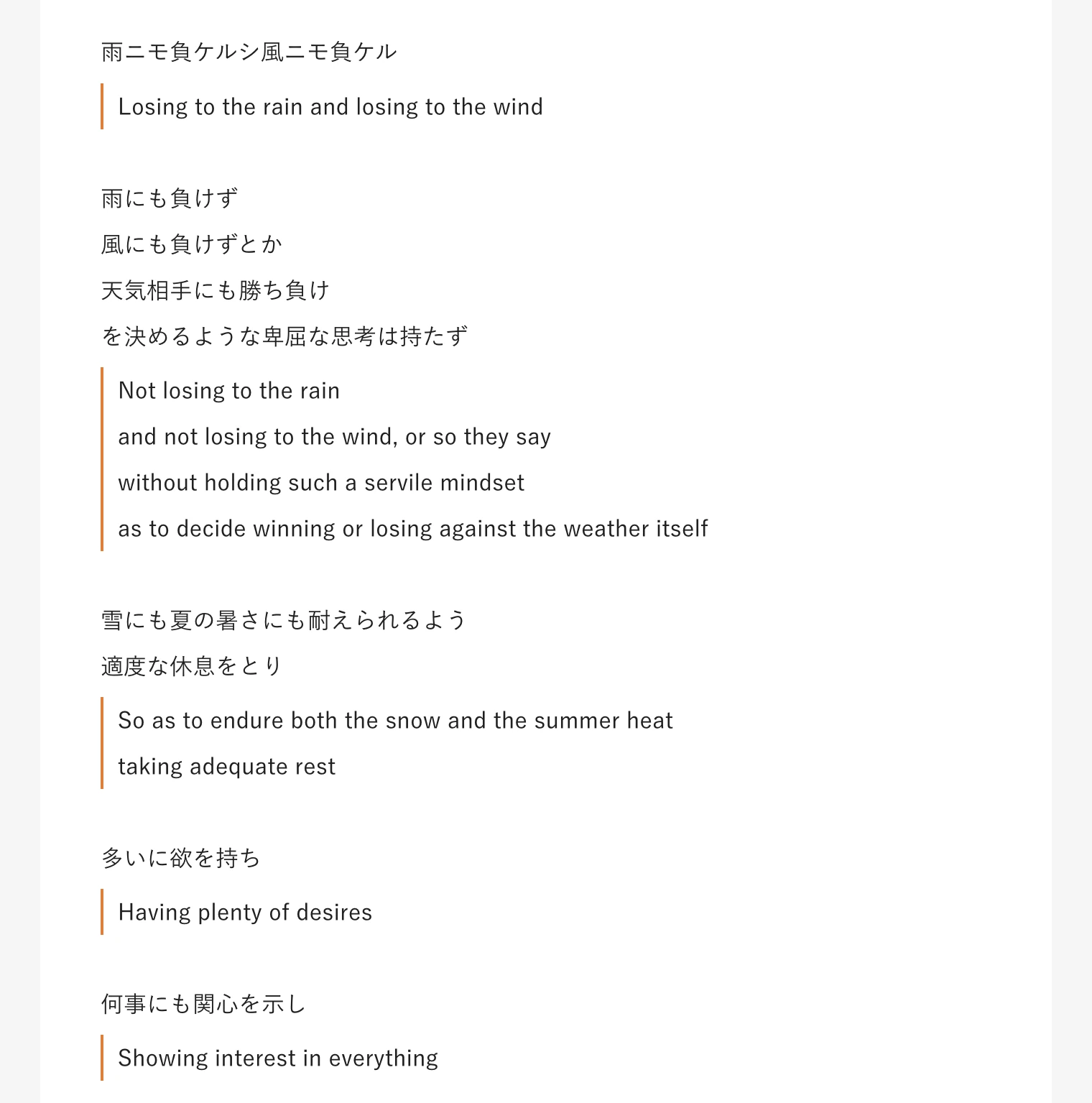
Instead of replacing the Japanese paragraphs, each translated paragraph appears directly underneath its corresponding source paragraph as you scroll down the page. Links on the page retain their references to the original URLs, and triggering the action again switches the page back to the untouched original text.
Because the Japanese sentence stays right above the English translation, you can read the English flow at normal speed and glance up only when a pronoun feels ambiguous:
- Checking dialogue brackets: If an English line says "Wait for me," he said, a quick look at the Japanese line above (
「待ってよ、〇〇くん」) immediately confirms who is speaking and who is being addressed, even if the English pronoun drifted. - Spotting custom furigana: When an author uses
<ruby>tags to pair a dramatic kanji term with a spoken slang reading, you see both the English translation below and the exact visual styling the author intended above. - Navigating multi-page chapters: Longer Pixiv novels split chapters across multiple pages. As you click to the next page or scroll through newly loaded sections, the extension translates the visible screen as you read. Note that if a webpage has floating media elements on the right side, they can occasionally crowd some translated lines.
3. Use Selection Translation for Idioms and Fanon Slang
Fanfiction and web novels are packed with four-character idioms (yojijukugo), internet slang, and punning ship names that look strange when translated as a whole sentence.
If a specific phrase in a paragraph still puzzles you, enable Selection translation in the extension panel. Highlight the Japanese word or phrase on the page and click the translation icon that pops up next to your cursor. The floating window shows the translation for that specific context, and may also include a brief AI explanation (part of speech and a one-line definition) along with example sentences, plus buttons to listen to the pronunciation or copy the text. You can also use selection translation on its own without translating the entire page if you are an intermediate Japanese learner who only needs help on unfamiliar vocabulary.
For a broader look at how paragraph-by-paragraph reading works across foreign news sites and forums, see our guide on how to read foreign websites bilingually.
Comparing Ways to Translate Pixiv Novels
Depending on how much Japanese you read and what device you use, different tools fit different situations:
- Built-in Browser Translation (Chrome / Edge / Firefox native): Free and available on mobile browsers without extra setup. It works well for scanning search results, author profiles, and tag lists, or getting the rough plot of a straightforward story. Its main drawback is that it overwrites the Japanese text, making dialogue-heavy fanfiction and Shifting character names frustrating to untangle.
- Pop-up Dictionary Extensions (such as Yomitan / 10ten): Ideal for active Japanese learners who can already parse Japanese grammar and only want instant word lookups by hovering over kanji. It does not translate full paragraphs or sentences for you.
- Equalang Browser Extension (Side by side + Selection): Built for readers who want full-sentence translation without losing the original Japanese text above each paragraph. Webpage text translation is billed by token usage from a shared account balance (1,000 tokens is roughly 1,000 CJK characters or 4,000 English characters; see the pricing page for details).
What If You Downloaded a Pixiv Novel as an EPUB, PDF, or TXT?
Some Pixiv authors offer downloadable EPUB, PDF, or TXT versions of their long-form novels through BOOTH or fanbox links, or you may have saved a public story locally for offline reading. Paid stories, Pixiv Requests, and BOOTH downloads always follow Pixiv's and the creator's own access rules.
If you already have a DRM-free .epub, .pdf, or .txt file of a novel, you can upload it directly to Equalang's web document translator. For long fiction in EPUB or PDF format, the web Translation settings menu includes a Keep names and terms consistent toggle (off by default, billed at an additional 4 credits per 1,000 tokens) designed specifically for novels and biographies to unify character and place names across chapters. If you prefer to read a local .pdf file directly inside Chrome using the browser extension, you will need to open chrome://extensions and enable Allow access to file URLs for Equalang first (regular pixiv.net webpages do not need this permission).
Frequently Asked Questions
Why does Pixiv translate the novel title and description, but not the story?
According to Pixiv's official documentation, Pixiv's built-in automatic translation only covers titles, captions/descriptions, and user comments. It does not translate the body text of novels, and it excludes R-18 content. To read the story body in English, you need an external browser translator.
Can I translate R-18 Pixiv novels?
Pixiv hides R-18 novel text behind an account login and an age-restriction setting. Once you sign into your Pixiv account and enable R-18 viewing in your account preferences so the Japanese HTML text loads in your browser, a browser extension can translate the visible paragraphs on the page just like any other novel.
How do I stop character names from changing in every paragraph?
Reading in a side-by-side bilingual view keeps the original Japanese kanji name directly above each translated English paragraph, so you can immediately spot when a character's name was translated literally. If you are translating a downloaded EPUB or PDF novel on the web app, turning on Keep names and terms consistent in the translation settings helps unify character and place names across the file.