How to Translate VTT Subtitles Without Breaking Timestamps
 Equalang
In brief
Translate WebVTT (.vtt) subtitle files while keeping WEBVTT headers, millisecond dots, and cue settings intact for HTML5 video players.
Keywords: translate vtt subtitles; convert vtt subtitles to srt; translate subtitle vtt srt; webvtt subtitle translator; html5 track subtitle translation
To translate .vtt subtitles without breaking playback, you need a workflow that isolates dialogue lines from structural markers—preserving the required WEBVTT header at the top of the file, the 00:01:12.400 --> 00:01:15.800 dot-decimal timestamps, and any cue positioning settings like line:85% or <v Speaker> tags. Pasting a raw .vtt file into a plain text box almost always corrupts one of those three elements, causing HTML5 <track> video players to silently drop the entire subtitle track.
Below is why .vtt files break so easily during copy-paste translation, how to translate .vtt files directly while keeping every timestamp locked in place, and how to convert between .vtt and .srt when your media player demands a specific format.
Why Plain Copy-Paste Breaks WebVTT (.vtt) Files
WebVTT (Web Video Text Tracks, served with MIME type text/vtt) is the W3C and WHATWG standard required by HTML5 <track> elements across web video players, online course platforms like Coursera and Udemy, and embeds on Vimeo. As documented in the MDN WebVTT API specification, browser parsers enforce strict syntax rules before rendering a single line of text.
A valid .vtt snippet looks like this:
WEBVTT

00:01:12.400 --> 00:01:15.800 line:85%
<v Instructor>Welcome back to module three.

00:01:16.100 --> 00:01:19.500
Today we will inspect the network request waterfall.
When you paste those lines into a general text translator, four things routinely go wrong:
- The
WEBVTTheader gets altered or translated: The very first line of the file must start with the exact ASCII stringWEBVTT. If a translator turns it into lowercase, adds a space before it, or translates it as a word, the browser rejects the file immediately. - Dot milliseconds turn into commas or full-width punctuation: Unlike
.srtfiles (which use commas, such as00:01:12,400), WebVTT requires a period (.) before the milliseconds. Text translators targeting European or East Asian languages frequently swap punctuation marks inside numbers. - The
-->arrow is modified: WebVTT cues require two hyphens and a greater-than sign (-->) padded by spaces. Automatic punctuation rules often collapse-->into->or convert it into an em-dash (—), breaking cue parsing. - Cue settings and voice spans are scrambled: Trailing attributes on the timestamp line (
line:85%,position:50%,align:start) or inline voice tags (<v Instructor>) get translated into localized words or stripped of their angle brackets, resulting in raw markup appearing on screen.
How to Translate a .vtt File Directly Without Touching Timestamps
Instead of stripping timestamps manually or writing regular expressions to hide them, you can upload the .vtt file directly to a subtitle-aware file translator that parses only the spoken dialogue.
Equalang's document and subtitle translator accepts .vtt and .srt files natively. When you upload a .vtt file, it reads each timed block, translates the dialogue lines in context across consecutive cues, and writes the translated text back under the original timestamp and file header.
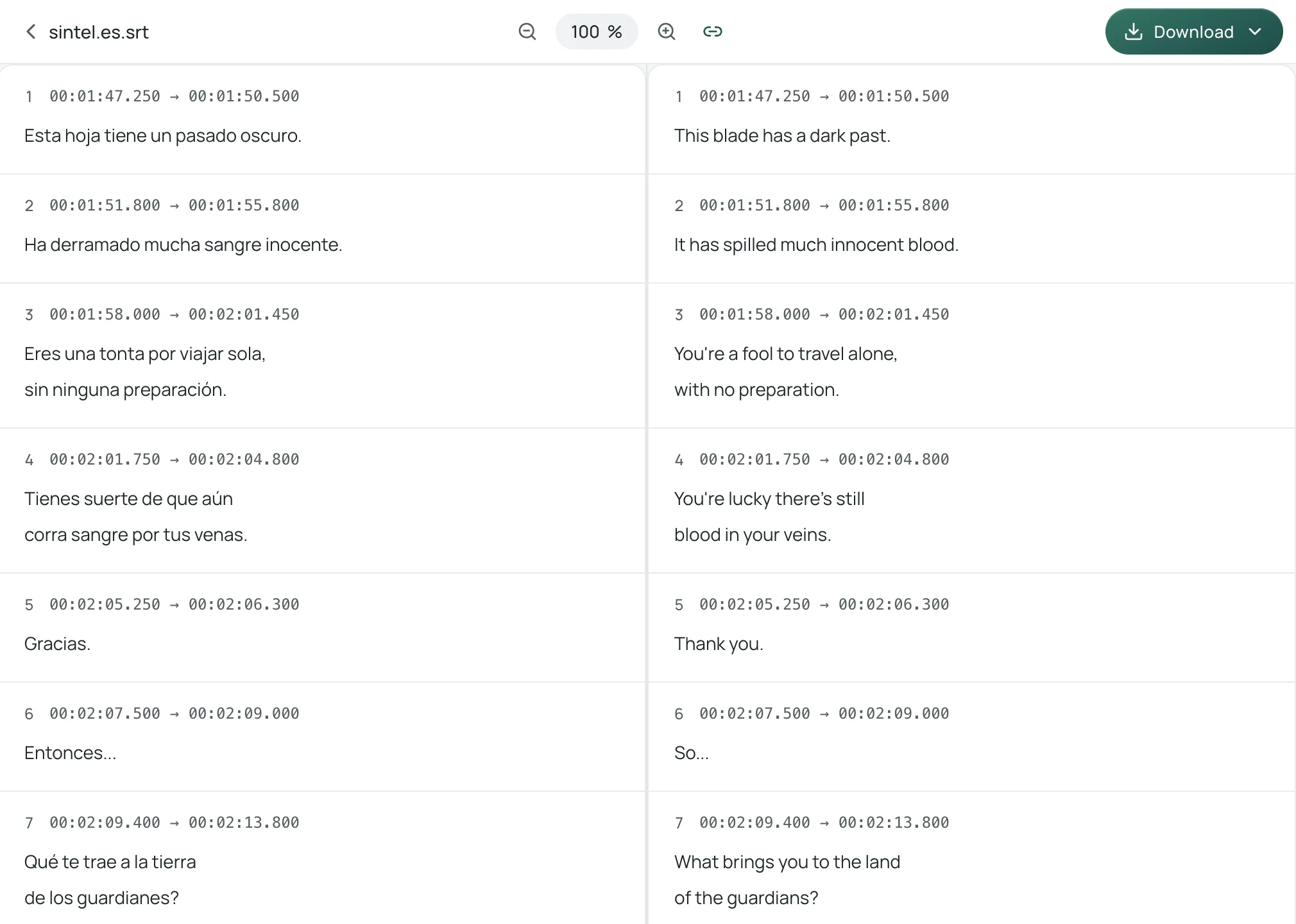
Here is how to run a .vtt file through the workspace:
- Open the file translation page in your browser.
- Select your target language (source language detection is automatic, and document translation currently covers Chinese, English, Japanese, Korean, Spanish, French and other languages).
- Upload your
.vttfile. The web interface uploads one file at a time, and you can queue additional files one after another without a total count limit (up to 3 files process concurrently per account, while the rest wait in the queue automatically). - Once the task finishes, open it in the translation workspace. The left column shows your original timed cues and the right column shows the translated cues with synced scrolling, so you can verify that technical terms fit the time window and every timestamp remains unchanged.
- Download the translated
.vttfile and load it directly into your HTML5<track>tag or desktop media player.
If you want to inspect the pricing before running a full season of lecture subtitles, text and subtitle files are billed by token count. New accounts receive 200 free credits on sign-up so you can test real .vtt files first; full token conversion details are listed on the pricing page.
Practical Boundaries to Keep in Mind
- Inline HTML and voice tags: Standard WebVTT dialogue cues and timestamps stay locked, but if your
.vttfile relies heavily on custom CSS class spans (<c.yellow.bg_blue>) or complex region definitions (REGIONheader blocks), open the downloaded.vttin a plain text editor to confirm those custom header blocks were not affected. - Line length expansion: Translating concise English cues into longer languages like Spanish, German, or Russian can make a single cue wrap into three lines on a narrow mobile video player. Use the side-by-side workspace preview to spot overly dense lines before publishing.
- Retention window: Uploaded files and translated outputs remain accessible in your account for 6 months before automatic removal (and can be deleted anytime), and your submitted content is never used to train AI models.
What If You Only Have the Video or Audio File (No .vtt Yet)?
Sometimes you download a recorded lecture, webinar, or course module as an .mp4, .webm, or .mp3 file and discover the platform never included a separate .vtt caption download.
While the /documents web document upload interface is strictly for text, document, and subtitle files (such as .vtt and .srt), Equalang's dedicated audio and video file translation task handles media files (MP3, M4A, WAV, FLAC, OGG, AAC, OPUS, MP4, MOV, WEBM, MKV) up to 180 minutes per file without requiring a separate speech-to-text tool first:
- Submit the recording to an audio/video file translation task and choose whether to output a same-language transcript or translated subtitles.
- Export the result directly as a
.vttor.srtsubtitle file (or.txt/.json). - You can also choose a bilingual subtitle export, which places the original spoken line on top and the translated line directly below it inside each timed cue.
Keep in mind that an audio or video file translation task outputs subtitle and transcript files—not a newly dubbed video file—and speech recognition on rapid or heavily accented speech may still require a quick listen-back check on key domain nouns.
How to Convert .vtt Subtitles to .srt (or Vice Versa)
Many searchers looking up how to translate .vtt subtitles also search for convert vtt subtitles to srt because older desktop players or video editors only accept SubRip (.srt) files, while web players demand .vtt.
If you already have an .srt file, our dedicated guide on how to translate an SRT subtitle file covers the SubRip workflow in detail. If you need to convert a translated .vtt into .srt (or .srt into .vtt) locally for free, you have two reliable options:
Option 1: One-Line FFmpeg Command
If you have FFmpeg installed on macOS, Windows, or Linux, run this command in your terminal:
ffmpeg -i translated-lecture.vtt translated-lecture.srt
FFmpeg automatically strips the WEBVTT header, adds sequential cue numbers (1, 2, 3...), and swaps the millisecond separator from a period (.) to a comma (,). To go from .srt to .vtt for an HTML5 <track> element, reverse the extensions:
ffmpeg -i translated-lecture.srt translated-lecture.vtt
Option 2: Checking Dual Subtitles in a Local Player
If you kept both the original .vtt and the translated .vtt as two separate files rather than merging them into a single bilingual file, you can load both tracks simultaneously in a desktop player to study or proofread. Follow our step-by-step walkthrough on loading dual subtitles in VLC to display the original track and translated track at the same time.
Quick Pre-Flight Checklist Before Publishing Your .vtt
Before uploading a translated .vtt file to a CMS, LMS, or <track> element, open it in a plain text editor (such as VS Code or TextEdit) and verify three things:
- Line 1 starts with
WEBVTTfollowed by a blank line before the first cue timestamp. - Encoding is UTF-8 without BOM: Non-ASCII characters (Chinese, Japanese, Arabic, accented European letters) will render as garbled symbols in browsers if saved in legacy ANSI or Windows-1252 encoding.
- Every timestamp uses dots (
00:00:05.000 --> 00:00:08.250) rather than commas.
Frequently Asked Questions
Why won't my translated .vtt file show up in an HTML5 <track> player?
In most cases, either the WEBVTT header on line 1 was accidentally translated or deleted, or a timestamp arrow (-->) / millisecond dot (.) was altered during copy-paste translation. Open the browser's Developer Tools Console (F12) to check for text/vtt parsing errors or CORS restrictions on the .vtt URL.
Can I translate .vtt subtitles into a bilingual .vtt file?
Yes. Through Equalang's audio and video file translation task (supporting recordings up to 180 minutes), you can export a bilingual .vtt or .srt file with the original language on the top line and the translated language below it inside each timestamp block. If you already have two separate .vtt files (such as an original .vtt and one translated via the document and subtitle translator), you can also display both simultaneously using dual subtitles in VLC.
What is the difference between .vtt and .srt when translating subtitles?
Both are plain-text timed subtitle formats, but .vtt starts with a mandatory WEBVTT header, uses periods for milliseconds (00:01:05.200), makes cue numbers optional, and supports positioning tags like line:85% and <v Speaker>. .srt has no file header, requires sequential cue numbers, and uses commas for milliseconds (00:01:05,200).