VLC Dual Subtitles: 3 Ways to Show Two Languages at Once
 Equalang
In brief
Watch videos with VLC dual subtitles on Windows, Mac, Linux, iOS, and Android using a merged bilingual SRT file, VLC 4.0 nightly builds, or mpv.
Keywords: vlc dual subtitles; vlc dual subtitles mac; vlc dual subtitles plugin; vlc dual subtitles android; bilingual srt vlc
Stable VLC 3.x releases on Windows, macOS, Linux, iOS, and Android only allow one active text subtitle track at a time in the standard player interface. When you select a second language under Subtitle > Sub Track, VLC immediately disables the first one. To display two subtitle languages simultaneously, you have three working options: load a single merged bilingual .srt or .vtt file into your current VLC 3.x player, install a VLC 4.0 preview build to enable native secondary subtitle tracks, or open the video in mpv using --secondary-sid.
Why VLC Dual Subtitles Plugins and Extensions Break in VLC 3.x
If you searched for a VLC dual subtitles plugin or extension after reading older forum threads, you likely ran into broken .lua scripts. Those third-party Lua extensions were written for VLC 2.x to manually read a second .srt file and draw text over the video frame.
In stable VLC 3.x releases (official VLC website), changes to internal Lua scripting APIs broke most of those add-ons. Even when a modified script loads on desktop, it frequently lags behind audio after you seek forward or backward, and Lua extensions do not run at all on VLC for Android, iPhone, or iPad. Depending on how you watch your local files, one of the three methods below will solve the problem cleanly.
Method 1: Load a Single Bilingual SRT File in Standard VLC 3.x (All Platforms)
While VLC 3.x only renders one active subtitle track at a time, it happily renders multi-line subtitle cues within that single track. If each timestamp block in your .srt or .vtt file contains two lines—the original language on top and the translated line directly underneath—every version of VLC displays both languages on screen together.
This approach requires no nightly software builds, no command-line flags, and works identically on Windows, Mac, Linux, Android, and iOS.
How a Bilingual SRT File Works
In a standard SubRip (.srt) file, each cue has a sequence number, a start-to-end timestamp, and one or more lines of text:
1
00:00:01,000 --> 00:00:04,000
Welcome to the basic photography course.
欢迎来到基础摄影课程。
Because both languages share the exact same timestamp block, VLC treats them as a single two-line subtitle event. They never drift out of sync with each other when you pause or scrub through the timeline.
Generating a Bilingual SRT from an Existing Subtitle or Video File
If you only have a single-language subtitle file—or a raw video recording with no subtitles at all—you can generate a merged bilingual .srt file using Equalang (below we demonstrate the workflow with Equalang):
- When you already have a single-language
.srtor.vttfile: Open the document translation page, upload your.srtor.vttfile, and choose your target language (currently covers Chinese, English, Japanese, Korean, Spanish, French and other languages). The web uploader processes one file per upload, allows unlimited sequential uploads, and runs up to 3 documents concurrently per account while queuing the rest. For a full walkthrough of subtitle formatting options, see how to translate an SRT subtitle file. - When you only have a raw video or audio file (no
.srt): The web /documents upload box accepts subtitle and document files (SRT,VTT,PDF,DOCX,PPTX,XLSX,EPUB,HTML,TXT) rather than video containers directly. To generate bilingual subtitles from a local recording (MP4,MKV,MOV,WEBM,MP3,M4A,WAV,FLAC,OGG,AAC, orOPUS, up to 180 minutes per file), submit the file through Equalang's API or assistant skill workflow. It outputs a timestamped bilingual.srtor.vttfile (original line on top, translation below) alongside an original-language transcript, and silence or background music segments are not billed. Because the source lines come from speech recognition, rapid dialogue or homophones—such as Spanish segunda occasionally transcribing as1/2—should be spot-checked against the audio. See turning recordings into bilingual subtitles for step-by-step details.
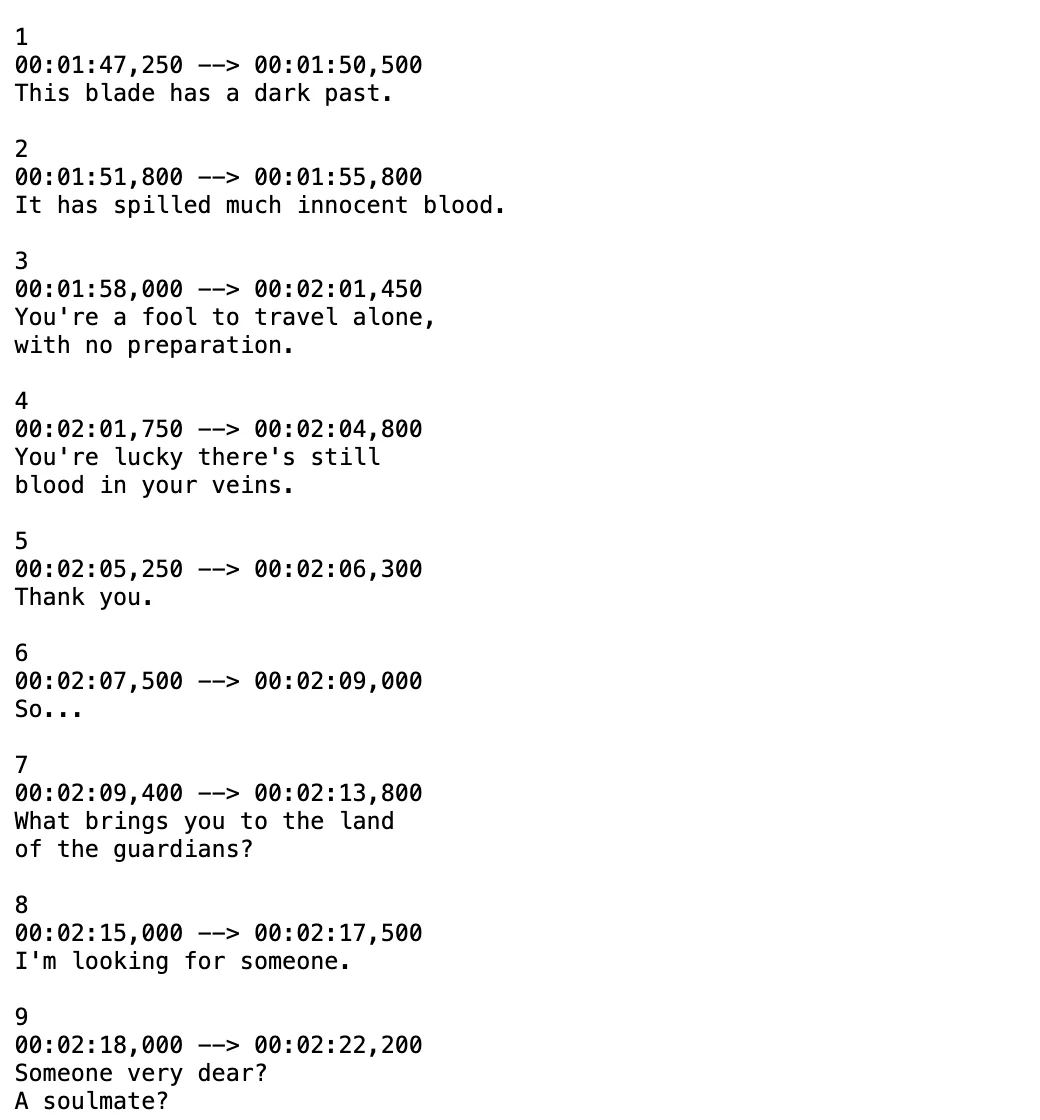
Loading the Bilingual SRT into VLC
- Open your video in VLC Media Player.
- On desktop (Windows, macOS, Linux), click Subtitle > Add Subtitle File... in the top menu bar, or drag the bilingual
.srtfile directly onto the playback window. - On Android or iOS, tap the player screen to reveal the bottom controls, open the subtitle track menu, and select Select subtitle file to load the
.srtfrom your device storage.
Practical boundary: Because both languages live in one subtitle track, VLC applies the same font, text size, and bottom screen position to both lines, and you cannot toggle one language off without switching back to a single-language track.
Method 2: Enable Native Secondary Subtitles in VLC 4.0 Nightly Builds
If you already have two separate .srt files (for example, movie.en.srt and movie.es.srt) or an .mkv container with multiple embedded subtitle streams and want to toggle them independently on desktop, VideoLAN added native dual-subtitle support in the upcoming VLC 4.0 branch.
- Download a VLC 4.0 preview build for Windows, macOS, or Linux from the VideoLAN nightly builds server linked via the official VLC site.
- Open your video and load or verify that both subtitle tracks are available.
- Open Tools > Preferences (
Cmd + ,on macOS) and navigate to Subtitles / OSD. - Locate the Secondary subtitle settings to configure the secondary track position (such as aligning secondary subtitles at the top of the frame while primary subtitles stay at the bottom).
- During playback, select your primary language in the standard subtitle menu, then press
Ctrl+Shift+V(or use the secondary subtitle track menu option) to activate and cycle through your second subtitle language.
Practical boundary: VLC 4.0 remains a development preview. Nightly builds feature a redesigned interface that differs from VLC 3.x, and occasional playback crashes or hardware decoding regressions can occur between daily builds. If you prefer not to overwrite your stable VLC 3.x installation, use a portable archive on Windows or Method 1 instead.
Method 3: Switch to mpv for Native Dual-Track Playback
If you want stable, lightweight desktop playback that handles two separate subtitle tracks right now without nightly builds or merging files, the open-source media player mpv supports primary and secondary subtitles natively.
According to the official mpv manual, mpv provides two independent subtitle track flags:
--sid=<ID>: Selects the primary subtitle stream, rendered at the bottom of the video window.--secondary-sid=<ID>: Selects the secondary subtitle stream, rendered at the top of the video window by default so the two languages never overlap.
Running mpv with Two Subtitle Tracks
If your .mkv or .mp4 file already contains multiple subtitle tracks (or matching external .srt files sit in the same folder), launch the video from your terminal on Windows, macOS, or Linux:
mpv --sid=1 --secondary-sid=2 video.mkv
You can also load two external .srt files explicitly:
mpv video.mp4 --sub-file=english.srt --sub-file=spanish.srt --sid=1 --secondary-sid=2
For more comparisons of local playback setups, check our guide on dual subtitles for downloaded video files.
Practical boundary: Standard mpv uses an minimalist on-screen controller rather than a traditional menu bar, and the --secondary-sid renderer strips complex ASS/SSA animations or custom positioning tags so the secondary line stays readable at the top of the screen.
Choosing the Right Setup for Your Device
- Keep stable VLC 3.x on Windows, Mac, Android, or iOS: Use a single merged bilingual
.srtfile (Method 1). It works everywhere without changing your player. - Test native dual tracks inside VLC on desktop: Install a VLC 4.0 nightly build and use
Ctrl+Shift+V(Method 2). - Play two separate
.srttracks immediately on desktop without merging: Open the video in mpv with--sidand--secondary-sid(Method 3).
Frequently Asked Questions
Can VLC on Mac or Android display dual subtitles?
Yes, if you load a single merged bilingual .srt or .vtt file where each timestamp block contains two lines of text. Stable VLC 3.x on macOS, Android, and iOS renders both lines together at the bottom of the screen without needing any extensions.
Why does selecting a second subtitle track in VLC turn off the first one?
Stable VLC 3.x is designed around a single active text subtitle renderer. Native support for keeping two separate subtitle streams active at the same time is only built into VLC 4.0 preview builds (toggled via Ctrl+Shift+V) or alternative players like mpv (--secondary-sid).
How do I get dual subtitles if my local video has no SRT file at all?
You can pass the video or audio file (up to 180 minutes per file in formats like MP4, MKV, MOV, or MP3) through Equalang's API or assistant skill workflow to transcribe the speech and output a timestamped bilingual .srt file, then load that .srt directly into VLC.