How to Translate TikTok Comments (And Fix Missing Buttons)
 Equalang
In brief
Fix the missing See translation button in the TikTok app, or translate entire TikTok comment sections side by side on desktop without tapping one by one.
Keywords: translate tiktok comments; translate tiktok comments to english; tiktok translate comments gone; tiktok translate comments not working; tiktok comment translator
To translate TikTok comments on your phone, tap See translation directly beneath a comment or long-press the comment text to bring up the translation option. If you want comments to translate automatically—or if the button has disappeared—open the TikTok mobile app, go to Profile > Menu > Settings and privacy > Language, set your Translation language, and toggle on Always show translations. When you are browsing https://www.tiktok.com/ on a desktop computer where built-in comment controls are limited, or when you want to read hundreds of foreign replies without tapping them one by one, you can use the Equalang browser extension to display translations directly beneath each original comment as you scroll.
How to Enable Comment Translation in the TikTok Mobile App
On iOS and Android, TikTok handles comment translations through your account's language preferences. Often, half the joke or context of a viral clip lives in the replies rather than the video itself. You can translate those replies manually on the spot or tell the app to translate foreign text by default.
To translate a single reply while reading the comment drawer:
- Open the comments on any TikTok video.
- Look for the See translation link right below the comment text and tap it.
- If you do not see that link on a specific reply, long-press the comment until the pop-up menu appears, then tap Translate.
If you follow creators who post in Spanish, Japanese, Korean, or Portuguese and you are tired of tapping every single reply, turn on automatic translation in your settings:
- Tap Profile in the bottom right corner of the TikTok app.
- Tap the three-line menu icon at the top right and select Settings and privacy.
- Scroll down to the Content & Display section and tap Language.
- Tap Translation language and select the language you want comments and captions translated into (such as English).
- Toggle on Always show translations so TikTok translates foreign comments and video descriptions automatically when you open a post.
Why Is the TikTok "See Translation" Button Gone or Not Working?
Searching for why TikTok translate comments is gone usually comes down to one of three platform behaviors: a conflict in your language settings, short internet slang that fools language detection, or switching from the mobile app to a desktop browser.
1. The Comment Language Is Listed Under Your Spoken or "Do Not Translate" Languages
TikTok will not offer to translate a language it thinks you already read. Inside Settings and privacy > Language, check your preferred languages or any Do not translate list. If you once added Spanish or French while practicing a language, or if you clicked a prompt telling TikTok not to translate a specific language, the See translation button vanishes for all comments written in that language. Remove the language from that list and restart the app to bring the button back.
2. Short Slang, Abbreviations, and Emojis Confuse Language Detection
TikTok comment sections rarely look like textbook sentences. Viewers reply with regional abbreviations, phonetic spelling, Romanized words, and strings of emojis. When a comment is only two or three words mixed with slang or symbols, TikTok's built-in detector often fails to recognize it as a foreign language—or mistakes it for your own language—and hides the See translation prompt entirely. Long-pressing the comment sometimes forces a translation attempt, though very short slang fragments may still return unchanged.
3. You Are Browsing TikTok on a Desktop Computer
When you open https://www.tiktok.com/ in a computer browser, the interface does not mirror every translation control found in the mobile app. Depending on the view and how you open the comment drawer, the individual See translation toggle can be missing or inconsistent, leaving you stuck copying and pasting replies into another tab.
How to Read TikTok Comments Side by Side on Desktop
Tapping See translation inside the mobile app replaces the original comment with the translated text. That works for plain sentences, but it hides the original phrasing, slang, and wordplay—making it hard to tell whether a strange translation came from an idiom or a typo. On desktop, tapping or copying comments one by one also breaks your reading flow.
At Equalang, we built our browser extension for Chrome, Edge, and Firefox so you can read web pages—including the comment drawer on https://www.tiktok.com/—in a Side by side layout. Instead of overwriting the original reply, each translation appears directly underneath its source comment as you scroll.
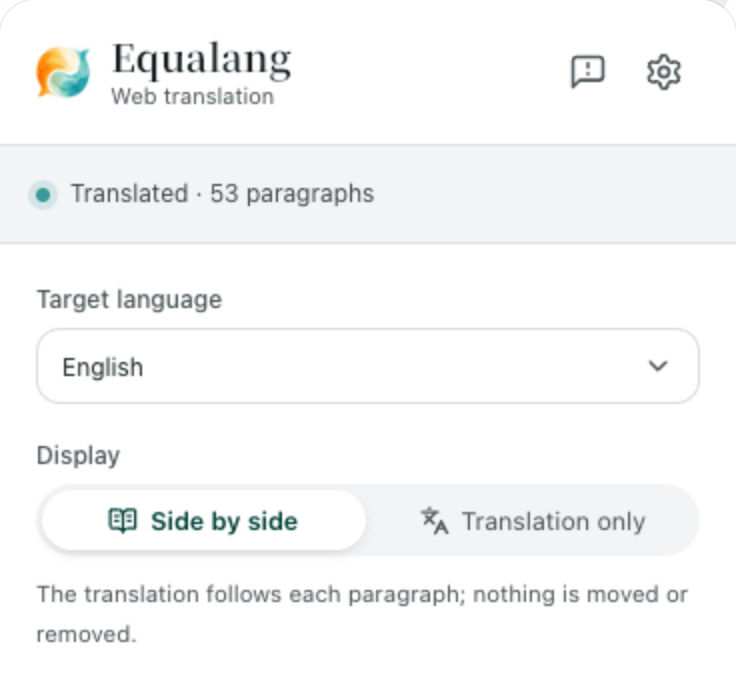
Here is how to use it while browsing TikTok on your computer:
- Install the Equalang browser extension in Chrome, Edge, or Firefox (a Mac Safari preview installer is also available on our extension page for macOS 18.4+, though the App Store version is still upcoming).
- Open
https://www.tiktok.com/and click into any video to open the comment drawer. - Click the Equalang icon in your browser toolbar, set your target language (for example, English), and choose Side by side.
- Start webpage translation. As you scroll down through the comments, each translation appears right below the original text, page by page.
- If you only want to check one specific word or slang term without translating the whole page, enable Selection translation in the extension panel, highlight the comment text, and click the translation icon next to your cursor to view the contextual meaning in a pop-up.
Because the original reply stays visible right above the English line, you can still see the commenter's exact emojis, @mentions, and regional slang while reading the translation below it. Clicking the translation toggle again returns the page to the original text alone. You can read more about how this layout handles links and dynamic pages in our guide to reading foreign websites bilingually.
Honest Boundaries on Desktop Web Pages
Keep a few practical limits in mind when translating TikTok in a browser:
- Floating UI and narrow columns: TikTok's desktop layout places the comment drawer beside a large video player and floating action buttons. On narrower browser windows, floating media or right-hand sidebars can occasionally crowd a translated line.
- Reading vs. posting: Webpage translation translates the comments you receive on screen so you can read them; it does not automatically translate replies you type into the comment box.
- Credits: Webpage translation uses your account's text translation credits, billed by token (1,000 tokens is roughly 1,000 CJK characters or 4,000 English characters, at 10 credits per 1,000 tokens). Signing up gives you 200 free credits to try it out before deciding whether to buy a credit pack, and the extension shares the same balance as the Equalang website. You can check the full breakdown on our pricing page.
What If the TikTok Video Itself Has No Subtitles?
Reading the comment section is much easier when you also understand what the creator said in the video. Many TikTok clips rely on burned-in text or fast spoken audio without translated captions.
Because the Equalang extension also supports video and livestream subtitles on TikTok, you do not need a separate tool for the video player. When a TikTok video has an existing caption track, the extension can display bilingual subtitles right on the player; when a clip has no captions at all, you can turn on real-time listening translation to generate and translate subtitles from the audio track (note that loud background music or overlapping voices in a TikTok audio trend can affect recognition accuracy). For a complete walkthrough of video caption settings, read our guide on how to get TikTok dual subtitles.
Frequently Asked Questions
Why can I translate some TikTok comments to English but not others on the same video?
TikTok evaluates each comment individually. If one reply is a full sentence in Spanish, the See translation button appears normally. If the next reply is just two slang words, an abbreviation, or mostly emojis, TikTok's language detector may skip it. It will also skip any comment written in a language listed under your app's Do not translate settings.
Can I translate all TikTok comments at once without tapping each one?
In the TikTok mobile app, turning on Settings and privacy > Language > Always show translations tells the app to auto-translate foreign comments into your chosen translation language. However, it replaces the original text rather than showing both languages together. If you want to see the original comment and the translation at the same time while scrolling, open https://www.tiktok.com/ in a desktop browser and use Equalang's Side by side mode.
Does translating TikTok comments on desktop work on Safari or mobile browsers?
Equalang provides dedicated browser extensions for desktop Chrome, Edge, and Firefox, plus a temporary Mac installer for Safari 18.4 and above (the Mac App Store release is still upcoming). The browser extension cannot be installed on iPhone or iPad, so on mobile devices you should use TikTok's built-in Language settings or long-press individual comments.