Translate PDF in Chrome: Why It Fails & 3 Ways to Do It
 Equalang
In brief
Chrome cannot translate whole PDFs directly. Discover why the option is missing, how Google Translate handles files, and 3 working alternatives.
Keywords: translate pdf in chrome; chrome translate pdf; google chrome pdf translation; translate document in browser; translate pdf keep layout
As of November 2026, Google Chrome’s stable release has no documented way to translate an entire PDF in its built-in viewer. When you open a PDF inside Chrome, right-clicking the page does not show the standard "Translate to [Language]" option that appears on regular web pages. While press reports indicate that Google is testing an experimental enable-translate-pdf flag in Chrome Canary, that capability has not been released to Chrome's stable channel.
If you have a foreign-language PDF open in Chrome right now, you do not need to wait for a browser update. Depending on whether you need a quick paragraph lookup, a fast full-text conversion, or an intact side-by-side reading layout, here is why Chrome behaves this way and three practical ways to translate your document.
Why Chrome Doesn't Translate PDFs in the Viewer
Chrome's automatic translation is built for HTML web pages. According to Chrome Help (Answer 173424), Google documents webpage translation and "Translate selection" for highlighted text on regular web pages, but it does not document whether this works inside Chrome's internal PDF viewer.
In September 2026, press reports (PiunikaWeb) highlighted that Chrome Canary version 155.0.8052.0 introduced a feature flag named enable-translate-pdf, described as "Enables PDF translation in Chrome." However, testing on Windows and macOS showed no active translation interface or menu option yet. Another unverified press report suggested translation might eventually appear in a Reading mode side panel, but Google has released no official documentation or release notes confirming PDF translation for Chrome's stable channel.
Until Google rolls out native support, you must use an external tool or a dedicated workflow to read PDFs in your language.
Method 1: Google Translate's "Documents" Tab (Best for Plain Text Under 10 MB)
The most direct official Google workaround is using the web version of Google Translate. Rather than pasting text snippet by snippet, you can upload the PDF directly through your browser.
How to use it:
- Open Chrome and go to
translate.google.com. - At the top of the interface, click the Documents tab.
- Click Browse your computer and select your PDF file.
- Select your target language, click Translate, and wait for processing to finish.
- Click Download translation to save your translated file.
Limits documented by Google:
- File size and formats: Google accepts files up to 10 MB in four formats:
.docx,.pdf,.pptx, and.xlsx. - Page cap: PDF files must be 300 pages or less.
- Scanned pages: Google explicitly notes: "You can find text in images and scanned .pdf pages in the output document but they aren't translated."
- Screen requirements: Document translation is only supported on medium to large screens (such as desktop monitors or iPads); it is not available on mobile phone screens.
- Larger jobs: For files exceeding 10 MB or 300 pages, Google directs users to its paid Cloud Translation API.
Trade-off: This method is fast and free for straightforward digital documents, but it cannot translate scanned pages and does not provide an interactive side-by-side reading view.
Method 2: Microsoft Edge (Best for In-Browser Selection Translation)
If you only need to look up difficult paragraphs without uploading files to another website, Microsoft Edge (which shares the Chromium foundation with Chrome) offers built-in PDF translation for highlighted text.
How to use it:
- Open the PDF in Microsoft Edge.
- Highlight the text you want to understand.
- On the PDF toolbar located at the top of the document, click the Translate icon. Alternatively, right-click the highlighted text and select Translate selection.
- The translation appears immediately in a side pane without navigating away from your page.
Limits documented by Microsoft:
- Language support: Edge supports selection translation across more than 70 languages.
- Availability: Microsoft notes that feature availability and functionality may vary by device type, market, and browser version, and administrators can disable it via the enterprise
TranslateEnabledpolicy. - Full PDF translation status: At Build in May 2025, Microsoft announced that readers would soon be able to translate entire PDF documents directly in Edge. However, as of November 2026, Microsoft 365 Roadmap item 577180 lists this feature as "In development," targeting General Availability in January CY2027. Edge Stable release notes (through version 157.0.4341.42) confirm that full PDF translation is not yet generally available.
Trade-off: Excellent for on-the-fly paragraph translation while reading, but translating an entire multi-page document sentence by sentence is impractical.
Method 3: Equalang Document Workspace (Best for Full PDFs with Preserved Layout)
When you need to read an entire document—such as a double-column research paper, technical manual, or legal agreement—uploading to a generic text tool often breaks page geometry, scatters multi-column paragraphs, and scrambles tables.
Here is how Equalang handles it (visit /documents):
- Upload the document: Go to Equalang's document translation page and upload your PDF. (You can submit files sequentially without limits; an account processes up to 3 documents concurrently while additional files queue automatically).
- Configure translation: Select your source and target languages.
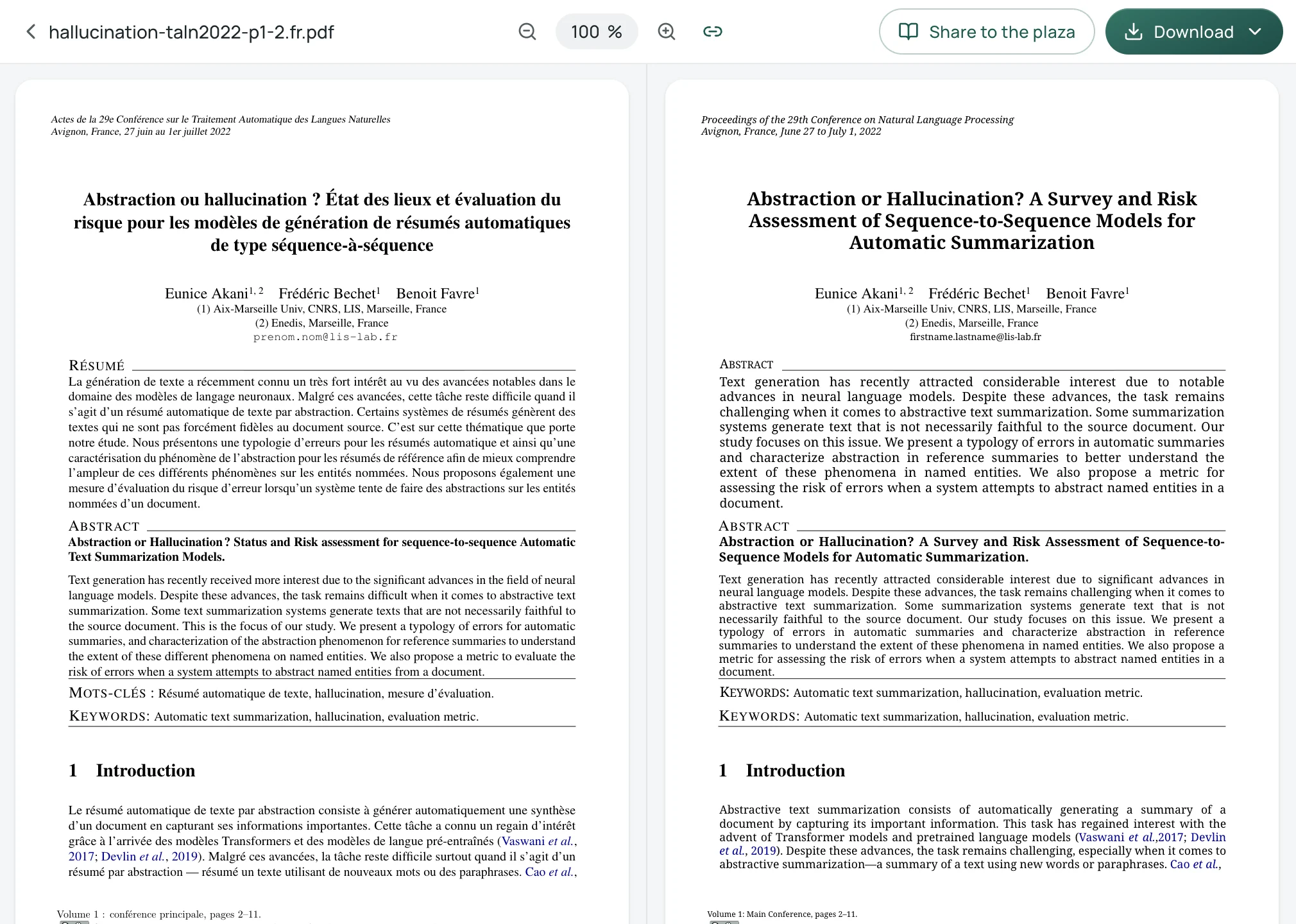
- Engineered layout retention: Equalang translates the file while preserving two-column formatting, headers, footers, figure captions, and section hierarchies. Words bolded in the source stay bold in the translation, internal table of contents and cross-reference links continue pointing to their target locations, and sentences split across page boundaries are rejoined before translation.
- Inspect in the side-by-side workspace: Once completed, open the task in the translation workspace. The original document is displayed on the left and the translated document on the right, complete with synchronized scrolling.
- Download options: You can download the translated PDF, or download a bilingual comparison PDF (where original and translated pages alternate sequentially, enabling a side-by-side display when opened in a dual-page PDF reader).
If you prefer translating directly while browsing, the Equalang browser extension translates web pages inline. For local PDF files stored on your hard drive, Chrome requires that you first open chrome://extensions, click details for the extension, and toggle on Allow access to file URLs.
Practical boundaries:
- Because translated text takes up different space than the original language, font sizes and line wraps adjust dynamically to fit text containers; layout structure is preserved, but output is not pixel-identical.
- Account signup includes 200 free credits to test document processing. Purchased credits start at $10 for 10,000 credits and do not expire.
- Uploaded files and translated results are retained for 14 days before deletion, and user content is never used to train AI models.
- For specialized academic reading workflows, refer to our detailed guides on translating academic paper PDFs and translating PDFs while keeping formatting.
Summary: Which Solution Should You Choose?
- To read a few complex sentences in the browser: Open the file in Microsoft Edge and use the toolbar translate icon to read translations in the side pane.
- For quick reading of a standard PDF under 300 pages: Use the Documents tab on
translate.google.com. - For research papers, manuals, or contracts needing layout fidelity and side-by-side review: Use the Equalang document workspace to preserve tables, columns, and formulas while scrolling source and translation together.
Sources
- Google Chrome Help (Answer 173424): Change Chrome languages & translate webpages — https://support.google.com/chrome/answer/173424?hl=en&co=GENIE.Platform%3DDesktop
- Google Translate Help (Answer 2534559): Translate documents & websites — https://support.google.com/translate/answer/2534559?hl=en&co=GENIE.Platform%3DDesktop
- Microsoft Edge Feature Page: Built-in PDF Reader and Translation — https://explore.microsoft.com/en-us/edge/features/pdf-reader
- Microsoft Learn: Edge policy TranslateEnabled — https://learn.microsoft.com/en-us/deployedge/microsoft-edge-policies/TranslateEnabled
- Microsoft 365 Roadmap: Item 577180 (Edge PDF Document Translation) — https://www.microsoft.com/en-us/microsoft-365/roadmap?id=577180
- PiunikaWeb (September 11, 2026): Google Chrome Might Let You Translate PDFs in Browser — https://piunikaweb.com/2026/09/11/google-chrome-might-let-you-translate-pdfs-in-browser/
- Equalang Document Translation: https://equalang.com/documents
- Equalang Browser Extension: https://equalang.com/extension