How to Translate a Pages Document and Keep Formatting
 Equalang
In brief
Translate an Apple Pages (.pages) file on Mac, iPad, or iPhone by exporting to DOCX, PDF, or EPUB while keeping headings, tables, lists, and styles intact.
Keywords: translate pages document; translate pages document to spanish; translate pages document mac; how to translate an apple pages file; translate pages file keep formatting
Apple Pages saves files in its own .pages format, and neither macOS nor iPadOS includes a built-in button to translate an entire .pages document in one go. If you highlight a paragraph and pick the system Translate option on a Mac or iPad, it handles that short passage in a popover, not a multi-page file with tables, section headings, and headers. The cleanest way to translate a full Pages document without rebuilding your layout is to use Pages' native File > Export To menu first: export to Word (.docx) if you want an editable translated file you can reopen directly in Apple Pages, or export to PDF / EPUB if you are translating a fixed-layout brochure or a long book.
Which Export Format Should You Choose in Apple Pages?
Before you upload anything to a translator, match the export format to how your Pages document was built and what you need to do with the translation afterward.
- Export to Word (
.docx) for editable reports, contracts, and worksheets: Most standard word-processing documents in Pages convert cleanly to.docxand open right back up in Apple Pages once translated. You keep editable section headings, tables, numbered and bulleted lists, headers, footers, and inline text styling. - Export to PDF for Page Layout brochures, flyers, and multi-column handouts: If you designed a canvas-style document in Pages where text boxes and graphics are pinned to specific coordinates, exporting to PDF preserves columns, captions, headers/footers, and paragraph hierarchy better than forcing the layout into a flowing Word file.
- Export to EPUB for long books, biographies, and manuals: According to the Pages User Guide for Mac, Pages exports reflowable and fixed-layout EPUB books natively—ideal when your translated document is meant for Apple Books or other e-readers.
- Use macOS or iOS built-in Translate for a single paragraph: If you only need to check two or three sentences inside a draft, select the text, secondary-click (or tap), and choose Translate. It is free and already on your device, though pasting results back box by box will strip inline bolding and table structure across a long document.
Method 1: Translate a Pages Document and Edit It Back in Pages (via DOCX)
When you need to translate a .pages document to Spanish, Chinese, French, Japanese, or another language and continue editing the finished draft in Apple Pages, a round-trip through .docx takes less than two minutes.
Step 1: Export your .pages file to Word (.docx)
- Open your document in Apple Pages on your Mac, iPad, or iPhone.
- On a Mac, click File > Export To > Word… in the top menu bar. On iPad or iPhone, tap the More button (the circle with three dots) in the toolbar, tap Export, and choose Word.
- Save the
.docxfile to your Mac or iCloud Drive.
Step 2: Translate the .docx file while keeping layout and inline styles
Equalang does not accept .pages bundles directly—its document translator takes DOCX, PDF, EPUB, PPTX, XLSX, HTML, and TXT files (along with subtitle, image, and audio/video formats). Once you have exported your .docx file:
- Open the document translation page in Safari, Chrome, Edge, or Firefox.
- Upload your exported
.docxfile. The web uploader takes one file at a time, and you can queue additional documents right after; an account processes up to three documents simultaneously while any extras wait in line. - Pick your target language—document translation currently covers Chinese, English, Japanese, Korean, Spanish, French and other languages, with automatic source language detection—and start the job.
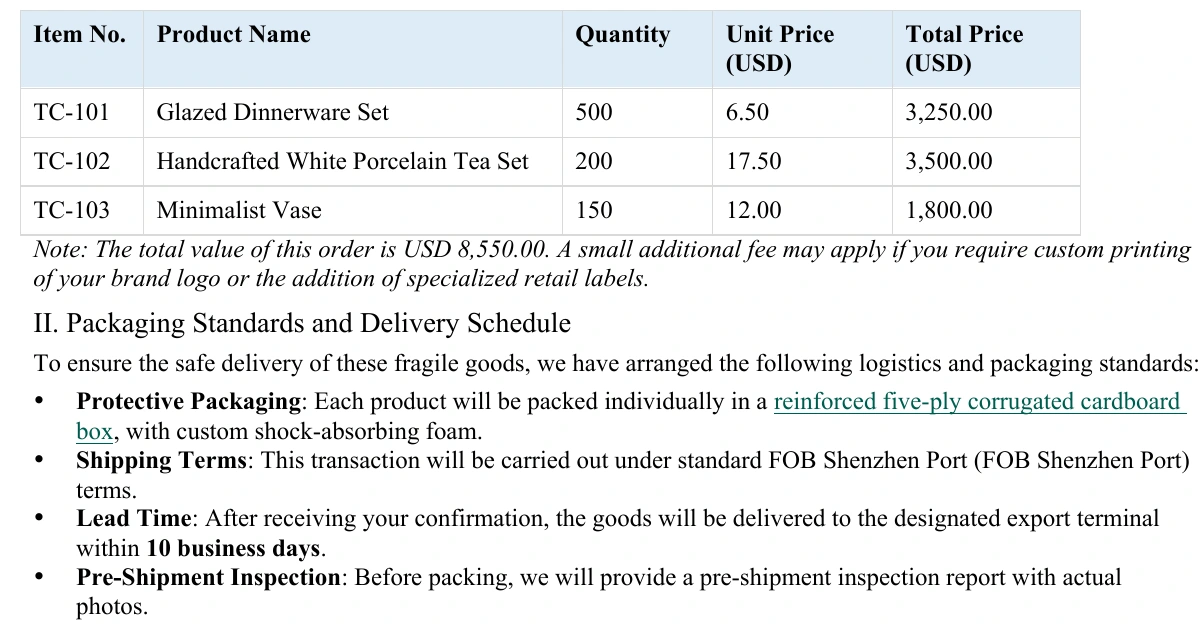
In our Word test samples across both translation directions, the translated .docx keeps its single-page structure, three section headings, product table, numbered and bulleted lists, headers and footers, and inline bold, italic, color, and underline styling. You can see a full breakdown of how Word elements behave in our guide on how to translate a Word document and keep formatting.
Step 3: Review side by side and reopen in Apple Pages
When the job finishes, open it in Equalang's online Translation workspace. The original document sits on the left and the translation sits on the right with synced scrolling, so you can scan tables, numbers, and headings before downloading.
Download the translated .docx file, right-click it in Finder on your Mac (or tap it in the Files app on iPad), and open it with Pages. All paragraphs, table cells, and lists remain editable.
What to double-check after reopening in Pages:
- Translated text is almost never the exact same length as the source. Expanding into Spanish, French, or German can push a tight single-page layout onto a second page, so check page breaks and footer spacing.
- If your Pages document used custom Apple-only fonts or complex floating object arrangements, inspect the footer details and table column widths once reopened in Pages.
Method 2: Translate a Pages Book, Biography, or Brochure via PDF or EPUB
Sometimes you do not need to edit the translated text back inside Apple Pages—you just want to read a foreign-language Pages document comfortably, or share a finished PDF handout or EPUB book with readers.
- In Apple Pages, choose File > Export To > PDF… or File > Export To > EPUB….
- Upload the exported PDF or EPUB to Equalang Documents and choose your target language.
- For novels, biographies, and long e-books: Before starting a PDF or EPUB job, open Translation settings and turn on Keep names and terms consistent. This option unifies how personal names, place names, and recurring terms are translated across long documents (off by default; billed at an additional 4 credits per 1,000 tokens).
For PDFs, Equalang retains multi-column layouts, headers and footers, figure captions, tables of contents, cross-reference links, and bold emphasis, and it stitches sentences that were split across a page or column break back together before translating them. In our multi-chapter EPUB sample, the translated book kept its table of contents, four internal back-and-forth links, chapter breaks, and original illustrations so you can adjust font sizes normally in Apple Books. If you are working with dense two-column handouts or technical diagrams, read our walkthrough on translating a PDF while keeping formatting.
Practical boundaries for PDF and EPUB exports:
- When downloading a translated PDF, you can choose either the translated PDF alone or a bilingual comparison PDF where source and translated pages alternate. Open that alternating file in a desktop PDF reader like macOS Preview, switch to Two Pages view, and turn off separate cover page display if left and right pages look offset.
- Font sizes and line wraps adjust when the target language is longer or shorter than the original, and PDF sidebar bookmarks from the source file are not carried over into the translated output.
Frequently Asked Questions
Can I upload a .pages file directly without exporting it first?
No. Apple Pages saves documents in a proprietary .pages package. Export the file from Pages to Word (.docx), PDF, or EPUB first (File > Export To on Mac, or More > Export on iPad and iPhone), then upload that exported file to Equalang Documents.
How do I translate a Pages document to Spanish on a Mac and keep it editable?
In Pages on your Mac, click File > Export To > Word… to save a .docx copy. Upload the .docx to Equalang, select Spanish as the target language, and download the translated .docx. Double-click or use Open With > Pages in Finder to keep editing your Spanish headings, tables, and lists in Apple Pages.
Does macOS have a free built-in way to translate inside Apple Pages?
Yes, for short excerpts. You can highlight a sentence or paragraph in Pages, Control-click (or two-finger tap on a trackpad), and select Translate to view and copy a system translation. Because it only works on highlighted snippets and does not process tables, headers, or whole documents at once, exporting to .docx or .pdf is much faster for anything longer than a few paragraphs.