How to Extract and Translate MKV Subtitles to SRT
 Equalang
In brief
Extract text subtitles from an MKV in seconds with FFmpeg, or generate translated and bilingual SRT files from PGS or unsubtitled MKV videos.
Keywords: translate mkv subtitles; convert mkv subtitles to srt; how to get subtitles from mkv; extract srt from mkv ffmpeg; mkv pgs subtitle translation
To translate subtitles inside an .mkv file, first check what kind of subtitle track your video actually holds. If the .mkv contains a text-based track (SubRip/SRT, ASS/SSA, or WebVTT), you can extract it into a standalone .srt file in under two seconds with ffmpeg and translate the text file directly—costing only text tokens instead of audio transcription fees. If your .mkv only has bitmap image subtitles (HDMV PGS or VobSub) or no subtitle track at all, text extraction will fail, and your fastest path is generating translated or bilingual .srt subtitles directly from the .mkv audio track.
Why Some MKV Subtitles Extract in 2 Seconds (and Others Fail)
According to the Matroska subtitle specification, an .mkv file is a container that can bundle video, multiple audio streams, and multiple soft-subtitle tracks inside a single file. Unlike burned-in hardsubs (which are permanently painted onto the video frames), soft subtitles live in separate streams that you can toggle on or off.
However, Matroska stores soft subtitles in two fundamentally different formats:
- Text-based subtitle tracks (
subrip/.srt,ass/ssa,webvtt): The dialogue is stored as plain UTF-8 text alongside start and end timestamps. Command-line tools likeffmpegormkvextractcan copy or convert these tracks into an.srtfile almost instantaneously. - Bitmap image-based tracks (
hdmv_pgs_subtitle,dvd_subtitle/VobSub): Common on Blu-ray and DVD rips, each subtitle line is stored as a transparent image rather than text characters. Because there is no underlying text stream,ffmpegcannot convert aPGStrack to.srtwithout external optical character recognition (OCR).
Before choosing how to translate your file, run a quick stream inspection to see which path saves you the most time.
Step 1: Check What Subtitle Tracks Your MKV Contains
Open your terminal and inspect the container streams using FFmpeg without decoding the video:
ffmpeg -i input.mkv
Look at the Stream #0:... lines in the terminal output:
- Case A — You see a text track:
Stream #0:2(eng): Subtitle: subrip(orass,ssa,webvtt). Go to Path 1 below—you can extract the.srtin two seconds and translate just the text. - Case B — You see a bitmap track or no
Subtitle:line at all:Stream #0:2(jpn): Subtitle: hdmv_pgs_subtitle(ordvd_subtitle). Go to Path 2 below—standard.srtextraction will fail, so you either need an OCR tool or direct audio-to-subtitle translation.
Path 1: Extract Text Subtitles to SRT and Translate (Fastest & Cheapest)
When your .mkv already includes a text subtitle stream, never upload the entire multi-gigabyte video for speech recognition. Extracting the existing text track preserves the original human-timed cues and keeps translation costs down to raw text volume.
1. Extract the subtitle track to .srt with FFmpeg
Run this command to pull the first subtitle stream (0:s:0) out of the .mkv container and save it as a standard .srt file:
ffmpeg -i input.mkv -map 0:s:0 source.srt
-map 0:s:0selects the first subtitle stream (s:0) from the first input file (0). If your.mkvhas multiple language tracks and you want the second subtitle track instead, change0:s:0to0:s:1.- If the embedded track is
ASS/SSAorWebVTT,ffmpegautomatically converts the cue timing and plain text into.srtformat when you name the outputsource.srt.
The extraction takes less than a second because ffmpeg skips decoding the video and audio streams entirely.
2. Translate the extracted .srt while keeping timestamps intact
Once you have source.srt, pasting it into a general chat window often breaks cue numbering, merges adjacent lines, or shifts 00:01:23,450 --> 00:01:26,100 timecodes.
Instead, upload source.srt directly to the Equalang document translator. Equalang parses the subtitle blocks, keeps every timestamp locked to its original cue number, and translates the dialogue across Chinese, English, Japanese, Korean, Spanish, French and other languages. Because you are uploading a lightweight .srt text file rather than audio, it only bills by text tokens (1,000 tokens is roughly 4,000 English characters or 1,000 CJK characters; new accounts receive 200 credits on sign-up to test first).
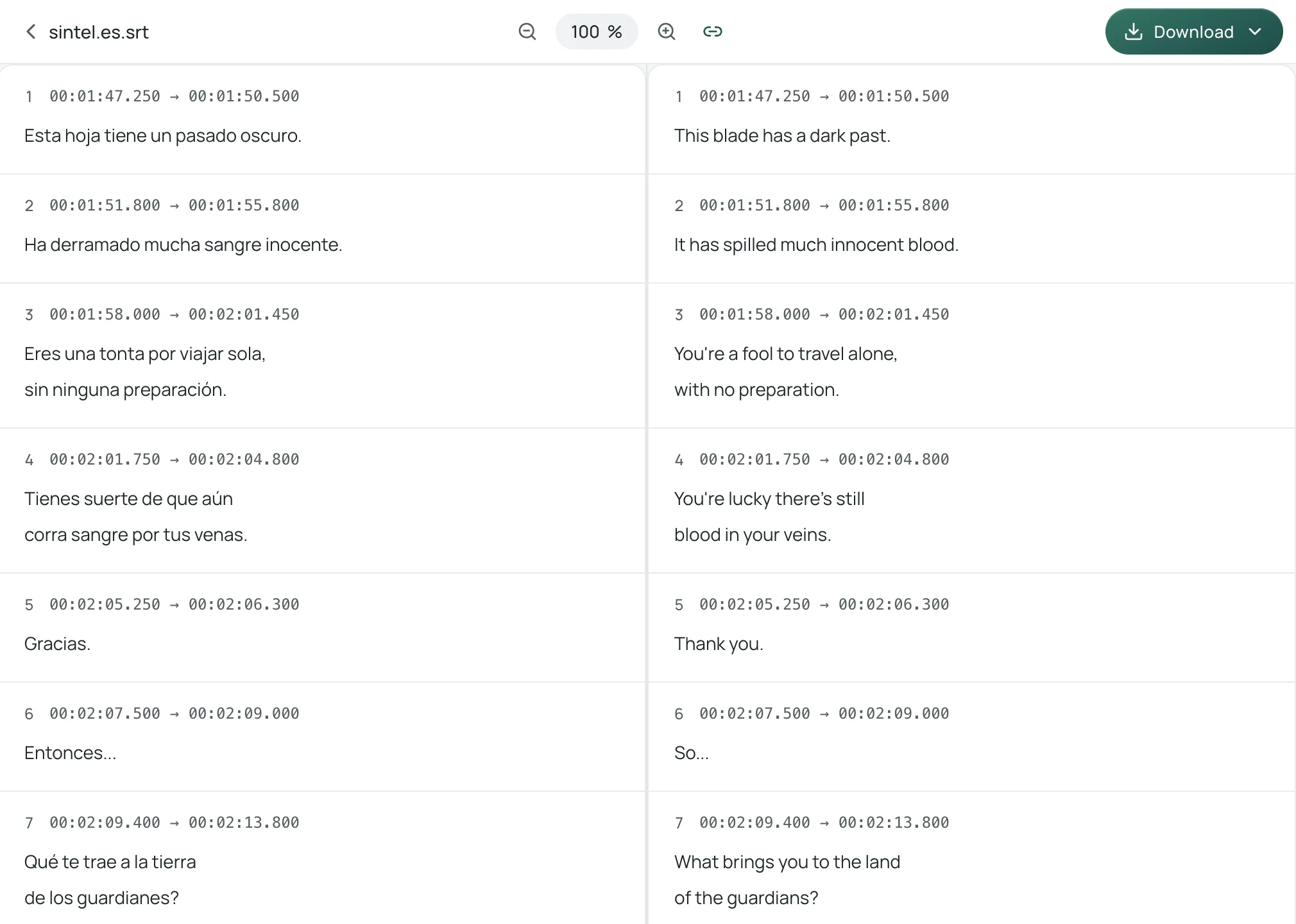
When the job completes, you can preview the source cues alongside the translated cues in the translation workspace and download the finished .srt file. For a deeper look at handling multi-line formatting tags and cue pacing in .srt workflows, see our guide on how to translate an SRT subtitle file.
Path 2: When Your MKV Has Only PGS Bitmap Subtitles (or No Subtitles at All)
If you try running ffmpeg -i input.mkv -map 0:s:0 source.srt on a Blu-ray rip with hdmv_pgs_subtitle, ffmpeg will abort with an error like Subtitle encoding currently only possible from text to text or bitmap to bitmap. And if the .mkv has zero subtitle streams (Stream map '0:s:0' matches no streams), there is nothing to extract.
You have two practical ways to handle this:
Option A: Upload the .mkv directly to Equalang for audio-to-subtitle translation
If your .mkv video is 180 minutes or shorter, you do not need to convert the container to .mp4 or extract the audio track manually. The Equalang document translator natively accepts .mkv files (alongside .mp4, .mov, and .webm, plus audio formats like .mp3, .m4a, .wav, and .flac).
- Open Equalang Documents and upload your
.mkvfile (the web uploader processes one file per upload, up to 3 jobs running concurrently per account while additional files queue automatically). - Choose your target language—or select transcript-only if you just want original-language subtitles—and choose whether you want single-language or bilingual subtitles.
- Download the resulting
.srt,.vtt, or.txtfile once transcription and translation finish.
What to expect and honest boundaries:
- Silence and music are not billed: Audio-to-subtitle jobs only charge for spoken audio sent for recognition (plus text tokens for the translated lines; see the pricing page for credit rates).
- Outputs subtitle/text files, not a new video: Equalang returns external subtitle and transcript files (
.srt,.vtt,.txt,.json). It does not re-encode your.mkvvideo, burn subtitles onto frames, or generate an AI voice dub. - Verify proper nouns on noisy tracks: Because the subtitles are generated from speech recognition rather than an existing script, heavy background effects or overlapping dialogue can occasionally affect recognition accuracy—review key character names or numbers against the audio.
Option B: Free desktop OCR if you strictly want to convert a PGS track
If your .mkv exceeds 180 minutes, or if it has a clean HDMV PGS track in the source language that you want to convert to text without running speech recognition, first extract the raw .sup bitmap stream with mkvextract (from MKVToolNix) or ffmpeg -i input.mkv -map 0:s:0 -c:s copy subs.sup. Then run the .sup file through a dedicated desktop OCR utility such as Subtitle Edit to convert the bitmap images into a plain .srt file, and upload that resulting .srt via Path 1.
How to Play or Remux Your Translated SRT with the MKV
Once you have your translated or bilingual .srt file, you do not need to re-encode your video to watch it:
- Load as an external subtitle (0 seconds): Put
movie.mkvandmovie.srtin the same folder with matching filenames, or drag the.srtdirectly into your media player window. If you want to watch the original track and the translated track at the same time with custom positioning, see our step-by-step setup for playing dual subtitles in mpv. - Mux the translated
.srtback into the.mkvcontainer (2 seconds): If you want a single self-contained.mkvfile for a TV or media server without losing video quality, useffmpegstream copying:
ffmpeg -i input.mkv -i translated.srt -map 0 -map 1 -c copy -metadata:s:s:1 language=eng output.mkv
Because -c copy copies the original video and audio bitstreams without re-encoding, remuxing a multi-gigabyte .mkv finishes in a few seconds.
Frequently Asked Questions
Why does FFmpeg say "Subtitle encoding currently only possible from text to text"?
Your .mkv file uses a bitmap subtitle format such as hdmv_pgs_subtitle (Blu-ray PGS) or dvd_subtitle (VobSub), where each subtitle cue is stored as an image rather than text characters. Because ffmpeg does not include a built-in OCR engine to read text out of images, it cannot convert PGS tracks into .srt. You can either upload the .mkv (up to 180 minutes) to Equalang Documents to generate translated .srt subtitles from the audio track, or run desktop OCR on the bitmap track first.
Is it cheaper to extract the SRT first or upload the whole MKV file?
Always extract the .srt first if your .mkv already has a text subtitle stream (subrip, ass, or webvtt). Extracting takes under two seconds with ffmpeg -i input.mkv -map 0:s:0 source.srt, and translating a text .srt file only uses text tokens. Uploading the full .mkv video is designed for videos that have no subtitles at all or only unextractable PGS image subtitles, since it runs speech recognition on the audio track in addition to text translation.
Does uploading an MKV to Equalang return a translated video file?
No. Uploading an .mkv (or .mp4, .mov, .webm) to Equalang outputs external subtitle and transcript files (.srt, .vtt, .txt, .json), optionally formatted with bilingual lines. It does not output a re-encoded video file or voice dubbing. You then load the downloaded .srt alongside your original .mkv in your video player.