How to Translate LinkedIn Posts, Articles, and PDF Carousels
 Equalang
In brief
Translate LinkedIn feed posts, comment threads, long-form articles, and PDF carousel decks on desktop while keeping job titles and industry terms intact.
Keywords: translate linkedin posts; does linkedin translate posts; google translate for linkedin posts; translate linkedin articles; bilingual linkedin feed
Yes, LinkedIn can translate individual feed posts and comments on its own—whenever its language detector spots text that differs from your interface language, it displays a See translation link directly below the post. However, you have to click that button one post and one comment at a time, it does not appear inline on long-form LinkedIn Articles or Newsletters, and it never translates multi-slide PDF document carousels. If you follow international peers on a desktop browser, combining LinkedIn's native button with a side-by-side browser extension and a layout-preserving PDF translator covers every format in your feed.
When LinkedIn's Native "See Translation" Button Works—and Where It Stops
When you browse LinkedIn on desktop or mobile, the platform checks the language of each text post against the display language set in your account preferences. According to the LinkedIn Help Center, a See translation button appears below a post or comment whenever LinkedIn recognizes a foreign language.
For a quick three-line update from a colleague in Paris or Tokyo, clicking See translation once is fast and free. Its limits show up as soon as you read deeper:
- One click per item in busy discussions: In a post with forty comments from engineers or executives across Europe and Latin America, LinkedIn will not translate the thread as a whole. You have to click See translation under every single comment and nested reply as you scroll.
- Mixed-language posts often miss the trigger: Professionals frequently mix English industry buzzwords, hashtags, or product names into German, French, Spanish, or Japanese posts. When a post contains enough words matching your interface language, LinkedIn's detector sometimes skips showing the See translation link altogether.
- No inline button for LinkedIn Articles and Newsletters: When a connection publishes a long-form LinkedIn Article or newsletter edition, it opens as a standalone webpage without the feed's See translation toggle.
- PDF document carousels remain untouched: Those swipeable multi-slide decks that founders and analysts share in the feed are uploaded as PDF documents. LinkedIn renders each page inside a slide viewer, and the native translation button only translates the text caption above the viewer—never the slides themselves.
Why Full-Page Browser Translation Breaks Professional Context
A common fallback is right-clicking the page in Chrome or Edge to run full-page Google Translate or Microsoft Translator. While that converts everything on screen at once, replacing the original text creates a new problem on a professional network: it overwrites proper nouns, job titles, and industry shorthand.
When a full-page translator replaces the source text, a German executive's title like Geschäftsführer or a French VP's Directeur Général Délégué gets flattened into generic English, company names that resemble common words get translated literally, and acronyms like GTM, ARR, or EBITDA can shift out of place. Without the original paragraph right above the translation, you cannot tell whether a strange phrase is a nuanced industry term or a machine translation hiccup.
Read LinkedIn Feeds, Comment Threads, and Articles Side by Side
To read foreign-language posts and long-form articles on desktop without losing the original names and job titles, we built the Equalang browser extension to place each translated paragraph directly underneath the original text.
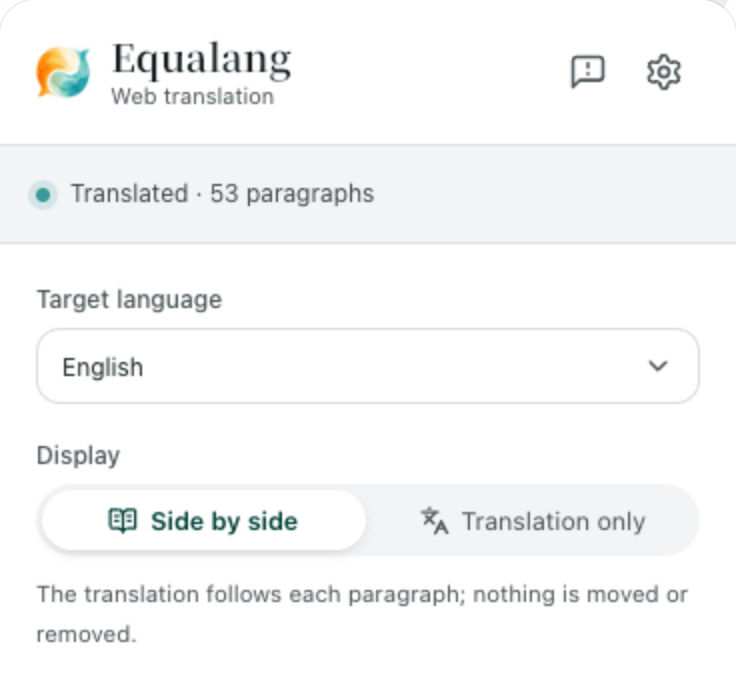
Here is how to set it up for your daily LinkedIn reading on Chrome, Edge, or Firefox (a temporary macOS installation is also available for Safari 18.4 and above):
- Install the extension from the Equalang extension page and sign in. New accounts receive 200 credits at sign-up so you can test it on your own feed first.
- Open LinkedIn in your desktop browser, click the Equalang icon, choose your target language, and set the display style to Side by side.
- Trigger page translation and scroll through your feed or open a long-form LinkedIn Article. Equalang translates the visible paragraphs screen by screen as you read, placing each translation right below its source paragraph. Click the toggle again whenever you want to return to the original page.
Because the original text stays visible right above the translation, you can see the author's exact job title, company links, and technical acronyms intact while reading their argument in your preferred language below. Every hyperlink inside a post or article continues pointing to its original destination. You can read more about how paragraph-by-paragraph bilingual reading works across different layouts in our guide to reading foreign websites bilingually.
Use Selection Translation for Occasional Foreign Posts
If most of your LinkedIn feed is already in your primary language and you only run into an occasional foreign-language comment or unfamiliar industry term, you do not need to translate the entire page.
Turn on Selection translation inside the extension panel. When you highlight a word, phrase, or sentence on LinkedIn and click the small translation icon that appears next to your cursor, a pop-up window shows how the term translates in context, often accompanied by an AI note on its part of speech and example sentences.
What to keep in mind on LinkedIn's layout: LinkedIn's desktop interface packs messaging drawers, profile sidebars, and promoted widgets tightly around the central feed. In narrow columns or right-aligned floating panels, some translated lines can look slightly compressed compared to wide article pages.
How to Translate LinkedIn PDF Carousel Slides
Some of the highest-value posts on LinkedIn—market teardowns, architecture diagrams, and quarterly benchmark decks—are shared as swipeable document carousels. Because LinkedIn serves these carousels inside an embedded document frame, neither LinkedIn's See translation link nor web page translation extensions can reach the text inside the slides.
Whenever the author has left downloads enabled on their carousel post, you can translate the entire deck in a couple of steps:
- Hover over the top-right corner of the LinkedIn carousel viewer, click the fullscreen or download icon, and save the PDF file to your computer.
- Open Equalang Document Translation, upload the PDF, and select your target language (source languages are detected automatically, and document translation currently covers Chinese, English, Japanese, Korean, Spanish, French and other languages).
- Once the job finishes, open it in the online Translation workspace to view the original slide deck on the left and the translated slides on the right with synced scrolling.
You can also download the translated PDF or an alternating bilingual PDF to read offline. Equalang preserves multi-column layouts, headers, captions, bold emphasis, and tables across the slides—though font sizes and line breaks will adjust naturally when a translated sentence runs longer or shorter than the original. For a closer look at how complex slide decks and multi-column PDFs behave, see our guide on how to translate a PDF and keep its formatting.
Your browser extension and web document translations share the exact same account and credit balance, so you never need separate subscriptions to read a post and translate its attached PDF deck.
Frequently Asked Questions
Does LinkedIn translate posts automatically?
No. LinkedIn does not automatically translate your feed as you scroll. When its language detector identifies a post or comment in a language different from your account's display language, it shows a See translation link beneath that item, which you must click manually each time.
Why is the "See translation" button missing on a LinkedIn post?
The button usually disappears for one of three reasons: the post's language matches the display language set in your LinkedIn settings, the post mixes enough English terms or hashtags that LinkedIn's detector misclassifies it, or you are reading a long-form LinkedIn Article or PDF carousel where the inline feed button is not supported.
Can I translate a LinkedIn PDF carousel without retyping the slides?
Yes, as long as the author allows downloads on the document post. Download the PDF from the top-right corner of LinkedIn's slide viewer and upload it to Equalang Document Translation to read the original and translated slides side by side in the translation workspace.