How to Translate Instagram Comments ( & Fix Missing Links)
 Equalang
In brief
Translate Instagram comments and captions on mobile or desktop web, fix missing See translation links, and read full threads side by side.
Keywords: translate instagram comments; translate instagram comments to english; instagram translate comments not working; see translation missing instagram; read instagram comments bilingually
To translate Instagram comments on your phone, tap the small See translation link directly below an individual comment or post caption. Because Instagram does not offer a toggle to auto-translate an entire comment thread at once, you have to tap each comment one by one—and that link frequently disappears on short slang replies, mixed-emoji comments, or when you browse Instagram on the web. If you want to scroll through expanded comment threads with the original text and translation stacked together, opening Instagram in a desktop browser with a side-by-side web translator—or fixing your app's language detection settings on mobile—solves both problems.
How Instagram's Built-In "See Translation" Link Works (and Why It Disappears)
According to the Instagram Help Center, Instagram displays a See translation link beneath eligible post captions, profile bios, and individual comments whenever its automatic language detector recognizes a supported foreign language that differs from your account's display language. When you tap it, Instagram replaces the original comment with a machine translation; tapping See original switches it back.
If See translation is not working or missing under comments you want to read, it usually comes down to one of four platform limits:
- Your app language matches the comment's language: If you are bilingual or learning a language and set your Instagram app language to Spanish or Japanese, Instagram assumes you can already read comments in that language and hides See translation.
- Short comments, slang, or heavy emojis: A two-word reply, internet abbreviations, romanized text, or a sentence broken up by five emojis often gives Instagram's language detector too little signal to classify the language confidently. When detection fails, no link appears.
- Mixed-language comments: Replies that start in English and switch to Korean or Arabic mid-sentence frequently confuse the single-language detector.
- Desktop web gaps: When you open posts on Instagram's website in a computer browser, individual comments inside the scrollable right-hand panel often lack the See translation trigger that appears in the mobile app.
Quick fixes inside the Instagram mobile app
Before switching tools, check your app language setting:
- Open the Instagram app and go to your profile.
- Tap the menu icon in the top right and find Language (under Your app and media).
- Set your app language to the primary language you want comments translated into (for example, English), then restart the app.
If a specific comment still has no See translation button on mobile because it is too short or mixes scripts, Instagram will not let you highlight and copy comment text directly in the app. Your built-in mobile workaround is to take a screenshot and use your phone's system text selector (such as iOS Live Text in the Photos app) to copy the line into a text translator—or move to a desktop browser when you want to read hundreds of comments without tapping one by one.
How to Read Instagram Comment Threads Side by Side in a Desktop Browser
When a creator drops a major announcement or a heated debate breaks out in the replies, tapping See translation fifty times in a row—and losing the original phrasing every time—breaks your reading flow. Opening Instagram Web on your computer lets you translate the caption and every visible comment in place.
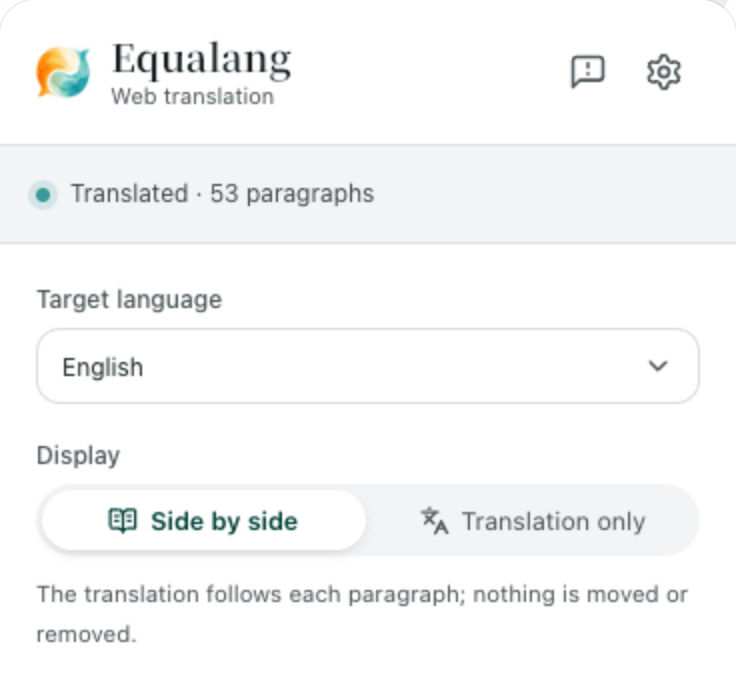
With the Equalang browser extension, each translated line appears directly underneath the original comment as you scroll down the page, so you can read the thread continuously while still seeing the commenter's exact words and @mentions above.
Step-by-step: Translate captions and expanded comments together
- Install the extension on your computer: Add the Equalang browser extension in Chrome, Edge, or Firefox. (On Mac, Safari 18.4 and above is currently supported via a temporary installation that needs to be re-added if you quit Safari or after 24 hours; the App Store version is marked coming soon.) Sign in or create an account—new accounts receive 200 credits upon registration, and your extension shares the same credit balance as the website.
- Open the Instagram post in your browser: Go to
https://www.instagram.com/, log in, and open the post whose comments you want to read. Click View all comments or expand the reply threads you care about so they are loaded on the screen. - Turn on Side by side translation: Click the Equalang icon in your browser toolbar, set your Target language (such as English), and select Side by side. As you scroll through the comment column, the translation appears below each original comment. Click the toggle again whenever you want to return the page to the original text only.
If you want a deeper walkthrough on how full-page bilingual scrolling behaves across different sites, see our guide on how to read foreign websites bilingually.
Translate a single slang comment without translating the whole page
Sometimes you can read most of a thread yourself and only get stuck on one idiom or regional joke. Instead of turning on full-page translation, you can enable selection translation in the extension panel. Highlight the phrase inside any comment on instagram.com and click the translation icon that appears next to your cursor. The popup card shows how the phrase translates in context and may include a brief AI explanation of its part of speech and meaning, along with example sentences. You can read more about this workflow in our guide to translating words while reading online.
Practical boundaries to keep in mind
- Desktop browsers only: Browser extensions do not run inside the Instagram iOS or Android mobile app, and the Safari temporary build only works on Mac, not on iPhone or iPad.
- Dynamic loading and narrow columns: Instagram loads comments in batches as you scroll and uses a narrow side column next to the photo or video on desktop screens. Floating or side-by-side media containers can sometimes squeeze translated lines, and if you expand several nested reply threads after translating, you may need to scroll or toggle translation once to pick up freshly loaded replies.
- Credits and usage: Text translation is billed by token volume (1,000 tokens is roughly 4,000 English characters or 1,000 CJK characters, at 10 credits per 1,000 tokens). The 200 credits included when you sign up let you test quite a few comment threads before deciding whether to buy a credit pack.
What If the Text Is Inside a Carousel Image or Story Screenshot?
Creators and brands often post Q&A replies, tour dates, apology statements, or top fan comments as text graphics inside a 10-slide photo carousel or a Story—where neither Instagram's See translation button nor a webpage text extension can touch the words baked into the image.
When the text you need to read is part of a picture, you can run it through Equalang Photo Translation:
- On a computer: Take a screenshot of the Instagram carousel slide or save the image, open Equalang Photo Translation, choose your target language under Translate into, and paste the screenshot, drag the file in, or click Choose image (supports JPG, PNG, WEBP, and BMP).
- On a phone: Open the photo translation page in your mobile browser, log in, choose your target language, and upload the screenshot from your camera roll (or tap Start camera to photograph a screen directly).
The translated text is placed right over the original text regions in the image, and you can toggle between the original image and the translated version or download the result. Keep in mind that while the translation stays in the original layout position, the font style, text sizing, and line wrapping will look noticeably different from the creator's custom graphic typography, and heavy handwriting or overlapping bilingual text on busy backgrounds can leave occasional untranslated fragments.
Frequently Asked Questions
Can you automatically translate all Instagram comments at once in the mobile app?
No. The Instagram mobile app does not have an "auto-translate all comments" switch. You must tap See translation under each individual comment, which replaces the original text one comment at a time. To read an entire thread bilingually without tapping every reply, open the post on https://www.instagram.com/ in a desktop browser and use a side-by-side page translator.
Why is "See translation" missing on some Instagram comments?
Instagram only shows See translation when its automatic language detector identifies a supported language that is different from your app's display language. If a comment is very short, consists mostly of slang and emojis, mixes two languages, or matches the language your Instagram app is currently set to, the button will not appear.
How do I translate Instagram comments into English on a PC or Mac?
Open Instagram in Chrome, Edge, or Firefox on your computer, expand the comment thread you want to read, and turn on Side by side mode in the Equalang browser extension with the target language set to English—or highlight a specific comment to translate just that selection in a popup card.