How to Translate Hardcoded Subtitles Burned Into a Video
 Equalang
In brief
Hardcoded subtitles are baked into the video frames and cannot be toggled off. See how to check if text is burned in and what translation options work.
Keywords: translate hardcoded subtitles; burned-in subtitles translation; translate text baked into video; hardsub vs softsub; video subtitle translation
You cannot directly select, edit, or toggle hardcoded subtitles because the letters are baked into the video frames as pixels rather than stored as a separate text track. To understand a video with burned-in text, you have to bypass the visual text and translate the spoken audio instead, or take screenshots of specific frames to run through an image translator.
Check Whether the Subtitles Are Actually Burned In
Before switching methods, verify that the captions are truly part of the picture. Click the closed-caption or subtitle button in your video player and turn captions off.
- The text disappears: The video uses a soft subtitle track. A browser subtitle translator can read this track and display your target language alongside or in place of the original lines.
- The text stays on screen: The subtitles are hardcoded into the video image. Notice whether the letters blur when playback quality drops—if they pixelate along with the background, no subtitle track reader can extract or replace them.
Translate the Spoken Audio Instead of the Picture
When the on-screen text matches what the speakers are saying, you do not need to read the burned-in pixels at all. You can generate translated subtitles directly from the audio track in two ways, depending on how you are watching.
Watching an Online Video or Live Stream
Use a browser extension that supports live audio-to-subtitle translation. Instead of looking for a caption track, it listens to the video's audio stream, transcribes the speech, and overlays translated subtitles on the player in step with the dialogue.
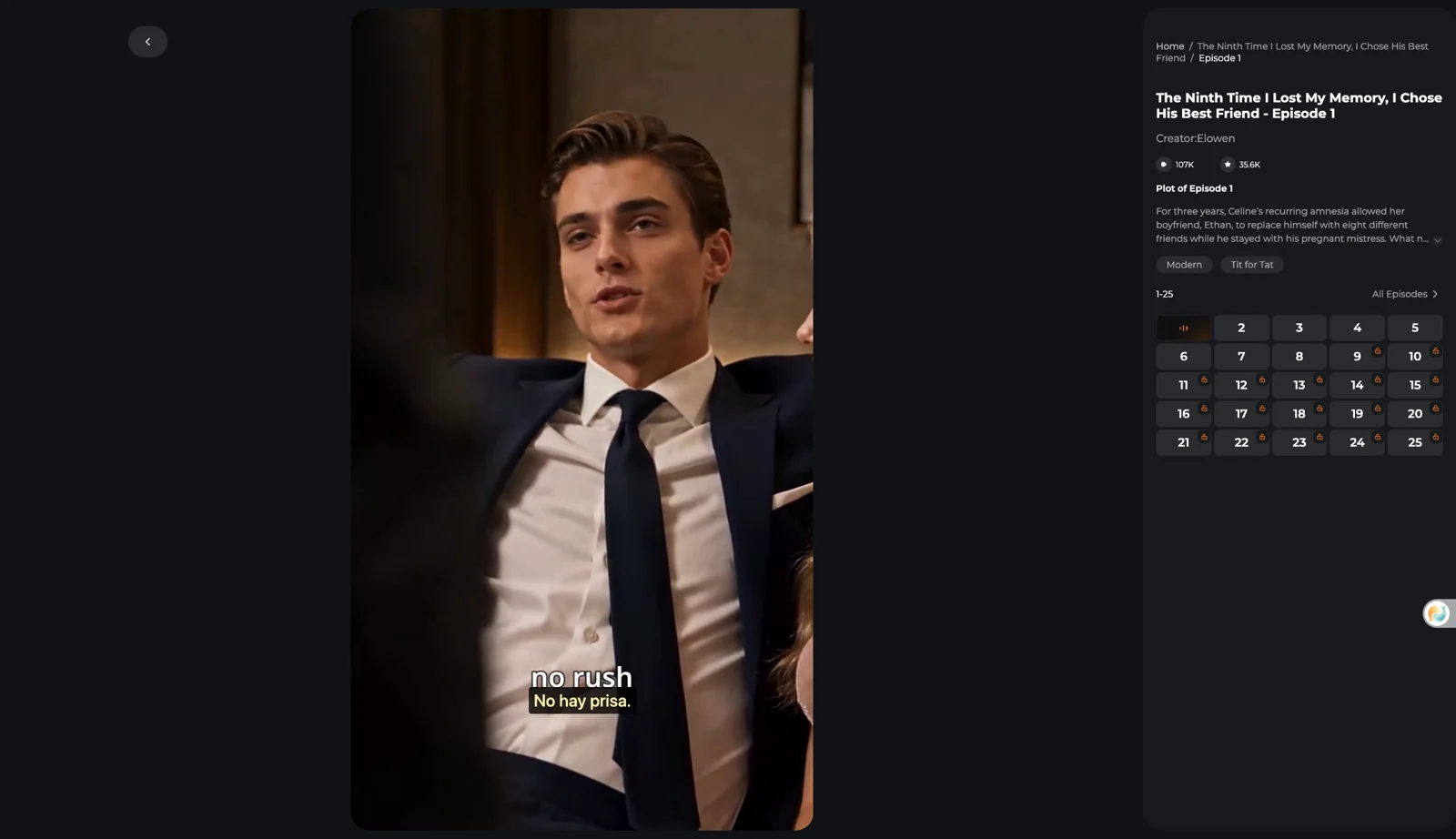
We tested this using the Equalang extension on ten short-drama sites; see ShortMax, ReelShort and Hongguo.
Keep three practical limits in mind before you start:
- On-screen text stays untouched: Subtitle translation only processes the caption track or spoken audio; text baked into the video picture is not erased or translated.
- Encrypted video cannot be listened to: If a streaming service protects its video with encryption, the browser blocks audio capture. Live audio translation will not work on encrypted streams, and there is no workaround for protected content.
- Audio mix affects accuracy: Loud background music, sound effects, or overlapping voices inside the video can interfere with speech recognition.
Working With a Local Video File
If you have the unencrypted video file on your device—in a standard format such as MP4, MOV, WEBM, or MKV, up to 180 minutes long—submit the file through Equalang's API or via its Agent Skill or MCP in an AI assistant (the website's document upload page accepts documents, subtitle files, and images only, not audio or video files). The task outputs a translated subtitle file (such as SRT or VTT, with an option for bilingual lines) and a transcript, rather than a new video file.
Once downloaded, open your original video in a media player that accepts external subtitles and load the SRT or VTT file. Your player will render the new translated track on screen while the video plays.
Translate Key Frames With a Photo Translator
Sometimes burned-in text appears during silent scenes, title cards, or on-screen explanations that nobody reads aloud. Audio translation will skip those moments because there is no speech to recognize.
For those lines, pause the video and take a screenshot. Open a web-based photo translator, choose your target language, and paste the screenshot or upload the saved image (JPG, PNG, WEBP, or BMP). The translation appears directly over the original text position in the image, allowing you to switch between the original frame and the translated version to read the note before resuming playback. This handles individual still frames rather than continuous real-time video.
Written by the Equalang team.