How to Watch ReelShort with Dual Subtitles: Web Player & Real-Time Audio Translation Guide
 Equalang
In brief
Looking to get bilingual subtitles while streaming ReelShort drama shorts on the web? This guide explains how to enable real-time audio translation and dual-language subtitles using Equalang, along with key settings and viewing tips.
Keywords: ReelShort; dual subtitles; bilingual subtitles; real-time audio translation; short dramas; Equalang
As a standout platform in the overseas short drama market, ReelShort has captured large international audiences with fast-paced series featuring werewolf romances, billionaire revenge plots, and contract marriages. However, many viewers encounter comprehension hurdles when streaming these short dramas on the web: native actors often speak rapidly with dense slang and dramatic intensity, while many series on the platform have English subtitles hardcoded directly into the video. The web player generally lacks an independent, extractable subtitle track and offers no official bilingual support for Chinese-speaking viewers. With episodes typically running just 1 to 2 minutes, relying purely on raw English listening comprehension makes it easy to miss crucial plot twists and dialogue nuances.
ReelShort is officially included on the list of platforms supported by the Equalang browser extension. When a player lacks a ready-to-use closed-caption track, Equalang can generate bilingual subtitles through real-time audio translation. This article outlines the step-by-step process of enabling live audio translation in ReelShort's web player using Equalang, covering menu configurations and practical viewing considerations.
1. In-Player Bilingual Display and Menu Settings
When watching episodes on the ReelShort web platform, you can configure dual subtitles to aid comprehension using the integrated Equalang control menu inside the player.
After opening a ReelShort episode page in a desktop browser (such as Chrome or Edge), click the Equalang icon inside the player to expand the settings panel.
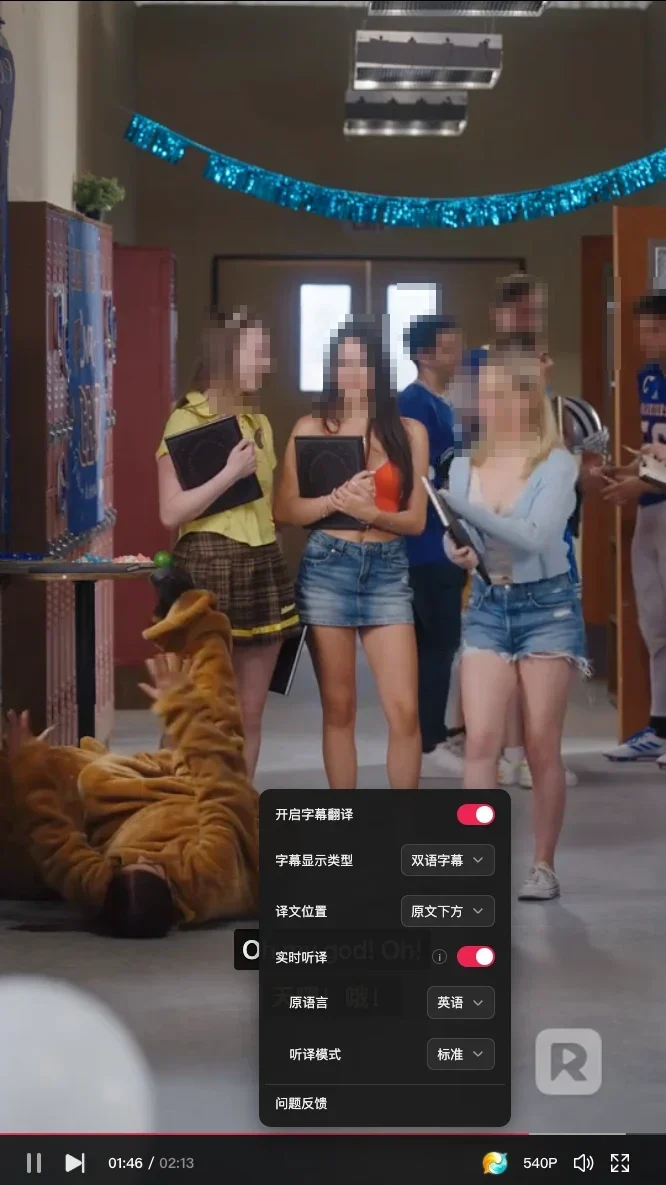
To accommodate different viewing preferences, the extension provides essential layout customization options:
- Switch Between Bilingual and Translation-Only: Under "Subtitle Display Type", select either "Bilingual Subtitles" or "Translation Only". Choosing bilingual subtitles displays both the original English sentence and the Chinese translation simultaneously on screen.
- Relative Translation Position: Under "Translation Position", you can set the translation to appear "Below Original" or "Above Original" depending on your reading habits.
- Source Language and Translation Mode: Set "Source Language" to English in the menu, and choose the standard translation mode.
2. Using Real-Time Audio Translation for Series Without Subtitle Tracks
Because many short dramas on ReelShort do not provide an independent, readable subtitle track, opening the menu often displays the notice: "No readable subtitles detected yet. Please enable player captions or manually turn on real-time audio translation." In this case, turning on the "Real-Time Translation" feature allows you to obtain dialogue translations on the fly.
During actual playback testing with Episode 1 of Just One Kiss, enabling real-time translation generated corresponding bilingual subtitles in sync with the characters' dialogue.

Based on our testing on this page, keep the following considerations in mind:
- Dual-Line Dialogue Presentation: Once real-time audio translation is turned on, the extension displays the recognized original English sentence and the Chinese translation on two separate lines (for example, the original line "We're graduating, and it's now or never." paired with the translation "我们就要毕业了,现在不说就再也没机会了。").
- Overlapping Hardcoded Subtitles: Because the video source already has English subtitles burned into the bottom of the frame, the generated bilingual subtitle box sits in a similar area and may overlap with the existing hardcoded captions during certain frames.
- Occasional Disconnections and Retry Tips: If a connection interruption notice appears when you first turn on real-time translation, refresh the page, click play so the video begins running, and then open the menu to enable real-time translation. In addition, clicking the menu icon to close the panel may currently pause the video, and the menu cannot be dismissed using the Esc key.
3. Objective Comparison of Common Viewing Subtitle Solutions
To help you choose the best viewing approach for your habits, here is an objective comparison of current common methods:
- ReelShort Official Web Player: Loads directly with low resource usage; however, many series lack independent subtitle tracks (subtitles are mostly burned directly into the video), and the platform offers no official Chinese-English bilingual support.
- Standard Web Translation Extensions / Scripts: Most general-purpose web translation tools are designed for static text or traditional landscape web pages. They typically cannot recognize embedded or hardcoded video dialogue and lack real-time audio translation capabilities for playing media.
- Equalang Browser Extension: ReelShort is on its officially announced list of supported platforms. When no independent subtitle track is detected, you can enable real-time audio translation to generate Chinese-English bilingual subtitles, switch between bilingual and translation-only modes, and adjust whether the translation appears above or below the original text. First-time setup requires installing the extension in a desktop browser.
4. Technical Limitations and Tips for Smooth Viewing
During actual streaming, certain objective audio and playback environment limitations exist, so it helps to maintain realistic expectations:
- Interference from Background Music and Intense Sound Effects: Short dramas often feature loud background music, dramatic sound effects, or multiple characters arguing over each other. When background noise or music drowns out voices, speech recognition may misjudge sentence boundaries or miss words.
- Limitations with Encrypted Streaming: For DRM-protected streaming media, browser security restrictions prevent audio capture for live translation, meaning these scenarios must rely on existing subtitle text tracks.
- Visual Occlusion from Burned-In Subtitles: On videos with hardcoded English captions, some visual overlap between the external bilingual subtitles and the burned-in text at the bottom is unavoidable. Choosing a suitable translation position (above or below the original) in the menu helps minimize reading distractions.
5. Practical Setup Recommendations
When watching series on the ReelShort web player, we recommend following these steps:
- Check Subtitle Tracks and Enable Translation: After opening an episode, click the Equalang icon in the player. If prompted that no readable subtitles were detected, manually switch "Real-Time Translation" to on and confirm that the source language is set to English.
- Choose a Suitable Subtitle Display Mode: In the control panel, set the subtitle display type to "Bilingual Subtitles" or "Translation Only" based on your preferences, and choose whether the translation appears below or above the original text.
- If Subtitles Do Not Appear, Play First Before Enabling: If subtitles do not appear after turning on translation, click play first to ensure the video is actively running, then open the menu to turn on translation. If you encounter a network disconnection prompt, simply refresh the page and turn it on again.
Sources
- ReelShort Official Website: https://www.reelshort.com/
- Equalang Browser Extension Introduction: https://equalang.com/extension