How to Translate Discord Messages Automatically in Browser
 Equalang
In brief
Read foreign-language Discord channels, threads, and DMs side by side in your desktop browser without copying messages or installing server bots.
Keywords: translate discord messages; translate discord messages automatically; auto translate discord messages; discord translator extension; can discord translate messages; discord translator extension firefox
Discord does not provide a built-in message translation button in its desktop app, mobile app, or web client. If you are a regular member in a foreign-language server without the "Manage Server" permission required to invite a translation bot, the most practical way to translate Discord messages automatically is to open Discord in a desktop web browser at https://discord.com/channels/@me and use a browser translator extension. Below, we compare the main ways to read foreign channels and walk through how to display translated lines directly beneath incoming Discord messages as you scroll.
Why Translating Discord Chats Feels Harder Than Regular Web Pages
When you join an international game guild, an open-source development server, or a foreign community channel, keeping up with fast-moving text quickly reveals three bottlenecks:
- No native translate button: Unlike some social feeds that offer an inline translation toggle beneath each post, Discord has no built-in option to translate individual messages or entire channels in its desktop, mobile, or web interface.
- Server bots require admin permissions: Many guides recommend adding a Discord translation bot that reacts to flag emojis. However, inviting a bot into a server requires the Manage Server permission. If you are an ordinary member browsing an official project server or a public community, you cannot install a bot there.
- Standalone desktop apps block browser tools: Most desktop users run the standalone Discord application. Because that app is a closed window rather than a standard browser tab, extensions from Chrome, Edge, or Firefox cannot run inside it, leaving you to copy and paste messages one by one into an external translator.
Fortunately, Discord runs with your full account, servers, threads, and direct messages in any modern desktop browser. Moving your reading session from the standalone app to a browser tab unlocks automatic, on-page translation without asking server moderators for special permissions.
How to Translate Discord Messages Side by Side in Your Browser
If you want to keep the original message visible—so usernames, code snippets, and @mentions stay clear—while reading the translation right underneath, a side-by-side web translator fits Discord's chat layout much better than full-page replacement. Here is how we demonstrate the workflow using the Equalang browser extension.
Step 1: Open Discord in Chrome, Edge, or Firefox
- Install the Equalang extension from the extension page, which provides dedicated setup guides for Chrome, Edge, and Firefox (plus a temporary macOS installation option for Safari 18.4 and above).
- Open a desktop browser tab and sign in to Discord at https://discord.com/channels/@me.
- Navigate to the foreign-language server channel, thread, or direct message you want to read.
Step 2: Turn On Side-by-Side Translation for Live Channels
When you open the extension panel and select your target language with Side by side mode enabled, the translation appears directly beneath each corresponding original message. As you scroll up through channel history or read down through active discussions, the extension translates screen by screen.
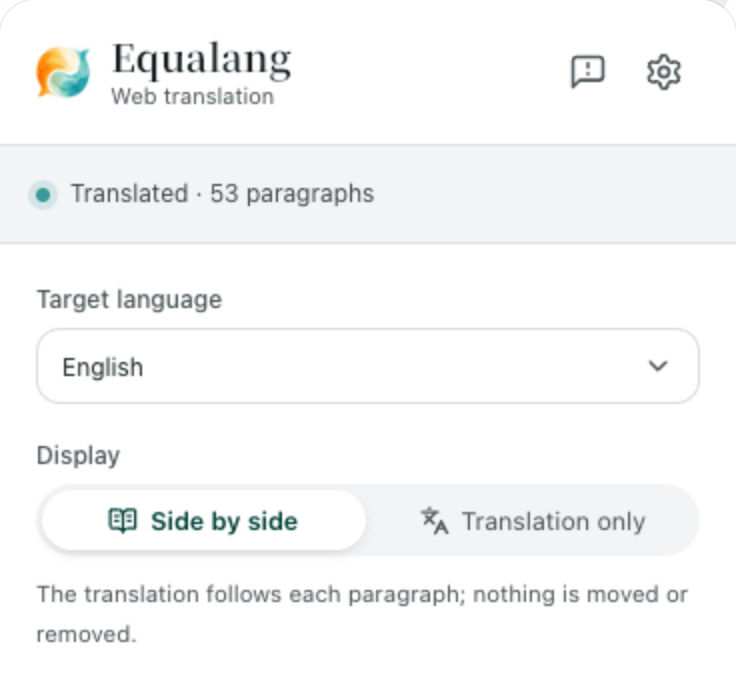
Keeping the original message above the translation matters on Discord for three practical reasons:
- Mentions and channel tags stay intact: You can still see exact
@usernametags,#channellinks, and custom server role names in the original line even when a translator interprets a nickname literally. - Links remain clickable: References and external URLs inside messages retain their original targets.
- Quick toggle back to source: Clicking the toggle again restores the page to its original single-language view whenever you switch back to a channel in your native language.
If you want a deeper look at how bilingual web layout works across long-form articles and documentation portals, see our guide on how to read foreign websites bilingually.
Step 3: Use Selection Translation for Slang or Isolated Messages
Not every Discord server is 100% foreign. Sometimes you are in a multilingual channel where only a few messages, patch notes, or regional slang terms are unfamiliar, and you do not need every line on the screen translated.
In that case, leave full-page translation off and enable Selection translation in the extension panel:
- Highlight the specific word, phrase, or message inside the Discord web tab.
- Click the translation icon that appears next to your cursor.
- Read the result in the floating popup. Along with the translation tailored to that context, the popup may also provide an AI note on part of speech and meaning, plus example sentences.
For more ways to look up unfamiliar terms without losing your place in a busy thread, check our walkthrough on how to translate words while reading online.
Honest Boundaries: What Browser Translation Can and Cannot Do on Discord
Before switching your daily Discord workflow to a browser tab, keep these real-world limitations in mind so you do not run into surprises:
- Desktop web browser only, not the standalone Discord app: Browser extensions only run inside browser tabs (such as Chrome, Edge, or Firefox at
discord.com/channels/@me). They cannot attach to the standalone Discord desktop application or the iOS and Android mobile apps. - Incoming reading only, not outgoing messages: Turning on side-by-side translation lets you read what others post in channels, threads, and DMs. It does not automatically translate the text you type into the message box before you press Enter.
- Text channels vs. voice channels: On-page web translation handles text messages. It does not automatically caption or translate Discord voice channels (
Voice Connected). - Dense sidebars and floating panels: Discord's interface packs a server rail, channel list, main chat feed, and member list into a single viewport. When right-side floating media, thread split-views, or pinned popovers are open, some translated lines in narrow browser windows may look crowded. Collapsing the member list gives bilingual messages much more breathing room.
- Screenshots and image memes: Text baked inside uploaded PNG or JPG screenshots in a chat channel is not translated by web text mode.
Comparing Other Ways to Translate Discord Messages
Depending on whether you own the server or just read occasional messages, another method might suit your setup better.
1. Your Browser's Built-In Full-Page Translator
Chrome, Edge, and Firefox all include native full-page translation when you right-click inside a web tab at discord.com/channels/@me.
- When it works well: It is free, already built into your browser, and requires no extra add-on to get the gist of an announcement channel.
- Where it struggles on Discord: Full-page translation replaces the original text instead of showing both languages side by side. On Discord, replacing the source text often mangles usernames, command prefixes (like
/playor!rank), game item names, and code blocks, making it hard to tell what someone actually typed.
2. Server-Side Discord Translation Bots
If you run your own community, you can invite a dedicated Discord translation bot that translates messages automatically across linked channels or when members click a country-flag reaction.
- When it works well: Every member benefits automatically, including people using the standalone Discord desktop app and mobile apps on iOS or Android.
- Where it struggles: You must have the Manage Server permission to add a bot, so it is unusable in external servers where you are just a member. In addition, many bots charge per character once a lively server exceeds a small free quota, and flag-reaction replies can clutter busy channels with duplicate bot messages.
3. Choosing the Right Method for Your Situation
- Reading someone else's server on a computer: Open Discord in your desktop browser and use Equalang in side-by-side mode so original commands, usernames, and translations stay visible together.
- Reading a single unfamiliar phrase: Use selection translation on the highlighted text or copy the line into a text translator.
- Managing your own international server: Set up a server-side bot for mobile and desktop-app members, and review your platform safety and permission settings via Discord Safety.
- Checking usage and credits: Equalang uses a single account balance across the web workspace and the browser extension; you can review how text tokens are counted on the pricing page.
Frequently Asked Questions
Can Discord translate messages natively?
No. Discord does not currently have a built-in message translation button in its desktop client, mobile apps, or web app. To translate chats without copying and pasting, you either need a browser extension running on discord.com/channels/@me or a server bot installed by an administrator.
How can I translate Discord messages in a server where I am not an admin?
Since you need the "Manage Server" permission to invite a translation bot, open Discord in a desktop browser such as Chrome, Edge, or Firefox instead of the standalone desktop app. From there, you can run a browser translator extension in side-by-side mode to read any channel, thread, or DM you have access to.
Does a Discord translator extension work in Firefox as well as Chrome?
Yes. If you prefer Firefox over Chromium browsers, you can open discord.com/channels/@me in desktop Firefox and install the Firefox version of the extension from the extension page to get the same side-by-side and selection translation features.