How to Translate Video Subtitles Without an SRT File
 Equalang
In brief
Have a video or recording with no subtitle file? Learn how to generate bilingual SRT subtitles from audio and get live captions while streaming.
Keywords: video subtitles; subtitle translation; generate srt from audio; bilingual subtitles; live captions
You have a foreign-language video—a recorded lecture, an interview, or a video clip sent by a colleague—and you need to translate what is being said. But when you turn to conventional translation tools, almost all of them ask for an existing subtitle file, such as an .srt or .vtt. If your video never had a separate subtitle track, or if it only has hardcoded text flattened into the video frames, the process abruptly stalls. Transcribing speech by hand word for word is exhausting and slow, especially when working across languages you are not fluent in.
Why missing subtitle files break standard translation tools
Most document and subtitle translation services are designed to process structured text. They take timestamped cues, replace the source sentences with translations, and export a matching file. When all you have is a video container like an MP4 file, there is no text track for those tools to read.
Burned-in subtitles present a similar barrier. When subtitles are permanently baked into the video's picture, translation software cannot simply grab the text or swap it out. They see pixels, not editable strings.
To translate a video without an existing subtitle file, you have to bypass the missing text layer altogether. Instead of trying to extract nonexistent subtitle tracks or retyping lines manually, the practical approach is to generate fresh, timed subtitles directly from the video's audio soundtrack.
Generating translated subtitles directly from the audio
Below, we demonstrate how this workflow operates using Equalang.
When you supply a recording or video file, Equalang analyzes the spoken audio rather than relying on an existing text file.
- Accepted formats: Speech recognition handles audio and video inputs including MP3, M4A, WAV, FLAC, OGG, AAC, OPUS, MP4, MOV, WEBM, and MKV. While our web document upload interface is primarily tailored for documents and standalone audio recordings, video formats such as MP4 and MOV are handled directly through our API and AI assistant integrations (such as WorkBuddy).
- Output files: Rather than rendering a brand-new video or producing synthesized voice dubbing, the system generates clean subtitle files (SRT, VTT, TXT, and JSON). You can choose a bilingual format with the original transcript on top and the translated line below, or export an untranslated transcript of the original speech.
- Usage: Single files can be up to 180 minutes in length, and silent gaps or musical interludes are not billed.
Once the process finishes, you can import the generated .srt file into your video editing software—such as Premiere Pro, Final Cut Pro, or DaVinci Resolve—or load it directly into a media player like VLC or IINA alongside your original video.

For automated workflows, AI assistants equipped with the Equalang skill can handle this process through natural conversation, returning downloadable subtitle packages right in the chat.
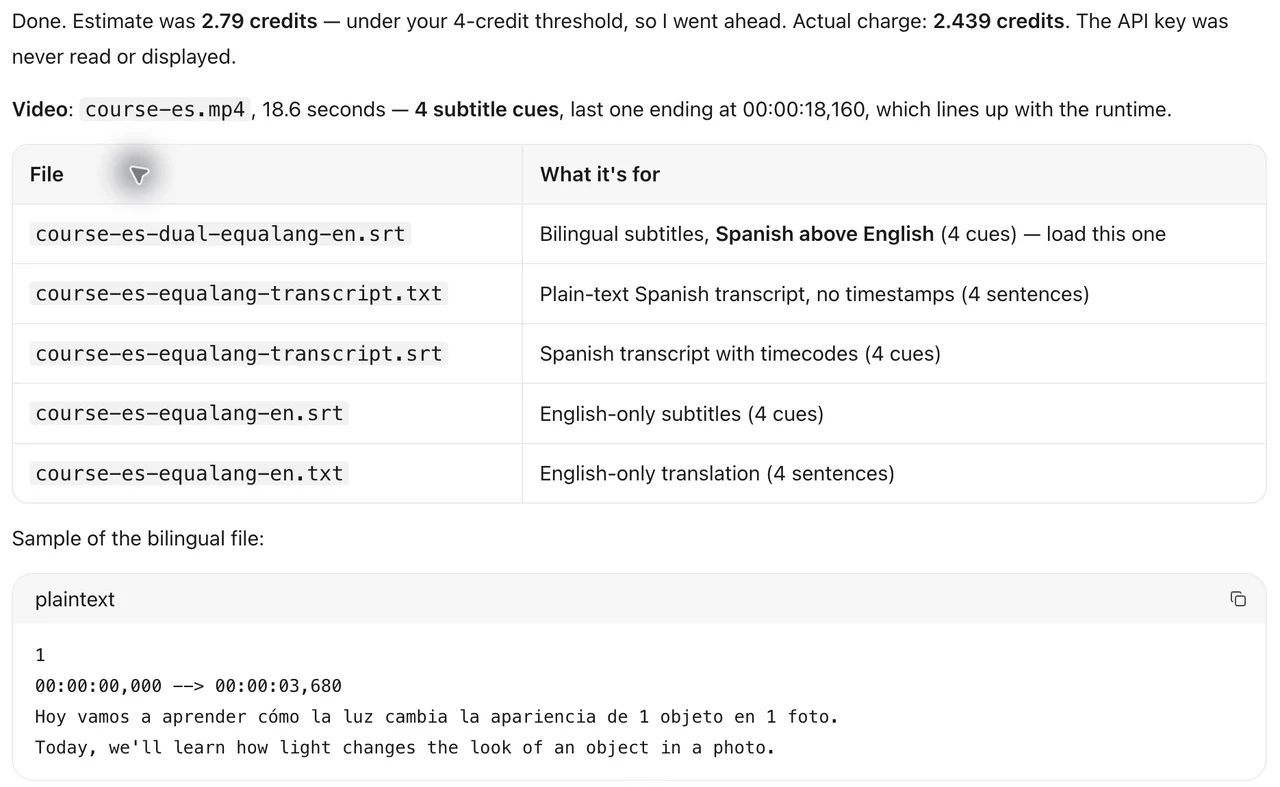
If you work regularly with audio recordings or automated agent workflows, you can explore our guides on turning recordings into bilingual subtitles and translating files with AI assistants.
Watching online videos without closed captions
The challenge is slightly different when you are watching a video hosted online. If you are streaming a foreign trailer, drama episode, or live broadcast on YouTube or another platform, downloading the video just to generate subtitles is often unnecessary and cumbersome.
When an online video lacks closed captions or native subtitle tracks, live interpretation offers a real-time alternative. By capturing audio directly from the active browser tab, the Equalang browser extension transcribes the spoken dialogue as it plays and renders bilingual captions directly over the player.
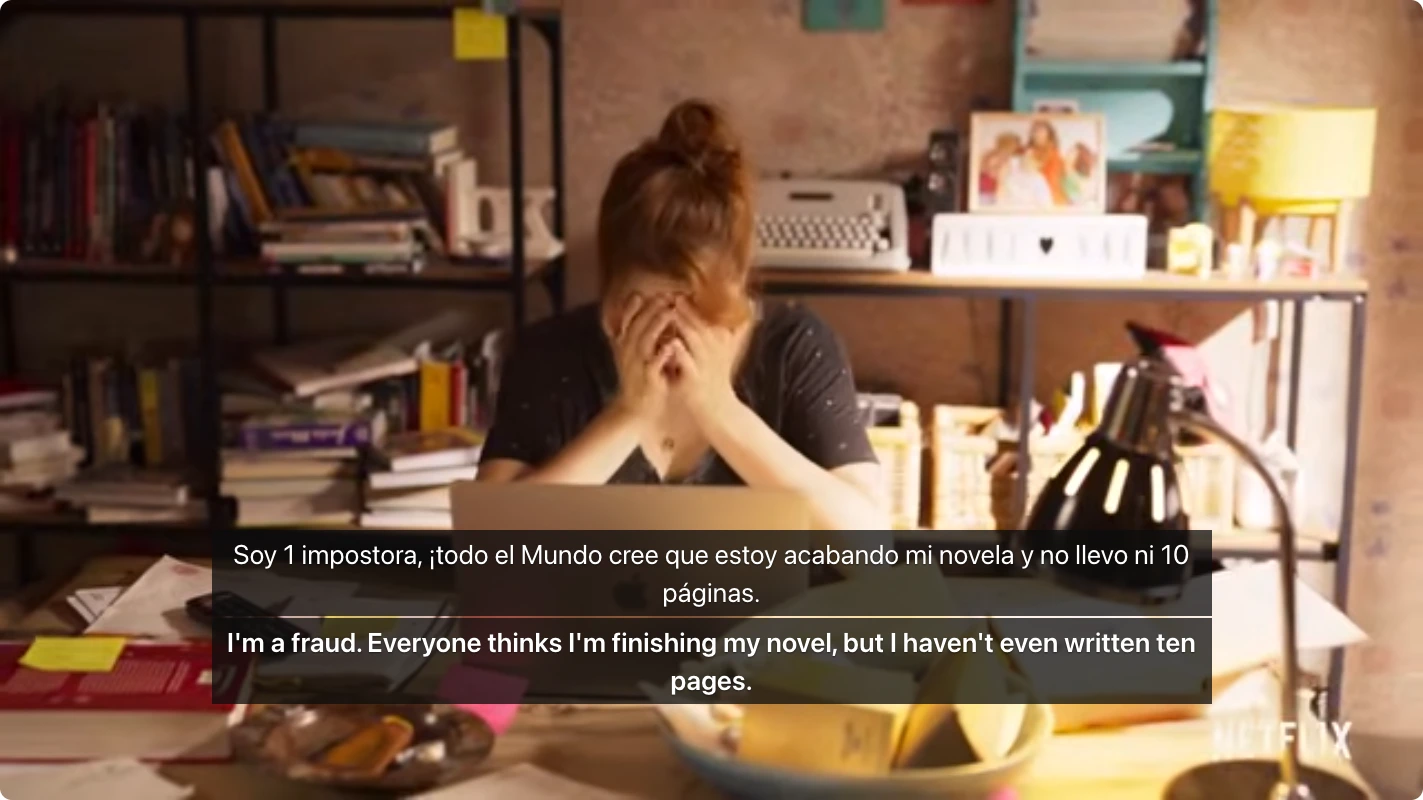
Because this runs inside the browser, it allows you to follow along with untranslated foreign content without waiting for batch file processing. For more details on streaming scenarios, see our guide on how to watch foreign dramas with subtitles.
Practical checks and boundaries to keep in mind
Generating subtitles from audio solves the missing-file dilemma, but automated speech recognition has specific physical boundaries:
- Burned-in text is not transcribed: Speech recognition listens exclusively to the audio track. If a video contains on-screen text, title cards, or hardcoded subtitles with no accompanying voiceover, it will not appear in the generated transcript.
- Review names, terms, and numbers: Spoken dialogue frequently includes proper nouns, technical jargon, or fast speech that acoustic models can mishear. For instance, foreign names or numerical terms (such as spoken fractions or dates) can occasionally be misinterpreted. It is always best practice to review key numbers and character names against the audio.
- Audio clarity matters: Heavy background scores, explosions, or simultaneous overlapping speakers can degrade transcription precision.
- Alternative workflows: If you prefer an entirely offline or local approach, you can extract the audio track from your video using a utility like FFmpeg, run an open-source model such as Whisper locally on your machine to produce an initial SRT file, and then feed that text file into a standard translation tool.