Stremio Dual Subtitles: 2 Working Ways to Show Two Languages
 Equalang
In brief
Stremio only activates one subtitle track at a time. Learn how to watch with dual subtitles using a drag-and-drop bilingual SRT or an external player.
Keywords: stremio dual subtitles; stremio multiple subtitles; stremio two subtitles; stremio two subtitles at once; bilingual srt stremio
Stremio's built-in video player only lets you activate one subtitle track at a time, whether that track comes embedded in the video or from a subtitle add-on. To display two subtitle languages at once in Stremio, you have two working options: drag and drop a single merged bilingual .srt file directly onto the desktop Stremio playback window, or hand the stream off to an external player like mpv or VLC that supports two independent subtitle tracks.
Which path you choose depends on whether you want to stay inside Stremio's native player or already have two separate subtitle files on your computer.
Why Stremio Can't Select Two Subtitle Tracks Natively
When you click the subtitle icon inside Stremio's player, selecting a new language immediately replaces the previous one. There is no "secondary subtitle" toggle in the native settings, and official subtitle add-ons only feed single-track selections into that same menu.
However, Stremio's player renders standard multi-line subtitle cues without stripping line breaks. If a single .srt file contains two lines of text inside every timestamp block—the original line on top and the translated line below—Stremio treats it as one track and displays both languages on screen together.
Method 1: Drag a Merged Bilingual SRT into Stremio's Native Player
If you prefer not to switch to a third-party media player during playback, the cleanest workaround on desktop Stremio is loading a single bilingual .srt file. Desktop Stremio allows you to load any custom local .srt file simply by dragging and dropping it onto the active video window.
Step 1: Turn a Single-Language Subtitle into a Bilingual SRT
Usually, it is easy to find a well-timed .srt or .vtt file in the show's original language, while a matching translation either has different timing or doesn't exist yet. Instead of trying to merge two mismatched files from different releases, you can translate the well-timed file into a single bilingual .srt where every cue keeps its exact timestamps.
- Open Equalang's document translator in your browser.
- Upload your single-language
.srtor.vttsubtitle file (the document translator uploads one file at a time, and an account processes up to three files simultaneously while any extras queue automatically). - Choose your target language—Equalang's document translation currently covers Chinese, English, Japanese, Korean, Spanish, French and other languages, with automatic source language detection—and download the bilingual
.srtoutput once the job finishes.
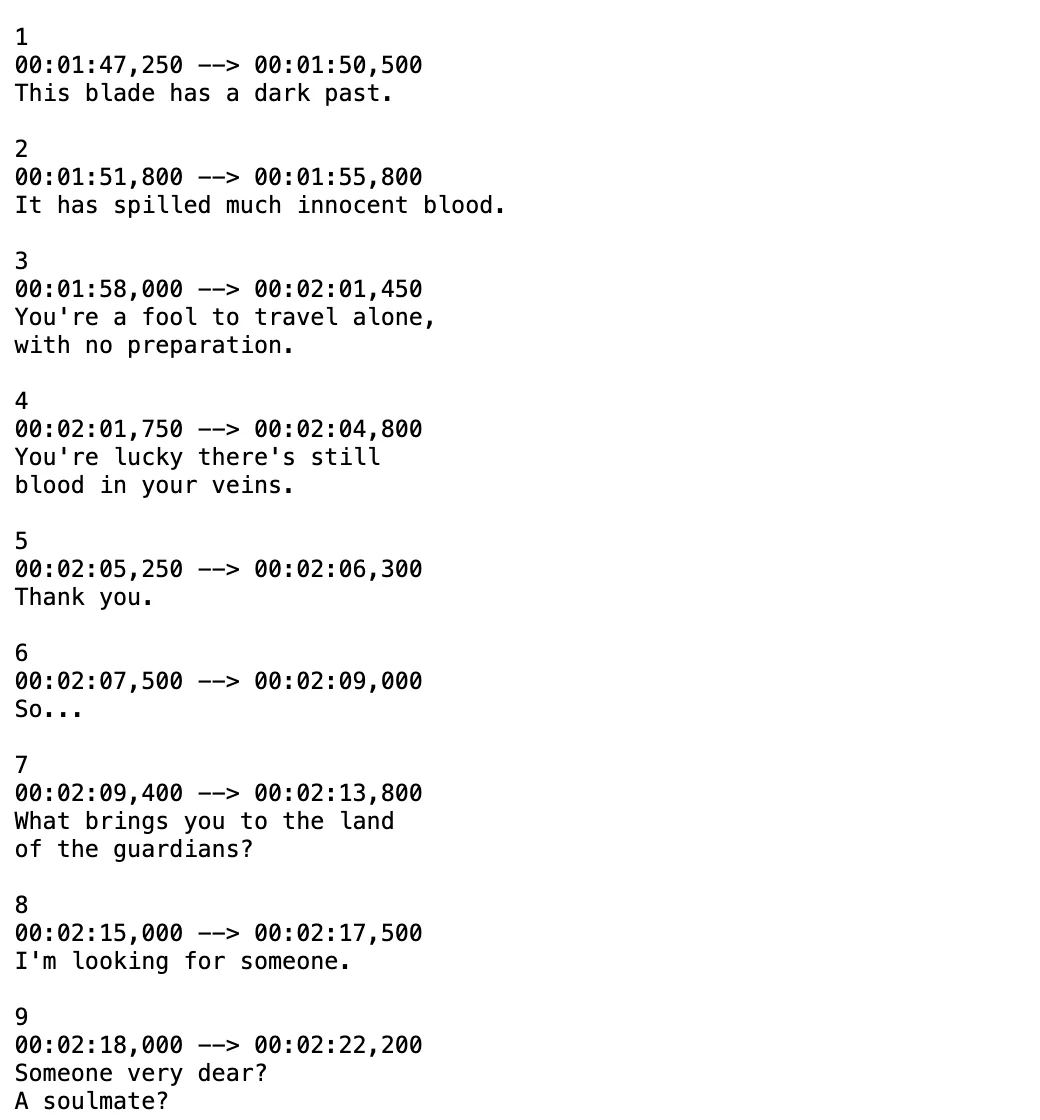
Inside the exported .srt, each numbered timestamp cue holds both lines:
1
00:00:01,000 --> 00:00:04,200
Buenas tardes. En la clase de hoy vamos a repasar tres ideas básicas de fotografía.
Good afternoon. In today's class, we are going to review three basic photography concepts.
If you want to test this on a movie or episode first, signing up gives you 200 free credits so you can try it before deciding whether to buy more. Text translation is billed by token volume (you can check the breakdown on the pricing page), and uploaded files and results are kept for 6 months before they are no longer accessible (or can be deleted anytime).
Step 2: Drag and Drop the File onto the Stremio Window
- Start playing your movie or episode in the desktop Stremio app.
- Open your computer's file manager and locate the bilingual
.srtfile you just downloaded. - Drag the
.srtfile and drop it straight onto the playing Stremio video window.
Stremio immediately switches to your local .srt file and displays the original line above the translated line at the bottom of the screen. You can still use Stremio's built-in subtitle delay controls (G and H keys or the subtitle menu) and font size adjustments, and both lines will shift or scale together.
Boundaries to Keep in Mind for Method 1
- Desktop vs. TV: Dragging and dropping a local
.srtfile works on the desktop Stremio application. On smart TVs or streaming sticks where you don't have a desktop window manager to drag files into, you will need to use an external player app that can load local subtitle files (see Method 2). - Shared styling and position: Because Stremio sees the bilingual
.srtas a single track, both languages share the same font size, color, and bottom-screen position. If you want one language at the top of the video and the other at the bottom, usempvin Method 2 instead.
Method 2: Use "Play in External Player" with mpv or VLC
If you already have two separate .srt files in different languages (or if the video stream already has two embedded subtitle tracks) and you don't want to generate a merged file, you can pass the Stremio stream to a desktop media player that natively renders two tracks at once.
While a video is playing in Stremio, click the three-dot menu (or the external player icon on the playback bar) and choose Play in External Player (or copy the stream link to open it manually).
Option A: Hand Off to mpv (Top and Bottom Dual Subtitles)
mpv is a free, lightweight player that supports a dedicated secondary subtitle track right out of the box. When Stremio opens the stream in mpv, or when you launch mpv with the stream URL:
- Select your primary subtitle track as usual (press
jto cycle tracks, or drag your first.srtfile onto thempvwindow). - Load your second subtitle track onto the top of the screen using
--secondary-sidor keyboard shortcuts.
Because mpv keeps the two tracks independent, you can adjust their timing separately if one track drifts out of sync. For the exact commands and mpv.conf setup, follow our step-by-step guide on how to set up dual subtitles in mpv.
Option B: Hand Off to VLC Media Player
If VLC is already installed on your machine as your default external player, Stremio can launch playback directly in VLC. By default, VLC also limits you to one active subtitle track, so you will need either a dual-subtitle extension or a merged bilingual .srt file inside VLC. We cover both approaches in our guide to watching with dual subtitles in VLC.
Quick Comparison: Which Setup Fits Your Routine?
- Stay inside Stremio's native desktop player (Method 1): Takes about a minute to generate a bilingual
.srton Equalang and drag it onto the window. Best when you only have one accurate subtitle file and want both languages stacked cleanly at the bottom without leaving Stremio. - Send the stream to
mpv(Method 2A): Completely free and keeps both tracks separate (one at the top, one at the bottom). Best when you already have two well-synced subtitle tracks and don't mind watching outside Stremio's window.
Frequently Asked Questions
Is there a Stremio add-on that enables two subtitles at once?
No. Stremio add-ons only supply subtitle files to Stremio's built-in player menu, and the player engine itself only allows one active subtitle track at a time. To show two languages inside the native player, both languages must live inside the same .srt file.
Why won't my custom subtitle file load when I drag it into Stremio?
Make sure the file is saved in standard .srt format with UTF-8 encoding. If you start with a .vtt file, converting or translating it into a standard .srt file first ensures Stremio recognizes it when dropped onto the playback window.
What if I don't have any subtitle file for the video at all?
If a local recording or video file has no subtitles to begin with, Equalang's document translator also accepts audio and video files (including MP4, MKV, WEBM, and MOV up to 180 minutes per file) and exports a translated bilingual .srt file that you can drag onto Stremio.