How to Stop YouTube Translating Video Titles and Audio
 Equalang
In brief
Turn off YouTube auto-dubbed audio tracks by switching to Original audio, and learn how to stop YouTube from auto-translating video titles.
Keywords: stop youtube translating video titles; disable youtube translating video titles; turn off youtube auto dubbing; stop youtube auto translating audio; youtube original audio track
YouTube forces two separate localization features on bilingual viewers: auto-dubbed audio tracks and auto-translated video titles. You can turn off robotic AI dubbing immediately inside the video player by opening Settings (gear icon) > Audio track and selecting Original. However, YouTube has no official toggle to disable translated titles—title and description languages are strictly tied to your active YouTube Display Language, meaning the only reliable way to stop English titles from translating into your local language is to switch your YouTube UI language to English.
Below is the exact breakdown of how both mechanisms work and how to configure your player and Google Account settings so creators' voices and titles stay authentic.
1. How to Turn Off YouTube Auto-Dubbing (Restore Original Audio)
When a creator enables YouTube's multi-language audio or automatic dubbing feature, YouTube automatically selects the audio track that matches your YouTube interface language. If your YouTube interface is set to Spanish, French, or Chinese and you click an English video, YouTube plays a synthesized or dubbed voice instead of the creator's real speech.
To switch back to the creator's real voice:
On Desktop Web (youtube.com)
- Hover over the video player and click Settings (the gear icon in the bottom-right corner).
- Click Audio track.
- Select the track labeled Original (for example,
English (original)orJapanese (original)).
On YouTube Mobile App (iOS and Android)
- Tap the video player to reveal the on-screen controls, then tap Settings (the gear icon in the top-right corner).
- Tap Audio track.
- Choose the Original language track.
Why Does Auto-Dubbing Keep Coming Back?
Once you manually pick the Original track, YouTube remembers your preference better within your current browsing session. However, YouTube does not currently offer a permanent account-wide "Always play original audio" checkbox. Whenever your YouTube interface language differs from a video's source language, newly opened channels that use auto-dubbing may still default to the dubbed track and require a quick switch in the gear menu.
2. Why YouTube Translates Video Titles (and Why There Is No "Off" Switch)
If you have ever searched for a setting called "Never translate video titles" and come up empty, you are not missing anything. YouTube provides no standalone viewer toggle to disable translated video titles or descriptions.
Here is what actually happens behind the scenes:
- Creators can manually upload localized titles and descriptions or turn on automatic metadata translation in YouTube Studio for specific target languages.
- When YouTube renders your Home feed, Search results, or Watch page, it checks your active YouTube Display Language.
- If a video has a title translation matching your display language, YouTube serves the translated string instead of the creator's original title.
3. How to Stop YouTube from Translating Video Titles
Because title localization strictly follows your interface language, the most effective workaround for bilingual viewers is to align your YouTube UI language with the primary language of the channels you watch most—and update your Google Account language profile so Google knows you understand multiple languages.
Step 1: Switch Your YouTube Display Language
If you primarily watch English-speaking creators and want to stop YouTube from clumsily translating their titles into your local language:
- On Desktop Web: Click your Profile picture in the top-right corner > click Language > select English (US) (or English (UK)).
- On Mobile App: Tap your Profile picture > tap Settings (gear icon) > General > App language > select English.
Important trade-off to keep in mind: Switching your YouTube display language to English stops English titles from being translated, and it also stops English videos from defaulting to non-English auto-dubbed audio tracks. However, the rule works in reverse too: if you watch a non-English video (such as a Japanese or Korean vlog) whose creator provided an English translated title, YouTube will now display that title in English.
Step 2: Add All Languages You Speak to Your Google Account
Many bilingual users only have one primary language listed in their Google Account. Adding every language you read and speak fluently helps reduce unnecessary translation prompts across Google services:
- Open your Google Account language settings at
https://myaccount.google.com/language. - Under Preferred Language, verify your primary language.
- Under Other languages you understand, click Add another language and add every language you understand fluently.
While YouTube's web feed still primarily keys off your active YouTube Display Language, keeping your Google Account's understood languages accurate prevents Google from treating your secondary languages as unfamiliar across its web ecosystem.
4. Keeping Original Voices and Titles Without Losing Comprehension
For most bilingual viewers, the cleanest daily setup is keeping YouTube's interface set to the language of the creators they watch most—or immediately flipping Audio track to Original—so titles stay searchable and creators keep their real voices and tone.
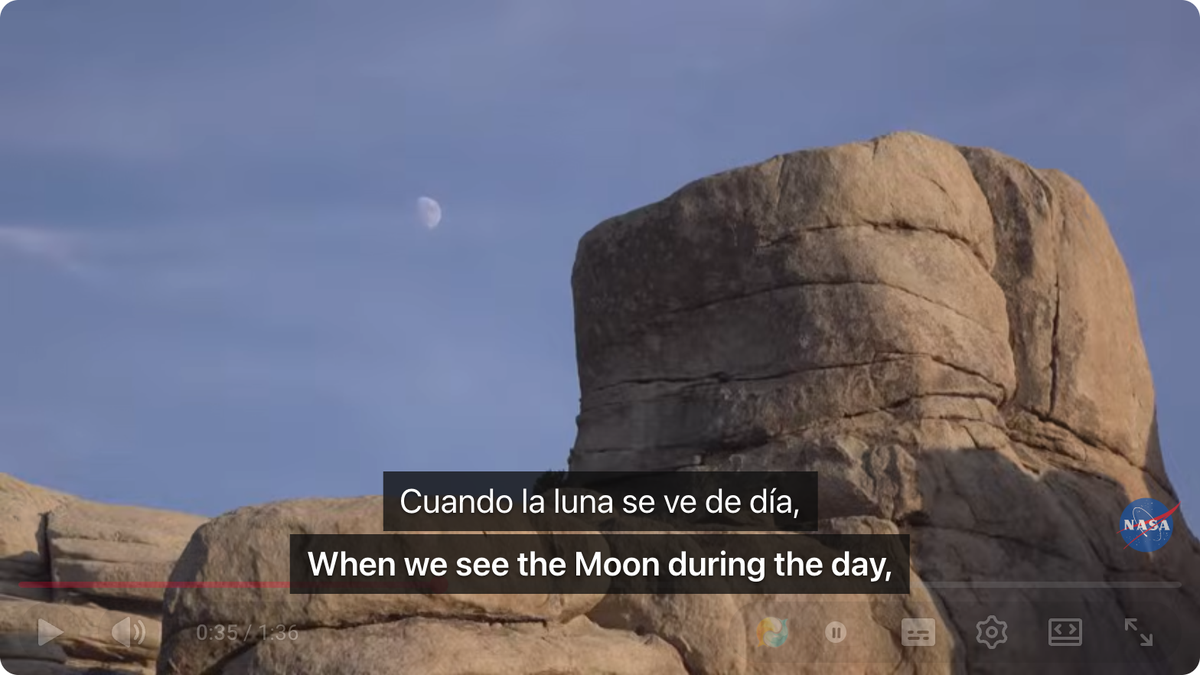
When you do come across a video in a third language you don't fully speak, you don't have to put up with robotic dubbing: you can leave the audio track on Original and turn on side-by-side YouTube bilingual subtitles with the Equalang browser extension, reading the original captions and translation together while hearing the speaker's real voice.
Frequently Asked Questions
Why is YouTube suddenly playing a robotic dubbed voice on videos?
Creators can now attach multiple audio tracks or enable automatic AI dubbing on their uploads. If your YouTube interface language differs from the video's original spoken language—and a dubbed track exists in your interface language—YouTube defaults to playing the dubbed audio track. Open Settings (gear icon) > Audio track in the player and choose Original to hear the real voice.
Does adding languages to my Google Account completely stop YouTube title translations?
Not by itself. Adding languages under https://myaccount.google.com/language (Other languages you understand) reduces redundant translation prompts across Google services, but YouTube's video feed still selects localized titles based strictly on your single active YouTube Display Language (Profile picture > Language).
Why doesn't the "Audio track" option show up in my YouTube player settings?
The Audio track menu only appears on videos where the creator has uploaded or enabled multi-language audio. If you don't see Audio track in the gear menu, the video only has one audio stream—its original audio.
Sources
- YouTube Help — Multi-language audio tracks: https://support.google.com/youtube/answer/13338784
- Google Account Help — Change your language on the web: https://support.google.com/accounts/answer/32047
- Equalang Browser Extension: https://equalang.com/extension
- Equalang Blog — YouTube Bilingual Subtitles Guide: https://equalang.com/blog/youtube-bilingual-subtitles
- Equalang Blog — YouTube Auto-Translate Subtitles Not Working: https://equalang.com/blog/youtube-auto-translate-subtitles-not-working