How Can My Audience Follow My Presentation in Their Own Language?
 Equalang
In brief
Presenting to a multilingual room? Combine translated slide handouts with browser-based live captions on attendees’ phones so everyone follows along.
Keywords: multilingual presentation; live translation; presentation subtitles; slide translation; conference interpretation
Standing in front of a room at a local meetup, training workshop, or university lecture, you often look out at a crowd that speaks several different mother tongues. A few attendees catch every nuance, but others miss key explanations or tune out entirely when technical vocabulary speeds up. Professional simultaneous interpreters are usually far too expensive for community events and department budgets. Translating your slide deck helps, but slides only carry headlines and bullet points—they leave out the verbal examples, unscripted answers, and context that make a presentation valuable. Projecting translated subtitles on the main screen also falls flat when your audience includes listeners who speak Spanish, Japanese, and German all at the same time.
To keep everyone engaged without an interpreter budget, you can combine two practical options: provide translated slide handouts for structure, and let attendees follow what you say through live subtitles on their own devices.
Pre-translate slide decks for handouts and second screens
Before the session begins, giving attendees access to a translated version of your slide deck establishes a solid baseline. When listeners can review technical terms or complex diagrams in their own language, they spend less energy decoding your slides and more attention listening to your delivery.
The traditional problem with translating slide decks manually is layout breakage. Translated text frequently expands beyond original text boxes, covers background graphics, or pushes bullet lists off the bottom of the slide. Using Equalang's document translation, you can upload your PPTX or PDF file and generate a translated deck where font sizes automatically adjust to fit existing text boxes, keeping the original layout intact. You can read more about how presentation slides auto-fit translated text.
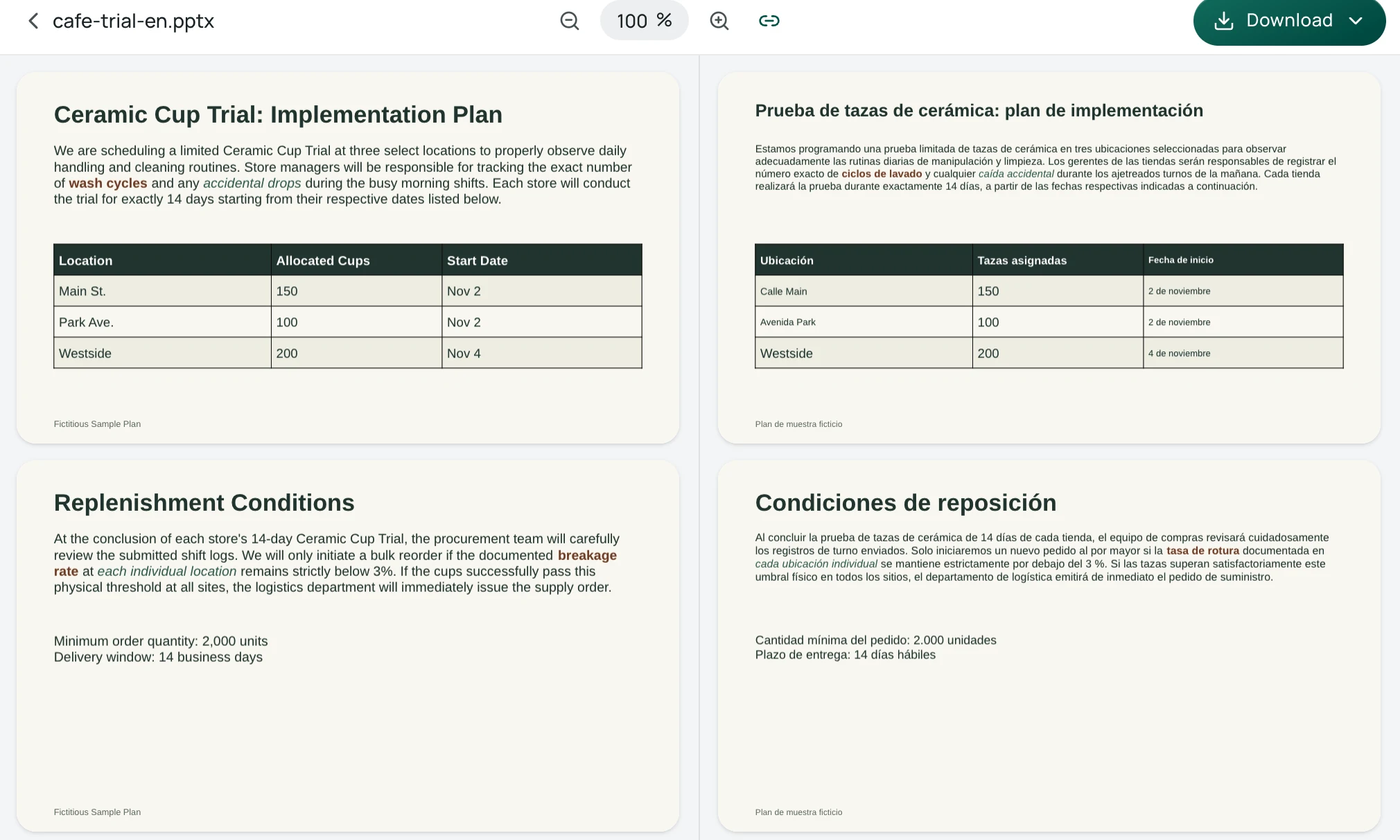
Distributing these translated decks—either as printed handouts or via a download link—gives your audience a reliable reference throughout the talk. However, static slides alone cannot convey what you actually say during the presentation.
Let listeners follow your spoken words on their own devices
To bridge the gap between static slides and live speech, attendees can read real-time translations of your talk directly on their personal smartphones or laptops. Instead of forcing the entire room to look at one projected language on stage, each listener chooses what they see on their own screen.
Below, we’ll demonstrate using Equalang for live listening and document translation.
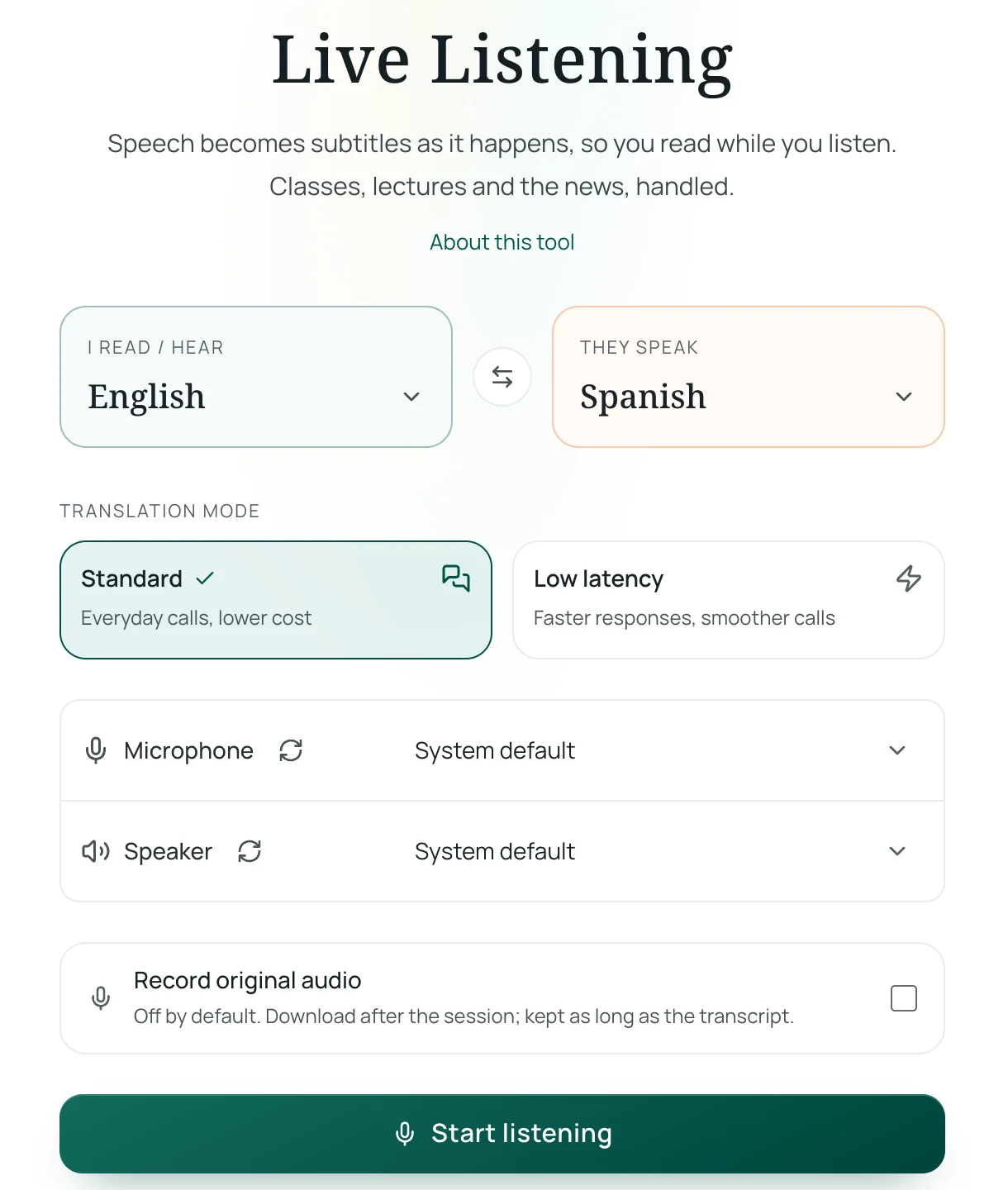
Attendees simply open Equalang Live Listening in any standard mobile or desktop browser without downloading an app. On the setup screen, each attendee picks the language you speak as the presenter, selects their own preferred language to read or hear, and chooses between Standard or Low-latency mode.
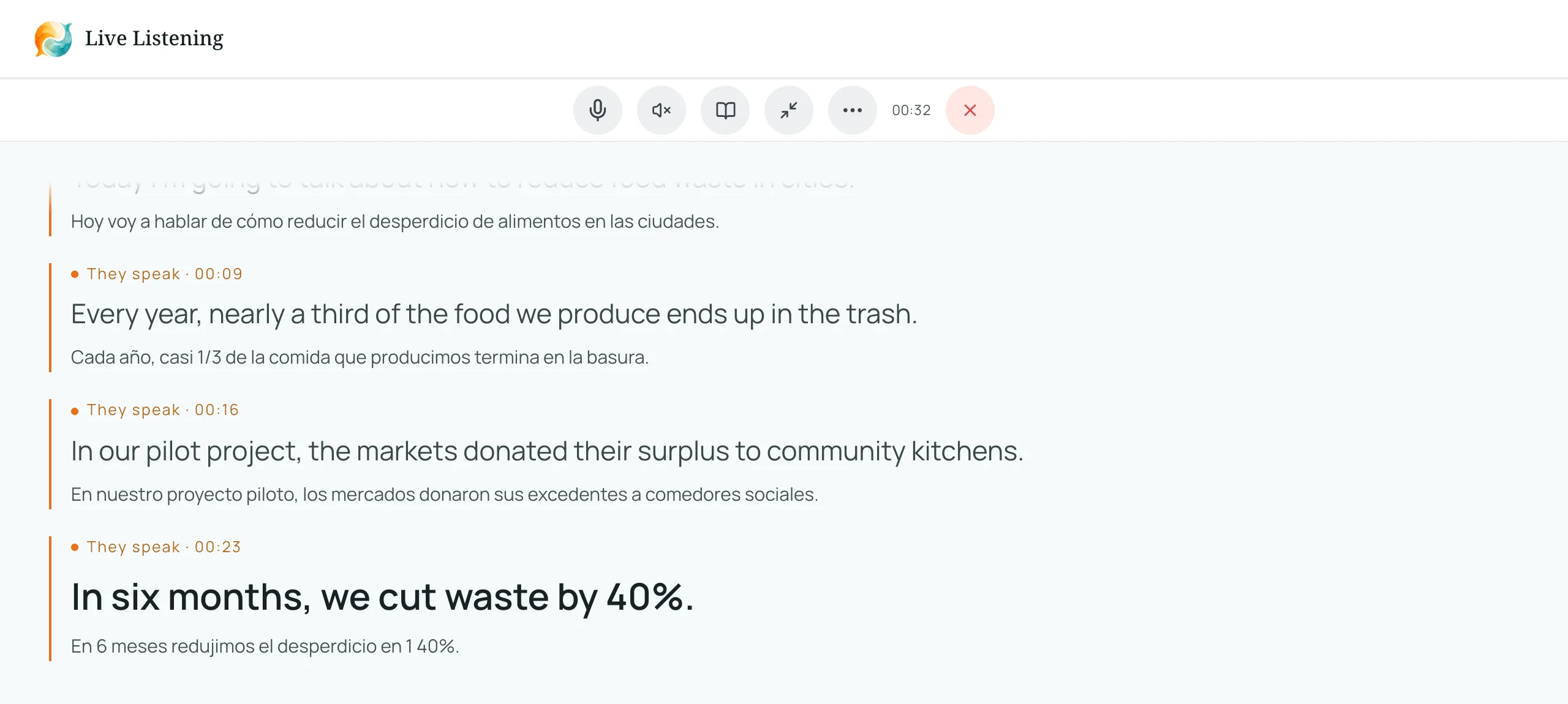
Once live listening begins, the attendee's device captures the room audio and displays bilingual captions in real time. The interface presents the spoken sentence alongside its translation, allowing attendees to cross-check terminology or catch up if they glance away. If an attendee prefers listening over reading, they can plug in earphones and toggle on translated speech synthesis.
When your talk concludes, listeners can export the full bilingual transcript with timestamps for note-taking or review.
There is an important boundary to keep in mind: live speech recognition depends on each listener's device microphone picking up your voice clearly. We have not verified performance with far-field room audio across various auditorium acoustics. If the room has heavy reverberation, background chatter, or low speaker volume from the venue sound system, transcription accuracy will decrease. For attendees who regularly sit in international academic settings, our guide on following foreign lectures covers additional strategies for managing lecture environments.
Three practical setup tips for presenters
Making real-time translation work smoothly in a live room requires minimal technical overhead, but a few deliberate habits make a noticeable difference:
- Share the link or QR code before you begin: Place a short URL and QR code on your title slide and welcome materials. Give attendees two minutes to connect their phones, choose their language, and test their audio settings before you start your introductory remarks.
- Speak in clear, shorter sentences: Real-time AI translation processes speech in cohesive clauses. Speaking at a steady pace and leaving brief pauses between distinct points gives both the speech recognition engine and your listeners time to absorb each statement.
- Check the venue audio in advance: Before attendees arrive, walk to the back of the room while speaking into your microphone. Confirm that the venue speakers project clearly to the rear seating area where attendees' devices will be listening. If the venue lacks sound reinforcement, encourage attendees who need translation to sit closer to the podium.