Stop Text Overflow in Translated PPT Slides: How Auto-Fitting Preserves Presentation Layouts
 Equalang
In brief
Tired of translated slides breaking text boxes and overlapping charts? Understand why text expands in translation and discover how font auto-fitting keeps your PPTX layouts and native tables intact.
Keywords: PPT translation layout preservation, PPTX text overflow translation, presentation slide font auto-fit, PowerPoint translation formatting, translate presentation tables and charts

When preparing international business reviews, global academic exchanges, or investor pitch decks, teams typically finalize the narrative structure and slide design in their native language first. However, once that slide deck (.pptx) is translated into English, Spanish, or German, the biggest challenge is rarely the language itself—it is the layout wreckage that follows. Clean single-line headers wrap into three cluttered rows, expanding text boxes breach their boundaries and cover key product visuals, and numbers inside comparison tables break across lines, leaving the overall presentation completely disheveled.
Manually stretching text boxes page by page, shrinking font sizes line by line, and realigning guide markers can drain hours or even lead to overnight rework. Why does cross-language presentation translation cause text overflow so consistently? And how can you automate layout adaptation while keeping your original slide masters and design assets intact?
Why Do Slide Layouts Break During Cross-Language Translation?
Unlike standard free-flowing text documents, slides are visual media built around fixed canvas coordinates and strict geometric bounding boxes. Layout collapses typically stem from three core factors:
- Text expansion is an inherent linguistic reality: Logographic languages like Chinese have exceptionally high informational density. In contrast, Indo-European languages such as English, Spanish, or German rely on alphabets and multi-syllable words. Translating concise source content into English often results in a 30% to 40% increase in character count and physical horizontal width for equivalent meaning. When a layout engine renders the translated text at the original font size, horizontal and vertical boundary overflows are practically inevitable.
- Standard translation tools lack font auto-fitting algorithms: Whether copying text into generic translation tools and pasting it back, or relying on basic Office translation add-ins, most utilities perform simple string replacement. They do not calculate remaining bounding box dimensions against target text metrics, resulting in overlapping lines that conceal underlying imagery.
- Complex charts and native tables often get degraded: To avoid broken formatting, some translation tools resort to rasterizing entire slides containing tables and diagrams into flat bitmap images. This eliminates editability. If you need to update a figure or tweak specialized terminology later, you are forced to rebuild the entire slide from scratch.
Benchmarking Font Auto-Fitting and Native Object Preservation
To eliminate tedious manual adjustments, a translation engine must calculate the physical metrics of translated text inside extracted bounding boxes and automatically deduce the appropriate font size—effectively letting the text dynamically fit the box. Below is an automated workflow using Equalang Document Translation, developed by our team.
Step 1: Uploading the PPTX Deck and Hierarchy Parsing
From the Equalang web workspace, drag and drop the finalized .pptx deck (the engine supports composite slides containing multi-level bulleted lists, rich-text color formatting, and tables):
- Set the source language (e.g.,
Chinese (Simplified)) and target language (e.g.,Englishor other target market languages). - Start the translation task and calculate spatial geometry for the rendered output.
Step 2: Real-World Comparison of Intelligent Auto-Fitting
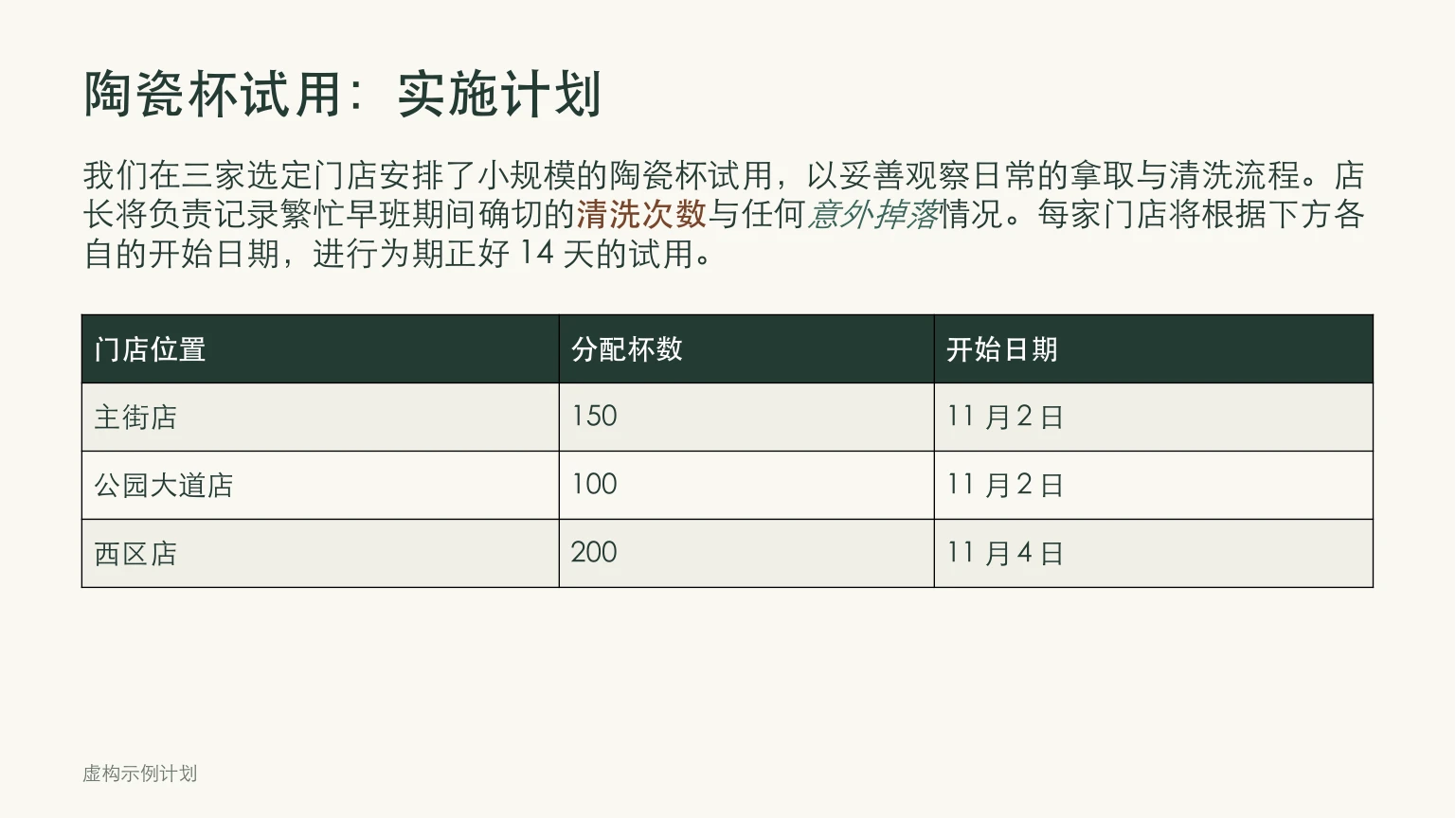
To evaluate this in practice, we tested a sample project review title and overview slide. The source deck featured a dark green primary headline, body text, key phrases with bold and colored italic styling, and a 4-row metric comparison table.
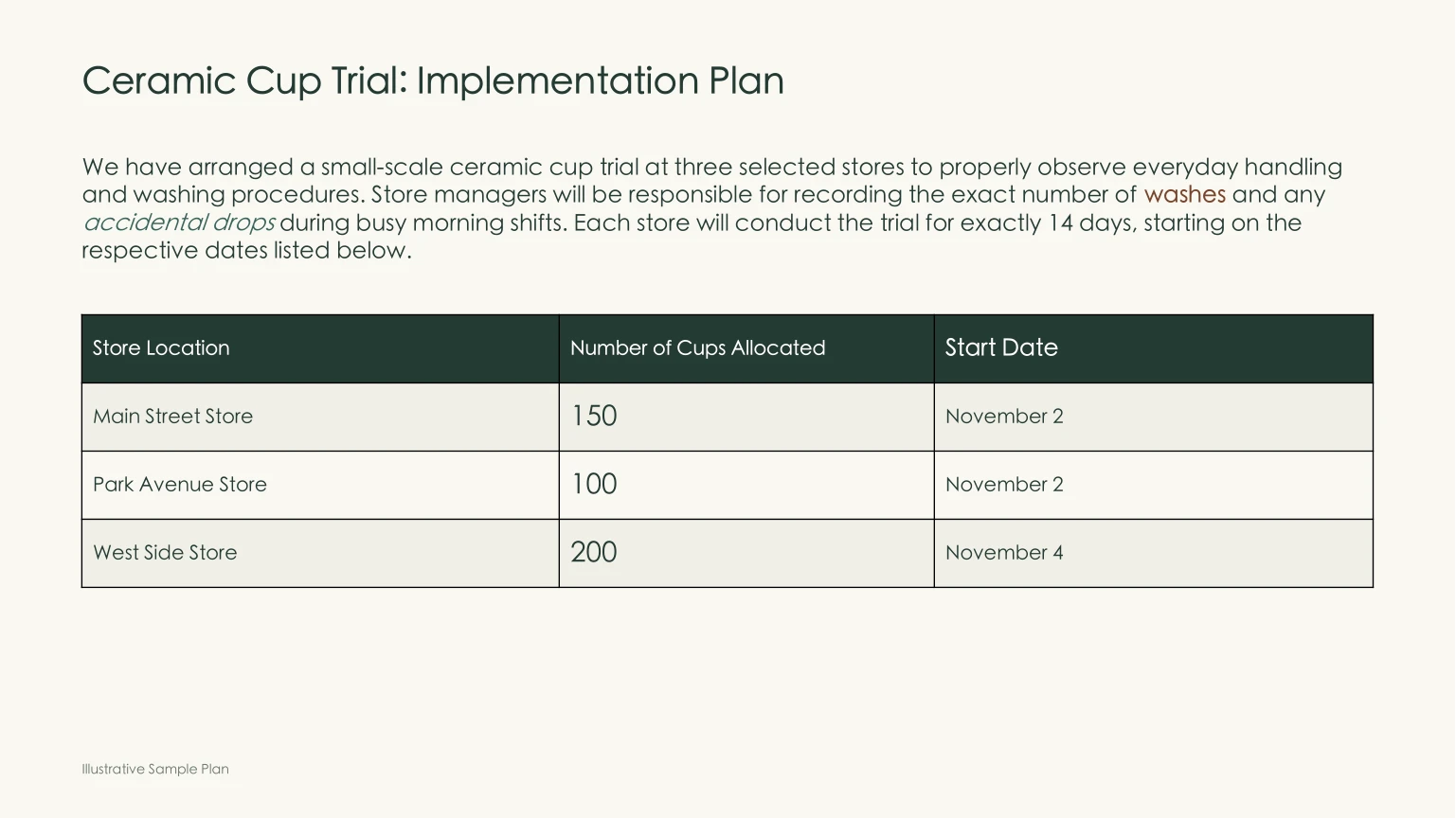
Comparing the source slide with the generated English translation highlights the direct advantages of dynamic layout adaptation:
- Adaptive font scaling: As concise source headers expanded into longer English phrases, the primary headline automatically adjusted down from the original
34.5ptto24.15pt, while body text scaled from21.75ptto15.22pt, and table header font sizes decreased from18.75ptin the source to13.12pt/15.48ptin the translation. All text remained comfortably within existing container boundaries, preventing overlaps with downstream graphic elements. - Tables remain native and editable: The data table was not flattened into a static image. Dates (such as localized calendar formatting), numerical metrics, and column widths remained aligned with their original grid structure.
- In-sentence styling preserved: Inline formatting—such as bolded phrases and italicized colored accents—mapped accurately onto corresponding translated phrases (e.g.,
washesandaccidental drops), preserving visual hierarchy without manual reformatting.
Practical Pre-Flight Checklist for Global Slide Decks
Even when utilizing layout-adaptive tools, reviewing these formatting practices before presenting or distributing your deck will ensure optimal delivery:
- Leave a 15%–20% whitespace buffer: When creating your initial slide master, avoid placing text box boundaries flush against backgrounds or adjacent accent shapes. Giving layouts room to breathe ensures translated text remains legible when fonts scale automatically.
- Retire legacy .ppt formats: If working with older 97–2003 binary
.pptfiles, open them in PowerPoint and re-save them as standard.pptx. Modern XML shape trees and updated font anti-aliasing metrics parse far more reliably in modern translation pipelines. - Maintain a 14pt minimum font threshold: If extensive text expansion forces body copy below 14pt, audience members in the back of a large meeting room may struggle to read it. When this occurs, edit lengthy subordinate clauses into concise, punchy bullet points.
- Conduct a cross-platform font check on the presentation device: Because font rendering metrics vary slightly across Windows, macOS, and Linux, always run a quick full-screen rehearsal on the exact computer connected to the projector to catch any unexpected line wraps caused by local font substitution.
Sources
- Equalang Document Translation (features PPTX font auto-fitting and native table preservation)
- Microsoft Official Guide: What is a Slide Master?
- W3C Internationalization: Text size in translation