How to Translate WhatsApp Web Messages in Your Browser
 Equalang
In brief
Read foreign-language chats on WhatsApp Web in Chrome, Edge, or Firefox using browser translation, bilingual reading, selection lookup, and safe reply drafting.
Keywords: translate whatsapp web; auto translate whatsapp web; google translate whatsapp web; whatsapp translate online; translate whatsapp messages on pc
To translate messages on WhatsApp Web on your computer, you need a browser-based workflow—either your browser's built-in page translator, a selection-lookup popup for individual phrases, or a bilingual web extension that places translations directly beneath each incoming message. While WhatsApp now offers built-in on-device message translation on mobile phones, its web client runs inside your desktop browser without those mobile language packs, meaning desktop users have to handle incoming messages and outgoing replies through their browser.
Below is how WhatsApp's native translation works across devices, how to set up continuous reading on a computer without copying and pasting every line, and how to draft accurate replies before hitting send.
Why Built-In Translation Works Differently on Mobile vs. WhatsApp Web
If you recently translated a chat on your phone and went looking for the same button on your computer, you are not overlooking a hidden menu. WhatsApp rolled out built-in Message Translations designed to run on-device on iOS and Android:
- On iOS and Android: You can long-press an individual message and tap Translate to view it in your chosen language.
- On Android: You can also turn on automatic translation for an entire chat thread so future incoming messages in that conversation are translated automatically.
However, as noted in the WhatsApp Help Center guide on message translations, feature availability on WhatsApp Web differs from the mobile apps because the mobile feature relies on downloaded on-device language packs. When you work from a desktop browser all day—managing supplier quotes, customer support queues, or international project groups—pulling out your phone to read every message breaks your typing flow. Instead, you can translate the web interface directly in Chrome, Edge, or Firefox.
Option 1: Use Your Browser's Built-In Page Translation (Quick, Single-Language View)
If you are searching for how to use Google Translate on WhatsApp Web without installing anything new, Chrome and Edge already include a native page translator.
- Open WhatsApp Web and click into the chat you want to read.
- Right-click anywhere in the message area and select Translate to English (or your browser's default language).
- Scroll through the conversation as the browser replaces the visible foreign text with translated text.
Where native browser translation helps—and where it gets in the way:
- Replaces the original text: Native page translation overwrites the original message in the DOM. If a client writes a product SKU, a street address, or an ambiguous idiom, you cannot see the original wording and the translation at the same time to verify what they actually meant.
- Translates interface labels and names: Whole-page translation often translates contact names, timestamps, and sidebar labels alongside chat bubbles.
- Does not help you write replies: Typing into the message box while whole-page translation is active can sometimes cause cursor jumps or unintended text replacements, and it does not translate your outgoing draft into the recipient's language.
For a quick one-off check, right-click translation is enough. If you read multilingual chats for hours or need to keep the original text visible for reference, a side-by-side or selection-based approach is much safer.
Option 2: Read Chats Side by Side or by Selection on WhatsApp Web
When you need to see both what the sender wrote and what it means, you can use the Equalang browser extension in Chrome, Edge, or Firefox (with a temporary macOS installer also available for Safari 18.4 and later). Instead of overwriting the page, it gives you two ways to read incoming messages inside the browser.
1. Paragraph-under-paragraph bilingual reading for busy threads
When you open the extension and enable bilingual web translation on your WhatsApp Web tab, each translated block appears directly underneath its corresponding original text. As you scroll through the chat or new messages arrive on screen, you can read the original message and the translation together.
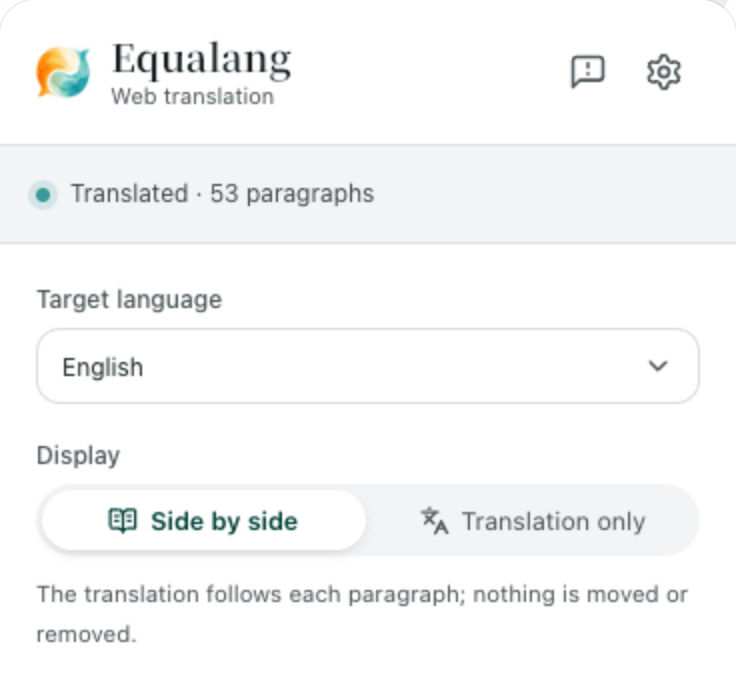
- Keep context intact: Because the original message stays right above the translation, you can immediately spot untranslatable proper nouns, order numbers, currency figures, or tone nuances.
- Toggle back anytime: Triggering the extension again returns the page to the original text.
- Layout note: Because bilingual mode inserts a translation line beneath each text block, tall message bubbles will take up more vertical space on your screen, and floating elements in narrow browser windows can occasionally crowd long lines.
2. Selection translation for mostly familiar languages
If you already understand most of a language—say, reading Spanish or French business messages where only a few technical terms or slang phrases trip you up—translating every single bubble adds unnecessary visual clutter.
Instead, leave whole-page translation off and turn on Selection translation in the extension panel:
- Highlight the unfamiliar word or sentence inside a WhatsApp Web message.
- Click the small translation icon that appears next to your cursor.
- Read the meaning in the floating popup without altering the chat layout.
In the popup, you get a context-aware translation for the selected phrase, often accompanied by brief AI notes on part of speech, meaning, or example sentences, plus buttons to copy or listen to the pronunciation.
How to Draft and Verify Outgoing Replies Safely
One of the most common mistakes people make when searching for an "auto translate WhatsApp Web" tool is installing unofficial scripts that hook directly into the WhatsApp message input box and automatically rewrite or send messages when you press Enter. That approach is risky: if a machine translation flips a negation, mangles a delivery date, or misinterprets a price, the message is already sent before you can read it.
Equalang intentionally does not inject text into your chat input or send messages on your behalf. To reply in another language while staying in full control of what goes out:
- Open Equalang Text Translation in a pinned browser tab next to WhatsApp Web. It currently covers Chinese, English, Japanese, Korean, Spanish, French and other languages, with automatic source language detection.
- Write your reply in your own language and translate it into your contact's language.
- Check the phrasing—or copy the translation back into the source box to verify that the meaning holds.
- Copy the verified text, paste it into the WhatsApp Web message box, and send it yourself.
Keeping reading and drafting separated by a deliberate copy-paste step prevents embarrassing misfires in client conversations. (If you handle longer supplier or customer threads across channels, the same two-step verification workflow applies when you translate and reply to foreign-language emails.) Your browser extension and the web translator share a single account and credit balance, which you can review on the pricing page.
Honest Boundaries: What Browser Translation Can and Cannot Do on WhatsApp Web
Before setting up your workflow, keep three practical boundaries in mind on WhatsApp Web:
- Read-only access to visible text: The Equalang extension only reads the visible HTML text rendered in your browser tab to display translations. It never accesses hidden chat history that has not been scrolled into view, and it never sends, edits, or deletes messages on your account.
- Voice notes are audio, not HTML text: Webpage translation and selection lookup only work on text messages. When a contact sends a WhatsApp voice note, the browser renders an audio player rather than text, so webpage translation will not automatically transcribe it inside the chat bubble.
- Images and PDF attachments: Text baked inside a photographed invoice or a PDF catalog sent via WhatsApp will not be translated by standard webpage DOM translation. For those attachments, download the file from WhatsApp Web and run it through a dedicated photo or document translator that preserves layout.
Frequently Asked Questions
Does WhatsApp Web have a built-in translate button like the mobile app?
WhatsApp introduced on-device Message Translations for iOS and Android, where you can long-press a message to translate it (and enable auto-translate for threads on Android). According to the WhatsApp Help Center, availability on WhatsApp Web differs from the mobile apps, so desktop browser users typically rely on browser-level translation or a bilingual browser extension.
Can I automatically translate incoming messages without losing the original text?
Yes. While Chrome's native right-click translator replaces the original message text, using the Equalang browser extension in bilingual mode places the translation directly underneath each original message as you scroll, allowing you to read both versions side by side.
Will a translation extension automatically send translated replies in WhatsApp Web?
No. The Equalang browser extension only translates visible text on the page for reading; it never types into your chat box or sends messages on your behalf. To reply in another language, draft your message in Equalang Text Translation, verify the wording, and paste it into WhatsApp Web yourself.