How to Translate Steam Reviews, Guides, and Workshop Mods
 Equalang
In brief
Read foreign Steam reviews, Community guides, and Workshop mods in your browser with side-by-side translation so mod filenames and keybinds stay intact.
Keywords: translate steam reviews; how to translate steam reviews; steam community translate; translate steam workshop mods; bilingual steam guides
Steam does not include a built-in translate button for user reviews, Community guides, or Workshop mod pages. Because browser extensions cannot run inside the standalone Steam desktop client, the fastest way to read foreign-language reviews without losing game terminology is to copy the page's public URL from Steam and open it in desktop Chrome, Edge, or Firefox. From there, you can use your browser's native page translator for a quick skim, or run the Equalang browser extension in Side by side mode so each translated paragraph appears directly underneath the original text—keeping mod filenames, keybinds, boss names, and community slang visible right above your translation.
Why Steam Hides Foreign Reviews (and Why Full-Page Translation Breaks Guides)
By default, the Steam Store filters user reviews to match your account's store language. That works fine for global blockbusters, but it hides critical feedback when you are researching a niche Japanese indie JRPG, a Chinese cultivation or wuxia title, a Korean action game, or a German simulation. When you uncheck the language filter or click View all reviews, Steam loads hundreds of detailed reviews in Japanese, Chinese, Russian, Korean, or German—with no option to translate them in place.
The same language barrier shows up across the Steam Community:
- In-depth user reviews explaining whether a recent patch fixed a save-corrupting bug or ruined late-game balance.
- 5,000-word Community Guides with step-by-step achievement walkthroughs, crafting tables, and secret ending triggers.
- Steam Workshop mod descriptions listing load-order rules, incompatible mods, and config file tweaks.
- Developer patch notes and Discussion threads where the only workaround for a crash on launch is buried in a foreign-language reply.
If you open those pages in a web browser and use a standard built-in translator that overwrites the original text, you run into a different headache. Overwriting the source text often mangles .ini parameters, turns literal folder paths into translated words, alters exact skill or boss names so they no longer match your in-game UI, and flattens player slang into confusing literal phrases. When a Workshop mod tells you to edit a line inside a <pre> or <code> block, or a walkthrough refers to an item's untranslated proper noun, you need to see the original string and the translation at the same time.
Step 1: Copy Any Steam Page URL Out of the Desktop Client
Every Steam Store page, Community Guide, Discussion thread, and Workshop item is a standard public webpage under the hood. If you browse inside the standalone Steam desktop app, turning on one setting makes copying any URL a one-click job:
- In the top-left corner of the Steam desktop client, click Steam > Settings (or Preferences on macOS).
- Select the Interface tab on the left.
- Toggle on Display web address bars when available.
- Open any game's Store page, Community Guide, Discussion thread, or Workshop mod page inside Steam. You will now see a clickable URL bar at the top of the window.
- Click the URL bar to copy the link (or right-click anywhere on the page and select Copy Page URL), then paste it into desktop Chrome, Edge, or Firefox.
You do not even need to log into your Steam account in the browser just to read public reviews, patch notes, Workshop descriptions, or Community Guides.
Step 2: Read Reviews and Long Guides Side by Side in Your Browser
Once the store.steampowered.com or steamcommunity.com link is open in your desktop browser, you have two ways to translate it depending on how much detail you need.
Option A: Built-In Browser Translation (Fast Skimming)
If you only want to know whether recent foreign reviews are mostly happy or angry about a DLC pricing change, right-click the page in Chrome, Edge, or Firefox and use the browser's built-in page translation. It is free and requires no extra setup. The trade-off is that it replaces the original text entirely—so if a review mentions a specific graphics toggle, mod conflict, or boss mechanic, you have to toggle the whole page back and forth to see what the author originally wrote.
Option B: Side-by-Side Translation (Keeping Game Terms and Mod Paths Visible)
When you are following a long Community Guide, troubleshooting a Workshop load order, or reading technical reviews, keeping the source text on screen saves constant backtracking. After installing the Equalang browser extension (available with dedicated setup guides for Chrome, Edge, and Firefox, plus a temporary macOS install for Safari 18.4+), open the extension panel on your Steam tab, choose your target language, and select Side by side.
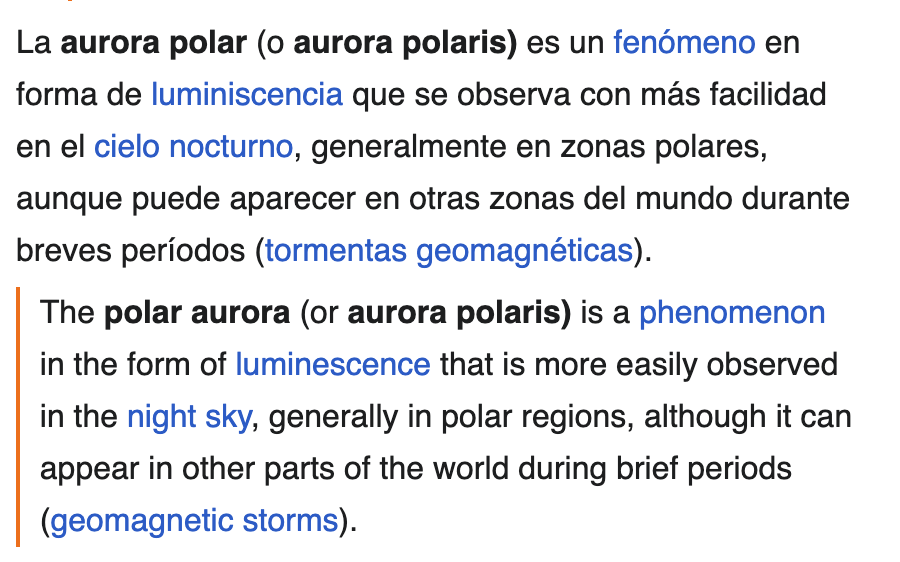
As you scroll down through user reviews or a multi-section guide, each paragraph is translated screen by screen and placed directly underneath its corresponding original block:
- Mod filenames and load orders stay readable: When a Russian or Chinese Workshop description lists required dependencies, file paths, or console commands, the exact ASCII or original string sits right above the translated explanation.
- Keybinds, boss names, and item IDs stay anchored: If a Japanese JRPG walkthrough references a specific skill name or map location, you can compare the original characters directly with the translated step beneath it.
- Links keep their original targets: Hyperlinks inside Community Guides and Workshop pages continue to point to their original destinations. Clicking the extension toggle again returns the page to its original state whenever you are done.
For a deeper look at how paragraph-by-paragraph bilingual reading works across other text-heavy sites, see our guide on how to read foreign websites bilingually.
Step 3: Look Up Single Gaming Terms or Slang with Selection Translation
Sometimes you do not need to translate an entire Steam page—you can read most of a discussion thread or guide, or you only want to decode one unfamiliar sentence, abbreviation, or community meme in a review comment.
Instead of translating the whole tab, enable Selection translation in the extension panel:
- Highlight the word, phrase, or sentence you want to check on the Steam page.
- Click the translation icon that appears next to your cursor.
- Read the translation in the pop-up card without altering the rest of the webpage layout.
In addition to showing how the phrase translates in context, the pop-up can include a brief AI explanation (such as part of speech and a one-line definition) along with example sentences, plus audio playback and copy buttons at the bottom. That is especially handy when gamers use idiomatic expressions or regional slang that a word-for-word dictionary lookup misses. If you also cross-check game bugs and mod lists on Reddit, the same workflow applies when you translate Reddit posts and comments.
Honest Boundaries and Practical Tips to Keep in Mind
Before you set up your workflow, keep these real-world limitations in mind:
- Desktop web browsers only: Browser extensions run on
store.steampowered.comandsteamcommunity.cominside desktop browsers like Chrome, Edge, Firefox, or Safari on macOS. They cannot inject translations directly into the standalone Steam desktop client window, Steam Deck Game Mode, or the Steam mobile app. - Dense sidebar layouts: Steam Store and Community pages often include right-hand floating info boxes, achievement showcases, or wide formatting tables. On pages with floating media or tight multi-column boxes, some translated lines beneath the original text may look slightly narrower or shifted compared to standard single-column paragraphs.
- Dynamic "Load More" review feeds: As you scroll down a Steam Store page and load new batches of user reviews, side-by-side translation translates visible paragraphs as you scroll down the page.
- Account and credit usage: Equalang currently covers Chinese, English, Japanese, Korean, Spanish, French and other languages, with automatic source language detection. When you sign up, you receive 200 credits to try it out before deciding whether to buy more, and your browser extension shares the same account and credit balance as the web app (see pricing and credit details).
Frequently Asked Questions
Does Steam have a built-in button to translate user reviews?
No. Steam filters reviews by your selected store language by default, and while you can uncheck the language filter to view reviews written in all languages, neither the Steam desktop client nor the Steam website includes a native button to translate foreign-language reviews or Community Guides.
Can I install a translation extension inside the Steam desktop app?
No. The standalone Steam client uses an embedded browser that does not support third-party browser extensions. To use any browser translation tool, enable Display web address bars when available under Steam > Settings > Interface, copy the page URL, and open it in desktop Chrome, Edge, or Firefox.
Why use side-by-side translation instead of overwriting the Steam page?
When you read Steam Workshop mod instructions, technical bug reports, or RPG walkthroughs, overwriting the original text often mangles config file paths, console commands, keybinds, and untranslated item names. Side-by-side translation places each translated paragraph directly underneath the original text so you can read the explanation in your language while copying or checking the exact original strings above it.