Translate Spanish PDF to English: 3 Ways to Keep Layout
 Equalang
In brief
Translate Spanish PDFs to English without losing formatting. Compare Google Translate, Acrobat, and Equalang, and handle tables, accents, and text length.
Keywords: translate spanish pdf to english; spanish pdf translation; translate pdf spanish to english; pdf translation layout; spanish document translation
To translate a Spanish PDF to English while preserving its original layout, your best method depends on the document's internal structure and volume:
- For simple, single-column documents: Use Google Translate's Document mode (supports
.pdf,.docx,.pptx, and.xlsxup to 10 MB and 300 pages; does not translate scanned pages). - For files requiring extensive manual rewriting: Open the PDF in Adobe Acrobat, export it to Word (
.docx), translate the text, and manually re-align margins and containers. - For multi-column reports, financial statements, and complex tables: Use a layout-preserving document translator like Equalang to reassemble split sentences across page boundaries, reconstruct tables, and review results in a synchronized side-by-side workspace.
- For scanned Spanish PDFs: Standard document translation engines skip scanned pages entirely. You must process the document through Optical Character Recognition (OCR) first before running document translation.
Why Spanish-to-English PDF Translation Disrupts Layout and Text
Translating a PDF is fundamentally harder than translating plain text because PDFs store positioned visual instructions rather than fluid paragraphs. When translating from Spanish to English, four specific linguistic and technical factors frequently compromise formatting:
1. Text Contraction and Unbalanced White Space
While translating English into Romance languages typically causes text expansion, translating Spanish into English often leads to text contraction.
According to the W3C internationalization standard (Text size in translation), the Spanish phrase "Idioma de la interfaz" contracts to "Interface language" in English. While expansion threatens to overflow boundaries, contraction creates its own formatting hazard: in fixed-geometry PDF bounding boxes, shorter English text leaves noticeable white space. If an engine forces rigid block dimensions without reflowing line spacing, tables, captions, and columns can look disjointed.
2. Accents, Tildes, and Unicode Normalization
Spanish orthography relies on acute accents (á, é, í, ó, ú) and the tilde (ñ). In digital PDFs, these glyphs are encoded in one of two ways:
- Precomposed characters: Stored as a single Unicode code point (such as
U+00E1for á). - Decomposed sequences: Stored as a base letter followed by a combining diacritical mark (
U+0061plusU+0301).
As outlined in W3C's Normalization in HTML and CSS, software must normalize these representations. When translation extractors fail to normalize Unicode, search indexing fails, and characters often render as broken artifacts (such as ´Indice instead of Índice or dropped letters).
3. Inverted Punctuation Marks (¿ and ¡)
Spanish orthographic rules codified by the Real Academia Española (RAE) mandate paired punctuation marks: questions and exclamations must open with inverted signs (¿ and ¡) and close with standard marks (? and !). An accurate English translation engine must strip these opening punctuation marks cleanly without mistaking them for misplaced sentence delimiters.
4. Decimal Commas and Spanish Date Abbreviations
Official Spanish administrative and economic documents consistently use a decimal comma rather than a decimal point (for instance, 4,9% rather than 4.9%). In addition, charts and financial tables routinely feature localized Spanish month abbreviations (such as ene-25, abr-26, ago-26 for enero, abril, and agosto), which must be converted into standard English notation during post-processing.
3 Practical Methods to Translate Spanish PDFs to English
Option 1: Google Translate Document Mode
Google Translate provides an accessible way to translate documents directly in the browser. You visit the web interface, click the Documents tab, upload your .pdf, and select Spanish as the source language and English as the target language.
Trade-offs to consider: Google Translate enforces a strict 10 MB file size limit and a 300-page cap. Most importantly, according to Google's official documentation, scanned pages are not translated. Furthermore, multi-column layouts and nested table cells frequently break or lose their alignment upon download.
Option 2: Export PDF to Word via Adobe Acrobat
If you need full editorial control over the translated text, converting the PDF to a Microsoft Word document (.docx) allows you to run translation through Word or desktop CAT tools.
Trade-offs to consider: Exporting a PDF into an editable document often generates dozens of floating text frames. When the shorter English text replaces Spanish, adjacent text frames do not automatically reflow, requiring tedious manual reformatting.
Option 3: Layout-Preserving Translation with Equalang
For documents where retaining the exact layout—such as two-column academic layouts, survey tables, and administrative bulleted lists—is essential, a dedicated document translation engine is the most efficient choice.
Below, we demonstrate the workflow using Equalang on an official Spanish economic report.
Step-by-Step Walkthrough: Translating an Official Spanish PDF with Layout Intact
To illustrate the process on a real-world document, we use the official press release published by Spain's National Statistics Institute (Instituto Nacional de Estadística – INE) on October 30, 2026: «Indicador adelantado del Índice de Precios de Consumo (IPC)» (adIPC1026.pdf, 4 pages, licensed under CC BY 4.0).
This document features complex elements: a two-column methodology field list, accented characters (Índice, variación, décima), decimal commas (4,9%), and line charts with Spanish month abbreviations (ene-25 through oct-26).
Step 1: Confirm the PDF Contains Selectable Text
Open the Spanish PDF in your browser or a PDF reader and attempt to highlight a sentence containing accents, such as «Tasa de variación anual estimada del IPC». If the text highlights and copies cleanly into your clipboard, the PDF is digital. If highlighting selects the entire page as a block image, the file is a scan and requires OCR before proceeding.
Step 2: Upload the File for Translation
Navigate to Equalang Documents in your desktop browser:
- Set the source language to Spanish (or use auto-detect) and the target language to English.
- Upload your PDF file. The web platform processes one file at a time, and your account can process up to 3 documents simultaneously while additional files queue automatically.
- The translation engine extracts the text while identifying structural elements: multi-column divisions, table headers, footnotes, and sentences split across page breaks.
Step 3: Inspect the Document in the Translation Workspace
Once processing finishes, open the file in the Translation Workspace. In the Equalang translation workspace, the Spanish source appears in the left pane and the English translation appears in the right pane.
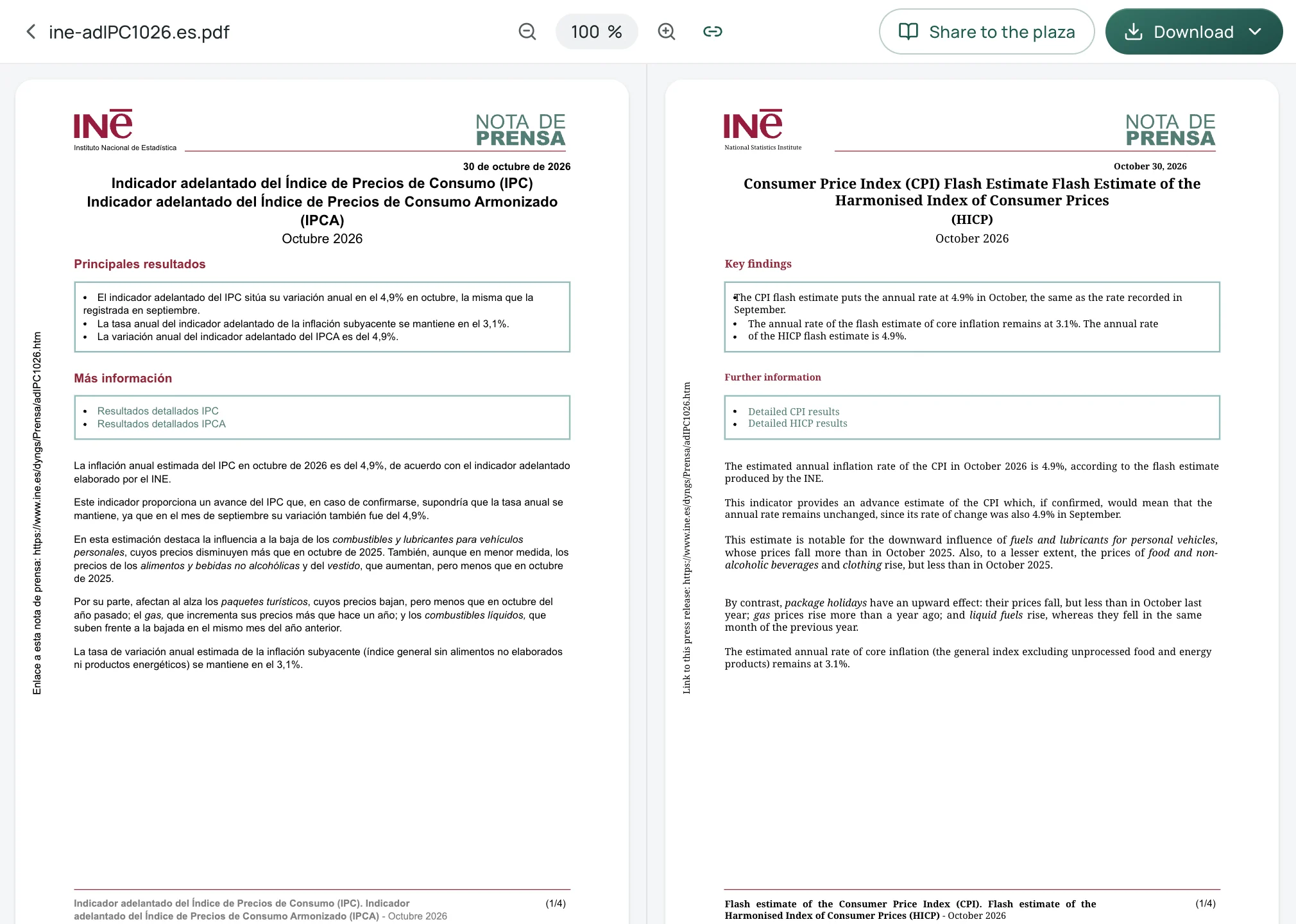
By clicking the synced-scroll icon on the toolbar, scrolling through the Spanish original moves the English translation in lockstep. This makes it straightforward to verify key content and data—such as confirming that the NOTA DE PRENSA header, title, and key-points box remain correctly aligned across both columns.
Step 4: Export the Translated File
Equalang provides two primary output choices:
- English Translation PDF: A clean, single-language PDF matching the original page count and structure.
- Bilingual Comparison Document: A PDF where original Spanish pages and translated English pages alternate. When opened in a desktop PDF reader with two-page display enabled (and the separate cover page display disabled), you can read the document side by side on any computer.
Post-Translation Verification Checklist for Spanish PDFs
Before using or publishing your translated English PDF, review these four high-frequency error points:
- Decimal points vs. decimal commas: Verify that Spanish statistical figures like 4,9% have been rendered as 4.9% in the English text.
- Absence of inverted punctuation: Confirm that opening question marks (¿) and exclamation marks (¡) have been removed completely from English sentences.
- Chart axes and time references: Verify that Spanish abbreviated months on axes (e.g., ene-25, abr-26, ago-26) correspond to Jan-25, Apr-26, and Aug-26.
- Cross-page paragraph flow: Check headings and paragraphs situated at the very bottom of pages to ensure sentences severed by page transitions were reconstituted accurately without missing phrases.
For broader strategies on working with multi-column research files, consult our companion tutorial on how to translate academic paper PDFs.
Sources
- W3C Internationalization, Text size in translation: https://www.w3.org/International/articles/article-text-size.en
- W3C Internationalization, Normalization in HTML and CSS: https://www.w3.org/International/questions/qa-html-css-normalization
- Google Translate Help, Translate documents & webpages: https://support.google.com/translate/answer/2534559?hl=en&co=GENIE.Platform%3DDesktop
- Instituto Nacional de Estadística (INE), Indicador adelantado del IPC — Octubre 2026: https://www.ine.es/dyngs/Prensa/adIPC1026.pdf (CC BY 4.0)
- Real Academia Española (RAE), Ortografía de la lengua española — Los signos de interrogación y exclamación: https://www.rae.es/ortografía/los-signos-de-interrogación-y-exclamación
- Equalang Documents: /documents
- Equalang Pricing: /pricing