How to Translate Slack Messages Without Admin Approval
 Equalang
In brief
Read foreign-language Slack channels and threads side by side in your browser without workspace admin approval or Slack AI add-ons.
Keywords: translate slack messages; auto translate slack messages; can slack translate messages; slack browser translation; bilingual slack channels
Standard free and Pro Slack workspaces do not include automatic side-by-side channel translation out of the box. While native Slack AI message translation exists, it requires paid add-on or enterprise licensing enabled by a workspace owner, and third-party translation bots from the Slack Marketplace usually require admin approval before they can read channel activity. If you are a team member, contractor, or Slack Connect guest who just wants to read foreign-language channels and threads in real time without asking an administrator to change workspace settings, the fastest workaround is to open Slack in your desktop browser at https://app.slack.com/client and use a side-by-side browser extension.
Below, we break down what Slack supports natively, why workspace bots often hit permission walls, and how to read incoming messages, threads, and shared files bilingually from your own browser.
Can Slack Translate Messages Natively?
If you have searched your desktop app preferences wondering why there is no built-in translate button on every message, the answer comes down to how your workspace is licensed and managed.
According to Slack Help, you generally have two workspace-level paths if your organization manages translation centrally:
- Native Slack AI features: Workspaces that pay for Slack AI add-ons or enterprise tiers can give members native message intelligence tools. However, an individual user cannot turn this on unilaterally if the workspace owner has not purchased and enabled it for their seat.
- Third-party Slack Marketplace translation bots: You can install translation apps that listen to channels or respond to slash commands and emoji reactions. In most company or client workspaces, installing an app requires admin approval, and many bots post visible translated replies back into the thread or route workspace messages through external bot servers.
When you join an external partner's Slack Connect channel, a vendor support workspace, or a multi-office company workspace locked down by IT, neither of those options helps you read the morning backlog right now.
How to Auto Translate Slack Messages in Your Browser (No Admin Required)
Every Slack workspace can be opened directly in a desktop web browser at https://app.slack.com/client in addition to the standalone desktop or mobile app. Running Slack in Chrome, Edge, or Firefox lets you translate incoming messages on your own screen without installing anything into the Slack workspace itself.
With the Equalang browser extension, each translated message appears directly underneath the original wording in the channel and in the right-hand thread panel. Nobody else in the workspace sees the translation, and no bot joins the channel.
Step 1: Open Your Workspace at app.slack.com
- Open Chrome, Edge, or Firefox on your computer (Safari on macOS 18.4 or later also supports a temporary installation from the extension page, though you need to re-add it if you quit Safari or after 24 hours).
- Install the extension from the Equalang browser extension page and sign in. Signing up gives you 200 credits to try the workflow before deciding whether to buy a credit pack.
- Navigate to
https://app.slack.com/clientand sign in to your workspace. Once loaded, the web interface gives you the same channels, direct messages, and split-screen thread views as the desktop app.
Step 2: Turn On Side-by-Side Mode for Channels and Threads
- Click the floating translation button on the page or open the extension popup from your browser toolbar.
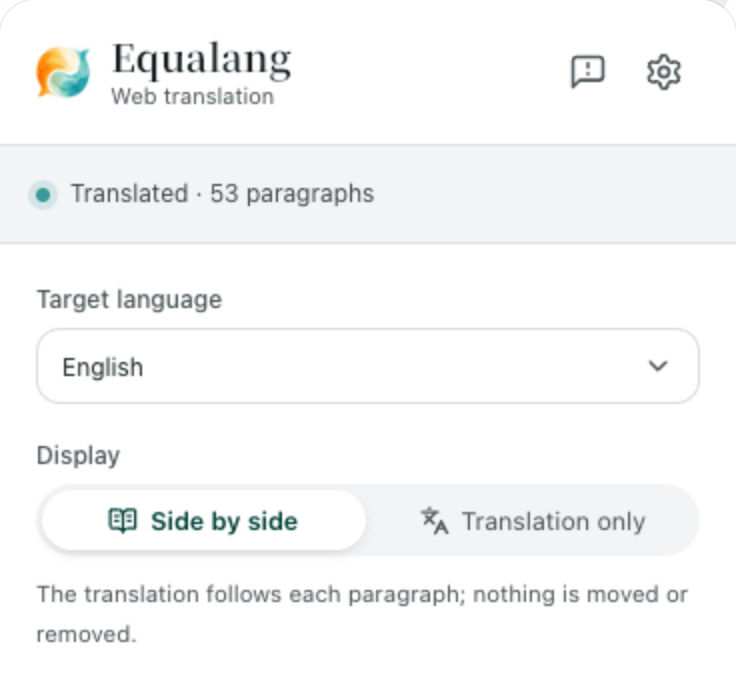
- Choose your target language and select Side by side.
- As you scroll through a channel or open a long reply thread on the right side of the screen, each message displays its translation right below the original text, screen by screen. Click the toggle again whenever you want to return to the original view.
Why does keeping the original text visible matter so much in Slack? Work channels rarely contain plain prose. Engineers paste stack traces, product managers tag @here or specific teammates, and support teams reference ticket numbers like INC-4092 or branch names. Because the original message stays intact right above the translation, you can read the foreign-language explanation in your language while still clicking the original links, copying exact code snippets, and seeing who was mentioned.
Step 3: Use Text Selection for Quick Terms Instead of Full Channels
If most of a channel is in a language you already read and you only run into an occasional unfamiliar phrase in a regional announcement, you do not need to translate the entire page.
Enable text selection translation in the extension panel. When you highlight a word or phrase inside a message and click the translation icon next to your cursor, a small popup displays the translation in context, and may also include a brief AI explanation of the part of speech and sample sentences. If you chat across other community platforms in your browser, the same setup works when you translate Discord messages in the Discord web app.
Which Slack Translation Method Fits Your Setup?
Depending on whether you manage the workspace or just participate in it, here is how the main approaches compare:
Replying to Colleagues and Translating Shared Channel Files
Reading a fast-moving channel is only half the job. Sooner or later you have to reply to a thread or review a file someone dropped into the conversation.
Drafting Outgoing Replies Without Accidental Send Mistakes
The browser extension translates incoming webpage content for reading; it does not automatically rewrite or post what you type into the Slack message box. That separation is intentional—in a work channel where pressing Enter sends a message to dozens of people, an automatic live-replace inside the input box makes it too easy to send an unchecked mistranslation.
When you need to reply in a colleague's language, draft your message in Equalang text translation first. You can compare your draft against the translated output, make sure technical terms or ticket IDs stay untouched, and paste the final text into the Slack thread when you are ready.
Translating PDFs, Word Docs, Spreadsheets, and Slide Decks Shared in Slack
Slack threads frequently revolve around an attached specification PDF, a quarterly XLSX spreadsheet, a client DOCX brief, or a PPTX presentation. Copy-pasting text out of a multi-column PDF or slide deck strips away tables and formatting.
Instead, download the attachment from Slack and upload it to Equalang document translation, which uses the same account and credit balance as the browser extension:
- PDFs: Preserves multi-column layouts, headers, footers, captions, bold emphasis, and clickable table-of-contents or cross-reference links. Sentences split across a page break are stitched back together before translation. After the job finishes, you can open it in the online translation workspace with synced side-by-side scrolling, or download a bilingual file where original and translated pages alternate.
- PPTX slide decks: Automatically shrinks text size inside text boxes when the target language runs longer so text does not overflow, and keeps repeated slide titles consistent across the deck.
- XLSX spreadsheets: Translates repeated text strings only once to save credits, and leaves pure numbers and formulas untouched so sheets still recalculate.
Document and text translation currently covers Chinese, English, Japanese, Korean, Spanish, French and other languages, with automatic source language detection.
Honest Boundaries to Keep in Mind
Before switching your daily Slack workflow to the browser, keep these practical limitations in mind:
- Desktop browser only, not the standalone Slack app: Browser extensions run inside desktop web browsers (
https://app.slack.com/client). They cannot hook into the standalone Slack desktop application on Windows or macOS, nor the Slack mobile apps on iOS and Android. - Very narrow split panes can feel crowded: When you have the left sidebar, the main channel, and a right-hand thread panel open simultaneously on a small laptop screen, adding bilingual lines underneath each message increases vertical scrolling. Collapsing the left workspace sidebar (
Ctrl+Shift+DorCmd+Shift+Din Slack) gives the thread panel much more breathing room. - Usage and privacy rules: Text translation is billed by token (1,000 tokens is roughly 4,000 English characters or about 750 English words, or 1,000 CJK characters). Equalang does not sell personal data or use your submitted content to train AI models; uploaded files and translation results are retained for 6 months so you can access or download them, and you can delete them at any time.
Frequently Asked Questions
Can I translate Slack messages without workspace admin permission?
Yes. Even if your workspace administrator restricts app installations or has not enabled Slack AI, you can sign in to your workspace at https://app.slack.com/client in Chrome, Edge, or Firefox and use a browser extension to translate channels and threads on your own screen.
Will other people in the Slack channel see my translations?
No. Translating app.slack.com with a browser extension only changes how the webpage renders in your local browser tab. It never installs a bot into the workspace and never posts translated messages into the channel.
Does the browser extension work inside the Slack desktop or mobile app?
No. The standalone Slack desktop app and mobile apps do not support browser extensions. To read channels in side-by-side bilingual mode, open your workspace in a desktop browser at https://app.slack.com/client.