How to Translate a PDF on iPhone (Full Document or Text)
 Equalang
In brief
Translate any PDF on iPhone: use Apple's built-in text selection, screenshot OCR for scanned pages, or a mobile browser tool for full documents.
Keywords: translate pdf on iphone; iphone pdf translation; translate scanned pdf iphone; google translate pdf iphone; translate full pdf ios
There is no single native button on an iPhone that translates an entire PDF file. Apple's Files and Preview apps do not include a document-level translation feature, and Google Translate's official documentation explicitly states that document translation is only supported on medium-to-large screens like iPads or computers, not on mobile phones.
How you translate a PDF on an iPhone depends on the file type and your goal:
- A few paragraphs in a digital PDF: select the text directly and tap "Translate" in the iOS popover menu.
- A single scanned page or image: take a screenshot and translate the image using Live Text or the Apple / Google Translate camera.
- An entire multi-page PDF with layout preserved: use a mobile browser tool that supports document uploads on mobile screens, or transfer the file to an iPad or computer.
Method 1: Translate Selected Text Inside a PDF (Native iOS)
If your PDF has selectable digital text (such as an ebook, a digital bill, or an exported report), you can translate passages directly inside iOS without installing new apps.
- Open the PDF in Files, Books, or any supported PDF viewer.
- Touch and hold a word, then drag the grab points to select the sentence or paragraph you want to read.
- In the popover menu that appears, tap Translate. If you do not see it immediately, tap the right arrow (or Show More Items) to reveal additional options.
- A system card slides up showing the translated text. You can copy the translation or tap Replace with Translation if you are editing in an editable document.
To translate offline without cellular data or Wi-Fi, go to Settings > Apps > Translate, tap Download Languages, and download your required language pack. Translations will then process locally on your iPhone.
Practical Boundaries
- Selectable text only: This method fails on scanned paper or flat image PDFs where text cannot be highlighted.
- Broken sentences: Academic multi-column layouts or sentences split across page boundaries frequently break when selected, leading to fragmented translations.
- Manual effort: Translating more than two or three pages paragraph by paragraph is slow and tedious.
Method 2: Translate Scanned PDF Pages via Screenshot and Live Text
When you receive a PDF created from a physical scanner, photos of documents, or flattened presentation slides, text selection does not work. The fastest on-device workaround is to capture the page visually.
Option A: Photos and Live Text
- Open the PDF on your iPhone, navigate to the target page, and take a screenshot (press the Side button and Volume Up button simultaneously).
- Open the Photos app and view the screenshot.
- Tap the Live Text button in the bottom-right corner (available on iPhone XS, iPhone XR, or later running iOS 15 or later).
- Tap Translate to view the text overlay.
Option B: Apple Translate Camera Mode
- Open the built-in Translate app.
- Tap the Camera tab.
- Tap the photo library icon in the lower-left corner and select your PDF screenshot.
- The translated text replaces the original text directly on the image, which you can share or save.
Option C: Google Translate App Gallery
- Open the Google Translate iOS app.
- Tap the Camera icon, then tap Gallery to select the screenshot.
- Google translates the image text in place. Note that Google's official documentation highlights an accuracy caveat: translation of small, unclear, or stylized text may not be correct.
Practical Boundaries
- Capturing screenshots works well for a 1-page form, certificate, or menu.
- For a 20-page report, taking 20 screenshots clutters your photo library and cannot produce a unified, readable document.
Method 3: Translate an Entire PDF While Preserving Layout (Mobile Browser)
If you need to read a complete multi-page document—such as an academic paper, an instruction manual, or a business contract—neither text selection nor screenshots solve the problem.
Mainstream translation apps hit a wall here on mobile devices:
- Google Translate: While Google Translate supports document uploads (.docx, .pdf, .pptx, .xlsx up to 10 MB and 300 pages), its official help page states: "Document translation is only supported on medium to large screens, like iPads or larger" and "isn't available on smaller screens or mobile." In addition, Google's document translation skips text inside images and scanned PDF pages.
- Google Docs: The iPhone app cannot translate documents; Google specifies that you must open Google Docs on a computer to use translation.
- Microsoft Translator: The iOS app listing documents text, speech, and image translation, but provides no document file translation feature.
Below, we demonstrate the whole-document workflow using Equalang (equalang.com/documents), which operates directly inside mobile Safari or Chrome:
- Open Safari or Chrome on your iPhone and go to equalang.com/documents.
- In Equalang, tap the upload card to choose your PDF directly from the Files app or iCloud Drive. (Equalang processes one file at a time; an account can run up to 3 documents concurrently while additional files queue automatically).
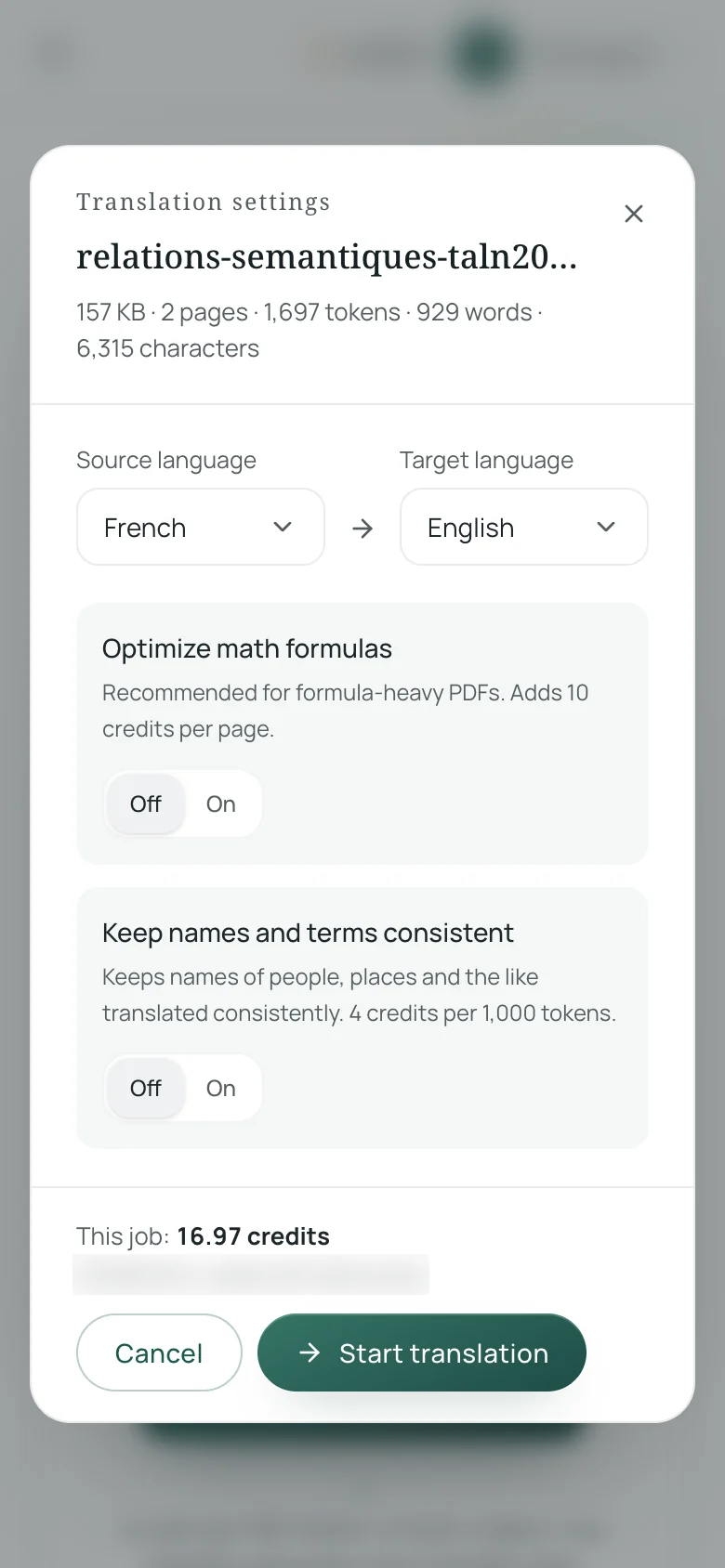
- Select your source and target languages (supports Chinese, English, Japanese, Korean, Spanish, French, and other languages; source language includes automatic detection).
- Review the estimated credits and tap to start. (New accounts receive 200 free credits; failed or cancelled jobs automatically release reserved credits).
- When processing finishes, open the translation workspace or download the translated PDF.
What Happens to the Document Layout
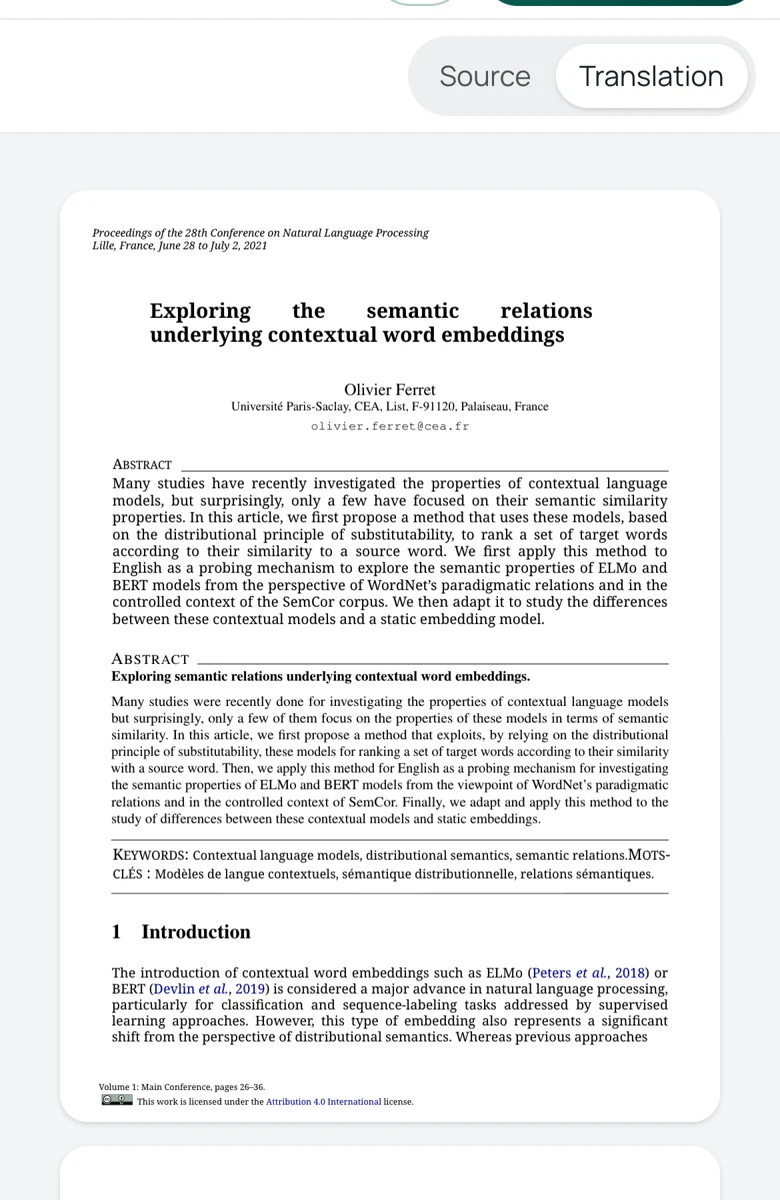
Unlike copying raw text into a chatbot or translation box, Equalang reconstructs the document structure:
- Columns and hierarchy: Multi-column columns, headers, footers, and captions stay in their original positions.
- Cross-page text: Sentences split across page boundaries are stitched together before translation so context is not lost.
- Tables and links: Tables with merged cells or multi-line headers are rebuilt in the translation, and clickable table-of-contents links continue pointing to their target locations.
Practical Boundaries
- Document translation requires an internet connection.
- Uploaded files and results are retained on the server for 14 days and then permanently deleted; your content is never used to train AI models.
- Heavily distorted handwriting or dense diagonal watermarks should still be cross-checked against the original text.
Summary: Which iPhone Method Should You Use?
For general advice on maintaining complex visual layouts during translation, see our guide on translating PDFs while keeping formatting.
Sources
- Apple Support: Translate text in apps on iPhone (https://support.apple.com/guide/iphone/translate-text-in-apps-iphab4dcff1d/ios)
- Apple Support: Translate with the camera on iPhone (https://support.apple.com/guide/iphone/translate-with-the-camera-iphea8b95631/ios)
- Apple Support: Use Live Text to interact with content in a photo or video (https://support.apple.com/en-us/120004)
- Apple Support: Change your Translate settings on iPhone (https://support.apple.com/guide/iphone/change-your-translate-settings-iphddb6e7264/ios)
- Google Translate Help: Translate documents & webpages on iPhone & iPad (https://support.google.com/translate/answer/2534559?hl=en&co=GENIE.Platform%3DiOS)
- Google Translate Help: Translate images (https://support.google.com/translate/answer/6142483?hl=en&co=GENIE.Platform%3DiOS)
- Microsoft Translator iOS App Store Listing (https://apps.apple.com/us/app/microsoft-translator/id1018949559)
- Equalang Documents: https://equalang.com/documents