How to Translate a Notion Page (Read-Only or Exported)
 Equalang
In brief
Read shared foreign-language Notion pages side by side in your browser, or export your own Notion page to HTML or PDF for clean document translation.
Keywords: translate notion page; how to translate a notion page; translate notion page to english; notion bilingual translation; export notion page translate
To translate a Notion page, your best workflow depends on whether you are viewing someone else's page or editing your own. If you are reading a public notion.site wiki or a view-only shared link, you cannot trigger Notion's in-editor tools—open the page in desktop Chrome, Edge, or Firefox and use a side-by-side web translator like the Equalang browser extension so each paragraph, callout, and expanded toggle shows its translation directly underneath the original text. If you own the workspace and need a standalone translated copy to hand off to clients or teammates, export the page via Notion's ... menu as HTML or PDF and upload the file to Equalang Document Translation to keep code blocks, headings, and links intact.
Why Notion Pages Break Standard Translation Workflows
Notion documents behave very differently from static blog posts or traditional word processor files. Whether hosted on notion.so or published as a public notion.site page, every block is rendered dynamically in the browser as you scroll and click.
That dynamic structure creates two common headaches when you try to translate a Notion page:
- View-only permissions block in-editor AI: Notion AI can translate text inside a workspace, but according to Notion Help, using Notion AI requires both edit access to the page and an active Notion AI plan. When a partner sends you a read-only product roadmap, an open-source wiki, or a job board, you have no edit menu to run in-page commands.
- Full-page replacement scrambles technical blocks: Built-in browser translators replace the original DOM text in place. On a structured Notion page, replacing text outright often rewrites inline parameter names, distorts dense multi-column properties, or leaves you guessing what a mangled technical term originally said because the source sentence is gone.
Method 1: Read Someone Else's Public or View-Only Notion Page Side by Side
When you just need to read and understand a foreign-language Notion page without editing permissions, translating it directly in your desktop browser is the fastest path.
Instead of overwriting the original language, we built the Equalang browser extension to place each translated block right underneath its source paragraph. As you scroll down a long Notion doc, the translation appears screen by screen while the original wording stays visible right above it.
Step-by-step setup in your browser
- Open the Notion link in a desktop browser: Load the shared
notion.soornotion.sitepage in Chrome, Edge, or Firefox (Safari is also available as a temporary macOS install for Safari 18.4 and above). - Expand the toggles you want to read: Because Notion loads toggle lists and sub-blocks interactively, click open the toggle sections you care about so their text is visible on the page.
- Turn on side-by-side web translation: Open the Equalang extension panel, choose your target language, and select Side by side mode.
- Read and click links normally: Every heading, callout box, and paragraph now displays its translation beneath the original line. Anchor links and external references keep pointing to their original destinations. Click the extension toggle again anytime to return the page to its original state.
If most of a Notion page is already in a language you know—say, an English engineering wiki with a few Japanese or German specification notes—you do not even need full-page translation. Turn on text selection translation in the extension panel, highlight a phrase, and click the translation icon next to your cursor. The pop-up gives you the meaning in that specific context, along with a brief AI explanation and example sentences when available. For a deeper look at bilingual browsing across documentation sites, see our guide on how to read foreign websites bilingually.
What to watch out for on live Notion pages: Side-by-side web translation places the translated line below the source block, not in a separate left-right split screen. On Notion layouts with narrow multi-column callouts or floating media on the right side, some translated lines may look slightly cramped. Also, clicking a link to another Notion subpage will open that page in its original language until you trigger translation on the new tab.
Method 2: Export Your Own Notion Page for a Standalone Translated Copy
Sometimes reading in the browser is not enough. You might need to send a translated onboarding manual, API guide, or project proposal to an external client who does not use your Notion workspace.
Even if you own the page, duplicating a complex Notion doc and translating it block by block by hand takes hours. A cleaner route is to use Notion's native export tool and run the exported file through Equalang Document Translation.
Step 1: Export the Notion page as HTML or PDF
Open your page in Notion, click the ... menu in the top-right corner, and choose Export:
- Choose HTML for technical docs, wikis, and code-heavy pages: Notion's HTML export packages your headings, tables, callouts, links, and
<pre>/<code>blocks into a clean.htmlfile. - Choose PDF for formal handouts and fixed-page briefs: If you need a printable document with page numbers and fixed visual hierarchy, export as PDF.
An honest note on Markdown exports: Notion also offers a Markdown & CSV export option, which generates .md files. Equalang Document Translation currently accepts HTML, PDF, DOCX, PPTX, XLSX, EPUB, and TXT files (plus subtitle, image, and audio/video formats), and does not take .md files directly. If you prefer a markup-based export from Notion, always pick HTML (or rename plain text to .txt) rather than Markdown.
Step 2: Upload to Equalang Document Translation
Go to Equalang Document Translation, select your target language—document translation currently covers Chinese, English, Japanese, Korean, Spanish, French and other languages, with automatic source language detection—and upload your exported .html or .pdf file.
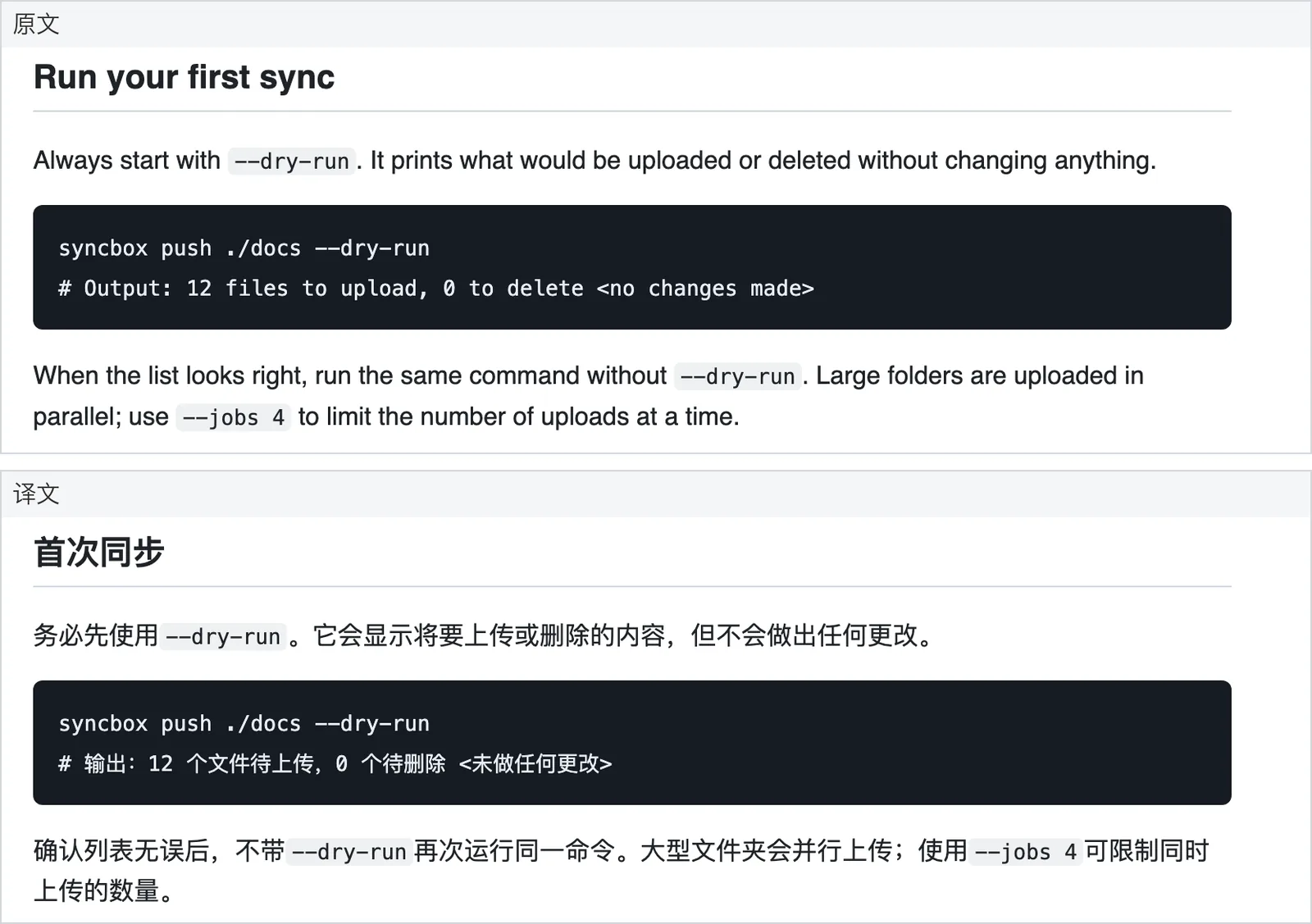
When you translate an exported HTML file, prose inside paragraphs, lists, and table headers is translated while code snippets and technical identifiers stay untouched.
If you exported a long Notion page as a PDF—such as a multi-chapter product specification or research archive—you can also open Translation settings before starting the job and enable Keep names and terms consistent (an optional setting for PDF and EPUB files that costs an extra 4 credits per 1,000 tokens). In PDF exports, sentences split across page breaks are reassembled before translation, bold emphasis stays on the corresponding translated words, and internal table-of-contents links continue pointing to their target sections.
Step 3: Review side by side and download
Once the job finishes, open it in the Translation workspace on the website. Your original Notion export sits on the left and the translated document sits on the right with synced scrolling, making it easy to verify headings, tables, and terminology before sharing.
From the download menu, you can grab the translated file itself, or—for PDF exports—download a bilingual alternating-page PDF (open it in a local PDF reader in two-page view with the separate cover page option turned off to see source and translation side by side).
How About Notion AI's Built-In Translation?
If you already pay for a Notion AI add-on or workspace plan and have full edit permissions on the page, Notion AI is the most direct way to create a translated page inside Notion:
- Duplicate your original Notion page so you do not overwrite your team's primary doc.
- Select the blocks you want to translate, open the Notion AI menu, and choose Translate.
- Pick your target language and replace or insert the translated blocks directly into the duplicate page.
Here is a quick way to decide which workflow fits your task:
- Use Notion AI in-editor when you have edit access, an active Notion AI subscription, and want the final translated result to live inside your Notion workspace as editable Notion blocks.
- Use the Equalang browser extension when you are reading someone else's public or view-only Notion page and want bilingual paragraph-by-paragraph reading without modifying the page.
- Use Notion Export (HTML/PDF) + Equalang Document Translation when you want to turn your Notion page into a standalone translated HTML or PDF file to send outside your workspace, or when you want to verify source and translation side by side in the Translation workspace.
New Equalang accounts receive 200 credits on sign-up, and the browser extension and web document translator share the same account and credit balance, so you can test both a live Notion page and an exported HTML/PDF file before deciding if you need more credits.
Frequently Asked Questions
Can I translate a Notion page if I only have view access?
Yes. Even when you cannot use in-editor tools on a view-only notion.so or notion.site page, you can open the link in Chrome, Edge, or Firefox and turn on the Equalang browser extension in Side by side mode. Each translated paragraph appears right below the original text as you scroll.
Will translating an exported Notion page break my code blocks?
If you export your Notion page as HTML and translate it through Equalang Document Translation, regular headings, callouts, and explanations are translated into your target language while <pre> and <code> blocks, command-line flags, and links remain intact.
Can I upload a Notion Markdown (.md) export directly to Equalang?
No. Equalang Document Translation supports HTML, PDF, DOCX, PPTX, XLSX, EPUB, and TXT for documents, not .md files directly. When exporting from Notion's ... menu, choose HTML or PDF instead of Markdown & CSV.