How to Translate MP3 Audio to English (Timed Transcripts)
 Equalang
In brief
Upload an MP3 file to transcribe foreign speech and translate it into English or bilingual SRT, VTT, TXT, or JSON files with exact timestamps.
Keywords: translate mp3 audio to english; translate mp3 audio to english free; mp3 audio translate french to english; translate spanish to english audio mp3; mp3 to bilingual srt
To translate an .mp3 audio file into English without playing it out loud into a microphone, upload the file directly to the document translation page on Equalang. It natively accepts MP3 recordings up to 180 minutes per file, automatically detects the spoken language—whether it is a French radio interview, a Spanish university lecture, or a Japanese podcast episode—and returns timestamped English or bilingual subtitles (SRT, VTT) or structured text transcripts (TXT, JSON). If you only need transcription without translation, you can also export a source-language-only transcript.
Why Playing an MP3 into Voice Typing Falls Short
Because .mp3 (MPEG-1 Audio Layer III) is the universal distribution format for podcasts, downloaded radio broadcasts, language-learning dialogues, and hardware voice recorders, most people try the quickest free workaround first: playing the MP3 through computer speakers while holding a phone dictation app or browser voice-typing window next to it.
That approach usually breaks down within the first two minutes:
- Dropped sentences during fast speech: Live dictation tools are built for a single speaker pausing between thoughts. When a podcast host or lecturer speaks at a natural pace, the buffer lags and drops entire clauses.
- Room noise and speaker distortion: Re-recording audio through air picks up keyboard clicks, room echo, and laptop speaker tin, degrading recognition quality compared to reading the digital
.mp3stream directly. - Zero timestamps: A wall of unpunctuated text gives you no way to jump back to
00:14:22in the original audio when a proper noun, date, or technical term looks suspicious.
Processing the .mp3 file directly keeps the original digital audio intact and binds every translated line to its exact start and end timecodes.
Step-by-Step: Translate an MP3 File to English with Timestamps
You do not need to convert .mp3 into a video container or uncompressed waveform before uploading. Equalang accepts MP3, as well as M4A, WAV, FLAC, OGG, AAC, OPUS, MP4, MOV, WEBM, and MKV.
- Open the upload workspace: Go to /documents and select your
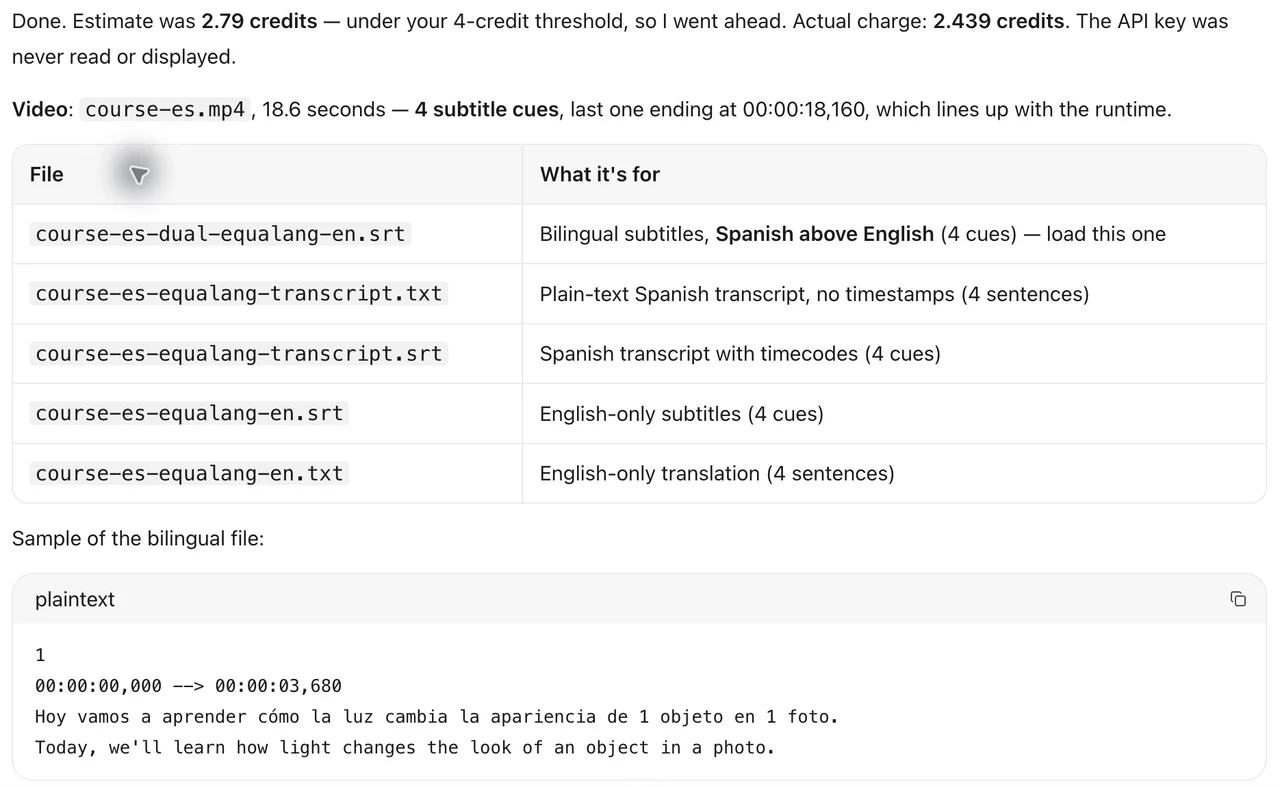
.mp3file. The web interface uploads one file at a time, and you can queue additional files one after another without a total file count limit (up to 3 files process concurrently per account, while the rest wait in the queue). - Pick your target language and output mode: Select English (or another target language—document translation currently covers Chinese, English, Japanese, Korean, Spanish, French and other languages). You can choose a translated output, a bilingual side-by-side output that stacks the original spoken line above the English translation, or a source-language-only transcript.
- Download your subtitles or transcript: Once the job finishes, export the result as SRT or VTT for timed subtitle lines, or TXT and JSON if you want a clean reading document or structured segments.
If you also work with Apple Voice Memos or iPhone recordings saved in .m4a, see our guide on how to translate M4A audio files. For a deeper look at using timed subtitle files inside media players, check out how to turn recordings into bilingual subtitles.
Practical Habits for Checking Names and Numbers
Automated speech recognition works from acoustic patterns, which means fast transitions, heavy regional accents, overlapping speakers, or loud background effects can still cause occasional recognition slips. In one of our Spanish-to-English test lessons, for instance, the spoken word segunda ("second") was transcribed as 1/2 in the source line.
That is why exporting a bilingual SRT is safer than exporting an English-only text block. When a number, street name, or citation looks odd in English, you can glance directly at the source-language line right above it and use the timestamp to verify that exact three-second slice in your audio player. Also keep in mind that the output is text or subtitle files (SRT, VTT, TXT, JSON)—it does not generate synthesized voice dubbing or a new audio file.
How Credits Work (Skipping Silence and Music)
People searching for translate mp3 audio to english free often run into trial pages that cut off after 60 seconds or bill you for five minutes of intro music and dead air.
On Equalang, audio and video jobs only bill the actual speech sent for recognition:
- Silence and music are not billed: Long pauses during a lecture, intro jingles, and musical interludes in a podcast are skipped during billing.
- Transparent credit rates: Speech recognition costs 5 credits per audio minute of detected speech, and translating the transcribed text costs 10 credits per 1,000 tokens (on the pricing page, 1,000 tokens is roughly 4,000 English characters or about 750 English words, or 1,000 CJK characters).
When You Need to Trim or Split an MP3 First (Using FFmpeg)
A single .mp3 upload can be up to 180 minutes long. If you have a four-hour archival radio recording, or if you only care about a 15-minute guest interview buried inside a three-hour podcast episode, trimming the .mp3 locally before uploading saves both waiting time and credits.
You can cut an .mp3 losslessly without re-encoding using the free command-line tool FFmpeg:
ffmpeg -ss 00:45:00 -to 01:05:00 -i full-episode.mp3 -c copy interview-segment.mp3
Because -c copy copies the original MPEG audio frames directly instead of decoding and re-compressing them, the command finishes in under a second and causes zero audio quality loss. Upload interview-segment.mp3 to /documents once it finishes.
Frequently Asked Questions
Can I translate French or Spanish MP3 audio to English without specifying the source language?
Yes. Source language detection is automatic. Whether your .mp3 is in French, Spanish, Japanese, Mandarin, German, or another supported language, you only need to choose English as your target language when starting the task.
Does translating an MP3 produce an English voiceover or text?
It outputs text and timed subtitle files (SRT, VTT, TXT, JSON), not synthesized voice dubbing. You get the transcribed source speech and the English translation aligned with timecodes so you can read along or load the .srt file into an audio/video player.
What if I only need an MP3 transcribed in its original language without translation?
When setting up the file job, you can choose to generate a source-language-only transcript instead of translating. In that mode, you only use speech-to-text recognition credits without spending text translation tokens.