How to Transcribe and Translate M4A Audio Without Converting
 Equalang
In brief
Upload M4A recordings from Apple Voice Memos or Zoom directly to transcribe and translate into English or bilingual SRT, VTT, TXT, and JSON transcripts.
Keywords: translate m4a audio; translate m4a audio to english; translate m4a file; transcribe and translate m4a; zoom audio_only.m4a translation
You do not need to convert an .m4a recording into .mp3 or .wav before translating it. On Equalang's document translation page, you can upload .m4a files directly—up to 180 minutes per file—alongside MP3, WAV, FLAC, OGG, AAC, OPUS, MP4, MOV, WEBM, and MKV. The tool automatically detects and transcribes the spoken language, skips billing on silence and background music, and lets you export either a source-language transcript or translated and bilingual SRT, VTT, TXT, or JSON files. Keep three boundaries in mind before you start: the output is a text transcript or timed subtitle file rather than dubbed audio; speech recognition on noisy or overlapping voices can still mishear occasional words, so always verify key numbers and proper names against the original recording; and if a file runs longer than 180 minutes, you will need to split it into shorter segments first.
Why M4A Recordings Often Block Older Transcription Scripts
If you record a lecture, interview, or meeting on an iPhone, iPad, or Mac using Apple's built-in Voice Memos app, or save a local meeting recording in Zoom (audio_only.m4a), your file is saved as .m4a (MPEG-4 Audio, typically encoded with AAC compression). Because .m4a packs clean speech into a much smaller file size than uncompressed .wav, it has become the default format for mobile and desktop voice capture.
The trouble starts when you feed that file into older speech-to-text scripts or legacy web converters that only accept .mp3 or .wav. Re-encoding a 90-minute seminar recording just to pass a file-extension check wastes several minutes of CPU time, degrades audio quality through a second lossy compression pass, and leaves duplicate multi-hundred-megabyte files cluttering your drive.
Step-by-Step: Transcribe and Translate an M4A File Directly
When your goal is to read what was said in English—or in Chinese, Japanese, Korean, Spanish, French, and other languages—while keeping timestamps tied to the original voice track, uploading the native .m4a container saves the entire conversion step.
- Export or locate your
.m4afile: In Apple Voice Memos on Mac, drag the recording from the sidebar to your desktop or right-click to share it as a file. For a local Zoom recording, open the meeting folder in your Documents directory and pickaudio_only.m4a(which uploads much faster than the full video file). - Upload to
/documents: Open Equalang Documents and select your.m4afile. The web uploader takes one file at a time, and you can queue additional recordings one after another; each account processes up to three files simultaneously while the rest wait in line automatically. - Choose your target language and output need: Source language detection is automatic. Select your target language (for example, translating a Spanish or Japanese recording into English), or choose transcription-only if you just need the original spoken language written out.
- Download timed subtitles or plain text: Once the job finishes, export
TXTfor continuous reading and note-taking,SRTorVTT(including bilingual tracks with the original speech on the top line and the translation directly underneath) for media players, orJSONif you are feeding timestamps into downstream research notes.
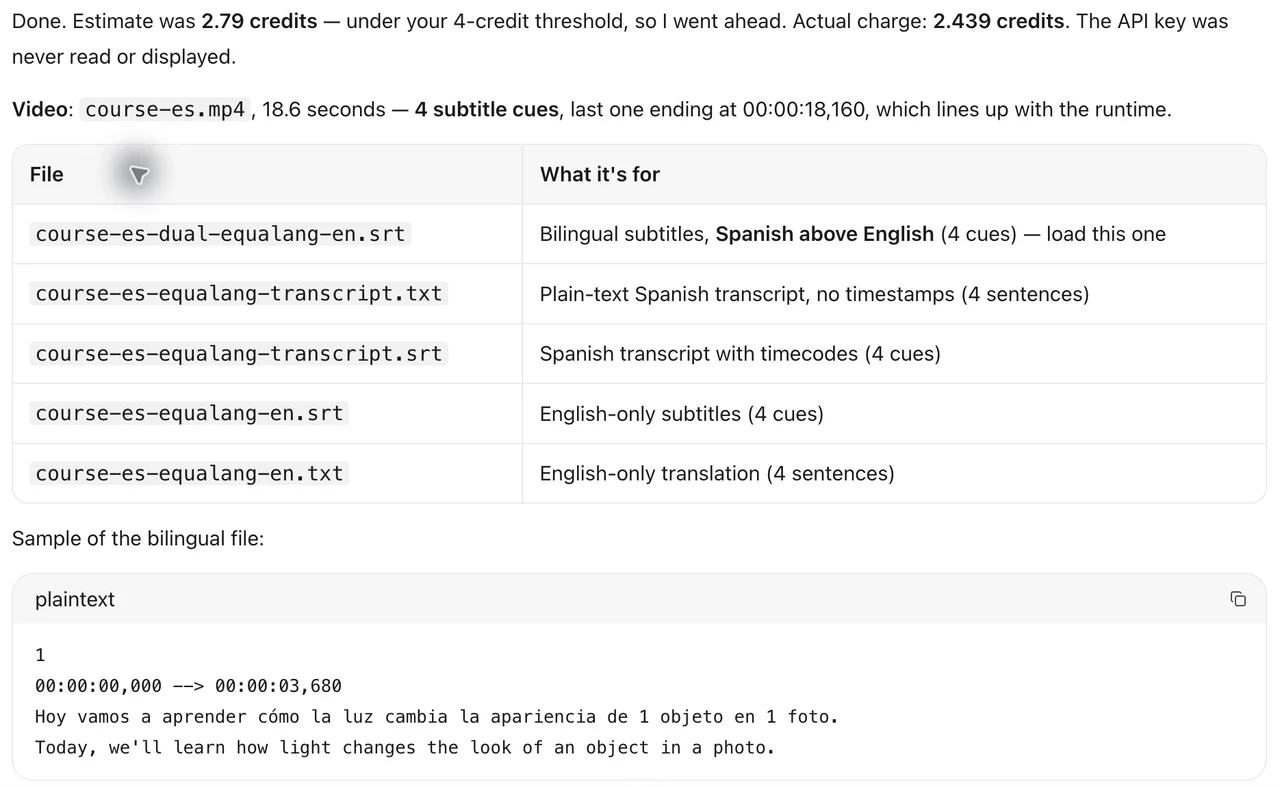
In our production test translating a Spanish audio lesson into English, the exported bilingual SRT placed every recognized Spanish sentence above its English translation with exact start and end timestamps. That makes it easy to load the .m4a file into a desktop player like VLC or IINA alongside the .srt file—see our full guide on how to turn recordings into bilingual subtitles for player setup tips.
Where Speech Recognition Needs a Human Ear
Automated transcription works from the acoustic signal, which means room echo, background applause, or two speakers talking over each other can still cause recognition slips. In our Spanish-to-English test recording, for instance, the spoken word segunda (second) was transcribed as 1/2 in one segment. Because the exported SRT and VTT files keep exact timestamps on every line, you don't have to listen to the entire hour-long .m4a again—just jump straight to the timestamp of any sentence containing critical figures, dates, or technical terms to verify them against the audio.
How to Split M4A Files Longer Than 180 Minutes Without Re-Encoding
Single audio or video uploads support up to 180 minutes (3 hours) per file. If you recorded a full-day workshop or a four-hour deposition in one continuous .m4a file, do not re-encode it into MP3s to cut it down. You can slice the .m4a container at the packet level in a few seconds using ffmpeg with stream copying (-c copy), which preserves the original AAC audio stream untouched:
ffmpeg -i long.m4a -f segment -segment_time 5400 -c copy part%02d.m4a
-segment_time 5400splits the recording into 90-minute (5,400-second) chunks (part00.m4a,part01.m4a, and so on), well inside the 180-minute limit.-c copytellsffmpegto copy the raw audio frames without decoding and re-encoding, so a three-hour.m4asplits in under two seconds with zero quality loss.
Once split, upload part00.m4a and part01.m4a one after another on the document translation page.
Free Native Alternative vs. Direct Bilingual Export
Depending on what device you use and whether the recording is in a single supported language or a foreign seminar you need translated line by line, you have two practical options:
- Apple Voice Memos built-in transcription (Free, same-language): If you only need a quick transcript in the original language and your device runs a supported OS version for Apple Voice Memos, you can view the generated transcript inside the app, copy the raw text, and paste it into a text translator. The trade-off is that copying out of Voice Memos strips away sentence-level
SRT/VTTtimestamps, and it does not natively align a foreign-language transcript with an English translation line by line. - Direct
.m4atranslation workflow: If you need both the source transcription and a side-by-side translation with timecodes—or if you received anaudio_only.m4afile from Zoom on Windows, Linux, or an older Mac—uploading the.m4adirectly produces ready-to-useSRT,VTT,TXT, andJSONfiles in one pass. If you are attending a seminar as it happens rather than working from a saved.m4afile afterward, check our guide on how to follow foreign-language lectures using live listening in the browser.
How Credits, Silence Filtering, and File Retention Work
When you process a long lecture or interview recording, you shouldn't have to pay for the ten-minute break before the speaker starts or the hold music in a Zoom waiting room. Audio and video jobs skip billing on silence and background music sections. New accounts receive 200 credits upon sign-up so you can test a short .m4a clip before deciding whether to buy a credit pack, purchased credits never expire, and if a file task ever fails or is canceled, any reserved credits are released automatically. You can review the full breakdown on the pricing page.
For privacy, uploaded recordings and their generated subtitle/transcript files remain accessible in your account for 6 months (and can be deleted anytime) so you can download your SRT, VTT, or TXT files. Equalang does not sell personal data or use your uploaded audio or translated transcripts to train AI models.
Frequently Asked Questions
Can I translate Zoom's audio_only.m4a without uploading the huge MP4 video?
Yes. When Zoom saves a local recording, it writes both a video file and a much smaller audio_only.m4a file in the same meeting folder. Uploading audio_only.m4a directly gives you the exact same SRT, VTT, TXT, or JSON transcript and translation in a fraction of the upload time, and you can still load the resulting .srt file into your video player when watching the .mp4 later.
Will translating an M4A file give me a dubbed audio track in English?
No. Uploading an .m4a recording produces written transcripts and timed subtitle files (SRT, VTT, TXT, JSON), either in the original spoken language, the translated language, or bilingual format. It does not generate a new .m4a file with synthetic voice dubbing.
What happens if my M4A recording has long pauses or music at the start?
You do not need to trim dead air before uploading. The processing pipeline detects non-speech intervals—both silence and background music—and excludes them from billing while keeping all subtitle timestamps accurately aligned to the full length of your original .m4a timeline.
Sources
- Apple Voice Memos User Guide for Mac
- Equalang Document & Audio Translation (
https://equalang.com/documents) - Equalang Pricing & Credit Rates (
https://equalang.com/pricing) - Turn Recordings into Bilingual Subtitles (
https://equalang.com/blog/turn-recordings-into-bilingual-subtitles) - Follow Foreign Lectures with Live Bilingual Subtitles (
https://equalang.com/blog/follow-foreign-lectures)