How to Translate a Markdown (.md) File Without Breaking Code
 Equalang
In brief
Translate Markdown (.md) files without breaking links, code blocks, or tables using an HTML round-trip with Pandoc or a side-by-side browser extension.
Keywords: translate markdown file; translate md file; translate md file online; translate md file to english; markdown translation keep code blocks
Pasting a raw .md file into a standard text translator almost always breaks its formatting: spaces get inserted between [anchor] and (url), CLI flags and variable names inside triple-backtick code fences get translated into nonsense, and pipe tables lose their column delimiters. If you need a translated .md file to commit back to a repository, the cleanest fix is to convert the Markdown file to HTML first with a tool like Pandoc, run the HTML through a document translator that respects <pre> and <code> tags, and convert the translated HTML back to GitHub Flavored Markdown. If you only need to read a foreign-language README.md or documentation site online, you can skip file conversion entirely and translate the rendered page in your browser.
Why Raw Markdown Breaks in Plain-Text Translators
According to the CommonMark specification, Markdown mixes human prose with structural ASCII punctuation on the same plain-text layer: # for headings, [text](url) for links, single backticks for inline code, triple backticks (```) for fenced code blocks, and | pipes for tables. Static site generators like Hugo, Astro, and Docusaurus also prepend YAML front matter between --- delimiters at the top of the file.
When you paste raw Markdown into a plain-text box—or rename README.md to README.txt to force a document uploader to accept it—the translation engine sees punctuation rather than a document tree. Four failures happen repeatedly:
- Broken links and image paths: Translators trained on natural prose add a space after closing brackets, turning
[Install Guide](./docs/install.md)into[Install Guide] (./docs/install.md)or translating the relative file path itself. - Corrupted code blocks: Fenced blocks like
```bashlose their language identifiers or have flags like--dry-runand comments translated in ways that break copy-pasting. - Shattered pipe tables: Full-width punctuation in Chinese or Japanese, or expanded phrasing in German and Spanish, can drop or misalign the
|characters that define table columns. - Invalid YAML front matter: If keys like
title:,draft: false, orlayout: postare translated into another language, your static site build fails immediately.
Workflow 1: Convert .md to .html Before Translating (When You Need a .md Output)
Let us state an honest file-format boundary upfront: Equalang Document Translation accepts HTML, PDF, DOCX, PPTX, XLSX, EPUB, and TXT—it does not accept .md files directly. Do not rename your .md file to .txt to upload it, because .txt is treated as raw prose and will expose your Markdown syntax to all the breakage described above.
Instead, convert the .md file to .html first. In HTML, fenced code blocks become explicit <pre><code>...</code></pre> elements, inline code sits inside <code> tags, and link destinations live inside <a href="..."> attributes. An HTML-aware document translator can then translate the visible text nodes while leaving code blocks and URL targets untouched.
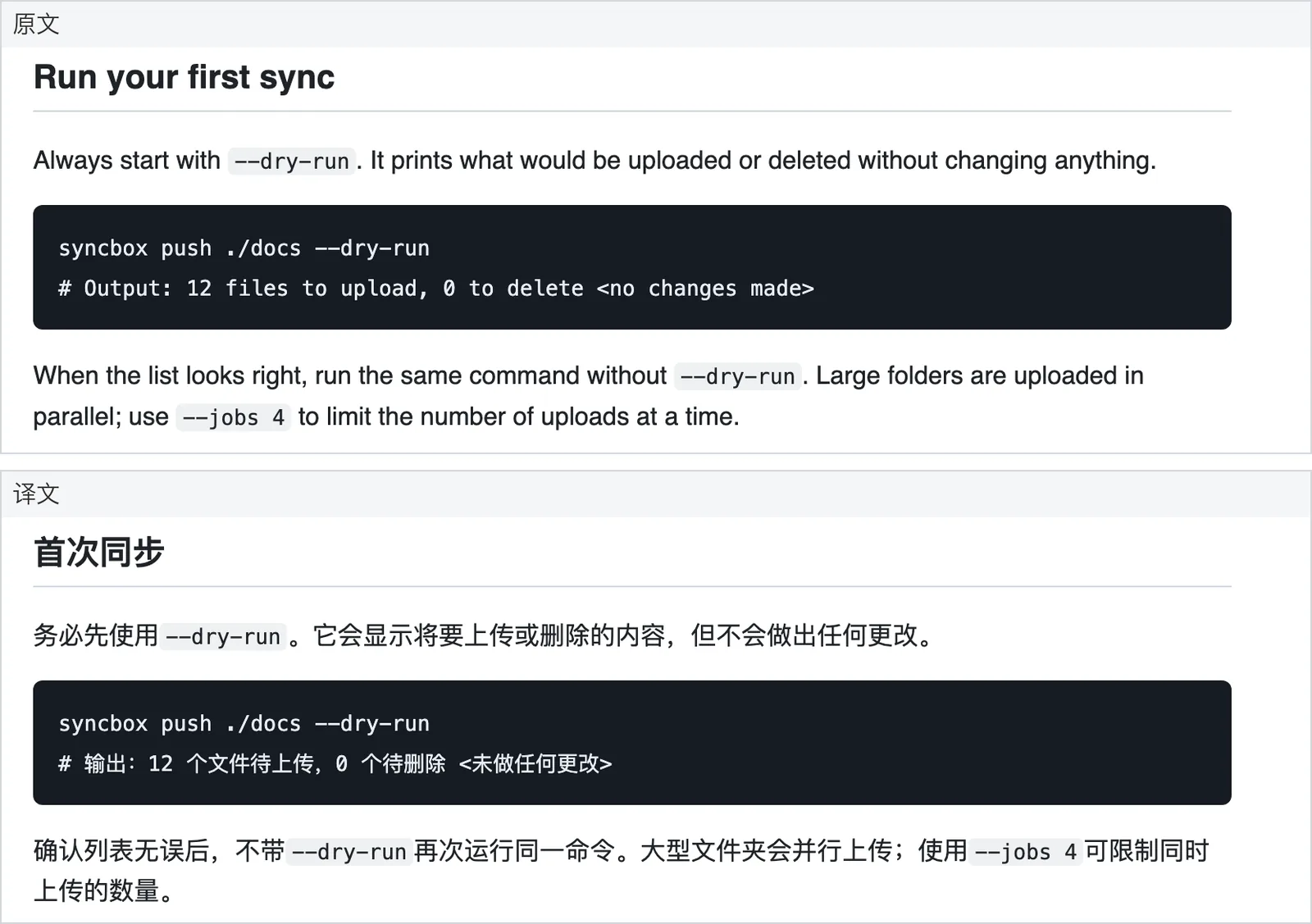
Step 1: Convert Markdown to HTML with Pandoc
Pandoc is a free, open-source document converter available on macOS, Linux, and Windows. Open your terminal in the folder containing your Markdown file and run:
pandoc README.md -f gfm -t html -o README.html
Using -f gfm tells Pandoc to parse GitHub Flavored Markdown—including pipe tables, task lists, and fenced code blocks—into clean HTML elements (<table>, <pre><code>, and <a href="...">).
Note on YAML front matter: By default, converting a fragment without -s (standalone) strips the top YAML front matter block so your configuration keys are never sent to the translator. If your file relies on YAML front matter (for example, in Hugo or Docusaurus), keep a copy of the original --- header block in your editor, translate only the string values you want localized (such as title and description), and prepend that block back onto the final Markdown file in Step 3.
Step 2: Translate the .html File and Review Side by Side
Upload README.html to Equalang Document Translation and choose your target language. Document translation currently covers Chinese, English, Japanese, Korean, Spanish, French and other languages, with automatic source-language detection. The upload page takes one file at a time, and you can queue additional files one after another (up to three documents run concurrently per account, while the rest wait in the queue automatically).
Once the job finishes, open it in the online Translation workspace to inspect the source beside the translation with synced scrolling before downloading README.translated.html. Look specifically for two things:
- Fenced code blocks and CLI commands remain in their original language.
- Inline
<code>identifiers (such as function names or environment variables) sit inside the translated sentences without being altered.
Step 3: Convert the Translated HTML Back to Markdown
Run Pandoc in reverse to turn the downloaded HTML file back into GitHub Flavored Markdown:
pandoc README.translated.html -f html -t gfm --wrap=none -o README.en.md
Passing --wrap=none prevents Pandoc from hard-wrapping long paragraphs at 72 characters, which keeps your git diff clean and avoids breaking long lines inside lists or tables. If your file originally had a YAML front matter block, paste it back at the very top of README.en.md and run a quick local build or Markdown preview to verify every internal anchor link.
Workflow 2: Read Rendered Markdown Directly in Your Browser (No File Conversion)
If you are not maintaining a multilingual repository and just want to read an unfamiliar README.md, release note, or wiki page on GitHub, GitLab, or a documentation site, you do not need to download the .md file at all.
When you open a Markdown file on GitHub in a desktop browser, GitHub already parses the CommonMark syntax and renders it as semantic HTML on the page. You can install the Equalang browser extension (available for Chrome, Edge, and Firefox, with a temporary macOS installer for Safari 18.4+) and turn on bilingual webpage translation:
- Open the rendered Markdown page on GitHub or the project's docs site.
- Open the extension panel, pick your target language, and select bilingual mode.
- As you scroll down, each translated paragraph appears directly beneath its original paragraph, while code blocks and links to other files in the repository stay in place. Clicking the toggle again restores the original page.
If you only need help with an occasional sentence or technical term inside a mostly familiar document, leave full-page translation off and enable text-selection translation in the extension panel instead. Highlight the phrase, click the translation icon next to your cursor, and read the contextual translation in the popup. For a deeper walkthrough of reading documentation and articles this way, see our guide on how to read foreign websites bilingually.
The browser extension and web document translator share the same account and credit balance. You can check token rates on the pricing page—new accounts receive 200 credits on sign-up so you can test either workflow before deciding whether to purchase credits.
Practical Limitations to Watch Out For
Even with an HTML round-trip, a few Markdown edge cases require a quick human check before you commit the file:
- Heading anchor links (
#section-name): Static site generators and GitHub automatically generate heading IDs from the heading text. When a heading like## Getting Startedis translated into another language, its auto-generated slug changes, so in-page Table of Contents links like[Getting Started](#getting-started)must be updated to match the translated heading slug (or given an explicit{#getting-started}ID if your framework supports it). - MDX and custom shortcodes: Files that mix Markdown with JSX components (
<Callout type="warning">) or Hugo shortcodes ({{< note >}}) are not standard CommonMark. Pandoc may escape or strip custom JSX tags during HTML conversion, so test on a single file and inspect the diff before converting an entire docs folder. - Inline code that should be translated: Because HTML translation protects
<code>tags, any human prose that an author accidentally wrapped in single backticks for visual styling (rather than actual code) will remain untranslated.
Frequently Asked Questions
Can I upload a .md file directly to Equalang, or rename it to .txt?
No. Equalang Document Translation supports HTML, PDF, DOCX, PPTX, XLSX, EPUB, and TXT, not .md. Avoid renaming a .md file to .txt: a plain-text job does not parse Markdown syntax, so code blocks, link brackets, and pipe tables will be treated as ordinary prose and often broken. Convert .md to .html first, translate the HTML, and convert it back.
How do I translate a Markdown file to English without translating code blocks?
Convert the Markdown file to HTML using pandoc input.md -f gfm -t html -o input.html, upload input.html to an HTML-aware translator such as Equalang Document Translation with English as the target language, and convert the output back via pandoc output.html -f html -t gfm --wrap=none -o output.en.md. Wrapping code in <pre><code> tags during the HTML step shields commands and syntax from translation.
What is the fastest way to read a foreign-language README.md on GitHub?
Open the repository in Chrome, Edge, or Firefox and use the Equalang browser extension to translate the rendered webpage in place. The extension displays each translated paragraph below the original prose as you scroll while leaving rendered code blocks and repository links intact.