Translate Japanese PDF to English: Fix Layout & Order
 Equalang
In brief
Translate Japanese PDFs to English accurately. Learn how to handle vertical text, ruby furigana, and layout preservation with free tools and AI workflows.
Keywords: translate japanese pdf to english; japanese pdf translation; vertical japanese pdf ocr; translate japanese document to english; japanese pdf layout
To translate a Japanese PDF into English, the best approach depends on whether your document is born-digital or scanned, and whether its text is oriented horizontally or vertically:
- For standard horizontal, digital PDFs under 10 MB and 300 pages: Upload the file directly to Google Translate's Document tab (
translate.google.com/?op=docs). It translates the text into a downloadable English PDF for free. However, multi-column layouts frequently shift, and according to Google's official documentation, text inside images and scanned PDF pages is not translated. - For multi-column documents, technical reports, and tables requiring intact formatting: Use a layout-preserving document translation tool such as Equalang (/documents). It translates the document while retaining columns, tables, headers, and footnotes, lets you review source and translation side-by-side with synchronized scrolling, and offers downloadable alternating bilingual comparison PDFs.
- For vertical Japanese text (縦書き) or scanned pages: Avoid basic copy-pasting. In Japanese vertical writing mode, columns run top-to-bottom and progress from right to left. Standard PDF readers extract text horizontally from left to right, reversing the logical sentence order and producing scrambled English.
Why Japanese PDFs Break in Standard Translators
Translating Japanese PDFs involves structural challenges rooted in Japanese typography. The W3C specification Requirements for Japanese Text Layout (JLReq) outlines several key mechanics that frequently cause translation engines to fail:
1. Vertical vs. Horizontal Text Direction (JLReq Section 2.3.1)
Japanese composition utilizes two text directions: vertical (縦書き) and horizontal (横書き). While official government documents and educational materials are predominantly horizontal, both modes are common across literature, press releases, reports, and boxed callouts.
In vertical writing mode, lines run from top to bottom and advance from right to left. When a standard PDF reader or basic translation tool parses vertical text without orientation detection, it reads bounding boxes horizontally from left to right. This reads the final column first and inverts paragraph progression. As reported in forums like NovelUpdates and the Adobe Community, copying vertical text directly into standard translation tools often scrambles the text order entirely.
2. Ruby and Furigana Annotations (JLReq Section 3.3.1)
Ruby consists of small characters attached to ideographic characters (kanji) to indicate their reading or meaning. When hiragana is used to show kanji pronunciation, it is known as furigana. In horizontal text, ruby sits above the base character; in vertical text, it appears to the right.
Naive PDF text extraction scripts often treat ruby text as standard inline characters. For example, the phrase 気象庁 with furigana きしょうちょう can be extracted as 気象きしょう庁ちょう. Translation models receiving this duplicated string will produce repetitive, garbled English sentences.
3. Text Expansion and Line-Start Rules (JLReq Section 3.1.7)
Japanese characters (kanji and kana) are compact and carry high semantic density without spaces between words. When translated into English, words require spaces. Furthermore, Japanese text adheres to strict line-start prohibition rules (kinsoku shori), preventing closing brackets, periods, and small kana from starting a line. When English text is placed back into the original Japanese text blocks without proportional adjustments, lines overflow and collide with adjacent tables or figures.
4. Embedded Fonts vs. Scanned Images
Many official Japanese PDFs use embedded CID font subsets (such as MS Gothic or Meiryo) with Unicode mapping, allowing clean text extraction. However, if a Japanese PDF consists of scanned pages or flattened images, standard document translation tools will fail to process the text. Google Translate explicitly notes that while text in images and scanned PDF pages can be detected, it will not be translated in the resulting document.
Translating a Japanese PDF Step-by-Step
To see how layout preservation works in practice, consider a publicly available official document: the Japan Meteorological Agency (気象庁, JMA) press release from September 5, 2025, titled 令和7年夏の記録的な高温と7月の少雨の特徴およびその要因等について ~異常気象分析検討会による分析結果の公表~ (available under the Government of Japan Public Data License 1.0 / PDL 1.0).
This 3-page A4 document features characteristics typical of Japanese technical documents:
- A horizontal callout label
報道発表with wide tracking at the top of pages 1 and 2, which extracts as one character per line in standard viewers due to individual character positioning. - Bulleted meteorological findings with full-width characters, symbols, and numbers (
6月,+2.36℃,41.8℃). - Footnote URLs and a large schematic diagram on page 2 illustrating atmospheric air currents.
Below, we demonstrate the translation workflow using Equalang (/documents):
Step 1: Upload the Document
Navigate to the document translation workspace. Upload the PDF file directly. The platform processes one file at a time per upload action, handling up to 3 documents concurrently per account while automatically queuing additional files.
Step 2: Translation and Structure Retention
The document translation engine reconstructs paragraph hierarchies, tables, and multi-column divisions. Sentences split across page breaks are reconnected before translation so context is preserved. Inline numbers, formulas, and symbols like +2.36℃ remain intact.
Step 3: Review in the Translation Workspace
Once processing completes, open the file in the online Translation Workspace. The Japanese original appears on the left panel and the English translation appears on the right panel, complete with synchronized scrolling.
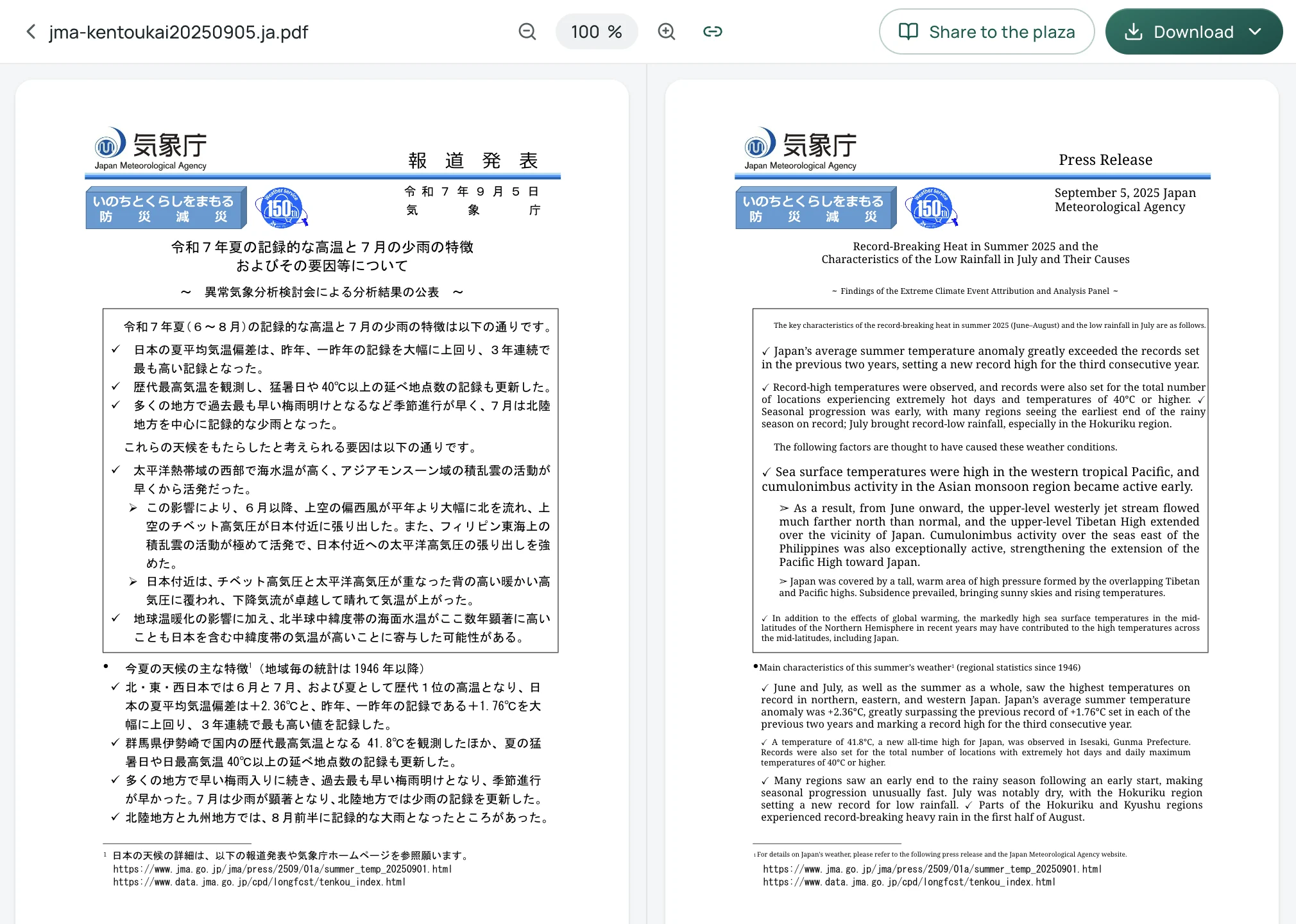
Step 4: Export Your Files
From the workspace, select your preferred export format:
- Translated Document (PDF): An English-only PDF maintaining the original layout, figure placements, and page count.
- Bilingual Comparison Document: A PDF that alternates each original Japanese page with its corresponding English translation page.
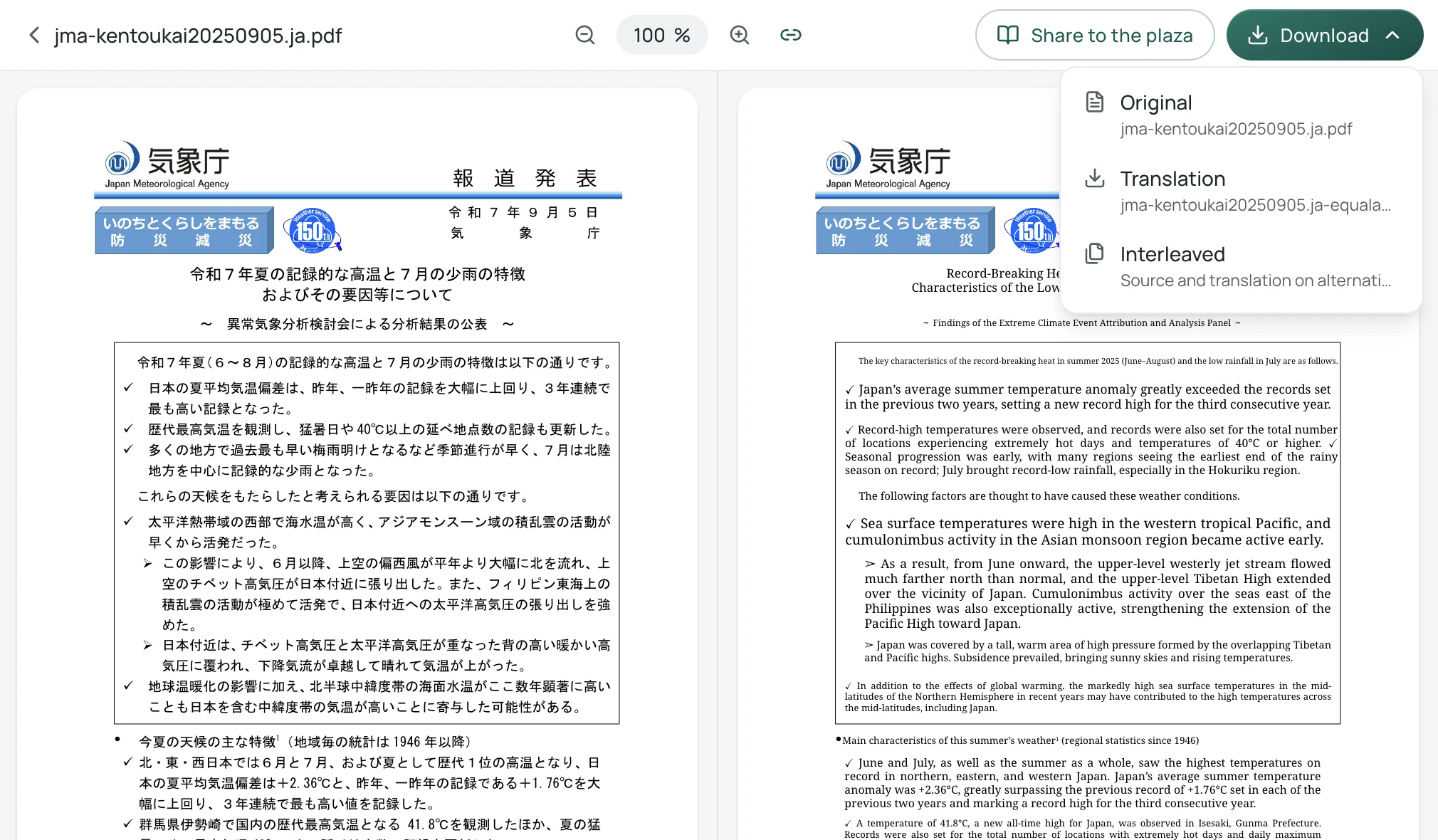
Reading Tip: When opening an alternating bilingual PDF in a desktop PDF viewer, switch to a two-page spread view and disable the separate cover page display. This aligns the Japanese source on the left and the English translation on the right across every spread.
Choosing the Right Tool for Your PDF
Different tools suit different types of Japanese PDFs. Here is an objective comparison of the common methods:
For more complex document workflows—such as handling embedded vector formulas or bilingual literature reading—see our related guide on Why translated PDFs lose formatting, and how to keep it.
Sources
- W3C Working Group Note (11 August 2020): Requirements for Japanese Text Layout (JLReq): https://www.w3.org/TR/jlreq/
- Japan Meteorological Agency (気象庁): Press Release (5 Sep 2025,
kentoukai20250905.pdf): https://www.jma.go.jp/jma/press/2509/05b/kentoukai20250905.pdf - Japan Meteorological Agency: Terms of Use (PDL 1.0): https://www.jma.go.jp/jma/kishou/info/coment.html
- Digital Agency, Government of Japan: Public Data License 1.0 (English Reference Translation): https://www.digital.go.jp/en/resources/open_data/public_data_license_v1.0
- Google Translate Help: Translate documents & webpages: https://support.google.com/translate/answer/2534559?hl=en
- Equalang Documents: https://equalang.com/documents
- Equalang Privacy Policy: https://equalang.com/legal/privacy