How to Translate Google Slides Without Breaking Layouts
 Equalang
In brief
Google Slides has no built-in translate button. Export as PPTX, translate the full deck with auto-fitting text boxes, and re-open in Google Slides.
Keywords: translate google slides; translate google slides to spanish; translate google slides to another language; translate google slides from english to spanish; google slides translation
Google Slides does not have a built-in button to translate an entire presentation. Unlike Google Docs, where you can click Tools > Translate document and get a translated copy in seconds, Google Slides offers no native full-deck translation feature in its menus. The fastest way to translate a presentation without copying and pasting text boxes one by one is a three-step round-trip: click File > Download > Microsoft PowerPoint (.pptx) in Google Slides, upload that .pptx file to Equalang's document translator, and upload the translated .pptx back to Google Drive to open and edit it in Google Slides.
Why Translating Google Slides by Hand Turns Into Layout Repair
When people search for how to translate Google Slides to Spanish or another language, they usually discover the missing feature only after finishing their deck. If your presentation is three slides long, copying each text box into a web translator and pasting the result back is tolerable. On a 25-slide pitch deck, training module, or quarterly review, manual copy-pasting breaks down in three predictable ways:
- Expanded text overflows the slide: When you translate Google Slides from English to Spanish, French, or German, sentences routinely grow 20% to 30% longer. A headline or bullet list that fit neatly in English spills past the bottom of its text box and covers product screenshots or footer graphics.
- Inline emphasis disappears: Pasting plain translated text strips out word-level bolding, italics, and brand accent colors inside sentences, forcing you to re-read every line and re-apply formatting by hand.
- Forgotten cells and speaker notes: Native slide tables require clicking into every individual cell, and speaker notes sitting below the slide canvas are easy to miss until you are already presenting.
What about third-party add-ons in the Google Workspace Marketplace? Many slide translation add-ons work by translating only the single text box you currently have highlighted, which still leaves you clicking through every element on every slide. Others require broad read and write permissions across your entire Google Drive just to process a single presentation.
Step-by-Step: Translate a Full Google Slides Deck via PPTX
Because Google Slides natively exports and opens .pptx files without locking the content into flat images, you can use the PowerPoint format as a clean bridge.
1. Download Your Presentation as a .pptx File
Open your presentation in Google Slides. In the top menu bar, click File > Download > Microsoft PowerPoint (.pptx). Google Slides packages all of your slide text boxes, native tables, and speaker notes into a standard .pptx file on your computer.
Avoid downloading as a PDF if you plan to keep editing the slides later. A PDF flattens slide elements into fixed pages, whereas a .pptx keeps text boxes, table cells, and notes structured for round-trip editing.
2. Translate the .pptx File with Layout Adaptation
Open the Equalang document translator, upload your .pptx file, and choose your target language. Document translation currently covers Chinese, English, Japanese, Korean, Spanish, French and other languages, with automatic source language detection.
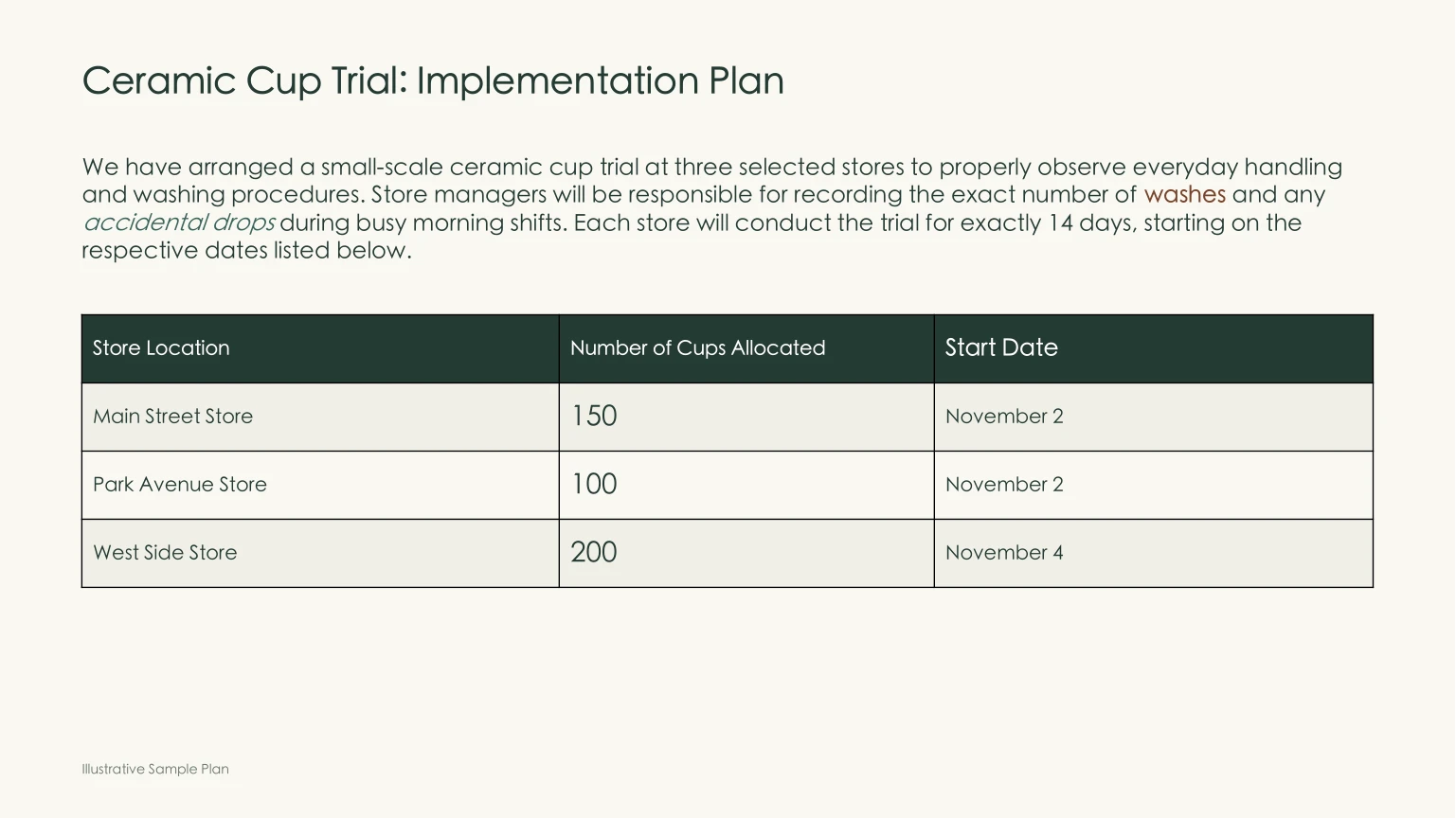
When our engine processes a .pptx deck, it handles the layout headaches that usually take an hour of manual cleanup:
- Auto-shrinking font sizes when text expands: When a translated phrase in Spanish or German runs longer than the original English, the font size inside that text box automatically scales down so the text stays inside its boundaries without overflowing or overlapping adjacent graphics.
- Consistent slide titles and recurring terms: If the same section header or phrase appears across multiple slides, it is translated consistently throughout the file.
- Word-level bold, italics, and color: If you highlighted or bolded two critical words in the middle of a bullet point, that styling lands on the corresponding translated words rather than resetting the whole line to plain text.
- Editable tables and speaker notes: Text inside native slide tables remains in editable cells, and your speaker notes are translated right alongside the slides.
Once the job finishes, you can preview the original and translated slides side by side with synced scrolling in the translation workspace before downloading the translated .pptx file. If you want a deeper look at how slide structures behave during translation, read our guide on how to translate a PowerPoint and keep formatting.
3. Re-Open the Translated Deck in Google Slides
Drag the downloaded .pptx file back into your Google Drive folder. Double-click it and select Open with Google Slides at the top (or click File > Save as Google Slides once it opens). Every text box, table cell, and speaker note remains fully editable for your team to review or present.
What Won't Translate Automatically (and How to Handle It)
No automated workflow makes every slide deck look pixel-identical to the original, and knowing the boundaries upfront will save you surprises before a client meeting:
- Text baked into flat images and screenshots: If a slide contains a PNG or JPG screenshot of a software dashboard, a scanned diagram, or a marketing banner where the text was flattened into pixels,
.pptxtranslation will not touch those pixels. To translate text inside an image before dropping it back onto your slide, run that image through Equalang's photo translator, which places the translated text directly in the original image's positions. - Fixed text locked inside slide masters: Text placed directly on a custom Slide Master layout (such as a hardcoded footer slogan or corner watermark that cannot be clicked on individual slides) stays in the original language. If you need footer text translated, move it onto standard slide text boxes or update the master layout once in Google Slides after re-importing (
View > Theme builder). - Quick visual check on dense slides: While auto-fitting shrinks text to prevent overflow, a slide packed with tiny labels or awkward line breaks may still benefit from a quick 30-second scan in Google Slides to nudge a box width or smooth out a terse bullet point.
Which Method Should You Use?
Frequently Asked Questions
Does Google Slides have a built-in translate tool like Google Docs?
No. While Google Docs has a built-in Tools > Translate document feature, Google Slides does not offer a native button to translate a presentation (you can verify available features in the official Google Docs Editors Help for Slides). Exporting to .pptx and re-importing after translation is the cleanest way to translate an entire deck at once.
Will my translated slides still be editable in Google Slides?
Yes. Because you download the deck as a .pptx file and receive a translated .pptx file back, uploading it to Google Drive and opening it with Google Slides preserves editable text boxes, native tables, and speaker notes.
How do I translate multiple Google Slides presentations at once?
On the document translation page, you upload one .pptx file at a time, and you can queue up as many files one after another as you need. An account processes up to 3 documents simultaneously and automatically queues the rest.