How to Translate Facebook Comments and Fix See Translation
 Equalang
In brief
Fix missing See translation links in Facebook language settings, or translate entire Facebook Group comment threads side by side on desktop.
Keywords: translate facebook comments; translate facebook posts to english; facebook see translation not working; auto translate facebook comments; facebook group translation
To translate Facebook comments or posts, click the inline See translation link right below the text. If See translation is missing or not working, open Settings & privacy > Settings > Language and region on Facebook and check two lists: make sure your target language is set under Language you'd like to have posts translated into, and remove the foreign language you are trying to read from Languages you don't want to be offered translations for. If you read long international Facebook Group threads on a desktop browser and do not want to click See translation fifty times in a row, you can use a side-by-side browser extension so translations load directly beneath each original comment as you scroll.
How to Fix "See Translation" Not Working on Facebook Posts and Comments
Facebook decides whether to show the See translation link under a post or individual comment by checking three separate preferences inside your account. When the button disappears across an entire page or language, one of those three settings usually conflicts with the comment you are viewing.
Follow these steps on desktop or mobile to restore the button:
- Click your profile picture in the top-right corner of Facebook (or tap the menu icon in the mobile app) and go to Settings & privacy > Settings.
- Open Language and region in the left sidebar (details on each option are also listed in the Facebook Help Center).
- Check Facebook language first. This controls your buttons and menus. If your interface is set to Spanish, Facebook assumes you already read Spanish and will rarely offer to translate Spanish comments.
- Open Language you'd like to have posts translated into and set it to your preferred reading language, such as English.
- Open Languages you don't want to be offered translations for. Any language checked in this list suppresses the See translation button under posts and comments written in that language. Uncheck every language you actually want translated and save your changes.
- Refresh the Facebook post or reopen the app, then expand the comment thread again.
Why Some Comments Still Have No Translation Button
Even after you clear your language blocklist, Facebook's native translator skips certain comments by design:
- Very short or slang-heavy replies: One-word reactions, local abbreviations, or phonetic slang often fail language detection, so Facebook renders the comment without a See translation link.
- Mixed-language comments: In expat or border-city Facebook Groups, members often write a sentence in one language and drop street names, English phrases, or product terms into the middle. When two languages share one comment, Facebook may treat it as your primary language and hide the button.
- No bulk auto-translate for comment threads: While Facebook can automatically translate main feed posts in some languages, nested comment threads in active groups still require clicking See translation one comment at a time.
If you run into similar missing-button issues on other social feeds, we covered the platform-specific fixes in our guides on how to translate Instagram comments and what to do when Twitter/X translate is not working.
Translating Long Facebook Group Comment Threads on Desktop
Anyone who follows an international hobby group, a neighborhood housing board, or an overseas marketplace on facebook.com knows where the real information lives: forty replies deep in the comment section, where locals debate whether a landlord is trustworthy or which train ticket actually includes a seat reservation.
Clicking See translation under every single nested reply breaks your reading rhythm. You have two practical ways to translate whole comment sections at once in a desktop browser.
Option 1: Built-In Browser Page Translation (Quick, Replaces Original Text)
If you just need a fast, free overview of a thread in Chrome, Edge, or Firefox, right-click anywhere on the Facebook tab and choose your browser's built-in page translation (such as Translate to English). As you click View more comments on Facebook, the browser translates newly expanded replies automatically.
The trade-off is that native browser translation overwrites the original text in place. In a neighborhood or hobby Facebook Group, losing the original line makes it harder to copy an exact district name for a map search, tell whether a mangled noun was actually a café's proper name, or verify numbers and currency abbreviations.
Option 2: Reading Comments Side by Side in Your Browser
When you want to read the thread in your own language while keeping the original comment right above it, you can install the Equalang browser extension in Chrome, Edge, or Firefox (a temporary macOS installation is also available for Safari 18.4 and above, while the App Store version is still marked coming soon).
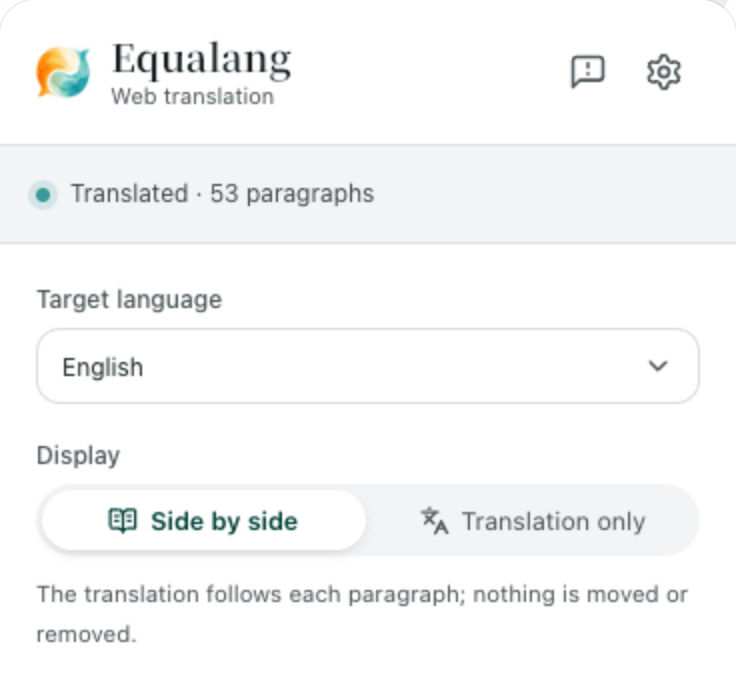
Here is how to use it on a long Facebook Group discussion:
- Open the group post on
facebook.comin your desktop browser and click View more comments or View replies to expand the sub-threads you want to read. - Open the extension panel, set your target language (for example, English), and choose Side by side.
- Scroll down the page. Each post paragraph and comment gets its translation placed directly underneath the original text, loading screen by screen as you read.
- Click the extension toggle once more whenever you want to return the page to the original text only.
Keeping the original comment above the translation solves a constant headache in international groups: when a seller writes a price in local shorthand, drops a subway stop name, or mixes slang with model numbers, you see the English meaning immediately without losing the exact spelling you need to search or reply.
If you only need to check a single unfamiliar phrase inside a comment rather than translating the whole page, you can turn on text-selection translation in the extension panel instead. Highlight the phrase, click the translation icon that appears next to your cursor, and read the contextual translation in a small pop-up.
What to keep in mind on Facebook's layout: Facebook's desktop interface packs a left navigation rail, a central feed, and a right-hand sidebar or chat dock onto the same screen. On narrower laptop windows, floating media or right-hand columns can occasionally crowd a translated line. Collapsing the right chat sidebar or opening the post in its own dedicated permalink tab gives the comment column plenty of room.
How to Translate Event Flyers, Menus, and Screenshot Posts in Facebook Groups
Neither Facebook's See translation button nor any webpage text translator can read words baked into an image. Yet local community groups, school boards, and expat forums routinely post key announcements as JPG or PNG flyers, photographed restaurant menus, or screenshots of municipal notices.
When a group post or comment contains an image with foreign text:
- Right-click the image on Facebook and copy it (or take a quick screenshot of the flyer on your computer).
- Open the photo translator in your browser and select your target language under Translate into.
- Paste your screenshot directly onto the page, drag the image in, or click Choose image to upload a saved JPG, PNG, WEBP, or BMP file.
- Once processing finishes, the desktop page displays the original image and the translated image side by side, with the translated text placed directly where the original words sat so you can zoom in, compare prices or dates, and download the result.
Honest limits with group photos: Clean printed flyers and café menus translate reliably—in our test on an Ignatius Sancho Café menu JPG, drink items and prices (such as iced latte 4.95, iced Americano 4.45, and homemade lemonade 4.75) and the 50p bring-your-own-cup discount note lined up clearly with the original photo. However, translated fonts and line breaks will not look identical to the original graphic design, dense bilingual menus or low-contrast handwriting can leave some original characters behind, and occasional headings (like "Sides" on a menu) can still translate too literally. Always glance at the original image beside the translated view to double-check numbers, dates, and vertical price tags.
Frequently Asked Questions
Why did the "See translation" button disappear on Facebook comments?
In most cases, the language of those comments was accidentally added to Languages you don't want to be offered translations for under Settings & privacy > Settings > Language and region, or your Facebook language matches the comment's language. Removing the language from that blocklist and refreshing the page restores the button for standard comments.
Can Facebook automatically translate all comments in a thread at once?
No. While Facebook can auto-translate main feed posts in supported languages, comment sections still require you to click or tap See translation under each individual comment. To read all comments translated at once, use a desktop browser with either built-in page translation or the Equalang browser extension in Side by side mode.
Why won't Facebook translate a comment that has both English and another language?
When a comment mixes two languages or consists of a very short slang phrase, Facebook's language detector often classifies the whole comment as your default reading language and hides the See translation link. Translating the page in your desktop browser or highlighting the unfamiliar words with selection translation gets around that detection skip.