How to Translate a CSV File Without Breaking Columns
 Equalang
In brief
Translate a CSV file to English or other languages without commas or quotes shifting columns. Convert to XLSX first or isolate text columns by row ID.
Keywords: translate csv file; translate csv file to english; translate csv file online; translate csv file free; csv translation column alignment
Translating a raw CSV file as plain text almost always breaks its structure. Because a CSV file relies on literal commas, line breaks, and double quotes to define where each cell begins and ends, a single comma added inside a translated sentence—or a decimal number like 12.50 localized to 12,50—splits one field into two and shifts every remaining column out of alignment.
To translate a CSV file into English or another language without corrupting your data, you need to separate the cell boundaries from the text inside each cell before any translation happens. Below are the two reliable ways to do this: converting the CSV into an .xlsx workbook so each field is locked in a spreadsheet cell, or extracting only the text columns by row ID in a script.
Why Raw CSV Files Break in Plain-Text Translators
Under the standard CSV specification (RFC 4180), a CSV file has no invisible gridlines—only characters:
- Fields are separated by commas (
,), and records are separated by line breaks (CRLForLF). - Any field that contains a comma, a line break, or a double quote (
") must be wrapped in double quotes. - Any literal double quote inside a quoted field must be escaped by doubling it (
"").
When you paste raw CSV text into a general text translator or upload a .csv renamed as .txt, the translator reads each line as a normal sentence rather than a structured data record. Three failure modes happen immediately:
- Unescaped commas in the translation: A source phrase with no comma (
"Versandkostenfrei ab 50 EUR"or even an unquoted fieldLivraison gratuite dès 50 EUR) translates into"Free shipping, orders over 50 EUR". If the original field was not enclosed in quotes, that new comma creates an extra column on that row. - Localized numbers and decimals: Translating into languages such as German, French, or Spanish often turns
12.50into12,50or1,200into1.200. In an unquoted numeric column,12,50becomes two columns (12and50), shifting product SKUs, inventory counts, and timestamps one column to the right. - Broken quote pairs and typographic quotes: Translators frequently replace straight ASCII double quotes (
"") with curly quotes (“”or« »), or drop a closing quote around a multi-line product description. Once a quote pair is broken, the CSV parser merges hundreds of subsequent rows into a single giant cell.
Original CSV (3 columns: sku, title, price_usd):
SKU-104,Wireless mouse with USB receiver,24.99
Broken output after raw text translation (4 columns instead of 3):
SKU-104,Souris sans fil, avec récepteur USB,24,99
Method 1: Convert CSV to XLSX, Translate Cell by Cell, and Export Back to CSV
For product catalogs, survey exports, localization tables, and financial sheets, the cleanest workflow is to convert your .csv into an Excel workbook (.xlsx) first, translate the .xlsx file so every cell stays isolated, and save the finished sheet back to UTF-8 CSV.
We demonstrate this step with Equalang document translation. Note an important boundary up front: Equalang supports PDF, DOCX, PPTX, XLSX, EPUB, HTML, and TXT—it does not accept .csv files directly. Converting .csv to .xlsx first is both required for upload and what keeps delimiter characters inside a sentence from ever touching your column structure.
Step 1: Import the CSV into a Spreadsheet Editor and Save as .xlsx
Do not simply change the file extension from .csv to .xlsx in your file manager. Open or import the CSV in a spreadsheet editor such as Microsoft Excel, LibreOffice Calc, or Google Sheets so the parser splits the columns properly, then export or save a copy as an .xlsx workbook.
If your CSV contains non-ASCII characters (Chinese, Japanese, Arabic, accented European characters), use Excel's Data > From Text/CSV import dialog and make sure the file origin is set to 65001: Unicode (UTF-8) before loading (Microsoft Excel CSV import/export guide). Double-clicking a UTF-8 CSV without a Byte Order Mark (BOM) in older Excel setups can misread accented characters before you even translate.
Step 2: Translate the .xlsx File
Upload the .xlsx file at Equalang Documents and select your target language (document translation currently covers Chinese, English, Japanese, Korean, Spanish, French and other languages, with automatic source language detection). New accounts receive 200 free credits on sign-up, and you can check how token usage is calculated on the pricing page.
Because an .xlsx file stores each field as a distinct cell object rather than comma-delimited text:
- Commas and line breaks stay inside the cell: If a translated product description gains three new commas and a paragraph break, it remains inside cell
B14. - Pure numbers and formulas are untouched: Numeric cells (prices, quantities, IDs stored as numbers) and spreadsheet formulas are skipped during translation and written back as-is, so
24.99stays24.99and never turns into24,99. - Duplicate strings are translated once: If a category name like
Electronicsor a status label likeIn Stockappears in 2,000 rows, it is only billed and translated once, keeping terminology consistent across rows.
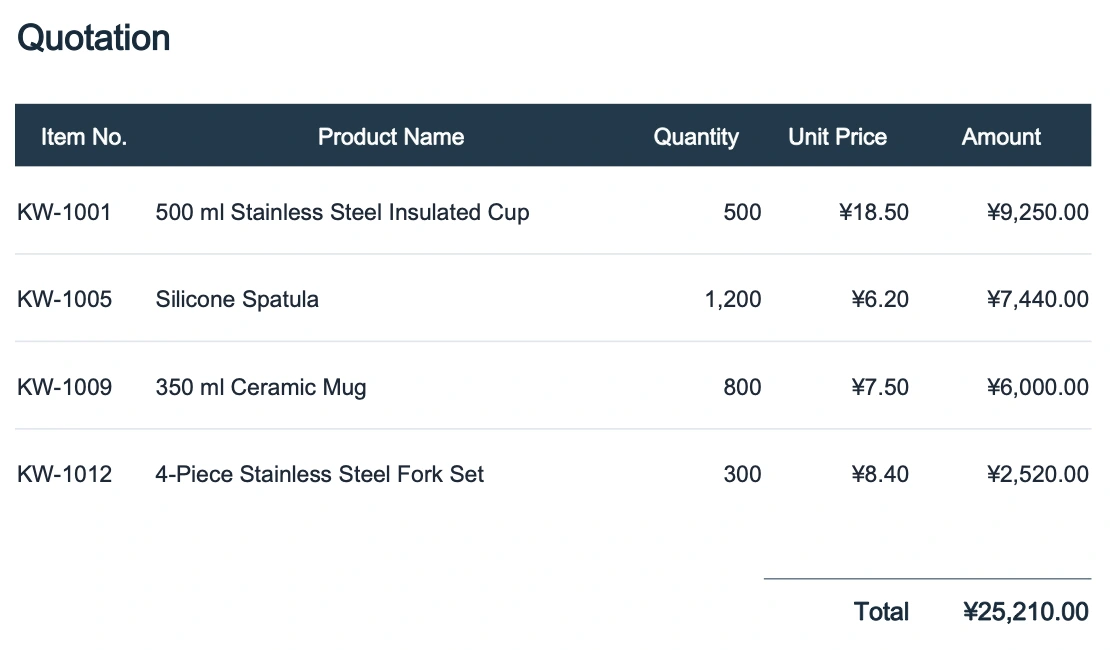
Once the job finishes, you can review the original and translated sheets side by side in the web workspace before downloading. For a deeper walkthrough of workbook behavior, see our guide on how to translate an Excel file.
Step 3: Check Alphanumeric Codes, Then Export Back to UTF-8 CSV
Before exporting back to .csv, scan columns that contain alphanumeric strings—such as SKU codes (BLK-SM-01), unit abbreviations (pcs), manufacturer names, or status flags used by downstream code. While pure numbers are skipped automatically, text cells containing words or abbreviations can be translated (for example, pcs into the target language's word for pieces). If your database import requires exact English enum values in a specific column, copy that original column back from your source sheet.
Also note that sheet tab names are not translated, and if you added Excel formulas that check literal text in quotes (such as =IF(F2="In Stock", 1, 0)), the string inside the formula stays in the source language, so update any formula condition strings to match the translated cell values before exporting.
Finally, in Excel, choose File > Save As and select CSV UTF-8 (Comma delimited) (*.csv). Excel will automatically wrap any translated field containing commas, quotes, or newlines in valid RFC 4180 double quotes.
Method 2: Isolate Text Columns by Row ID in a Script (For Developers & CLI Pipelines)
If your CSV file has hundreds of thousands of rows, lives inside an automated CI/CD pipeline, or has 40 columns where only 2 columns (product_name and description) need translation, converting to .xlsx by hand is not practical.
In a scripted workflow, never send raw CSV lines to an API or LLM. Instead, use a real RFC 4180 CSV parser—such as Python's built-in csv module—to parse each row into memory, translate only the target column indices, and let csv.writer serialize the output back with proper escaping.
Here is the safe pattern in Python (translating only specific columns by header name while leaving IDs, SKUs, URLs, and prices untouched):
import csv

SOURCE_FILE = "catalog_source.csv"
OUTPUT_FILE = "catalog_en.csv"
COLUMNS_TO_TRANSLATE = {"title", "description"}

def translate_text(text: str) -> str:
    # Replace with your translation API call for a single cell value
    if not text.strip():
        return text
    return text  # placeholder

with open(SOURCE_FILE, mode="r", encoding="utf-8-sig", newline="") as infile, \
     open(OUTPUT_FILE, mode="w", encoding="utf-8", newline="") as outfile:

    reader = csv.DictReader(infile)
    writer = csv.DictWriter(
        outfile,
        fieldnames=reader.fieldnames,
        quoting=csv.QUOTE_MINIMAL
    )
    writer.writeheader()

    for row in reader:
        for col in COLUMNS_TO_TRANSLATE:
            if col in row and row[col]:
                row[col] = translate_text(row[col])
        writer.writerow(row)
Why this works cleanly:
newline=""andcsv.DictReaderhandle multi-line cells: Even if a single product description spans five lines with embedded commas and""escaped quotes,csv.DictReaderhands you one clean Python string for that cell.- Non-translatable columns are never touched: Columns like
id,sku,price,image_url, andcreated_atbypass the translator completely, eliminating any risk of corrupted URLs or localized decimals. csv.DictWriterre-quotes automatically: When the translated string comes back with new commas or double quotes,csv.QUOTE_MINIMALwraps the field in"..."and doubles any internal quotes according to RFC 4180.
If you prefer a no-code spreadsheet formula for small files (a few hundred rows), you can also import the CSV into Google Sheets and use =GOOGLETRANSLATE(B2, "auto", "en") in a helper column, then paste values and download as .csv. Keep in mind that sheet formulas fire one request per row and can throttle or time out on thousands of rows.
Quick Comparison: Which Workflow Fits Your CSV?
Frequently Asked Questions
Can I upload a .csv file directly to Equalang?
No. Equalang's document translator accepts PDF, DOCX, PPTX, XLSX, EPUB, HTML, and TXT files, and does not take .csv directly. Open the CSV in Excel or another spreadsheet editor, save it as .xlsx, translate the .xlsx file, and save the translated workbook back to UTF-8 CSV.
How do I stop Excel from turning translated characters into garbled symbols (??? or é)?
Always save and open your CSV as CSV UTF-8 (Comma delimited). When opening a UTF-8 CSV in Microsoft Excel on Windows, if double-clicking shows garbled characters, open a blank workbook and use Data > From Text/CSV with File Origin set to 65001: Unicode (UTF-8).
Why did my numeric columns or prices shift after translating a CSV?
If you translated the CSV as plain text into a language that uses a comma as a decimal separator (such as German, French, or Spanish), 19.99 was likely converted into 19,99 without surrounding double quotes. Converting the CSV to .xlsx before translation keeps numeric cells stored as numbers so they are skipped by the translator and remain unchanged.