Samsung Live Translate Calls: Setup, Limits, and Apps
 Equalang
In brief
Learn how Samsung Live Translate works on calls and WhatsApp, which Galaxy devices and 24 languages are supported, key speech limits, and alternatives.
Keywords: samsung live translate call; galaxy ai call assist; live translate whatsapp; samsung call translation languages; live translate limits
Samsung Live Translate translates phone calls in real time using Galaxy AI on supported Samsung Galaxy phones running Android 14 with One UI 6.1 or higher. During a call, it provides two-way voice translation and live bilingual text on your screen across 24 languages. The feature works directly within the built-in Samsung Phone app and in select third-party VoIP apps including WhatsApp, WeChat, and Line, provided you download the necessary language packs in advance.
However, Live Translate has strict functional boundaries: both callers cannot speak at the same time without triggering translation errors, certain Galaxy A-series devices face contradictory support documentation, and initiating a call requires a compatible Galaxy device. Here is exactly how to set it up, where it works, where it fails, and what to do when calling someone on a different platform.
How to Enable Live Translate for Phone Calls
Live Translate does not activate automatically out of the box; you must turn it on and install your required languages before placing a call.
- Open Settings on your Galaxy phone, then tap Galaxy AI.
- Tap Call assist, then select Live translate.
- Toggle the switch to On.
- Under the language settings, select your language and the other person's language. English and Spanish are pre-installed in the Interpreter app; any additional language requires a free language pack download from this menu.
Using It During a Call
When you place or answer a call in the native Samsung Phone dialer:
- Once both parties are connected and speaking, tap Call assist on the in-call screen.
- Tap Live translate.
- Galaxy AI will announce to both callers that the call is being translated.
- Real-time text transcription appears on your display, and you will hear the translated audio as the other person speaks.
To prevent confusion from hearing both the foreign language and the translated voice simultaneously, open Phone > More options (three dots) > Settings > Live translate. Here, you can enable Mute my voice (so the other caller hears only the translated audio) or Mute other person's voice (so you hear only their translation).
Using Live Translate on WhatsApp, WeChat, and Other Apps
Samsung also supports Live Translate in select third-party calling apps: WhatsApp, Facebook Messenger, Instagram, Signal, Line, WeChat, Telegram, Google Meet, and Kakao Talk.
To enable app-level call translation:
- Go to Settings > Galaxy AI > Call assist.
- Swipe to and tap Live translate in other apps.
- Turn on the toggle next to each supported app you want to use.
During an active VoIP call in WhatsApp or WeChat, swipe down from the top right of your screen to open the Quick settings panel, then tap Live translate to start translating the call. Some features in third-party apps require an active cellular service or internet connection.
Supported Devices and the Galaxy A-Series Question
Samsung requires Android 14 with One UI 6.1 or higher. On supported models, the feature works regardless of what phone the receiving party uses, because the processing occurs entirely on the host Galaxy device.
Out-of-the-Box Supported Devices
According to Samsung's official device documentation, the following models come ready for Galaxy AI:
- Galaxy S Series: S26, S26+, S26 Ultra, S26 FE, S25, S25+, S25 Edge, S25 Ultra, S25 FE, S24, S24+, S24 Ultra, S24 FE.
- Galaxy Z Fold & Flip: Z Fold8, Z Fold8 Ultra, Z TriFold, Z Fold7, Z Fold6, Z Flip8, Z Flip7, Z Flip7 FE, Z Flip6.
- Galaxy Tab Series: Tab S12+, Tab S12 Ultra, Tab A11+, Tab S11 Ultra, Tab11, Tab S10+, Tab S10 Ultra, Tab S10 Lite.
- Galaxy A Series (Listed as AI-ready): A57 5G, A56 5G, A37 5G, A36 5G, A27 5G, A26 5G, A17 5G.
Older Flagships Requiring an Update
These models require a software update to enable Galaxy AI features: Galaxy S23, S23+, S23 Ultra, S23 FE, S22, S22+, S22 Ultra, Z Fold5, Z Flip5, Z Fold4, Z Flip4, A35 5G, A54 5G, Tab S10 FE/FE+, Tab S9/S9+/S9 Ultra, and Tab S8/S8+/S8 Ultra.
The A-Series Contradiction
Samsung's official US support page contains a direct contradiction: it lists several newer A-series models as "ready for AI right away," but on the very same page states that "Features are not available on the Tab S9 FE+, Tab S9 FE, A series phones or tablets, or on other models not listed." Samsung does not publish a per-feature breakdown confirming which specific A-series phones receive Live Translate for calls. User community reports indicate models like the A56 do not consistently offer the in-call translation toggle. If you own an A-series device, check your device's specific Settings > Galaxy AI menu rather than assuming call translation is supported.
Supported Languages: 24 and Counting
As of Samsung's October 14, 2026 global announcement, Galaxy AI supports 24 languages across Call Assist, Note Assist, Interpreter, and Transcript Assist:
- Arabic
- Chinese (China mainland, Hong Kong, Taiwan)
- Dutch
- English (Australia, India, UK, U.S.)
- Filipino
- French (Canada, France)
- German
- Gujarati
- Hindi
- Hungarian
- Indonesian
- Italian
- Japanese
- Korean
- Malay
- Polish
- Portuguese (Brazil, Europe)
- Romanian
- Russian
- Spanish (Mexico, Spain, U.S.)
- Swedish
- Thai
- Turkish
- Vietnamese
(Note: Regional variants in parentheses do not represent separate languages).
Hungarian and Malay rollout began in mid-October 2026, with full availability rolling out across devices and regions in subsequent weeks. Note that regional support pages often lag behind global newsroom announcements; for example, Samsung's US support portal currently lists 20 languages, omitting newer additions like Filipino, Gujarati, Hungarian, and Malay. Always check the on-device language pack download list in Settings for local availability.
Four Practical Limits You Must Know
While Live Translate performs well for structured conversations, real-world calls frequently expose four hard limitations:
- Strict turn-taking is mandatory: Samsung explicitly documents that "Only one person should use Live Translate at a time, otherwise translation errors will occur." If both parties speak over each other, the model attempts to translate overlapping speech fragments, resulting in corrupted output or missed sentences.
- Language mismatch breaks transcription: If a speaker switches dialects, uses unselected phrases, or heavily mixes languages, the recognition engine struggles to parse the sentence correctly.
- On-device packs vs. internet reliance: While Samsung UK documentation noted that Live Translate functions offline once the language pack is downloaded, Samsung US notes that certain features require an active network connection. Calls over cellular networks or third-party apps like WhatsApp still require underlying data connectivity to maintain the voice stream.
- Device lock-in: You can call any standard phone number, but initiating the translation requires a supported Galaxy phone in your hands.
An Alternative When Calling Non-Samsung Users
If you do not own a compatible Galaxy flagship, or if you need to conduct a cross-language call with a client who is working from a desktop computer, an iPad, or an iPhone, hardware-bound solutions are not viable.
In those situations, browser-based translation tools provide an accessible alternative. For example, Equalang offers a web-based Translated Call feature that requires no app installation on either end.
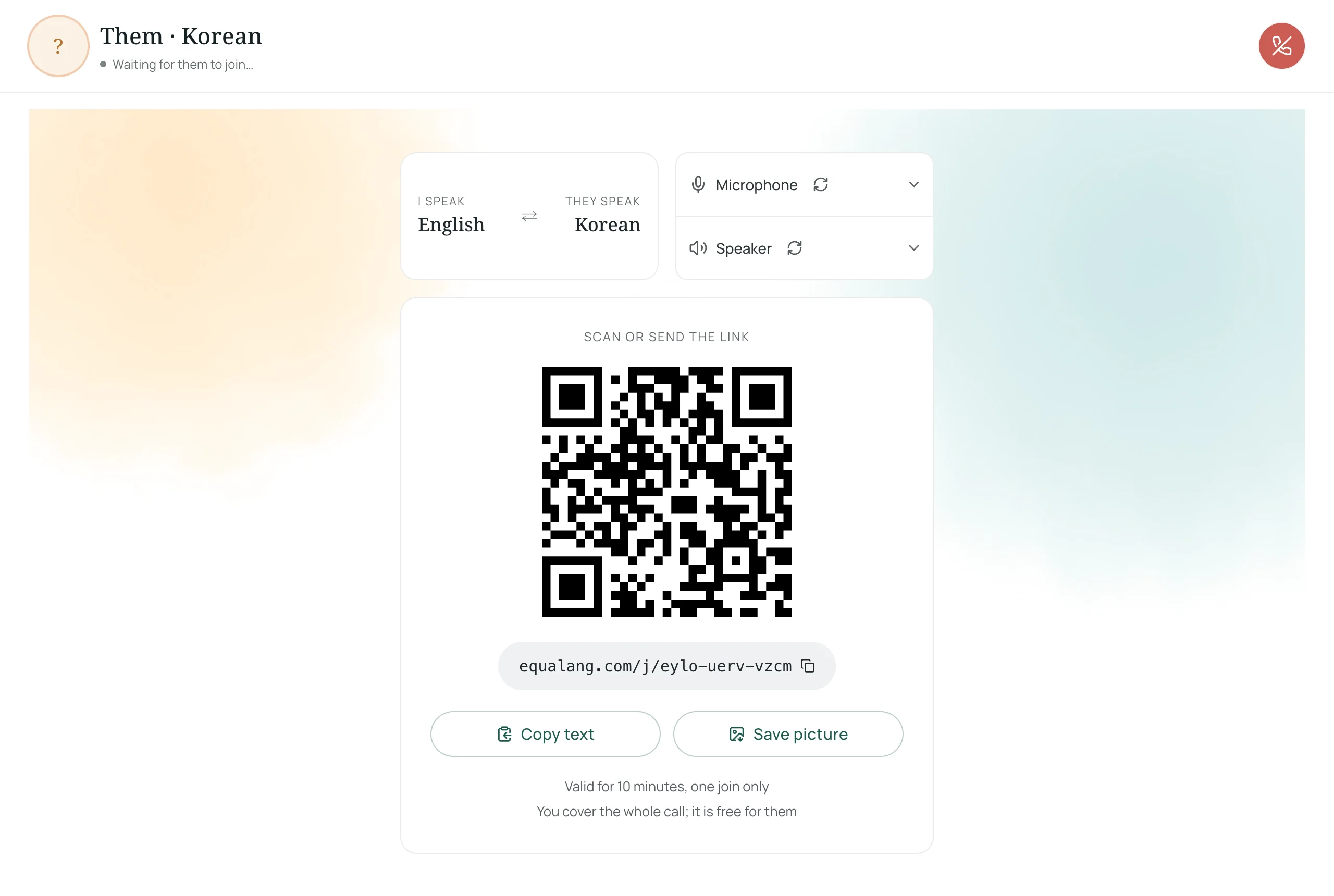
In Equalang, the host signs into the website, selects the language pair (such as English and Korean), and generates a secure call link. The counterparty simply opens the link in their mobile or desktop browser, enters their name, and joins without registering or installing software.
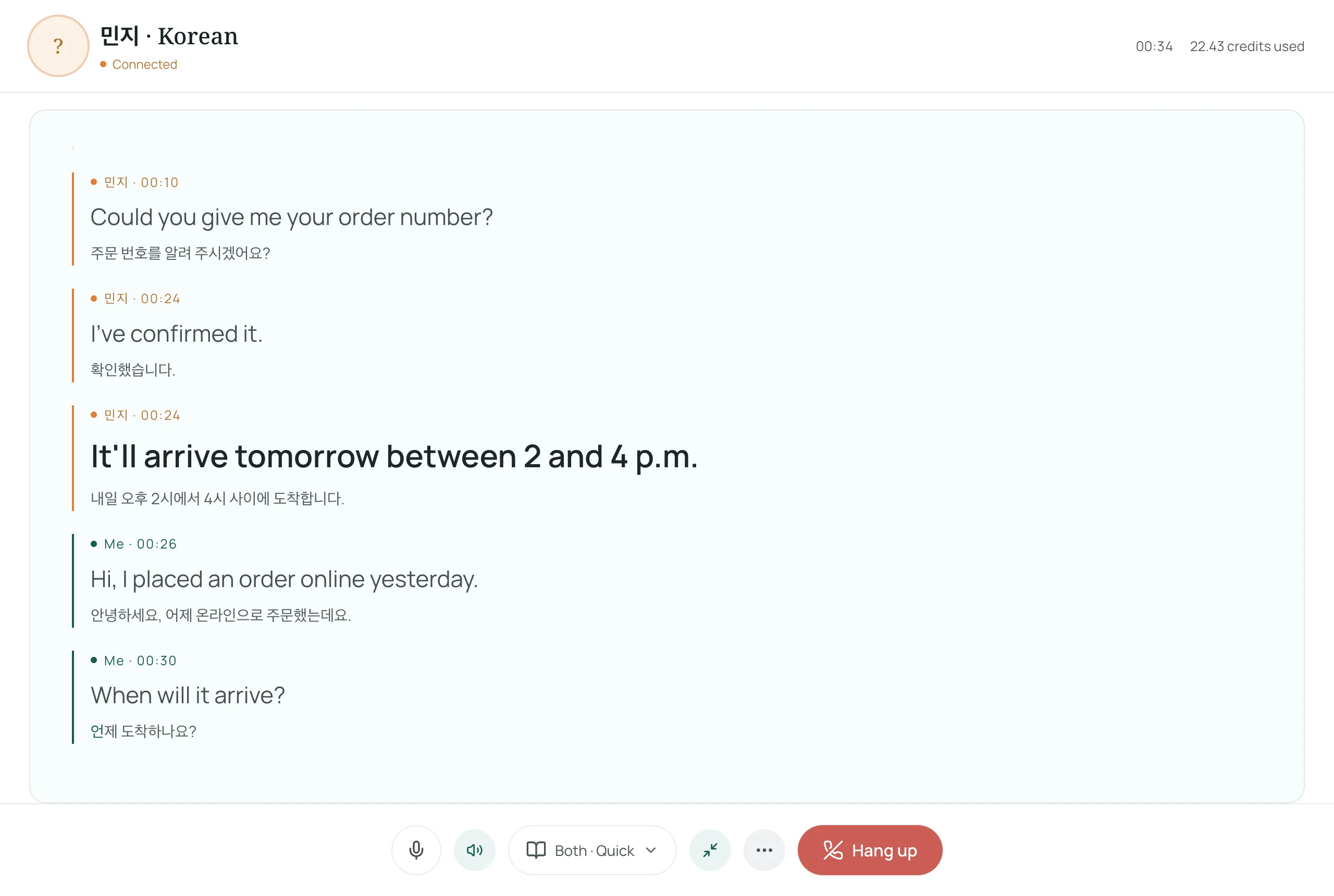
During the call, both participants speak their native language. Live bilingual subtitles appear on screen, and synthesized voice translation plays aloud automatically. Because the host covers the session usage (billed at 35 credits per audio minute for live captions, with voice synthesis billed separately at 150 credits per output audio minute), external clients join friction-free. Call transcripts are stored for 14 days so you can export notes, and data is never used to train AI models. For cross-border business workflows, see our practical guide on calling a client who speaks another language.
Will Samsung Charge for Live Translate in the Future?
Pricing terms for Galaxy AI have caused widespread user confusion due to conflicting dates across regional portals. Samsung Australia previously published support copy stating Galaxy AI features would be "free until the end of 2025"—a date that has now passed.
Samsung's current US terms clarify the official stance: "Galaxy AI basic features provided by Samsung are free." However, Samsung explicitly notes that enhanced AI features and third-party AI features are subject to different terms and may incur fees in the future. Live Translate is currently categorized as a basic, on-device Samsung intelligence feature, but Samsung has not promised that all AI capabilities will remain free indefinitely.
Real User Troubleshooting (FAQ)
Why is Live Translate missing during my WhatsApp call?
Verify that you have enabled third-party support under Settings > Galaxy AI > Call assist > Live translate in other apps and toggled WhatsApp on. During the call, pull down the Quick Settings panel from the top right to tap the Live Translate toggle. If it still does not appear after a recent One UI update, community moderators recommend toggling the app permission off and on, then clearing the Samsung Keyboard cache.
Does Live Translate work on the Galaxy A56?
While Samsung's general Galaxy AI page lists the A56 5G among AI-ready devices, it also states elsewhere that A-series phones do not receive Galaxy AI features. Samsung has not confirmed Live Translate availability for individual A-series models, and user forum reports indicate the feature is absent on several A-series units.
Why does the translation cut out or produce nonsensical text?
This almost always stems from overlapping speech. Ensure both parties wait for the synthesized voice translation to finish before replying. In addition, check that both callers are speaking the exact language designated in your Call Assist language settings.
Sources
- Samsung US Support, "Call assist: Live translate calls on your Galaxy phone" (ANS10000935): https://www.samsung.com/us/support/answer/ANS10000935/
- Samsung US Support, "Use features with Galaxy AI on your Galaxy phone and tablet" (ANS10000753): https://www.samsung.com/us/support/answer/ANS10000753/
- Samsung Global Newsroom, "Samsung Expands Language Support Across AI Experiences on Galaxy" (October 14, 2026): https://news.samsung.com/global/samsung-expands-language-support-across-ai-experiences-on-galaxy
- Samsung UK Support, "How to use the Galaxy AI features on the S24 series": https://www.samsung.com/uk/support/mobile-devices/how-to-use-the-galaxy-ai-features-on-the-s24-series/
- Samsung AU Support, "How to use the Interpreter Setting on my Galaxy device": https://www.samsung.com/au/support/mobile-devices/how-to-use-interpreter-setting/
- Equalang Translated Calls: /call
- Equalang Rates & Pricing: /pricing