How to Turn On Microsoft Teams Live Translated Captions
 Equalang
In brief
Turn on live translated captions in Microsoft Teams meetings, fix the greyed-out caption language menu, or get live bilingual captions without Teams Premium.
Keywords: microsoft teams live translated captions; microsoft teams live translated captions in meetings; microsoft teams live translation subtitles; live caption translation teams; bilingual captions for teams meetings
To turn on live translated captions in a Microsoft Teams meeting, click More (...) in the meeting toolbar, select Language and speech > Turn on live captions, and then click Caption settings (the gear icon next to the caption box) to change your Caption language. While standard single-language live captions are free for all Microsoft Teams users, translating those captions into another language in real time requires a Teams Premium license held by either the meeting organizer or your own account. If no one holds Teams Premium—or if you need to see the speaker's original words alongside the translation—you can run a browser-based live interpreter like Equalang Live Listening beside your meeting window without installing software or asking IT for an upgrade.
How to Enable Native Live Translated Captions in Microsoft Teams
When your organization or the meeting host has active Teams Premium licensing, turning on translated subtitles takes less than a minute inside the meeting controls.
- Open the caption menu: Inside your active Teams meeting window, click More (...) at the top of the screen, go to Language and speech, and select Turn on live captions.
- Check the spoken language first: Click the Caption settings gear icon in the bottom-right corner of the caption tray. Verify that Spoken language matches the language the presenter is currently speaking.
- Select your translated caption language: Under Caption language, open the dropdown menu and choose the language you want to read. Only your screen changes; other attendees continue seeing their own chosen language.
Why Spoken Language Mismatches Break Translation
The most common reason Teams live translation subtitles output gibberish has nothing to do with network quality. Teams listens for whichever language is set under Spoken language. If a meeting defaults to English (en-US) while a colleague in Munich starts presenting in German, the speech recognizer tries to force German audio into English words before translating them.
Before blaming the translator, open Caption settings and make sure Spoken language reflects what is actually being spoken on the floor. Note that switching Spoken language affects the recognition setting for everyone in the meeting who uses live captions.
Why Is "Caption Language" Greyed Out in My Teams Meeting?
If you can turn on live captions in a meeting, see the speaker's original language scrolling across the bottom, but find the Caption language dropdown missing or locked, you have hit a licensing or guest boundary.
According to Microsoft's official live captions documentation, Microsoft separates captioning into two tiers:
- Standard Live captions (Free): Included with standard Microsoft Teams plans. It transcribes speech into text in the same language being spoken.
- Live translated captions (Paid add-on): Requires a Teams Premium license. You can select a translated caption language only if the meeting organizer has a Teams Premium license, or if your own corporate IT administrator has assigned a Teams Premium license directly to your user account.
This hits hardest when you join an external client call, vendor pitch, or cross-company workshop as a guest. If the external organizer does not subscribe to Teams Premium, you cannot unlock native translated captions on your end unless your home tenant assigns you a personal Teams Premium seat.
Even when Teams Premium is active, native translated captions have two practical trade-offs for technical and cross-border teams:
- Single-language replacement: Teams replaces the original spoken text with the translated line. You cannot view the original sentence and the translation side by side to verify product names, acronyms, or figures.
- No downloadable caption log for guests: Live captions disappear as the conversation moves forward unless the organizer enables full meeting transcription and grants you post-meeting access.
How to Get Live Bilingual Captions Without Teams Premium
When you are joining an external call without Teams Premium, or when you want to read both the speaker's original words and the translation together, you can run Equalang Live Listening in a browser tab right next to your Teams window.
Because it runs entirely in the browser on a laptop, tablet, or phone, you do not need to install a desktop plugin, invite a third-party bot into the client's meeting participant list, or wait for IT administrator approval.
Step-by-Step Setup Alongside a Teams Call
- Open Live Listening: Go to Live Listening in your browser and place the window next to your Microsoft Teams call.
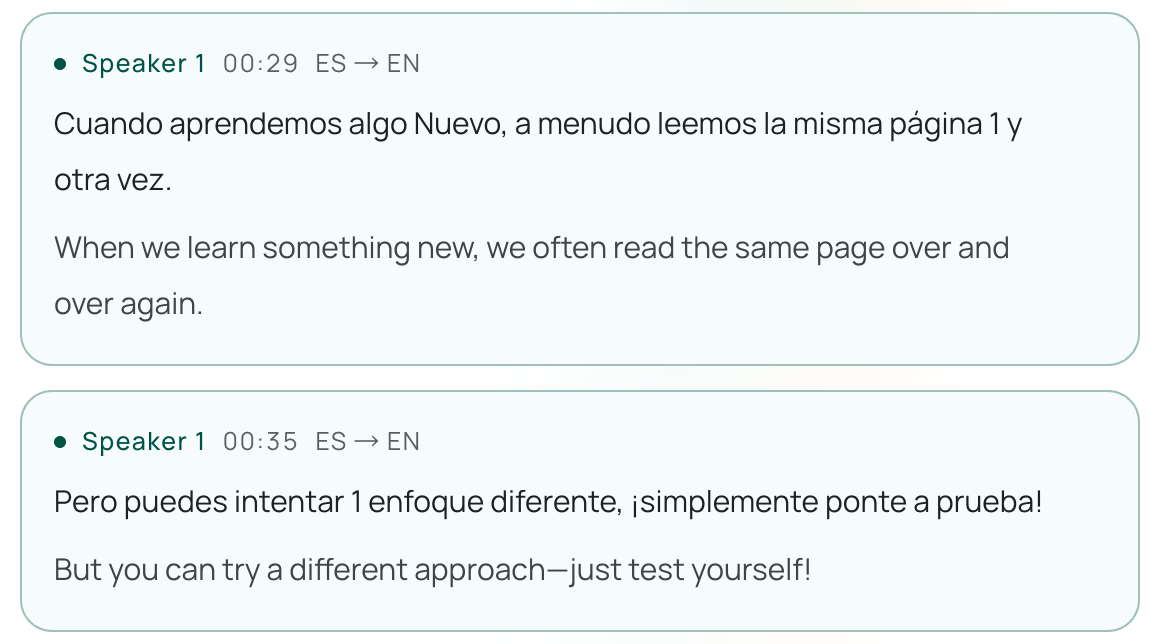
- Set the language pair: Choose the language you want to read under I read / I hear, and select the presenter's language under They speak.
- Pick your caption layout:
- Side-by-side · Skim: Displays your target language in large text on top and the original spoken language in smaller text underneath—helpful when you need to follow fast Q&A at a glance.
- Side-by-side · Study: Puts the speaker's original language in large text with your translation underneath, ideal when you understand part of the language and only need to check unfamiliar phrasing.
- Choose Standard or Low latency: Start listening. You can pause and resume at any time during breaks; silence and muted intervals are not sent for recognition and do not use credits.
Practical Boundaries to Keep in Mind
No automated live captioning tool—whether built into Microsoft Teams or run in a browser—has zero latency or matches a human simultaneous interpreter. Keep these real-world limits in mind before a high-stakes call:
- Audio routing matters: If you wear headphones during a Teams call, your computer or phone microphone cannot hear the meeting speakers unless you route system audio or play the call through speakers in a quiet room. Test your audio source for 30 seconds before the main presentation begins.
- Overlapping voices and heavy noise: When two participants talk over each other or someone speaks from a reverberant conference room microphone far from the table, speech recognition accuracy drops. Keep the original-language line visible so you can spot misheard acronyms.
Exporting Bilingual Transcripts, AI Summaries, and Recorded Meetings
Once your call wraps up, you often still need to confirm action items or review a complex technical walkthrough.
- Export a bilingual transcript immediately: When you stop a session in Live Listening, you can export the full text log containing both the original speech and the translation. Session transcripts stay in your History until you delete them (while optional audio recordings are kept for 6 months).
- Generate an AI meeting summary: After ending a session, you can generate an AI summary tailored to the Meeting & negotiation scenario in your chosen language. It extracts action items, owners, and deadlines, and includes a View original link on every bullet point so you can jump straight back to that exact moment in the transcript to verify the wording. (Because AI summaries are generated from the session transcript and can contain errors, always double-check critical commitments against the original text.)
- Translate recorded
.mp4Teams meetings: If a colleague couldn't attend live and sends you a recorded.mp4video file (up to 180 minutes per file), upload it to Equalang Document Translation. You can export translated or bilingual.srtand.vttsubtitle files or a plain text transcript. - Comparing meeting platforms: If your team splits calls between Microsoft and Zoom, see our guide on Zoom translated captions for how licensing and bilingual workarounds compare there.
Frequently Asked Questions
Are live translated captions free in Microsoft Teams?
No. Standard single-language live captions are free in Microsoft Teams, but live translated captions require a paid Teams Premium license assigned either to the meeting organizer or to your user account.
Can I see both the original language and translated subtitles at the same time in Teams?
Not in the native Teams caption tray. Choosing a translated Caption language in Microsoft Teams replaces the original spoken text with the translation. To read both languages side by side, keep Teams captions set to the spoken language—or open Equalang Live Listening beside the call to view bilingual captions in one window.
Why are my Teams live translated captions showing the wrong words?
Check Caption settings > Spoken language inside the meeting. If Spoken language is set to English while the speaker is talking in Spanish, French, or Japanese, Teams misrecognizes the audio before translating it. Match Spoken language to what the presenter is currently speaking.